


Summary: Claude Code’s desktop app can SSH into a remote machine and run sessions there against your repo, MCP servers, and ~/.claude config. Setup is a four-field dialog, assuming ssh user@host (where user is your username and host is the hostname or IP) already works from your terminal. The non-obvious caveat: session history is siloed. The desktop app, the CLI on the remote, and the VS Code extension (if you use it) on the remote each keep separate session lists.
I generally use a Windows desktop or laptop and a Linux dev VM, sometimes with a Mac thrown into the mix. The repo, the MCP servers, and the ~/.claude config with all my custom instructions and skills live on a dedicated development environment on the Linux VM. The Windows or Mac machines are the comfortable daily drivers that I use VS Code on, with remote SSH access to the Linux VM.
I also want to be up to date on Anthropic’s desktop app situation. The desktop app’s SSH option supports exactly what I like: an easy desktop interface for remote Claude Code instances. (You can do the same thing with Codex and their Codex desktop app.) The setup for a SSH connection in Claude Code Desktop is straightforward:
First, if you haven’t already, install Claude Desktop for Windows or Mac.
Here are the key ingredients:
~/.ssh/authorized_keys on the remoteIf ssh user@host already works from your terminal, you are done with prereqs. The desktop app handles installing Claude Code on the remote automatically the first time you connect, so the claude binary does not need to exist there yet.
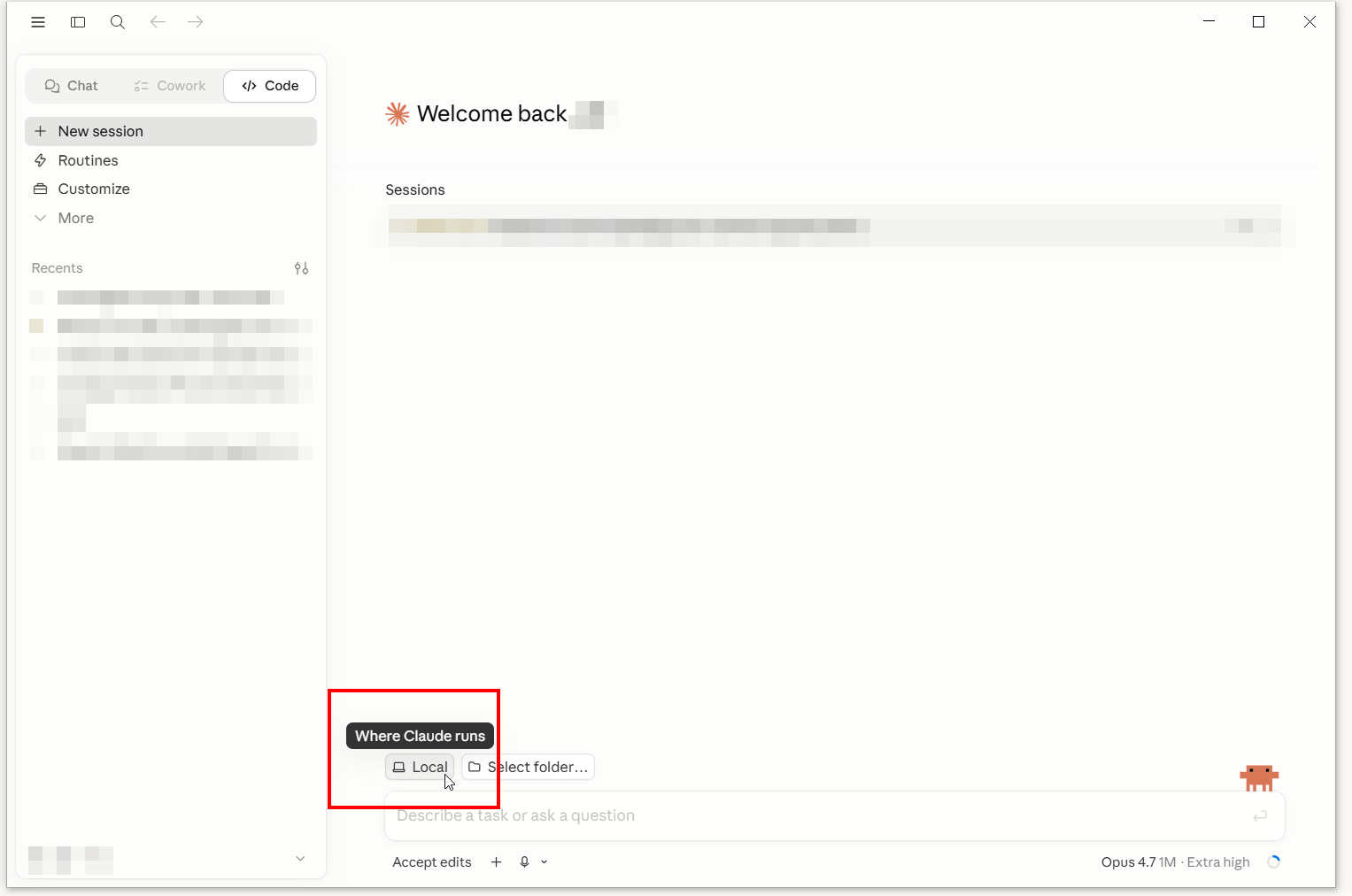
The app opens to a “Welcome back” screen. Below the prompt box at the bottom is a small environment selector labeled “Where Claude runs.” Click it.
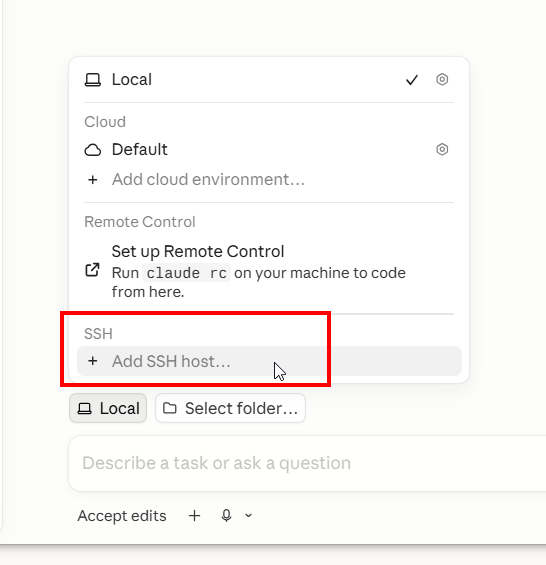
The popover shows Local, Cloud, Remote Control, and SSH sections. Click Add SSH host… under SSH.
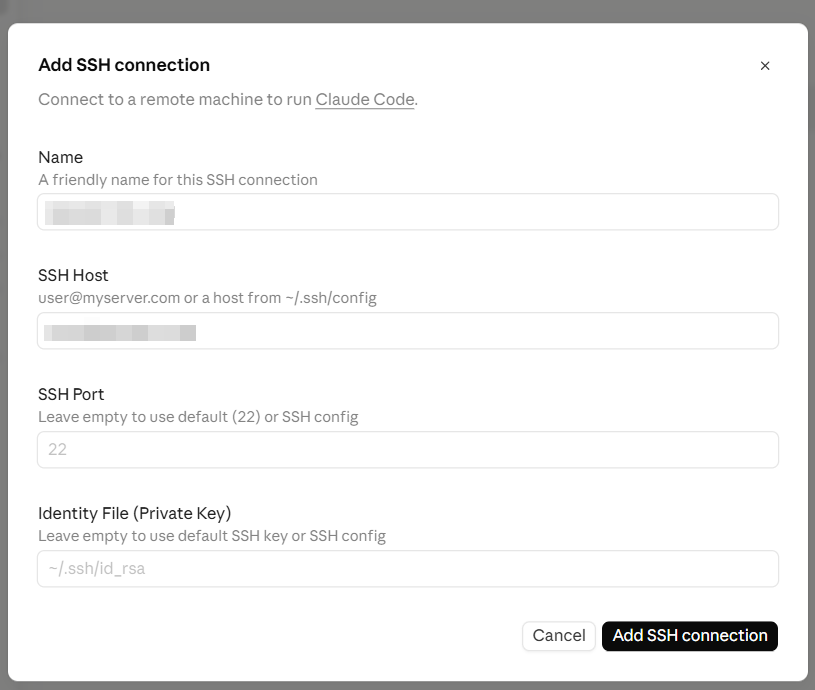
user@hostname-or-ip (fill these in with your details)Heads Up
If you leave the SSH Host as just an IP like 192.168.1.10 without the user@ prefix, Claude Code likely defaults to your local username (Windows username or Mac short name). On a Linux box where the remote account is named something else, the connection fails and you get a password prompt that no password can satisfy, because the username itself is wrong. Always prepend the remote user.
Before saving the dialog, you can also confirm SSH key auth works from your terminal:
ssh youruser@192.168.1.10 "uname -s && whoami"Expected output: Linux on its own line, then the username you connected as. No password prompt. If you do get a password prompt, the usual cause is that OpenSSH cannot find your key in its default location: C:\Users\<you>\.ssh\ on Windows or ~/.ssh/ on macOS. It usually looks for id_ed25519 or id_rsa. Either point the Identity File field at the real key path, or move the key to the default location. If the key is in the right place and you still get prompted, the next thing to check is whether your public key is actually in ~/.ssh/authorized_keys on the remote.
Note: do not test for the claude binary at this stage. The desktop app installs Claude Code on the remote during the first connection, so a clean remote will not have it yet.
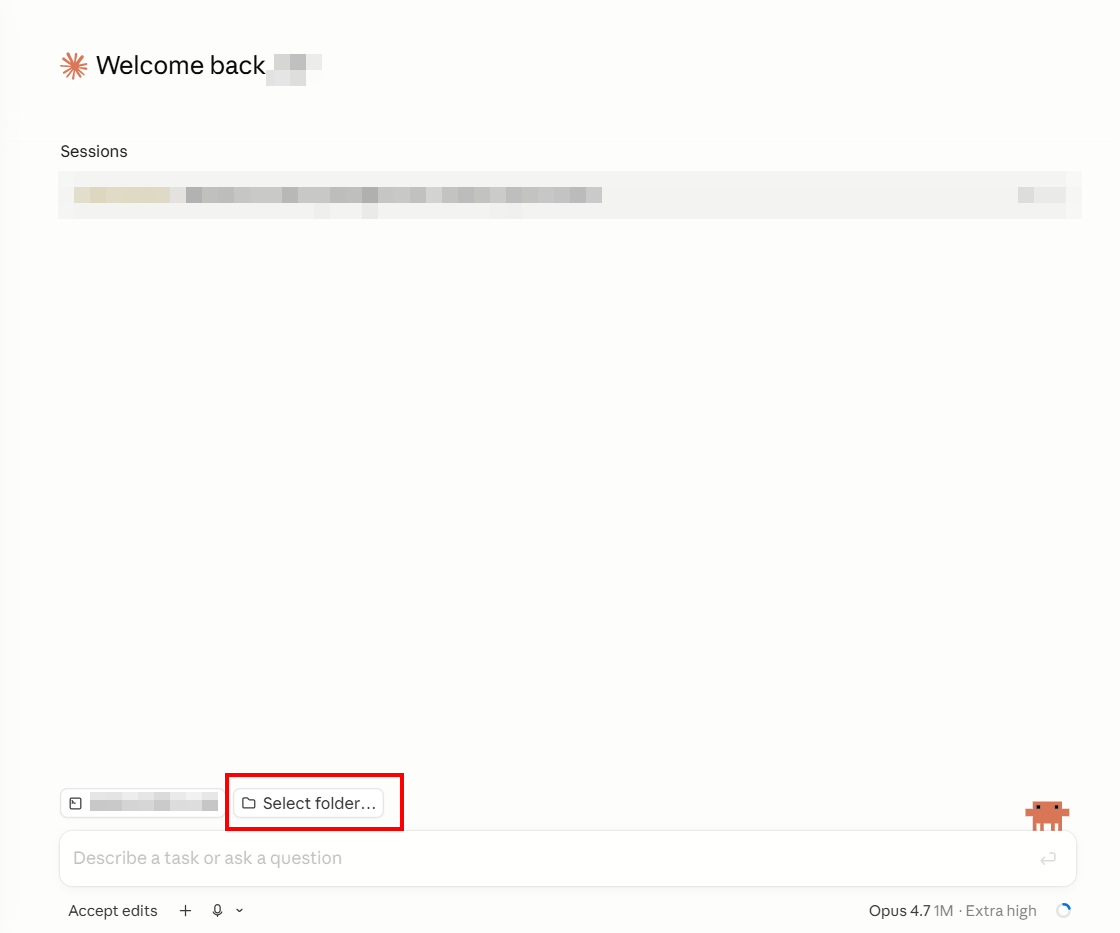
The folder you pick is on the remote machine, the same place you would cd to in a terminal. That path becomes the working directory for the session and the root that Claude’s tools operate against.
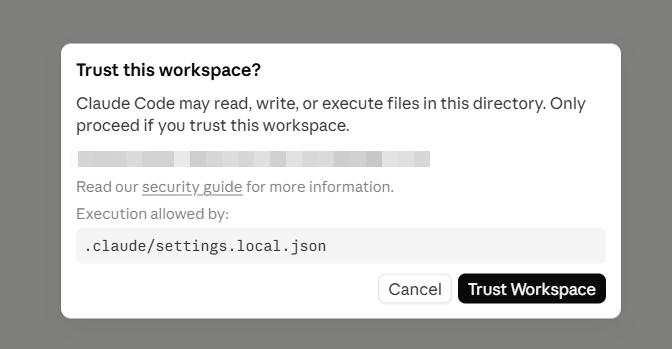
If you have used Claude Code in that folder before, a .claude/settings.local.json already exists and the app shows it. Click Trust Workspace.
That is the happy path. You can prompt the session like any local Claude Code window.
Here is the part that might catch you off guard. The CLI on the remote, the desktop app on the local machine, and the VS Code extension all have different session histories. Same dev machine, same ~/.claude/ config, same .jsonl files on disk. So you might expect some coherency between sessions, but that is not the case:
Per Anthropic’s own sessions documentation: “The desktop app, Claude Code on the web, and the VS Code extension each maintain their own session history.”
This is not a big deal b/c you should have plenty of documentation in your projects to get going with new sessions etc. But it can still be a bit of a pain if you just want to hop between sessions. A quick handoff prompt and you will hopefully be fine. 💪
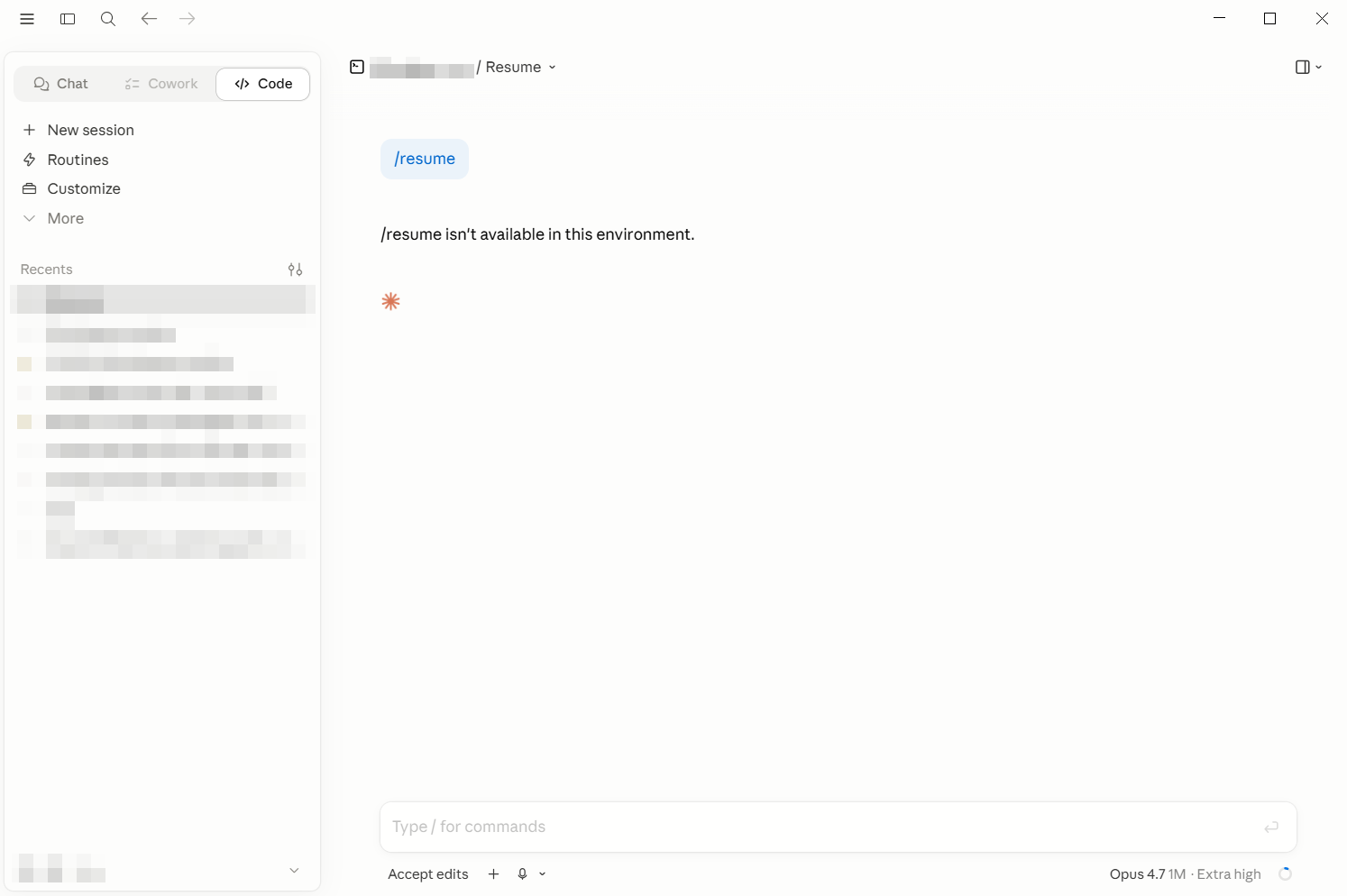
In practice:
/resume, the CLI command for picking a past session, is not available in the desktop app. I tried. The reply was literally: “/resume isn’t available in this environment.”What does still merge across surfaces:
~/.claude/ config: CLAUDE.md, settings, auto-memory, MCP servers, plugins.So the silo is purely the conversation history list. To browse historical sessions, you still need a terminal on the remote and claude --resume, or the VS Code extension’s resume picker.
If your remote is on DHCP, its IP can change after a reboot and silently break your saved SSH connection. Open your router admin, set a reservation for the remote’s MAC at its current IP, and the IP stays put through future leases.
Hit a snag I did not cover? Visit with your own Claude session. Hand it the error message, point it at this post for context, and ask it to walk through your specific setup. 👍
One tip that matters: tell Claude to research before advising. App versions ship with new dialogs, defaults change, and a Claude that verifies the current state of things beats one pattern-matching from training data. Something like “check the current docs and confirm before answering” goes a long way.
If ssh user@host already works from your terminal, the desktop app’s SSH connection is four fields and a folder selection. The interesting part is the session-history silo: desktop, CLI, and VS Code each keep their own Recents list, so claude --resume on the remote will not populate the desktop app’s sidebar. Happy coding!
Accurate at time of writing. Something off? Drop a comment.
此内容由惯性聚合(RSS阅读器)自动聚合整理,仅供阅读参考。 原文来自 — 版权归原作者所有。