











Let's dive into CloudCannon's most powerful features: branching workflows and Projects. Whether you're managing a complex website or working with a team, understanding how branching works in CloudCannon can make your content management process much smoother.
Branching your sites is like having a sandbox where you can play around with changes before they go live. In CloudCannon terms, you have:
Confused about any other CloudCannon terms? Check out our simple glossary, below.
CloudCannon gives you a range of publishing modes, and each has its place depending on your team's needs.
Perfect for when you need changes to go live fast. Your team can push changes directly from your branched site to your Publish Branch without any approval process. It's quick, it's simple, and it gets the job done.
If you need a bit more oversight, pull requests are your friend. This mode requires another team member to review and approve changes before they go live. It's great for catching potential issues before they hit production, handing over to different departments (e.g. making sure that your legal team approves!), and triggering external builds and workflows.
If you're going the pull request route, here's how to make it smooth:
Your reviewers can then see a complete list of changes under the Changes tab before deciding to publish or close the request.
Finally, my personal favorite, and the option we recommend to all teams using CloudCannon. Using a staging branch means you can instantly publish your changes to a private version of your site, which you and your team can use as a final check for quality control. (This is the approach we use internally for cloudcannon.com, for both code and content changes to the site.)
Note that a staging branch sits between your live site and your branch site(s) — so the staging site will be the designated Publish Branch for all of your branch sites. (And your live site will be the Publish Branch for your staging site!) If this sounds slightly complicated, check out the below section on Projects.
Here's another cool feature: CloudCannon lets you know when your Publish Branch has updates. You'll see a notification icon (with a downward arrow) on your Publish button when there are changes available.

This can be super helpful when you have long-lived branches, when multiple team members are working on different features, or when you need to make sure your changes play nicely with others.
Branch cleanup: By default, CloudCannon can automatically delete your branch sites after publishing. This keeps things tidy, especially if you create branches for specific changes.
Custom commit messages: You can set up templates to help maintain consistent communication across your team as you publish.
Disable publishing: Need to prevent a branch from publishing? No problem! You can disconnect it from your Publish Branch anytime through your Site Settings.
If you really lean into the power of branching your website, or if you’re managing multiple sites within a larger organization, it’s possible that you’ll encounter a few problems trying to manage multiple sites. How can you keep track of everything?
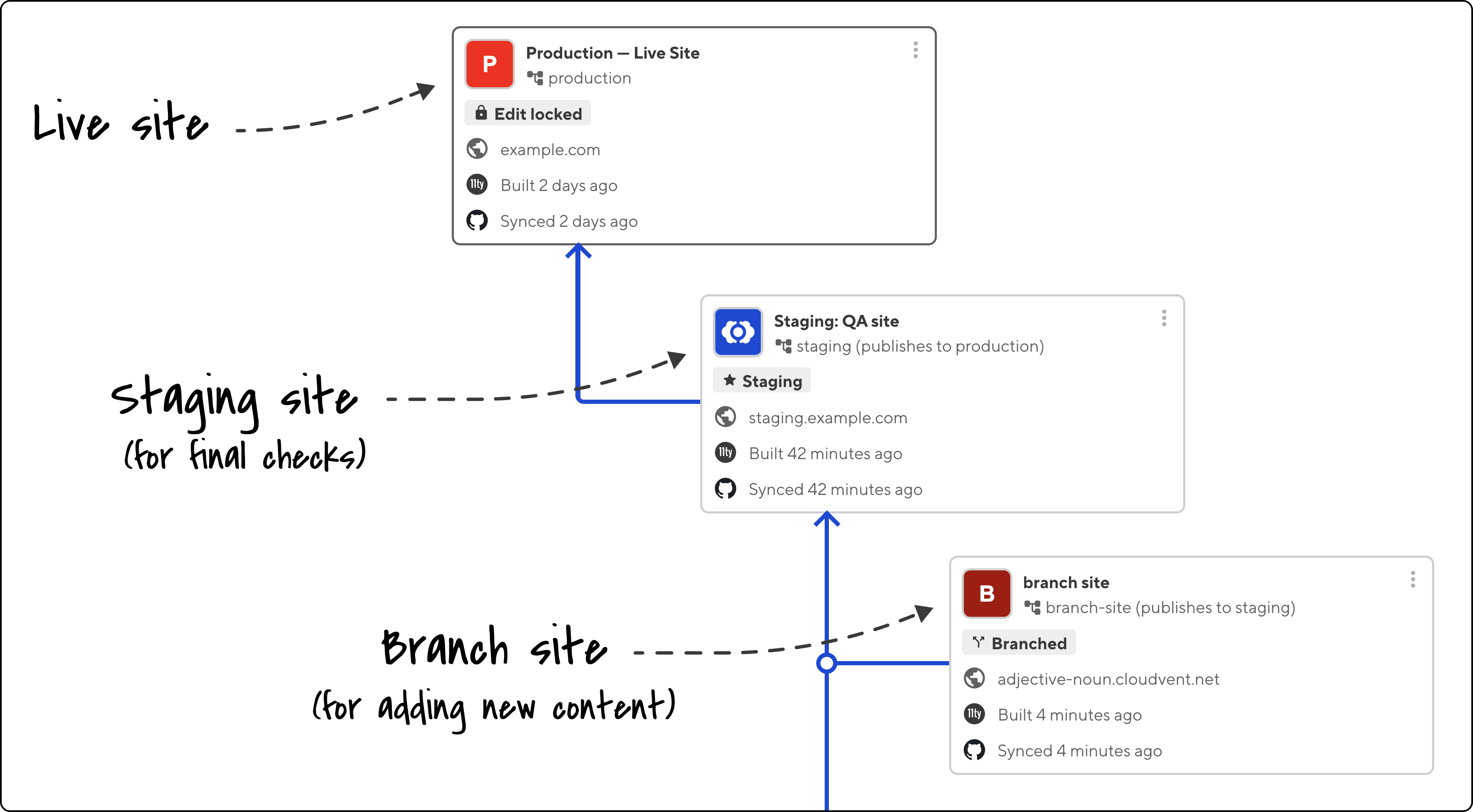
Enter CloudCannon Projects, which make your workflow smooth and organized by grouping sites from the same repository. Projects let you create new sites more efficiently, and also automatically generate a visualization of your publishing workflow.
Here's a sample workflow, with a live site, a staging site, and branch site:
Here's a pro tip that'll save your team tons of time: Related Links. Think of them as your project's speed dial. You can add quick links to analytics dashboards, documentation pages, frequently accessed collections, or directly to publishing workflows.
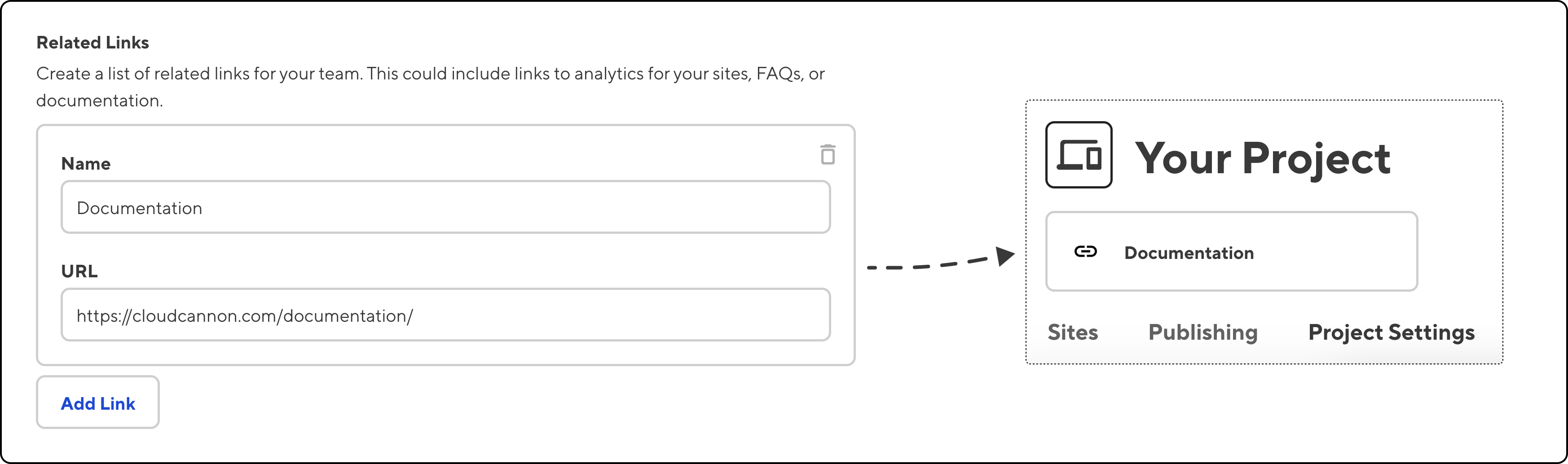
These shortcuts might seem small, but they can add up to significant time savings across your team. Setting up Related Links is simple: just head to your Project Settings, scroll to the Related Links section, and start adding links. Each one needs a display name and URL — that's it!
Don't forget to make your Project page informative and useful. You can:
Whether you're running a simple blog or managing a complex enterprise site, CloudCannon's Projects and branching workflows give you the control and flexibility you need. Start with what works for your team now, and know you can adjust as your needs evolve.
Remember, the best workflow is the one that works for your team. Don't be afraid to experiment and find what fits your process best.
CloudCannon term | What it means |
|---|---|
Publish Branch | The site you're publishing your changes to. This can be your live website. |
Staging site | A private copy of your live website, used for testing and quality control of any changes you’ve made. Branched sites should typically publish to your Staging site for final checks before you go live. |
Branch site | A private copy of your website, ready for you to add or edit anything. By default, all branched sites are private, and only accessible to members of your Organization. |
Branching | The process of copying a website. |
Project | A method of organizing your Sites. More than a ‘folder’ for your sites, Projects formalize the process of copying and publishing your sites, and enable more efficient publishing workflows for your team. |
Saving | How your changes are recorded to your site. CloudCannon will remember a lot of changes at once, even without saving, but your changes need to be saved before they’re published. (And if you work in a team, it’s generally good practice to save your changes as you work!) |
Publishing | The process by which you make your changes ‘live’. Depending on how your publishing workflow is set up, clicking ‘Publish’ can publish your changes directly to your staging site, or directly to your live site. |
Pull Request | A formal request for a team member to approve your changes. |
Organization | Your team! By default, only Organization members can see private (branched or staging) sites created within CloudCannon. You can define the roles and permissions of each team member. |
此内容由惯性聚合(RSS阅读器)自动聚合整理,仅供阅读参考。 原文来自 — 版权归原作者所有。