





惯性聚合 高效追踪和阅读你感兴趣的博客、新闻、科技资讯
阅读原文 在惯性聚合中打开

推荐订阅源

TaoSecurity Blog
TaoSecurity Blog
L
LINUX DO - 最新话题
Help Net Security
Help Net Security
N
News | PayPal Newsroom
www.infosecurity-magazine.com
cs.AI updates on arXiv.org
The Last Watchdog
The Last Watchdog
S
Security @ Cisco Blogs
W
WeLiveSecurity
C
CXSECURITY Database RSS Feed - CXSecurity.com
Webroot Blog
Webroot Blog
T
Troy Hunt's Blog
V
Vulnerabilities – Threatpost
Google Online Security Blog
N
News and Events Feed by Topic
T
Threat Research - Cisco Blogs
Security Archives - TechRepublic
钛媒体:引领未来商业与生活新知
钛媒体:引领未来商业与生活新知
T
Tor Project blog
freeCodeCamp Programming Tutorials: Python, JavaScript, Git & More
D
Darknet – Hacking Tools, Hacker News & Cyber Security
PCI Perspectives
PCI Perspectives
Google DeepMind News
T
Tailwind CSS Blog
让小产品的独立变现更简单 - ezindie.com
Apple Machine Learning Research
IT之家
IT之家
S
SegmentFault 最新的问题
J
Java Code Geeks
P
Privacy & Cybersecurity Law Blog
Threat Intelligence Blog | Flashpoint
博客园 - 【当耐特】
博客园_首页
H
Hacker News: Front Page
T
Threatpost
Jina AI
Jina AI
博客园 - Franky
月光博客
月光博客
L
LINUX DO - 热门话题
The Cloudflare Blog
H
Heimdal Security Blog
博客园 - 司徒正美
酷 壳 – CoolShell
酷 壳 – CoolShell
Cloudbric
Cloudbric
雷峰网
雷峰网
Hugging Face - Blog
Hugging Face - Blog
S
Secure Thoughts
T
Tenable Blog
I
Intezer
OSCHINA 社区最新新闻
OSCHINA 社区最新新闻

Pressable

Pressable Achieves Secure Hosting Alliance Certification | Pressable How Pressable MCP Is Changing The Game For WordPress Agencies: A Live Breakdown With Matt Medeiros And Phill Clapham | Pressable April Product Update: Navigation, Organization, And Efficiency | Pressable White-Label WordPress Hosting For Profitable Agencies | Pressable A Guide To Client Onboarding For WordPress Agencies| Pressable WordPress Plugin Management for Agencies WordPress Maintenance Contracts For Agencies: A Complete Guide | Pressable 6 Essential SOPs For WordPress Agencies | Pressable Pressable MCP: Control Your WordPress Hosting With AI. | Pressable How Much Does WordPress Hosting Cost? WordPress Performance Budgets: Setting And Monitoring Goals | Pressable WordPress Automation With No Code Automation Tools | Pressable Implement Single Sign-On (SSO) In WordPress | Pressable How To Build A Real Estate Site On WordPress | Pressable Headless WordPress Showdown: Next.js Vs Gatsby | Pressable How To Automate White-Label WordPress Hosting With WHMCS | Pressable Developer Toolkit Update: Automation & UI Enhancements | Pressable How To Build A DXP Platform With WordPress How To Boost WordPress Agency Client Retention: 4 Strategies White Label WordPress Admin For Agency Clients Performance Testing For WordPress Agency Client Sites Performance Testing For WordPress: A Framework For Agency Client Sites How To Upload A Video To WordPress | Pressable How To Mitigate The Impact Of AI Scraper Bots On WordPress Sites WooCommerce ERP Integration: Automate Your Back Office WordPress Personalization: How To Display Tailored Content To Visitors | Pressable WooCommerce Conversion Rate Optimization: A Data-Driven Approach How To Price Your Online Course: WordPress Monetization Guide 7 Ecommerce KPIs You Should Be Measuring (and How to Optimize Them) WooCommerce Vs. BigCommerce: Which Is Best For Your Business Needs? | Pressable WooCommerce Performance Troubleshooting: Diagnosing Speed Issues Step-by-Step | Pressable AI Content Moderation Tools for WordPress: Fighting Back Against AI Spam WordPress Vs. Craft CMS: Which Is Right For Your Business Site? | Pressable Questions To Ask Before Migrating From Shopify To WooCommerce Outgrowing Squarespace? WooCommerce Can Help WordPress Automation: Google Docs To WordPress Workflow WooCommerce Subscription Strategies: How to Build Recurring Revenue for Your Store Is WordPress Easy To Learn? A Beginner’s Guide WooCommerce Database Optimization With Query Monitor | Pressable WPForms Vs Gravity Forms: Which WordPress Plugin Works Best For Growing Businesses? WooCommerce Vs. Shopify: Choosing The Right Platform The Best AI Chatbots for WordPress Rank Math Vs Yoast: Best WordPress SEO Plugin? 5 Ways AI For Ecommerce Boosts WooCommerce Sales | Pressable WordPress Cookie Consent: What Site Owners Need To Know | Pressable How To Optimize Your WooCommerce Store For AI Search | Pressable WordPress Local SEO: A Guide To Local Search For SMBs | Pressable How to Improve Your WordPress Site’s Search Experience WordPress vs. Substack: Find the Best Platform for Your Newsletter WordPress vs. Ghost: Comparing Open-Source Blog and Newsletter Solutions A Comprehensive Migration SEO Checklist For WordPress Drupal vs. WordPress: Comparing Open Source Content Management Systems How To Add Enterprise-Level Search Capabilities To WordPress Sites What Are WordPress Nonces And How To Use Them | Pressable How To Customize WordPress Without Breaking Your Theme | Pressable WooCommerce vs. Magento (Adobe Commerce): Which is Better for Your Online Store? Prepare Your WooCommerce Store For A High-Traffic Product Drop Tips On Building A Successful WordPress Sales Funnel | Pressable Best WordPress Integrations For Workflow Automation | Pressable WooCommerce Vs. Wix: WooCommerce Explained For Wix Users | Pressable How To Choose WordPress Lead Generation Plugins | Pressable GA4 For WordPress: Understanding Your Data | Pressable WordPress Accessibility for Visually Impaired Users WordPress Information Architecture For Businesses | Pressable How To Use WordPress As A Headless CMS | Pressable How To Use Composer For Modern WordPress Development | Pressable WordPress GitHub Workflows: Version Control Best Practices How To Evaluate A WordPress Plugin Before Installing It | Pressable Billing Clients For WordPress Hosting | Pressable Advanced WooCommerce Cart Abandonment Strategies | Pressable How To Perform A WordPress Security Audit | Pressable How Managed WordPress Hosting Reduces Ops Workload | Pressable The Ultimate Ecommerce CRO Guide | Pressable How to Set Up a Business Continuity Plan for Your WordPress Website How to Hire the Best WordPress Developer for Your Site Common Mistakes When Choosing A WordPress Host | Pressable Beaver Builder Vs. Elementor: Which Page Builder Is Better Streamlining Website Handoff With Managed WordPress Hosting How WordPress Agencies Build Recurring Revenue | Pressable How To Customize WooCommerce Product Pages | Pressable SEO Tip For Migrating Your WordPress Domain | Pressable When To Switch To Enterprise WordPress Hosting | Pressable WooCommerce PIM Tools For Growing Ecommerce Stores | Pressable Automating WordPress Security: Tips To Prevent Cyberattacks Integrating POS With WooCommerce | Pressable Scale Your WordPress: Automation Tips For Growth, Efficiency, And Reliability | Pressable Boosting Conversions, Not Load Times: Performance-Focused A/B Testing of Landing Pages in WordPress WooCommerce Migration: Avoid Downtime and Data Loss With These Essential Tips How To Improve Core Web Vitals on Your WordPress Site How To Run Successful SEO Experiments On WordPress | Pressable Automated WordPress Website Backups | Pressable Grow Ecommerce Sales With WooCommerce Dynamic Pricing LearnDash vs LifterLMS: Which WordPress LMS is Right for You? What Is High Availability Hosting For WordPress? | Pressable Tips On Managing WooCommerce Traffic Spikes | Pressable What To Do When A WordPress Plugin Breaks Your Site Automating Agency Workflows With WordPress Webhooks How To Automate Tasks In WooCommerce With Action Scheduler Why WordPress Downtime Costs And Uptime Guarantees Matters WordPress Cleanup: How to Uninstall WordPress Plugins Without Breaking Your Site Top WordPress Collaboration Tools For Remote Team | Pressable
How To Edit Your WordPress Database Safely | Pressable
Alfred Bassetti · 2025-07-23 · via Pressable

illustration of two WordPress databases

Ask Your Favorite AI

Copy the link to a markdown format of this article for ChatGPT, Claude, Gemini, or your favorite AI.

Editing the WordPress database can feel intimidating, and for good reason. Apart from a few static files, the database stores everything that gives your site its identity: posts, pages, users, settings, and plugin configurations. A database editing mistake can break features or take your site offline.

But sometimes, editing the database is the only option, and it’s often the most convenient. For example, when you migrate a WordPress site to a new domain, the URLs stored in the database have to be changed. The quickest way to do that is a mass database edit.

The good news is that you don’t need to be a developer to make safe, meaningful changes to your database. In this article, we’ll walk you through when and why you might need to edit your database, what can go wrong, and how to do it safely.

What Is the WordPress Database?

The WordPress database is where your site’s dynamic content lives. When someone visits a page, WordPress pulls data from the database and assembles the page on the fly using PHP. On a blog post or product page, it includes the post content, title, menu structure, widget settings, and so on. 

Behind the scenes, WordPress uses MySQL or MariaDB to store its data in structured tables. Each table is responsible for a different type of content or configuration. Some hold user information or site settings, while others store posts, pages, and plugin data.

Most WordPress sites use a table prefix like wp_, but that can vary depending on your setup. The tables you are most likely to encounter include:

  • wp_posts: Stores all posts, pages, attachments, and custom post types.
  • wp_postmeta: Holds metadata associated with content, such as custom fields.
  • wp_users: Contains all user accounts and login credentials.
  • wp_usermeta: Stores user preferences, capabilities, and roles.
  • wp_options: Includes global site settings like the site URL, time zone, and active plugins.
  • wp_comments: Stores comment content and authorship data.
  • wp_commentmeta: Contains additional metadata for comments.
  • wp_terms, wp_term_taxonomy, wp_term_relationships: Used for organizing content into categories, tags, or custom taxonomies.

Why You Might Want to Edit the Database

WordPress gives you all the tools you need to manage your site day to day without ever touching the database. But there are situations where the Admin interface falls short, or where a plugin leaves behind data that can’t be cleaned up through normal means.

We’ve already mentioned mass URL renaming, but here are some other reasons you might need to access and edit your WordPress database directly:

  • Updating an author’s display name: WordPress stores the display name in the wp_users table. If a contributor changes their name, you may want to update how it appears on published content.
  • Cleaning up plugin remnants: Deleting a plugin doesn’t always remove the data it added to your database. Settings, custom tables, and metadata often remain behind. You may also find that removing a plugin leaves non-functioning shortcode tags on posts and pages that are time-consuming to remove manually.
  • Bulk deleting spam or inactive users: If your site has collected spam accounts or dormant user profiles over the years, cleaning them out one at a time through the dashboard isn’t practical.
  • Changing configuration values that break the admin panel: Misconfigured theme or plugin settings in the wp_options table can make the admin area inaccessible. Editing these values directly in the database may be the only way to recover access.

What Can Go Wrong

Editing the WordPress database can cause serious issues. Some will be obvious: the Dashboard failing to load, for example. Others may only show up later as broken features or lost data. Before you make any changes, it’s important to understand what can go wrong and how to avoid it.

Breaking Serialized Data Structures

Many WordPress settings are stored as serialized data. Instead of plain text, the database field contains complex values like arrays and objects converted into a specially formatted textual representation.

The problem is that serialized strings include length markers that must match the exact number of characters in each value. If you do a basic search-and-replace using a tool that doesn’t understand serialization, you might update the text but not the character counts. That small mismatch corrupts the entire setting. 

To avoid this issue, only edit the database with serialization-aware plugins and tools. These tools understand serialization and how it’s used in the WordPress database. 

Deleting the Wrong Data

It’s easy to run a query that deletes more than you intended. For example, deleting users with a shared role or metadata key could wipe out admin accounts, not just spam users. If you’re editing live data without a recent backup or a safe test environment, those mistakes may be unrecoverable.

Locking Yourself Out of the Admin Dashboard

Accidentally changing site URLs or user permissions can prevent you from logging in to the dashboard. In some cases, even loading the login page will trigger an error. Fixing a broken dashboard may require further direct database edits or command-line configuration changes with WP-CLI.

Creating Subtle, Hard-to-Diagnose Bugs

Not all problems show up right away. If you mistype an option name, delete a database row that a plugin depends on, or corrupt a piece of post metadata, your site might seem fine until a form stops working or your layout breaks in certain browsers.

Before You Begin: Make a Backup and Use a Staging Site

Before you make any changes to your live site’s database, create a full backup and test your changes on a staging site. A backup gives you a restore point if something goes wrong. A staging site lets you safely test your changes in an isolated environment before pushing them live.

If you’re a Pressable customer, both are built in:

If you’re not using Pressable, you’ll need to back up your files and database manually or use a plugin like UpdraftPlus. For staging, some hosts offer built-in tools, or you can manually create a clone of your site in a subdomain.

However you do it, never make direct database changes without a way to undo them. Even small edits can have unintended consequences.

Safe Methods for Editing the WordPress Database

When it comes to editing your WordPress database, the tool you use matters. The safest option depends on what you’re trying to do, your comfort level with technical tools, and whether the data you’re editing is structured (like serialized content) or simple text.

Here are three common ways to safely make changes, from most beginner-friendly to most advanced.

Use a Plugin

If you need to search and replace text in your database to clean up leftover shortcodes or fix hardcoded links, a plugin is often the easiest and safest approach.

Tools like Better Search Replace are built to handle serialized data correctly and include a dry run mode so you can preview changes before applying them. They are ideal for straightforward search-and-replace operations. 
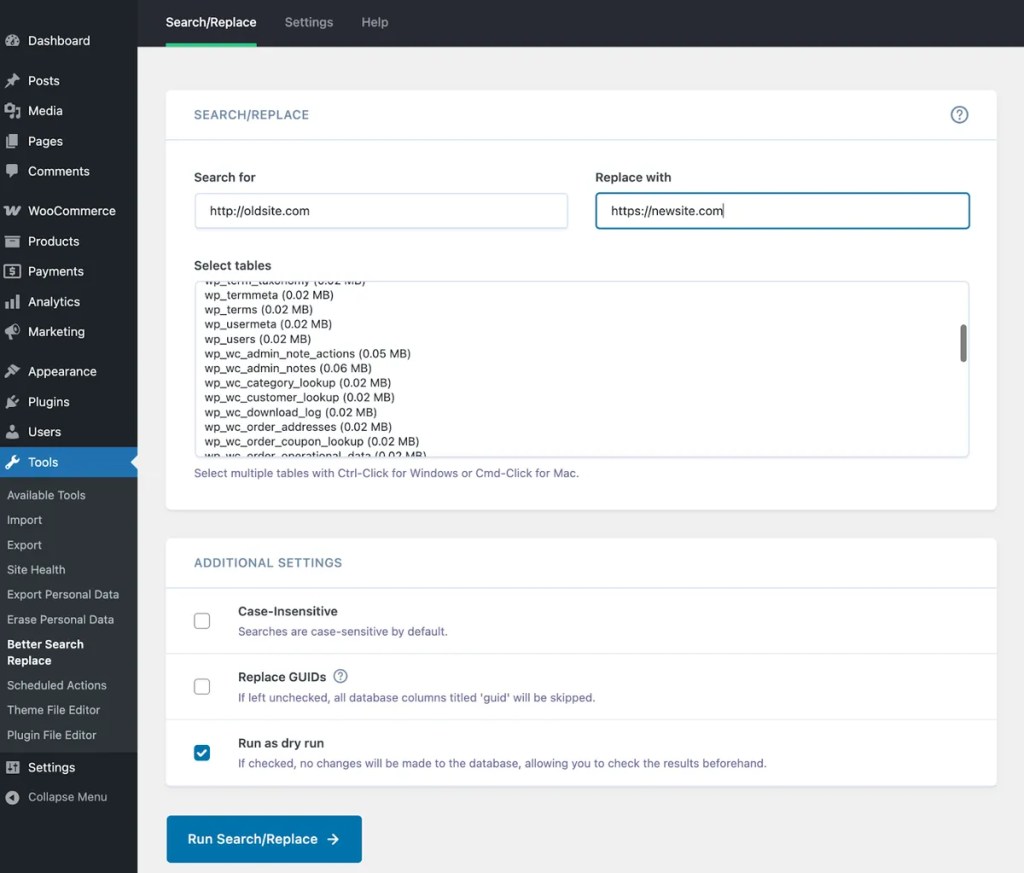
Better Search Replace plugin for WordPress

Here’s how you’d run a URL search-and-replace with Better Search Replace:

1. Install and activate the plugin.
2. Go to Tools > Better Search Replace.
3. In the “Search for” field, enter the old URL.
4. In the “Replace with” field, enter the new URL
5. Select all tables.
6. Enable “Run as dry run?” and click Run Search/Replace.
7. If the results look correct, uncheck dry run and run it again to apply changes.

Alternatively, Pressable’s managed WordPress hosting accounts include a WordPress-aware search-and-replace tool.

Use WP-CLI

WP-CLI is a command-line tool for managing WordPress sites. If you’re comfortable using a terminal, WP-CLI is powerful, fast, and serialization-aware. We explained how to use WP-CLI here.

For example, you can perform a safe search and replace like this:

wp search-replace 'http://oldsite.com' 'https://newsite.com' --all-tables --dry-run

Use phpMyAdmin (With Caution)

phpMyAdmin is a web-based tool for interacting directly with your database. It’s extremely powerful, but you really have to know what you’re doing. It is not serialization-aware, so it is not safe to use on tables like wp_usermeta and wp_options that contain serialized data. 

Unless you’re a database and SQL expert, the other options we’ve discussed are less risky. 
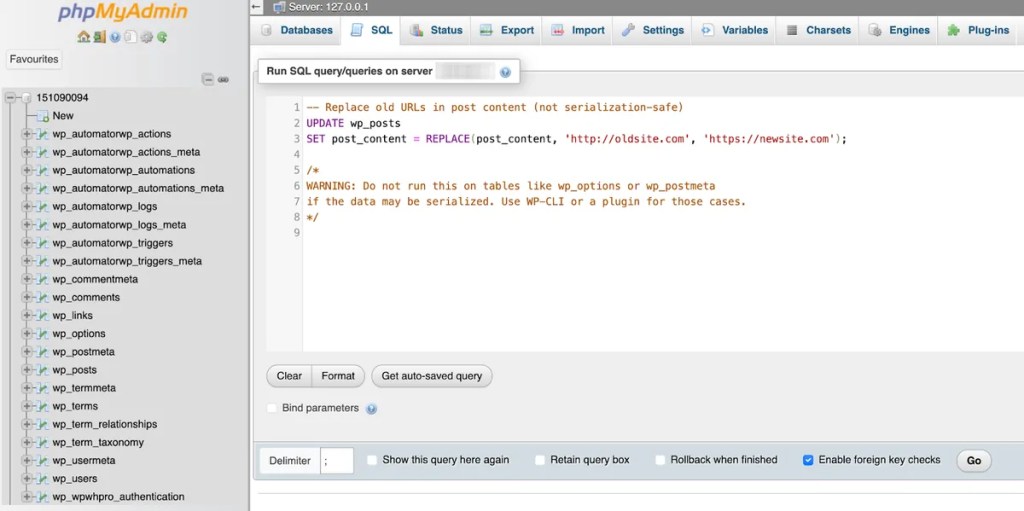
phpMyAdmin tool interface

phpMyAdmin gives you full access to your database tables, rows, and queries. That includes the power to run raw SQL commands or edit individual fields. You can also create and restore database backups with phpMySQL’s Export and Import tools. 

For example, you could use phpMyAdmin to change a user’s display name by running the following SQL query in phpMyAdmin’s SQL tab. 

UPDATE wp_users 

SET display_name = 'AN Nonymous' 

WHERE ID = 123;

However, there are much safer ways to accomplish that without directly editing the database. First, you can do it in the WordPress Dashboard’s Users tool. Second, you can use WP-CLI:

wp user update 123 --display_name="AN Nonymous"

This command will perform the database rewrite, but it does so via WordPress functions that validate the user ID and check for field compatibility. Direct database editing is a powerful tool when you need it, but most operations on the database should be carried out by tools like plugins and WP-CLI that have built-in safeguards. 

Managed Hosting Built for WordPress Users

Presable’s managed WordPress hosting makes common tasks easy and complex tasks possible. For routine jobs like updating URLs, you can use our built-in Search and Replace tool. For more advanced workflows, Pressable offers SSH access, pre-installed WP-CLI, and full access to phpMyAdmin for granular control.

To learn more about how Pressable streamlines WordPress site management with thoughtfully designed tools and systems, schedule a demo today.

Alfred Bassetti

With over a decade of invaluable experience. Alfred is not just about numbers; he's dedicated to bringing customers closer to their hosting needs through his expertise in Inbound sales, WordPress support, and Google Data Analytics Certifications. His skills in project planning, web design, and development make him a well-rounded contributor to the Pressable team. He focuses in helping people get the best possible experience with hosting by bringing customers closer to their needs!