


惯性聚合 高效追踪和阅读你感兴趣的博客、新闻、科技资讯
阅读原文 在惯性聚合中打开

推荐订阅源

C
CXSECURITY Database RSS Feed - CXSecurity.com
A
About on SuperTechFans
H
Help Net Security
Engineering at Meta
Engineering at Meta
G
Google Developers Blog
aimingoo的专栏
aimingoo的专栏
The Register - Security
WordPress大学
WordPress大学
MongoDB | Blog
MongoDB | Blog
Hugging Face - Blog
Hugging Face - Blog
爱范儿
爱范儿
C
Check Point Blog
人人都是产品经理
人人都是产品经理
云风的 BLOG
云风的 BLOG
N
Netflix TechBlog - Medium
酷 壳 – CoolShell
酷 壳 – CoolShell
雷峰网
雷峰网
奇客Solidot–传递最新科技情报
奇客Solidot–传递最新科技情报
博客园 - Franky
I
InfoQ
OSCHINA 社区最新新闻
OSCHINA 社区最新新闻
The GitHub Blog
The GitHub Blog
Last Week in AI
Last Week in AI
D
Docker
让小产品的独立变现更简单 - ezindie.com
博客园 - 叶小钗
Jina AI
Jina AI
F
Fortinet All Blogs
宝玉的分享
宝玉的分享
小众软件
小众软件
有赞技术团队
有赞技术团队
F
Full Disclosure
月光博客
月光博客
钛媒体:引领未来商业与生活新知
钛媒体:引领未来商业与生活新知
Recorded Future
Recorded Future
Apple Machine Learning Research
P
Proofpoint News Feed
量子位
U
Unit 42
T
The Blog of Author Tim Ferriss
Microsoft Azure Blog
V
V2EX
O
OpenAI News
S
Secure Thoughts
罗磊的独立博客
freeCodeCamp Programming Tutorials: Python, JavaScript, Git & More
Google Online Security Blog
Cloudbric
Cloudbric
W
WeLiveSecurity
IT之家
IT之家

Pressable

Pressable Achieves Secure Hosting Alliance Certification | Pressable How Pressable MCP Is Changing The Game For WordPress Agencies: A Live Breakdown With Matt Medeiros And Phill Clapham | Pressable April Product Update: Navigation, Organization, And Efficiency | Pressable White-Label WordPress Hosting For Profitable Agencies | Pressable A Guide To Client Onboarding For WordPress Agencies| Pressable WordPress Plugin Management for Agencies WordPress Maintenance Contracts For Agencies: A Complete Guide | Pressable 6 Essential SOPs For WordPress Agencies | Pressable Pressable MCP: Control Your WordPress Hosting With AI. | Pressable How Much Does WordPress Hosting Cost? WordPress Performance Budgets: Setting And Monitoring Goals | Pressable WordPress Automation With No Code Automation Tools | Pressable Implement Single Sign-On (SSO) In WordPress | Pressable How To Build A Real Estate Site On WordPress | Pressable Headless WordPress Showdown: Next.js Vs Gatsby | Pressable How To Automate White-Label WordPress Hosting With WHMCS | Pressable Developer Toolkit Update: Automation & UI Enhancements | Pressable How To Build A DXP Platform With WordPress How To Boost WordPress Agency Client Retention: 4 Strategies White Label WordPress Admin For Agency Clients Performance Testing For WordPress Agency Client Sites Performance Testing For WordPress: A Framework For Agency Client Sites How To Upload A Video To WordPress | Pressable How To Mitigate The Impact Of AI Scraper Bots On WordPress Sites WooCommerce ERP Integration: Automate Your Back Office WordPress Personalization: How To Display Tailored Content To Visitors | Pressable WooCommerce Conversion Rate Optimization: A Data-Driven Approach How To Price Your Online Course: WordPress Monetization Guide 7 Ecommerce KPIs You Should Be Measuring (and How to Optimize Them) WooCommerce Vs. BigCommerce: Which Is Best For Your Business Needs? | Pressable WooCommerce Performance Troubleshooting: Diagnosing Speed Issues Step-by-Step | Pressable AI Content Moderation Tools for WordPress: Fighting Back Against AI Spam WordPress Vs. Craft CMS: Which Is Right For Your Business Site? | Pressable Questions To Ask Before Migrating From Shopify To WooCommerce Outgrowing Squarespace? WooCommerce Can Help WordPress Automation: Google Docs To WordPress Workflow WooCommerce Subscription Strategies: How to Build Recurring Revenue for Your Store Is WordPress Easy To Learn? A Beginner’s Guide WooCommerce Database Optimization With Query Monitor | Pressable WPForms Vs Gravity Forms: Which WordPress Plugin Works Best For Growing Businesses? WooCommerce Vs. Shopify: Choosing The Right Platform The Best AI Chatbots for WordPress Rank Math Vs Yoast: Best WordPress SEO Plugin? 5 Ways AI For Ecommerce Boosts WooCommerce Sales | Pressable WordPress Cookie Consent: What Site Owners Need To Know | Pressable How To Optimize Your WooCommerce Store For AI Search | Pressable WordPress Local SEO: A Guide To Local Search For SMBs | Pressable How to Improve Your WordPress Site’s Search Experience WordPress vs. Substack: Find the Best Platform for Your Newsletter WordPress vs. Ghost: Comparing Open-Source Blog and Newsletter Solutions A Comprehensive Migration SEO Checklist For WordPress Drupal vs. WordPress: Comparing Open Source Content Management Systems How To Add Enterprise-Level Search Capabilities To WordPress Sites What Are WordPress Nonces And How To Use Them | Pressable How To Customize WordPress Without Breaking Your Theme | Pressable WooCommerce vs. Magento (Adobe Commerce): Which is Better for Your Online Store? Prepare Your WooCommerce Store For A High-Traffic Product Drop Tips On Building A Successful WordPress Sales Funnel | Pressable Best WordPress Integrations For Workflow Automation | Pressable WooCommerce Vs. Wix: WooCommerce Explained For Wix Users | Pressable How To Choose WordPress Lead Generation Plugins | Pressable GA4 For WordPress: Understanding Your Data | Pressable WordPress Accessibility for Visually Impaired Users WordPress Information Architecture For Businesses | Pressable How To Use WordPress As A Headless CMS | Pressable How To Use Composer For Modern WordPress Development | Pressable WordPress GitHub Workflows: Version Control Best Practices How To Evaluate A WordPress Plugin Before Installing It | Pressable Billing Clients For WordPress Hosting | Pressable Advanced WooCommerce Cart Abandonment Strategies | Pressable How To Perform A WordPress Security Audit | Pressable How Managed WordPress Hosting Reduces Ops Workload | Pressable The Ultimate Ecommerce CRO Guide | Pressable How to Set Up a Business Continuity Plan for Your WordPress Website How to Hire the Best WordPress Developer for Your Site Common Mistakes When Choosing A WordPress Host | Pressable Beaver Builder Vs. Elementor: Which Page Builder Is Better Streamlining Website Handoff With Managed WordPress Hosting How WordPress Agencies Build Recurring Revenue | Pressable How To Customize WooCommerce Product Pages | Pressable SEO Tip For Migrating Your WordPress Domain | Pressable When To Switch To Enterprise WordPress Hosting | Pressable WooCommerce PIM Tools For Growing Ecommerce Stores | Pressable Automating WordPress Security: Tips To Prevent Cyberattacks Integrating POS With WooCommerce | Pressable Scale Your WordPress: Automation Tips For Growth, Efficiency, And Reliability | Pressable How To Edit Your WordPress Database Safely | Pressable Boosting Conversions, Not Load Times: Performance-Focused A/B Testing of Landing Pages in WordPress WooCommerce Migration: Avoid Downtime and Data Loss With These Essential Tips How To Improve Core Web Vitals on Your WordPress Site How To Run Successful SEO Experiments On WordPress | Pressable Automated WordPress Website Backups | Pressable Grow Ecommerce Sales With WooCommerce Dynamic Pricing LearnDash vs LifterLMS: Which WordPress LMS is Right for You? What Is High Availability Hosting For WordPress? | Pressable Tips On Managing WooCommerce Traffic Spikes | Pressable What To Do When A WordPress Plugin Breaks Your Site Automating Agency Workflows With WordPress Webhooks How To Automate Tasks In WooCommerce With Action Scheduler Why WordPress Downtime Costs And Uptime Guarantees Matters WordPress Cleanup: How to Uninstall WordPress Plugins Without Breaking Your Site
WordPress Backups: A Simple Guide To Protection | Pressable
Varsha Adusumilli · 2024-04-11 · via Pressable

Two Databases Exchanging Data

Ask Your Favorite AI

Copy the link to a markdown format of this article for ChatGPT, Claude, Gemini, or your favorite AI.

While most website owners know how important it is to regularly update their website files and databases, many people neglect it due to the time, work, and technical know-how involved in doing so.

This article provides a how to guide for performing WordPress backups of your database and website files. No matter what your technical aptitude, our easy-to-follow instructions have you covered.

Why Backups Matter for WordPress Websites

Backups are the safety nets for WordPress websites and they play an important role in preventing data loss and ensuring website security. Without a reliable strategy, your site can face irretrievable data loss by way of site crashes, hacks, or even just updates that don’t go as planned.

Backing up your WordPress site ensures that, in the event of such disruptions, you can easily restore your website to its previous state. For an effective disaster recovery, you need a recent copy of your website files, which means you must export your site up regularly.

Pressable’s automatic backup feature is a hassle-free solution designed to give you peace of mind. For sites hosted on Pressable, manual exports of site files are performed overnight any time changes are made to the site. Moreover, Pressable offers automatic hourly database storage, which is extremely valuable for busy ecommerce sites where data changes frequently.

However, some scenarios may necessitate a manual backup. Whether it’s for extra precaution before an software update or for personal assurance, the ability to manually export a copy of your WordPress site remains a valuable skill.

In the following sections, we will guide you through the manual backup process, as well as suggest a few plugin options for non-Pressable users.

Manual Database Backup: A Step-by-Step Guide

Manual backups ensure you have a recent snapshot of your site that can be restored if needed. Let’s walk through the process of manually backing up a WordPress database with Pressable, covering both database and file system backups.

Manual backups can be useful for site owners in many circumstances. For example, it’s wise to perform this process ahead of major updates or changes, such as making modifications the WordPress core, updating important plugins, or changing your website’s theme. You should also run a backup ahead of migrating your site to another service so you have a copy you can restore should anything go wrong.

You should also export your site after you make major modifications, such as rehauling landing pages or adding a significant amount of new blog content or multimedia files. This way you know for sure your hard work is saved in multiple places and you won’t inadvertently lose your progress.

Finally, recovering from security incidents or vulnerabilities is another good reason to protect your data. If you’ve just removed malware from your website, you’re in a perfect position to save and store a clean version of your website. You may also want to run more frequent backups in times of heightened security risk, such as an unsuccessful cyberattack.

Think carefully about where and how you store your site files. If backups are included as part of a hosting plan, or you use a service to run backups, then the secondary version of your data will live on a server owned by the service in question. However, you may want to consider saving a version of your website to another location, such as to an external hard drive or secondary cloud storage. This way, you have an extra layer of security should you encounter an issue accessing your digitally stored files when trying to fix your site.

Backing Up a Website Using Pressable’s On-Demand Backups

Here are instructions for manually backing up your website using Pressable’s dashboard, as well as how to export your database and website files manually using Pressable and an SFTP client.

  1. Log into your my.pressable.com dashboard and select the website you want to backup.
  2. Next, select “Manage Data” → “On-Demand Backups”
  3. If you manage multiple websites, be sure you’ve selected the site you want to backup.
  4. Pressable allows users to create and store three “on-demand” backups, so if you’ve reached your limit you’ll need to delete an older site backup.
  5. There are two separate on-demand options that include the WordPress filesystem and the WordPress database. For a full-site backup, you’ll need to export both.
  6. Click the button for the backups you want to run.
  7. When the backup is ready, it will appear in the “On-demand backups for this site” section.

Screenshot of on-demand backups section in the MyPressable Control Panel.

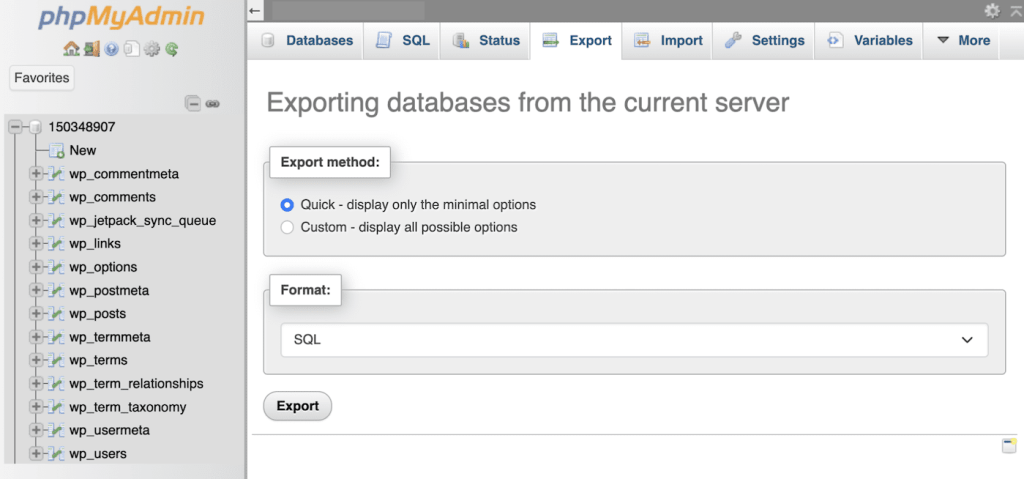
Manually Backing Up Your Database on Pressable Using phpMyAdmin

  1. Log into your my.pressable.com dashboard, select the website whose database you’d like to backup, and select the “phpMyAdmin” icon.
  2. Click on the “Export” tab at the top of the page.
  3. Select your export method. In most cases, “quick” will do, however, if you need to fine-tune your export options you can do so by selecting “custom.”
  4. Save your exported file in a manner that makes it easy to find and identify later. For example, you may decide to save all backup files on a single external hard drive so you know exactly where backups are.

phpMyAdmin Database Export

Backing Up Your WordPress Website Files Using SFTP

  1. Set up SFTP for your Pressable site if you haven’t already done so.
  2. Connect to your site’s files using the SFTP client of your choice. We recommend using FileZilla or Cyberduck SFTP clients.
  3. Select the site files you want to backup, and save them in a clearly labeled, easy-to-find manner similar to your database backup.

Locating SFTP Login Details

WordPress Plugin Options

If you’re not using Pressable and you don’t have the tech know-how to manage backups on your own, you’re going to need a good WordPress plugin. These backup plugins automate the backup process for you, as well as provide opportunities to manually export your site as needed.

However, it’s important to be aware of potential downsides. Some plugins might impact your website’s performance during the backup process, especially if your site is large or contains a lot of data. Belowe are a few plugins we recommend for users who need a solid export solution.

Jetpack Security

Jetpack Security simplifies backups and restoration with its VaultPress feature, allowing one-click actions for both tasks.

Beyond backups, Jetpack Security delivers a suite of tools to enhance your site’s safety, including a website firewall, spam protection, malware scanning, and a 30-day activity log, ensuring comprehensive protection and easy recovery options.

UpdraftPlus

UpdraftPlus is available in both free and premium versions, catering to a wide range of backup needs. The free version includes scheduled backups, storage on remote services like Dropbox and Google Drive, and restoration capabilities.

The premium upgrade introduces incremental backups, additional file and database backup options, and automatic backups following WordPress, plugin, or theme updates. It also allows restoring a backup from other plugins, enhancing its utility and flexibility.

BlogVault

BlogVault is a premium service offering a 7-day free trial. It supports daily scheduled backups, unlimited manual backups, multi-site backup features, and a built-in staging environment.

With additional benefits like website monitoring and an activity log, BlogVault is designed for robust site management and protection.

Pressable Is a Piece of Cake for Peace of Mind

There are several challenges associated with managing backups and restoring your site if you don’t use a managed service like Pressable. For starters, manual website restoration can take considerable time, especially for larger sites or websites that lost significant data.

Users with limited tech expertise may find the process intimidating, as there is a high risk of errors. Even if no issues arise, the process itself can still cause significant stress.

Pressable offers an effortless, reliable means of restoring your site from automatic and on-demand backups. While manual restoration via SFTP remains an option, Pressable simplifies the process with its automatic restoration tool, designed to save time, minimize stress, and guarantee efficiency.

Steps for automatic restoration with Pressable:

  1. Login to my.pressable.com to access your site’s dashboard.
  2. Navigate to Manage Data → Restore Site
  3. Select the Filesystem and Database backup you’d like to restore.
  4. Click the “Restore” button.

Pressable Restore Website Function

And it’s as simple as that!

During restoration, your site will enter maintenance mode, meaning it will be temporarily inaccessible to visitors. This can cause website interruptions, and the length of time your site will stay in maintenance mode varies based on several factors, but it’s mainly down to your website’s size.

Generally speaking, you can expect your site to be down anywhere from a few minutes to several hours. If possible, plan restorations during low-traffic periods to minimize impact on site visitors.

Remember: A website restoration is an irreversible action, so make sure it’s 100% necessary to prevent accidental data overwrites.

Secure Your WordPress Website With Pressable

Keeping your WordPress site safe by regularly backing up your database and files is a must for dealing with the uncertainties of the online world. The convenience of automatic backups, whether through a dedicated plugin or a comprehensive hosting service like Pressable, cannot be overstated.

Don’t let the fear of data loss or site downtime hold you back. Get started with Pressable today and invest in the peace of mind that comes with knowing your WordPress site is protected.

Varsha Adusumilli

A dedicated WordPress user since 2007, Varsha has witnessed the platform’s growth and transformations firsthand. With a Masters’ in Computer Science and experience as a web designer/developer, Varsha possesses a strong foundation in various web development technologies. Her entrepreneurial spirit and freelance background further honed her ability to think creatively and deliver results. This deep understanding, coupled with her technical skills and customer-centric approach, makes her a great part of the Pressable Team. Her genuine desire to help others and her knack for finding solutions make her a customer success rockstar.