


Is there a good case to be made for a Chromebook in 2026? In my mind, there are two primary reasons. The first is if you need a laptop under $500 that isn't awful. If that's your budget for a new laptop, whether for yourself or for a family member, you're better off buying a Chromebook than an ancient Windows laptops or MacBook.
Things get fuzzier if you can afford to stretch a few hundred more dollars. All of a sudden, you have to compare against heavy hitters in the world of budget laptops like the MacBook Neo or Dell 14 Plus. Not only do these laptops tend to have better specs, they also have a more open software platform that far less limiting than Chrome OS. But if you're willing to be honest about your needs, I think you'll find that even a more expensive Chromebook could be the best option for you—and I know just the one.
Table of Contents
Photograph: Luke Larsen
Photograph: Luke Larsen
Photograph: Luke Larsen
Lenovo
There's no Chromebook quite like the Lenovo Chromebook Plus 14. Not since the days of the original Pixelbook has a piece of Chrome OS hardware come along that so wanted you to believe in the platform. The laptop chassis feels immaculately designed, and both the keyboard and touchpad are a joy to use. Also, for what is often sold for $649, you're getting a laptop with 16 GB of RAM and 256 GB of storage, which I would gladly take over the $699 MacBook Neo. That laptop has twice as much storage but is stuck with only 8 GB of RAM.
Battery life is also really strong, which is an area that Chromebooks used to lead in. But with all the advances in efficiency on competitive laptops lately, Chromebooks had fallen behind. Thanks to its ARM-based MediaTek processor, the Lenovo Chromebook 14 Plus closes the gap. For those who are skeptical just by seeing the name MediaTek, you should know that performance is really solid here too. This is, by far, the most impressive chip you can get on a Chromebook. But you'll be paying extra for all that. The retail price is $749, and even though it frequently is discounted to $649, that's still considerably more than most people are willing to pay for a Chromebook.
Acer
The Acer Chromebook Plus Spin 514 is a close second to the Lenovo Chromebook Plus 14. It's right around the same thickness and size, and also comes with the identical MediaTek Kompanio Ultra 910 processor. It has a great keyboard and touchpad, and the screen is vibrant and bright. That's table stakes. The Acer Chromebook Plus Spin 14 differs from its rival in two important ways. The review unit I tested originally had a higher resolution, which I thought really made the laptop feel premium. I even preferred it over the OLED screen of the Lenovo model. However, I can't find the model available to purchase online right now though, leaving just this more basic version of the laptop—this one that comes in at a cheaper price. It's not a bad tradeoff, though, as you still get a faster, well-made, and long-lasting Chromebook.
The Acer Chromebook Plus Spin 514 also swerves by being a 2-in-1 laptop, which just means it comes with a 360-degree hinge and a touchscreen. You can flip it entirely around into tent mode or even pretend to use it as an oversized tablet if you really need to. Personally, I don't find 2-in-1 functionality all that useful and I don't like the stiffer hinges they have to use. But I'll always take a touchscreen over not. Beyond that, the Acer Chromebook Plus Spin 514 really pulls off its all-white aesthetic (although I can only find the silver model for sale right now). It's a gorgeous little laptop. The Acer Chromebook Plus Spin 514 also comes with an extra USB-A port over the Lenovo Chromebook Plus 14.
Photograph: Luke Larsen
Photograph: Luke Larsen
Photograph: Luke Larsen
Acer
As popular as they are, cheap Chromebooks suffer from a lot of the same problems that budget Windows laptops do. The quality of the display and touchpad tend to suffer, as it's an easy place to compromise without indicating it on a spec sheet. No Chromebook I've tested that lands under $500 avoids both of these pitfalls—after all, these are very cheap computers.
I was delighted to see that the Acer Chromebook Plus 516 didn't skimp on a crappy touchpad. That goes a long way toward improving the experiencing of actually using the laptop on a moment-by-moment basis. I wasn't annoyed every time I had to click-and-drag or select a bit of text. This one's biggest weakness is definitely the screen, which is true of just about every cheap Chromebook I've tested. The colors are ugly and desaturated, giving the whole thing a sickly green tint. It's also not the sharpest in the world, as it's stretching 1920 x 1200 pixels across a large, 16-inch screen. But in terms of usability and performance, the Acer Chromebook Plus 516 is a great value, combining an Intel Core i3 processor with 8 GB of RAM and a 128 GB of storage. For a Chromebook that's often on sale for $350, it's a steal.
While we're here, let's go even cheaper, shall we? Asus has two dirt-cheap Chromebooks that I tested last year that I was mildly impressed by. The Asus Chromebook CX14 and CX15. Notice in the name that these are not “Chromebook Plus” models, meaning they can be configured with less RAM and storage, and even use lower-powered processors. That's exactly what you get on the cheaper configurations of the CX14 and CX15, which is how you sometimes get prices down to as low as $130. I definitely recommend the version with 8 GB of RAM, but regardless of which you choose, the both the CX14 and larger CX15 are mildly attractive laptops. You'd know that's a big compliment if you've seen just how ugly Chromebooks of this price have been in the past.
Asus
With these, though, I appreciate the relatively thin bezels and chassis thickness, as well as the larger touchpad and comfortable keyboard. The CX15 even comes in a striking blue color. The touchpad isn't great, nor is the display. Like the Acer Chromebook Plus 516, it suffers from poor color reproduction and only goes up to 250 nits of brightness. It only has a 720p webcam too, which makes video calls a bit rough. But that's going to be true of nearly all the competition (and there isn't much).
Of the two models, I definitely prefer the CX14 though, as it doesn't have a numberpad and off-center touchpad, which I've always found to be awkward to use. Look—no one's going to love using a computer that costs the less than $200, but if it's what you can afford, the Asus Chromebook CX14 will at least get you by without too much frustration.
Whatever you do, don't just head over to Amazon and buy whatever ancient Chromebook is selling for $100 for your kid. It's worth the extra cash to get something with better battery life, a more modern look, and decent performance.
We've tested dozens and dozens of Chromebooks over the past years, having reviewed every major release across the spectrum of price. Unlike Macs and Windows laptops, Chromebooks tends to stick around a bit longer though, and aren't refreshed as often. I stand by my picks above, but here are a few standouts from our testing that are still worth buying for the right person.
Photograph: Daniel Thorp-Lancaster
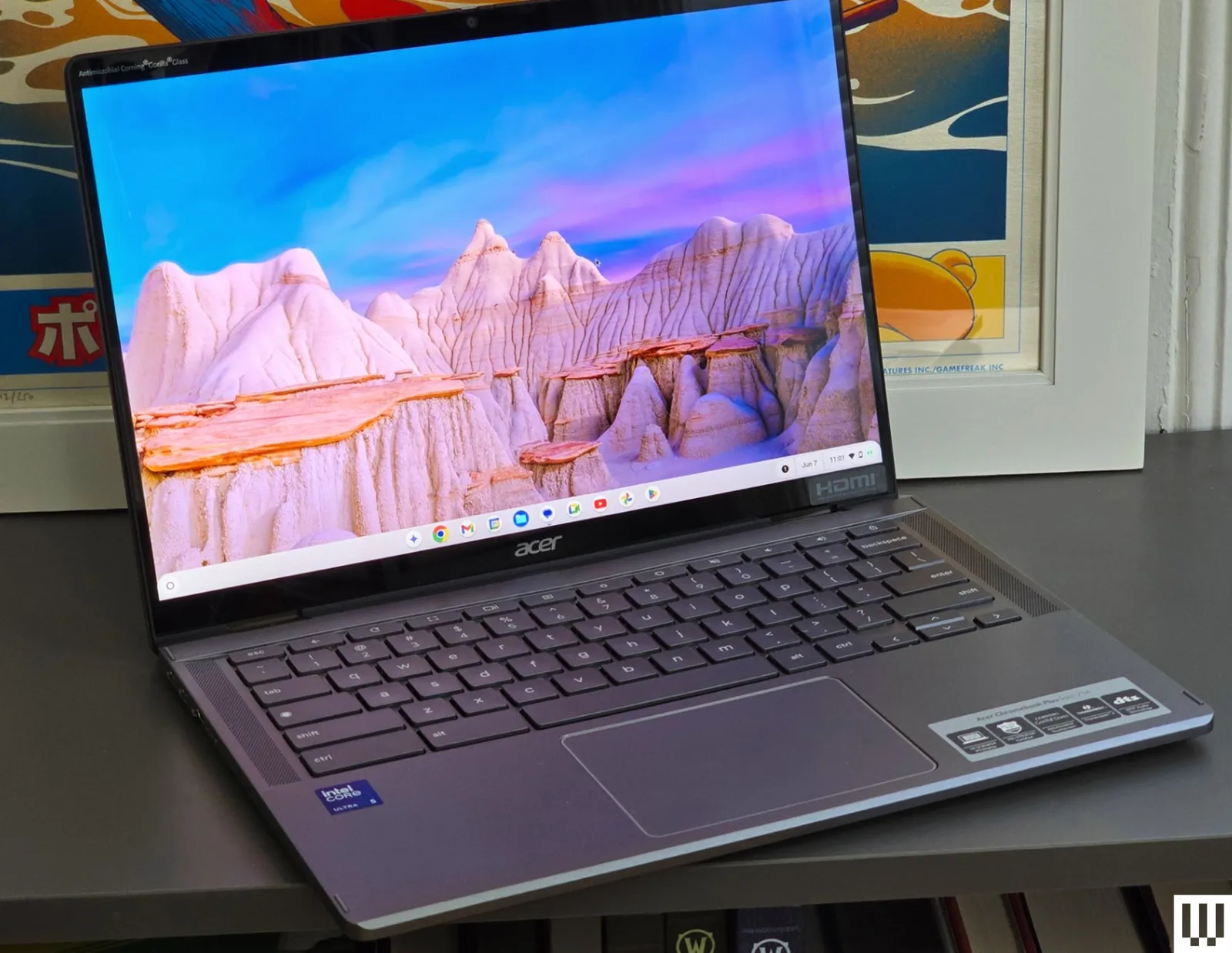
Acer Chromebook Plus Spin 714 for $750: Acer’s Chromebook Spin line has made a name for itself over the years, and its latest entry, the Chromebook Plus Spin 714 (9/10, WIRED Recommends), keeps that reputation alive. For $699 (or less if you find it on sale), Acer packs a surprising amount of power into this laptop thanks to its Intel Core Ultra 5 115 processor. It showcased breezy performance in my testing, and the chip’s dedicated AI processing power is a perfect complement to the AI features Google is sprinkling into ChromeOS. It's a bit too expensive compared to some newer Chromebook Plus models.—Daniel Thorp-Lancaster
Lenovo IdeaPad Flex 5i Chromebook Plus for $550: In many ways, the Lenovo Chromebook Plus 14 is the successor to this Chromebook, which came out a year earlier. It was one of the first Chromebook Plus models, and it remains a decent option with solid specs. However, I'd opt for the better battery life and performance of Acer Chromebook Plus Spin 514, while still getting the 2-in-1 functionality.
Photograph: Daniel Thorp-Lancaster
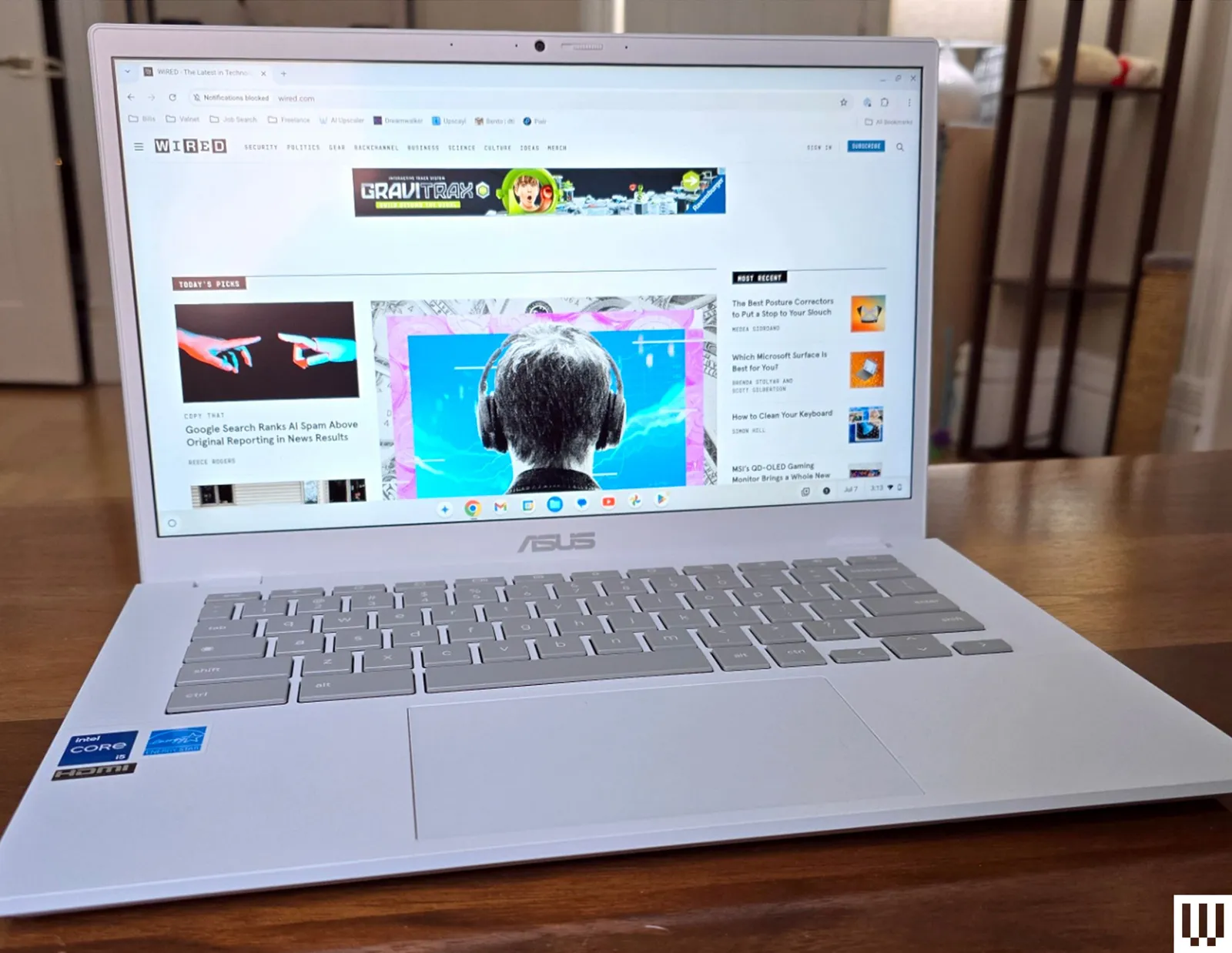
Asus Chromebook CX34 for $499: Chromebooks don’t tend to be lookers, but Asus breaks tradition with the Chromebook Plus CX34 (7/10, WIRED Recommends). It’s wrapped in a gorgeous white shell that, while plastic, felt durable in my testing. I’ve reviewed many bland, gray Chromebooks, and I found myself reaching for the CX34 more because of its attractive design. The hardware in the CX34 is typical for a Chromebook Plus, and it felt responsive even when I had my usual complement of more than a dozen tabs and a handful of apps running. Unfortunately, this model doesn’t come with a backlit keyboard, and its 14-inch, 16:9 display feels cramped compared to other Chromebooks I’ve used with taller 16:10 screens. If you can look past those shortcomings, though, the CX34 is a solid little workhorse that stands out.—Daniel Thorp-Lancaster
Acer Chromebook Plus 515 for $400: If you want a snappy laptop but don’t want to spend the extra cheddar on some of our other top picks, the Acer Chromebook Plus 515 (8/10, WIRED Recommends) will do the job. It’s not stylish, but it keeps the price low by sticking to the basics. Inside is an Intel Core i3-1215U processor, which handles ChromeOS and up to 20 open tabs with ease. Battery life is also good enough to get you through a workday, and it handled 8.5 hours of full-screen video before calling it quits in our testing. The 15-inch 1920 x 1080-pixel screen is nothing to write home about, but it’s crisp and won’t strain your eyes.—Daniel Thorp-Lancaster
What Specs Should You Look for in a Chromebook?
The price for Chromebooks can range wildly, from $150 up to $900, and therefore the specs can vary.
Processor: For the best experience, you should avoid older Chromebooks with Intel Celeron processors. The Chromebook Plus specifications offer a good baseline to guarantee speedy performance, and I’d recommend going with at least an Intel Core i3, Core i5, or AMD Ryzen 3 7000 processor. Just watch out for overspending on configurations with Intel Core i7 processors unless you need the extra horsepower for multitasking, Android games, Linux apps, and dozens of Chrome tabs.
While Intel and AMD dominate the processor scene, you’ll occasionally find Chromebooks using ARM processors like the Qualcomm Snapdragon 7c Gen 2. These can be fine for very basic tasks, but they won’t fare as well under sustained, intense loads. That said, a new generation of ARM chips are on the way, like the MediaTek Kompanio Ultra 910 powering the Lenovo Chromebook Plus 14.
RAM: Always opt for at least 8 GB of RAM if you can afford it. You won’t find 4 GB of RAM in anything other than basic, super-budget Chromebooks, and it severely limits your ability to multitask. If you want to avoid slowdowns, 8 GB of RAM is the standard you should aim for, though if you're budget is under $300, that may be difficult.
Storage: Unlike a Mac or Windows PC, much of your Chromebook work will be stored on the web. This means you can typically get away with less storage, but I wouldn’t recommend going below 128 GB. If you can afford it, you’ll be much more comfortable with at least 256 GB. You’ll get the best speed out of an NVMe solid state drive, so look out for that on the spec sheet when you’re comparing models.
Screen: The vast majority of Chromebook displays you’ll find will be IPS LCD panels, and that’s just fine. OLED displays are finally starting to show up on Chromebooks, though IPS LCD screens are more common and offer a good balance of brightness, contrast, and color accuracy. If you’re shopping in the extreme budget range, watch out for TN LCD panels, as they’re generally lower quality and offer worse viewing angles. For resolution, a 1920 x 1080-pixel resolution (or 1200p for 16:10 aspect ratio) should be your standard. You’ll get crisp visuals at 13- and 14-inch screen sizes, and it’s passable at 15 inches. Higher resolutions will look even better, but they are fairly uncommon in Chromebooks.
Ports: USB-C ports have become commonplace on Chromebooks, so there’s no longer any excuse to buy one without them. Try to get one that charges over USB-C so you can recharge with a portable power bank when you’re on the go. A microSD card slot can also be beneficial if you want an easy way to expand your storage on the fly. You’ll find that some Chromebooks support Thunderbolt 4 over their USB-C ports as well. While that’s an excellent option to have if you plan to plug your Chromebook into some high-end monitors, it isn’t necessary for most people. Instead, you can get similar external monitor support (and spend a lot less) with an HDMI port or DisplayPort over USB-C support.
What Is Chromebook Plus?
Almost every Chromebook we recommend has “Chromebook Plus” in the name. This is an initiative Google launched in late 2023 with its hardware partners to offer a new category of Chromebooks designed for a better, more premium experience. To be deemed a Chromebook Plus, a laptop has to meet or exceed the following hardware requirements:
The result? A new baseline that guarantees a certain level of performance when you see the Chromebook Plus name. With the rise in remote work, Google is particularly focused on ensuring Chromebook Plus laptops offer a superior video calling experience, featuring higher standards for webcams and AI-powered camera enhancements. It’s also gradually folding new AI features into ChromeOS that benefit from the added hardware heft. In fact, when you buy a new Chromebook Plus laptop, you currently get a free 12-month subscription to Google AI Pro, which gives you access to AI features like NotebookLM and Gemini, as well as 2 TB of cloud storage.
Regular Chromebooks haven’t disappeared, and you’ll still find super-budget Chromebook models without the “Plus” moniker. Chromebook Plus models start at $399 and range up to $800, though you’ll often find them on sale for less. Expect non-Plus Chromebooks focused on more basic needs to continue to hit store shelves in the sub-$300 range.
How Long Do Chromebooks Get Updates?
In 2023, Google announced a new policy that guarantees 10 years of automatic updates for any Chromebooks released in 2021 or later. That’s probably far beyond the usual upgrade cycle for most people, but it ensures secondhand Chromebooks and those used in schools continue to stay secure and get new features for a long time. When a Chromebook gets its final automatic update, ChromeOS will send you a notification to let you know it’s time to throw in the towel.
The 10-year automatic update timer starts from when a Chromebook is first released. You can check when your Chromebook is set to receive its final update at any time in the “Update schedule” section of its settings menu (Settings > About ChromeOS > Additional details > Update schedule). Google also keeps a handy running list of automatic update timelines for every Chromebook model on its support site.
What's the Downside of a Chromebook?
There are lots of things you can't do on a Chromebook. While you can download and organize files, you can't install applications as you can on a MacBook or Windows laptop. Everything you do must happen in a web browser. You can open Chrome windows and tabs to your heart's content, but when you go to download the desktop version of Photoshop or Microsoft Word, you're stuck. Proprietary school or work applications likely won't work, and you certainly can't play Steam games. You might surprise yourself by just how much work you actually accomplish in a browser window these days though.
Android apps can, however, fill in some of the gaps. With access to the Google Play Store, you can install Android games or use some of the Android versions of apps. This can be helpful in a pinch, though I've often found that the web-based versions of these apps work better on Chromebooks if they're available. (Google recently announced a plan to merge ChromeOS and Android on its laptops, so stay tuned for future improvements here.)
Other downsides of Chromebooks comes down to hardware. Most Chromebooks are made of plastic and use cheaper components. Like many budget laptops, touchpads and displays tend to be areas where laptop manufacturers make compromises. While Chromebook Plus laptops have made a noticeable change to this trend, it's still true that truly high-end hardware is often unavailable on Chromebooks.
Lastly, it's possible that you may run into some compatibility issues with certain accessories. Standard peripherals such as mice, keyboards, and external storage shouldn't give you issues, and even most printers are compatible. It's the more niche peripherals designed for highly specific uses that just won't work. For example, I use a USB colorimeter to test display quality that isn't supported on Chromebooks.
What Is Aluminium OS?
Google has been not-so-secretly hinting that it's been working on a new operating system that could supersede Chrome OS in the long run. Aluminium OS is the rumored name, and Google has publicly confirmed that it will be launching sometime this year. To put it simply: Google wants to finally find a way to merge the worlds of Chromebooks and Android tablets.
Not surprisingly, the rare glimpses we've seen of this future operating system look a whole lot like Android, with the sprinkles of Chrome OS goodness in it. In other words, it's Android rebuilt from the ground up for a desktop environment. Chromebooks aren't going anywhere anytime soon, nor is support going to suddenly end. But over the years ahead, it certainly seems like Google is trying to carve out a new space for itself that could be its alternative to both the iPad and the MacBook Neo. Google has been down this road before (anyone remember the Pixel Slate?), but consider me cautiously optimistic on this project.
Power up with unlimited access to WIRED. Get best-in-class reporting and exclusive subscriber content that's too important to ignore. Subscribe Today.
此内容由惯性聚合(RSS阅读器)自动聚合整理,仅供阅读参考。 原文来自 — 版权归原作者所有。