惯性聚合 高效追踪和阅读你感兴趣的博客、新闻、科技资讯
阅读原文 在惯性聚合中打开

推荐订阅源

爱范儿
爱范儿
Security Latest
Security Latest
NISL@THU
NISL@THU
OSCHINA 社区最新新闻
OSCHINA 社区最新新闻
C
Cybersecurity and Infrastructure Security Agency CISA
Cloudbric
Cloudbric
T
Threat Research - Cisco Blogs
大猫的无限游戏
大猫的无限游戏
C
CXSECURITY Database RSS Feed - CXSecurity.com
阮一峰的网络日志
阮一峰的网络日志
freeCodeCamp Programming Tutorials: Python, JavaScript, Git & More
雷峰网
雷峰网
C
Cisco Blogs
V
Vulnerabilities – Threatpost
S
Security Archives - TechRepublic
V
Visual Studio Blog
让小产品的独立变现更简单 - ezindie.com
cs.AI updates on arXiv.org
J
Java Code Geeks
D
Darknet – Hacking Tools, Hacker News & Cyber Security
Know Your Adversary
Know Your Adversary
博客园 - 叶小钗
腾讯CDC
钛媒体:引领未来商业与生活新知
钛媒体:引领未来商业与生活新知
P
Privacy International News Feed
P
Palo Alto Networks Blog
博客园_首页
V
V2EX
WordPress大学
WordPress大学
Schneier on Security
月光博客
月光博客
博客园 - 司徒正美
Google DeepMind News
TaoSecurity Blog
TaoSecurity Blog
博客园 - 聂微东
酷 壳 – CoolShell
酷 壳 – CoolShell
人人都是产品经理
人人都是产品经理
奇客Solidot–传递最新科技情报
奇客Solidot–传递最新科技情报
博客园 - 【当耐特】
The Cloudflare Blog
罗磊的独立博客
美团技术团队
N
News | PayPal Newsroom
K
KPMG report finds enterprise disconnect between AI and its ROI | CIO
Last Week in AI
Last Week in AI
K
Kaspersky official blog
Google Online Security Blog
S
SegmentFault 最新的问题
Application and Cybersecurity Blog
T
Tailwind CSS Blog

又见苍岚

COLMAP PatchMatch Stereo 算法详解 事件驱动的状态机框架:从理论到工程实践 Git 在国内网络环境下无法 Push 的排查与修复 —— 配置 Clash 代理 分段五次多项式插值原理详解 路径插值方法深度对比研究 Claude Code 使用指南 OpenClaw 记忆管理与技能创建指南 CBS(Conflict-Based Search)算法详解 A* 算法及其变种详解 OpenClaw 配置多 Agents Windows Powershell 无法加载文件,因为在此系统上禁止运行脚本问题的解决方案 MaxClaw 安装流程 大模型 AI 名词介绍 AList 网盘聚合工具简介 Protobuf 简介与测试 Claude Code 简介以及 GLM 4.7 模型接入 Github 歌词下载工具 163MusicLyrics Python __getattr__ 懒加载 Python TypedDict 机器人仿真平台 Gazebo 安装记录 机器人仿真平台 Gazebo 简介 多机器人路径规划问题(Multi-Agent Path Finding, MAPF)简介 Python exifread 读取修改过的 jpeg 信息错误问题修复 3D 坐标系变换的理解 3D 旋转矩阵基本概念 MongoDB Compass 介绍 Python 环境管理工具 uv Flutter 开发指南 Snipaste 安装下载与黑屏问题解决方案 全局路径规划算法记录 2025 Python 版本性能测试 Flutter Hello World Flutter 安装环境配置 Ubuntu VMware 硬盘扩容后 SMBus Host controller not enabled 报错问题解决 Python NetworkX 教程 Docker GPU 报错 - Failed to initialize NVML Unknown Error 解决方案 Python matplotlib 图表绘制 cuda-toolkit 安装替代 Cuda 与 Cudnn Jinja2 Python 利用 docxtpl 和 Jinja2 生成基于模板的 Word 文档 Docker 实现 CPU 核心隔离 LoFTR 基于 Transformer 的特征提取匹配算法 OmniGlue 特征匹配 SuperGlue 使用图神经网络学习特征匹配 Ubuntu 下将 xlsx 文件按照 sheet 转换为 图片 Python 使用 SQLAlchemy Python FastAPI 教程 openwrt 软路由配置安装 Nav2 地图文件(PGM/YAML)规范标准 3D OBJ 模型转换为 glb 瓦片格式 Python 源码 Redis 数据库介绍 Ubuntu 22.04 内核自动升级导致 MongoDB 7.0.12 错误记录 ubuntu 20.04 安装 ROS Noetic ubuntu 18.04 安装 ROS Melodic VMware Workstation Pro 个人免费版下载、安装、使用指南 Hybrid A-star 路径规划 Reeds-Shepp 曲线 Dubins 曲线 Linux kvm 虚拟机网络不通的问题解决方法 Ubuntu 自动内存清理 BiliBili 缓存视频转 mp4 Python 求解线性规划 3D Gaussian Splatting 官方源码实践记录 ImageMagick 教程 Ubuntu 22.04 安装 Colmap 对数几率 odds Ubuntu nmcli 网络管理工具使用指南 SuperPoint 自监督深度学习特征点提取 SyncTV Music Tag Web 在线音乐信息整理工具 ncm 格式转 mp3 MusicBrainz 音乐元数据百科数据库 Ubuntu 网络流量监控工具 私人云音乐平台 Navidrome 入门 手眼标定 四元数(Quaternions) OHTTPS 实现免费自动 https 证书申请、更新、部署 ubuntu 22.04 安装 CloudCompare 单机 KVM 虚拟机冷迁移 Ubuntu 22.04 使用 mdadm 实现软 raid 小鱼 一键安装 ROS-humble Fluid -46- 基于 Simpletex API 构建公式识别页面 公式识别 API 简介 -- Simpletex 使用 Python web 部署库 waitress 3D Gaussian Splatting for Real-Time Radiance Field Rendering Ubuntu Swap 简介与空间扩展 Ubuntu 24.04 安装 forticlient Clash Verge 使用 MongoDB 7.0.17 集群 Docker 构建源码 Error code - 2013. Lost connection to MySQL server during query 问题解决 Python 日志记录库 loguru 使用指北 Python 实现 Web 日志查看服务 MySQL LOAD DATA LOCAL INFILE 极速数据加载 Image size exceeds limit of 89478485 pixels 解决方案 Docker 使用 NVIDIA GPU 驱动错误解决 阿里云 docker 镜像仓库 Ubuntu中没有wired connected的解决方案 MinIO 简介 subconverter 代理订阅格式转换 修复 node –openssl-legacy-provider is not allowed in NODE_OPTIONS 错误
Ubuntu 系统配置 VS Code C++ 开发环境
Yiwei Zhang · 2023-12-13 · via 又见苍岚

测试需要在 Ubuntu 下配置 C++ 开发环境,本文记录配置过程。

Ubuntu 发行版: 20.04

基础工具安装

更新和升级系统软件

1
2
sudo apt update
sudo apt upgrade

安装 build-essential

build-essential 包含了 GNU 编辑器集合、GNU 调试器、其他编译软件所必需的开发库和工具,简单来说,安装了 build-essential 就相当于安装了 gcc、g++、make 等工具。

1
sudo apt install build-essential
  • 查看 gcc 版本:
1
2
3
4
5
# gcc --version
gcc (Ubuntu 9.4.0-1ubuntu1~20.04.2) 9.4.0
Copyright (C) 2019 Free Software Foundation, Inc.
This is free software; see the source for copying conditions. There is NO
warranty; not even for MERCHANTABILITY or FITNESS FOR A PARTICULAR PURPOSE.
  • 查看 g++ 版本:
1
2
3
4
5
# g++ --version
g++ (Ubuntu 9.4.0-1ubuntu1~20.04.2) 9.4.0
Copyright (C) 2019 Free Software Foundation, Inc.
This is free software; see the source for copying conditions. There is NO
warranty; not even for MERCHANTABILITY or FITNESS FOR A PARTICULAR PURPOSE.
  • 查看 make 版本:
1
2
3
4
5
6
7
# make --version
GNU Make 4.2.1
Built for x86_64-pc-linux-gnu
Copyright (C) 1988-2016 Free Software Foundation, Inc.
License GPLv3+: GNU GPL version 3 or later <http://gnu.org/licenses/gpl.html>
This is free software: you are free to change and redistribute it.
There is NO WARRANTY, to the extent permitted by law.

安装 gdb

  • 安装命令
1
sudo apt install gdb
  • 查看 gdb 版本:
1
2
3
4
5
6
# gdb --version
GNU gdb (Ubuntu 9.2-0ubuntu1~20.04.1) 9.2
Copyright (C) 2020 Free Software Foundation, Inc.
License GPLv3+: GNU GPL version 3 or later <http://gnu.org/licenses/gpl.html>
This is free software: you are free to change and redistribute it.
There is NO WARRANTY, to the extent permitted by law.

安装 cmake

  • 安装命令
1
sudo apt install cmake
  • 查看 cmake 版本:
1
2
3
4
# cmake --version
cmake version 3.16.3

CMake suite maintained and supported by Kitware (kitware.com/cmake).

VS Code 环境配置

VS Code 安装

  • 安装 VS Code
  • 在 VS Code 中安装 C/C++ Extension Pack 扩展组件,其他插件会附带安装
  • 我同时也安装了 C/C++,Code Runner, C/C++ Compile Run 扩展

环境配置

VS Code 与 Visual Studio或其他的大型IDE的工作机制类似,一般都是每个project有一个单独的工作空间(也就是目录),可以为每个工作空间配置定制的环境,也可以配置默认的环境。在配置C/C++开发环境时,基本会配置3个文件,tasks.json、launch.json及c_cpp_properties.json,三个文件都在 .vscode目录下。

编译 tasks.json

为当前工作目录配置编译环境,我们需要创建一个tasks.json文件来告诉VS Code如何来编译源文件,选择 Terminal --> Configure Tasks,然后点击C/C++: g++ build active file,会自动生成一个tasks.json,根据自己的需求来修改,tasks.json是为整个目录配置环境,不需要修改诸如 “${fileDirname}” 这样的变量,“type”可以改成“shell”,不能任意; “label”是task的名称,可以随意,但要与launch.json文件中的变量“preLaunchTask”设置一致; “command” 来指定编译器名,可以不带绝对路径。变量参考详见官方文档

1
2
3
4
5
6
7
8
9
10
11
12
13
14
15
16
17
18
19
20
21
22
23
24
25
26
27
28
{
"tasks": [
{
"type": "cppbuild",
"label": "C/C++: g++ build active file",
"command": "/usr/bin/g++",
"args": [
"-fdiagnostics-color=always",
"-g",
"${file}",
"-o",
"${fileDirname}/${fileBasenameNoExtension}"
],
"options": {
"cwd": "${fileDirname}"
},
"problemMatcher": [
"$gcc"
],
"group": {
"kind": "build",
"isDefault": true
},
"detail": "Task generated by Debugger."
}
],
"version": "2.0.0"
}

调试 launch.json

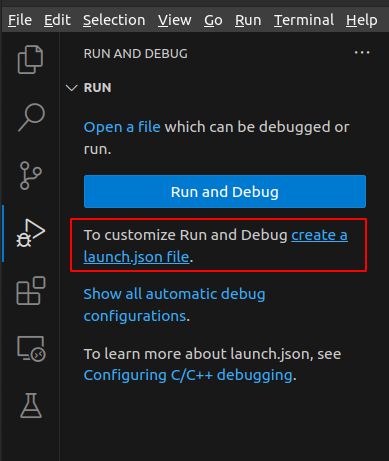
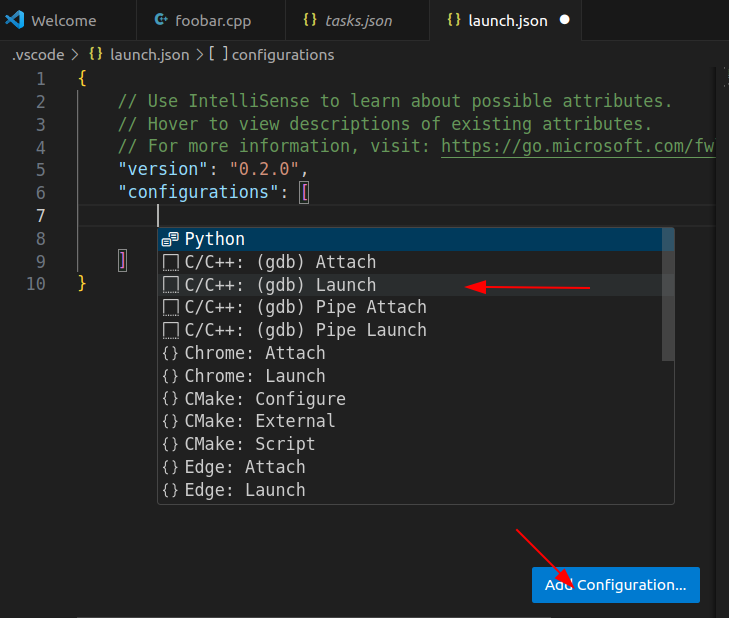
创建一个launch.json文件来配置调试环境,选择Run --> Add Configuration,会自动生成一个launch.json

点击右下角的Add Configuration来选定要加入的配置C/C++: (gdb) Launch(VS Code版本不同,方式有些变化)

生成默认 launch.json 文件

1
2
3
4
5
6
7
8
9
10
11
12
13
14
15
16
17
18
19
20
21
22
23
24
25
26
27
28
29
30
{
// Use IntelliSense to learn about possible attributes.
// Hover to view descriptions of existing attributes.
// For more information, visit: https://go.microsoft.com/fwlink/?linkid=830387
"version": "0.2.0",
"configurations": [

{
"name": "g++ - Build and debug active file",
"type": "cppdbg",
"request": "launch",
"program": "${fileDirname}/${fileBasenameNoExtension}",
"args": [],
"stopAtEntry": false,
"cwd": "${fileDirname}",
"environment": [],
"externalConsole": false,
"MIMode": "gdb",
"setupCommands": [
{
"description": "Enable pretty-printing for gdb",
"text": "-enable-pretty-printing",
"ignoreFailures": true
}
],
"preLaunchTask": "C/C++: g++ build active file",
"miDebuggerPath": "/usr/bin/gdb"
}
]
}
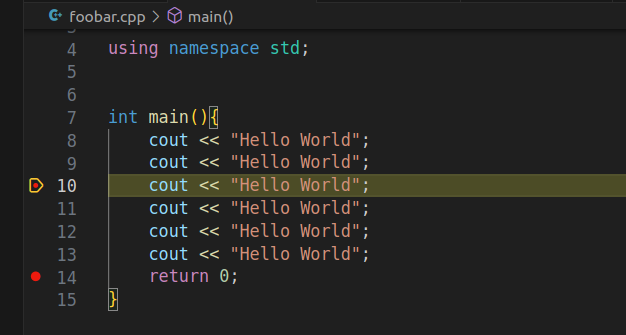
“program”表示需要调试的文件,下面设置为工作目录 ${fileDirname} 中的 ${fileBasenameNoExtension} ,当foobar.cpp处于打开状态时,编译得到的 foobar 会被调试

1
"program": "${fileDirname}/${fileBasenameNoExtension}",

“stopAtEntry”默认为false, 运行调试时,debugger不会在源文件中添加断点,设置为true时,调试会在main函数入口处等待。

配置补充 c_cpp_properties.json

想要进行更多的配置,例如设置编译器路径、改变C标准等,可以创建一个c_cpp_properties.json文件,使用 ctrl+shift+P 打开命令搜索,找到并选择C/C:Edit Configurations(JSON),会自动创建一个c_cpp_properties.json文件,按自己需要修改变量即可。

1
2
3
4
5
6
7
8
9
10
11
12
13
14
15
16
17
{
"configurations": [
{
"name": "Linux",
"includePath": [
"${workspaceFolder}/**"
],
"defines": [],
"compilerPath": "/usr/bin/gcc",
"cStandard": "c17",
"cppStandard": "gnu++14",
"intelliSenseMode": "linux-gcc-x64",
"configurationProvider": "ms-vscode.cmake-tools"
}
],
"version": 4
}

测试代码

1
2
3
4
5
6
7
8
9
10
11
12
13
14
#include <string>
#include <iostream>

using namespace std;

int main(){
cout << "Hello World ! "<< endl;

return 0;
}

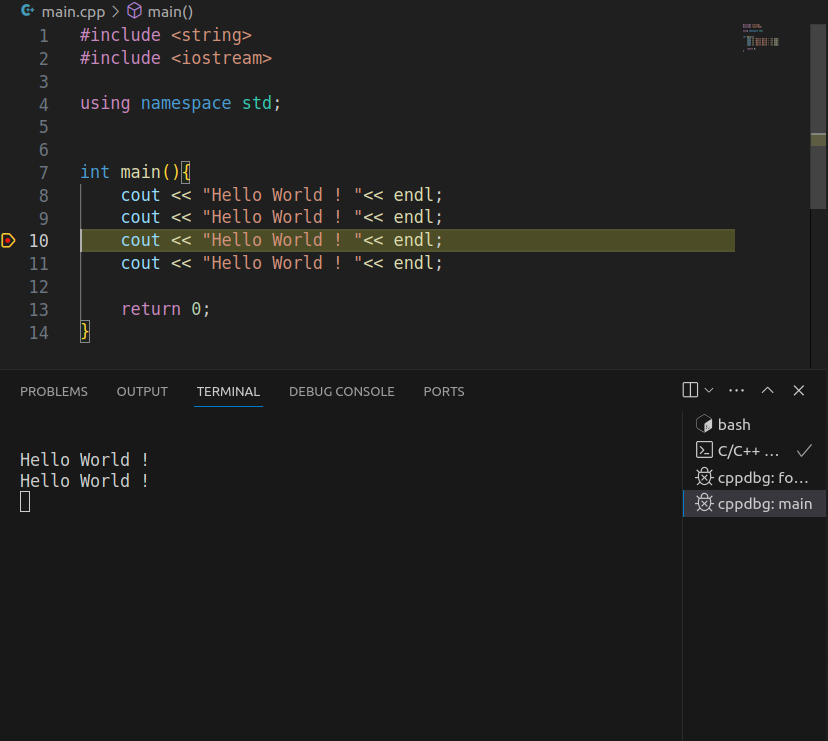
可以单步调试并显示结果。

要加 endl ,否则会延迟输出。

参考资料

文章链接:
https://www.zywvvd.com/notes/coding/cpp/ubuntu/ubuntu-cpp-env/