惯性聚合 高效追踪和阅读你感兴趣的博客、新闻、科技资讯
阅读原文 在惯性聚合中打开

推荐订阅源

爱范儿
爱范儿
Security Latest
Security Latest
NISL@THU
NISL@THU
OSCHINA 社区最新新闻
OSCHINA 社区最新新闻
C
Cybersecurity and Infrastructure Security Agency CISA
Cloudbric
Cloudbric
T
Threat Research - Cisco Blogs
大猫的无限游戏
大猫的无限游戏
C
CXSECURITY Database RSS Feed - CXSecurity.com
阮一峰的网络日志
阮一峰的网络日志
freeCodeCamp Programming Tutorials: Python, JavaScript, Git & More
雷峰网
雷峰网
C
Cisco Blogs
V
Vulnerabilities – Threatpost
S
Security Archives - TechRepublic
V
Visual Studio Blog
让小产品的独立变现更简单 - ezindie.com
cs.AI updates on arXiv.org
J
Java Code Geeks
D
Darknet – Hacking Tools, Hacker News & Cyber Security
Know Your Adversary
Know Your Adversary
博客园 - 叶小钗
腾讯CDC
钛媒体:引领未来商业与生活新知
钛媒体:引领未来商业与生活新知
P
Privacy International News Feed
P
Palo Alto Networks Blog
博客园_首页
V
V2EX
WordPress大学
WordPress大学
Schneier on Security
月光博客
月光博客
博客园 - 司徒正美
Google DeepMind News
TaoSecurity Blog
TaoSecurity Blog
博客园 - 聂微东
酷 壳 – CoolShell
酷 壳 – CoolShell
人人都是产品经理
人人都是产品经理
奇客Solidot–传递最新科技情报
奇客Solidot–传递最新科技情报
博客园 - 【当耐特】
The Cloudflare Blog
罗磊的独立博客
美团技术团队
N
News | PayPal Newsroom
K
KPMG report finds enterprise disconnect between AI and its ROI | CIO
Last Week in AI
Last Week in AI
K
Kaspersky official blog
Google Online Security Blog
S
SegmentFault 最新的问题
Application and Cybersecurity Blog
T
Tailwind CSS Blog

又见苍岚

COLMAP PatchMatch Stereo 算法详解 事件驱动的状态机框架:从理论到工程实践 Git 在国内网络环境下无法 Push 的排查与修复 —— 配置 Clash 代理 分段五次多项式插值原理详解 路径插值方法深度对比研究 Claude Code 使用指南 OpenClaw 记忆管理与技能创建指南 CBS(Conflict-Based Search)算法详解 A* 算法及其变种详解 OpenClaw 配置多 Agents Windows Powershell 无法加载文件,因为在此系统上禁止运行脚本问题的解决方案 MaxClaw 安装流程 大模型 AI 名词介绍 AList 网盘聚合工具简介 Protobuf 简介与测试 Claude Code 简介以及 GLM 4.7 模型接入 Github 歌词下载工具 163MusicLyrics Python __getattr__ 懒加载 Python TypedDict 机器人仿真平台 Gazebo 安装记录 机器人仿真平台 Gazebo 简介 多机器人路径规划问题(Multi-Agent Path Finding, MAPF)简介 Python exifread 读取修改过的 jpeg 信息错误问题修复 3D 坐标系变换的理解 3D 旋转矩阵基本概念 MongoDB Compass 介绍 Python 环境管理工具 uv Flutter 开发指南 Snipaste 安装下载与黑屏问题解决方案 全局路径规划算法记录 2025 Python 版本性能测试 Flutter Hello World Flutter 安装环境配置 Ubuntu VMware 硬盘扩容后 SMBus Host controller not enabled 报错问题解决 Python NetworkX 教程 Docker GPU 报错 - Failed to initialize NVML Unknown Error 解决方案 Python matplotlib 图表绘制 cuda-toolkit 安装替代 Cuda 与 Cudnn Jinja2 Python 利用 docxtpl 和 Jinja2 生成基于模板的 Word 文档 Docker 实现 CPU 核心隔离 LoFTR 基于 Transformer 的特征提取匹配算法 OmniGlue 特征匹配 SuperGlue 使用图神经网络学习特征匹配 Ubuntu 下将 xlsx 文件按照 sheet 转换为 图片 Python 使用 SQLAlchemy Python FastAPI 教程 openwrt 软路由配置安装 Nav2 地图文件(PGM/YAML)规范标准 3D OBJ 模型转换为 glb 瓦片格式 Python 源码 Redis 数据库介绍 Ubuntu 22.04 内核自动升级导致 MongoDB 7.0.12 错误记录 ubuntu 20.04 安装 ROS Noetic ubuntu 18.04 安装 ROS Melodic VMware Workstation Pro 个人免费版下载、安装、使用指南 Hybrid A-star 路径规划 Reeds-Shepp 曲线 Dubins 曲线 Linux kvm 虚拟机网络不通的问题解决方法 Ubuntu 自动内存清理 BiliBili 缓存视频转 mp4 Python 求解线性规划 3D Gaussian Splatting 官方源码实践记录 ImageMagick 教程 Ubuntu 22.04 安装 Colmap 对数几率 odds Ubuntu nmcli 网络管理工具使用指南 SuperPoint 自监督深度学习特征点提取 SyncTV Music Tag Web 在线音乐信息整理工具 ncm 格式转 mp3 MusicBrainz 音乐元数据百科数据库 Ubuntu 网络流量监控工具 私人云音乐平台 Navidrome 入门 手眼标定 四元数(Quaternions) OHTTPS 实现免费自动 https 证书申请、更新、部署 ubuntu 22.04 安装 CloudCompare 单机 KVM 虚拟机冷迁移 Ubuntu 22.04 使用 mdadm 实现软 raid 小鱼 一键安装 ROS-humble Fluid -46- 基于 Simpletex API 构建公式识别页面 公式识别 API 简介 -- Simpletex 使用 Python web 部署库 waitress 3D Gaussian Splatting for Real-Time Radiance Field Rendering Ubuntu Swap 简介与空间扩展 Ubuntu 24.04 安装 forticlient Clash Verge 使用 MongoDB 7.0.17 集群 Docker 构建源码 Error code - 2013. Lost connection to MySQL server during query 问题解决 Python 日志记录库 loguru 使用指北 Python 实现 Web 日志查看服务 MySQL LOAD DATA LOCAL INFILE 极速数据加载 Image size exceeds limit of 89478485 pixels 解决方案 Docker 使用 NVIDIA GPU 驱动错误解决 阿里云 docker 镜像仓库 Ubuntu中没有wired connected的解决方案 MinIO 简介 subconverter 代理订阅格式转换 修复 node –openssl-legacy-provider is not allowed in NODE_OPTIONS 错误
Linux ZSH 更便捷的 shell 环境
Yiwei Zhang · 2024-04-25 · via 又见苍岚

zsh 是 Neo 日常开发过程中最常用的 shell,它大幅提升了开发效率,也不再为忘记命令而苦恼。本文记录 zsh 安装、使用过程。

简介

zsh 是一个为交互式使用而设计的 兼容 bash 的 shell,尽管它也是一个强大的脚本语言。Bash、 ksh 和 tcsh 的许多有用特性都被合并到 zsh 中; 还添加了许多原始特性。

相较 bash 具有以下优点:

  • Tab 补全功能强大。命令、命令参数、文件路径均可以补全。
  • 插件丰富。快速输入以前使用过的命令、快速跳转文件夹、显示系统负载这些都可以通过插件实现。
  • 主题丰富。
  • 可定制性高。

关于 zsh 的更多的信息,可以访问 https://www.zsh.org/ 查看。

zsh 的初期配置太过繁琐,流行率一直不高。

安装 zsh

  • macOS:
1
brew install zsh
  • ubuntu:
1
sudo apt-get install zsh
  • 安装验证

安装完成后,使用 cat /etc/shells 查看系统可以用的 shell:

1
2
3
4
5
6
7
8
9
10
11
12
$ cat /etc/shells
# /etc/shells: valid login shells
/bin/sh
/bin/bash
/usr/bin/bash
/bin/rbash
/usr/bin/rbash
/bin/dash
/usr/bin/dash
/usr/bin/tmux
/bin/zsh
/usr/bin/zsh

发现多了 zsh, 说明安装成功

修改默认 shell

  • 当前 shell

执行命令 : echo $SHELL 查看当前默认 shell

1
2
$ echo $SHELL
/bin/bash
  • chsh 命令

使用 chsh -s /bin/zsh 命令将 zsh 设置为系统默认 shell。

为 root 设置默认 shell

1
sudo chsh -s /bin/zsh

为特定用户设置默认 shell

1
2
sudo chsh -s /bin/zsh <username>
# <username> 替换为实际用户名

返回结果如下,表示切换完成(下载安装 oh-my-zsh 成功后也会提示切换)

1
2
3
# sudo chsh -s /bin/zsh
Changing shell for root.
Shell changed.

我遇到的情况是没有返回上述信息,新建terminal仍然是 bash 为默认 shell,查看 /etc/passwd 发现确实成功修改了用户的 shell 记录,重启系统才完成了默认 shell 的修改

初次启动 zsh 会进入配置界面,输入 0 可以跳过

1
2
3
4
5
6
7
8
9
10
11
12
13
14
15
16
17
18
19
20
21
22
This is the Z Shell configuration function for new users,
zsh-newuser-install.
You are seeing this message because you have no zsh startup files
(the files .zshenv, .zprofile, .zshrc, .zlogin in the directory
~). This function can help you with a few settings that should
make your use of the shell easier.

You can:

(q) Quit and do nothing. The function will be run again next time.

(0) Exit, creating the file ~/.zshrc containing just a comment.
That will prevent this function being run again.

(1) Continue to the main menu.

(2) Populate your ~/.zshrc with the configuration recommended
by the system administrator and exit (you will need to edit
the file by hand, if so desired).

--- Type one of the keys in parentheses --- 0

安装 Oh My ZSH!

github主页: https://github.com/ohmyzsh/ohmyzsh/

zsh 由于配置过于复杂门槛过高,大神开发了 oh my zsh 极大降低了使用门槛。

安装 oh my zsh 前确认本地安装了 git

  • 安装命令:
1
2
3
sh -c "$(curl -fsSL https://raw.githubusercontent.com/ohmyzsh/ohmyzsh/master/tools/install.sh)"
# 或者
sh -c "$(wget https://raw.githubusercontent.com/ohmyzsh/ohmyzsh/master/tools/install.sh -O -)"
  • 安装成功提示:
1
2
3
4
5
6
7
8
9
10
11
12
13
14
15
16
17
18
19
Looking for an existing zsh config...
Found /home/vvd/.zshrc. Backing up to /home/vvd/.zshrc.pre-oh-my-zsh
Using the Oh My Zsh template file and adding it to /home/vvd/.zshrc.

__ __
____ / /_ ____ ___ __ __ ____ _____/ /_
/ __ \/ __ \ / __ `__ \/ / / / /_ / / ___/ __ \
/ /_/ / / / / / / / / / / /_/ / / /_(__ ) / / /
\____/_/ /_/ /_/ /_/ /_/\__, / /___/____/_/ /_/
/____/ ....is now installed!

Before you scream Oh My Zsh! look over the `.zshrc` file to select plugins, themes, and options.

• Follow us on Twitter: @ohmyzsh
Join our Discord community: Discord server
• Get stickers, t-shirts, coffee mugs and more: Planet Argon Shop

➜ ~

修改主题

1
vim ~/.zshrc

其中 ZSH_THEME 是主题字段,主题信息可以去 这里 查看

主题文件在 ~/.oh-my-zsh/themes 目录

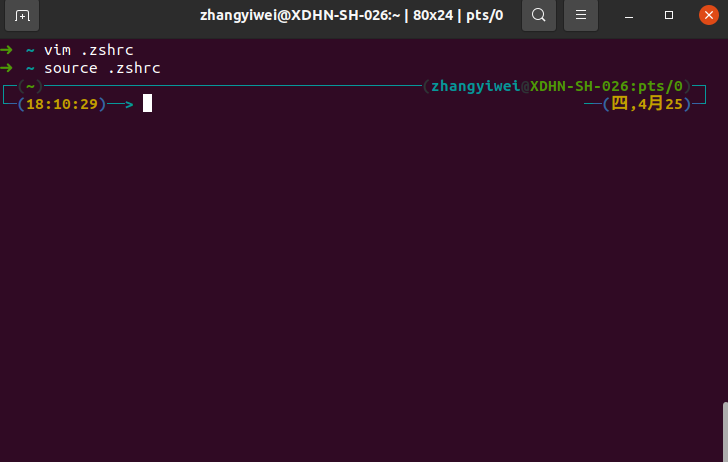
比如我修改主题字段为 :jonathan

修改配置后,通过 source ~/.zshrc 或者退出重新登录使配置生效。

主题就会变成:

随机主题

  • 我们还可以随机设置主题:
  • 步骤同上
1
ZSH_THEME="random"
  • 每次打开终端主题是随机的。

开源主题

除了内置主题外,还可以选择其他开源的主题,强烈推荐尝试一下 powerlevel10k 主题,一个顶十个,项目地址为:https://github.com/romkatv/powerlevel10k

oh-my-zsh 安装这个款主题的方法:使用 git 将文件 clone 只指定文件夹 ~/.oh-my-zsh/custom/themes/powerlevel10k ,命令如下:

1
git clone --depth=1 https://github.com/romkatv/powerlevel10k.git ${ZSH_CUSTOM:-$HOME/.oh-my-zsh/custom}/themes/powerlevel10k

使用 vim 编辑 .zshrc,键入以下内容并保存:

1
ZSH_THEME="powerlevel10k/powerlevel10k"

最后,执行 source ~/.zshrc 配置生效,这时会提示对主题进行配置,按照提示进行即可。

别名配置

我们看下 git 的别名:

1
cat ~/.oh-my-zsh/plugins/git/git.plugin.zsh
1
2
3
4
5
6
7
8
9
10
11
12
13
......

alias g='git'

alias ga='git add'
alias gaa='git add --all'
alias gapa='git add --patch'
alias gau='git add --update'
alias gav='git add --verbose'
alias gap='git apply'
alias gapt='git apply --3way'

......

自定义别名,在 ~/.zshrc 中,最下面直接写即可。

1
2
# Example aliases
alias ll='ls -lahF --color --time-style=long-iso'

或者直接使用 echo 写入。

1
echo 'alias ll="ls -lahF --color --time-style=long-iso"' >> ~/.zshrc

常用建议 git 命令

1
2
3
4
5
6
7
8
9
10
11
12
13
14
15
16
17
18
19
20
21
22
23
24
25
26
27
28
29
30
31
32
33
34
35
36
37
38
39
40
41
42
43
44
45
46
47
48
49
# 状态与提交
alias gs='git status -sb'
alias ga='git add'
alias gaa='git add --all'
alias gc='git commit'
alias gcm='git commit -m'
alias gca='git commit --amend'
alias gcan='git commit --amend --no-edit'

# 分支操作
alias gb='git branch'
alias gco='git checkout'
alias gcb='git checkout -b'
alias gbd='git branch -d'

# 日志与对比
alias gl='git log --oneline --graph --decorate'
alias gd='git diff'
alias gdc='git diff --cached'

# 一键提交所有修改
alias gac='git add --all && git commit -m'

# 强制推送当前分支
alias gpf='git push --force-with-lease'

# 拉取并切换远程分支
alias gcor='git fetch && git checkout'

# 删除已合并的分支
alias gbclean='git branch --merged | grep -v "\*" | xargs -n 1 git branch -d'

# 优雅日志(带作者和时间)
alias glo='git log --graph --pretty=format:"%Cred%h%Creset -%C(yellow)%d%Creset %s %Cgreen(%cr) %C(bold blue)<%an>%Creset" --abbrev-commit'

# 快速暂存/恢复
alias gst='git stash'
alias gstp='git stash pop'

# 子模块操作
alias gsu='git submodule update --init --recursive'

# 重置与回退
alias grh='git reset --hard HEAD'
alias grs='git restore --staged'

# 查看远程仓库
alias gr='git remote -v'

配置生效

1
source ~/.zshrc

使用示例

场景 简写命令 等效完整命令
查看简洁状态 gs git status -sb
提交所有修改 gac "fix: update styles" git add --all && git commit -m “fix…”
创建新分支 gcb feature/login git checkout -b feature/login

排查技巧

如果命令不生效:

  1. 检查是否有重复别名:alias | grep git
  2. 确保没有拼写错误
  3. 确认已执行 source ~/.zshrc

可根据实际需求调整组合命令,例如添加 alias gp='git push -u origin HEAD' 实现推送当前分支。

命令自动补全

内置自动补全功能

默认 oh-my-zsh 命令自动补全功能如下:

  • 自动列出目录

    输入 cd 按 tab 键,目录将自动列出,在按 tab 可以切换

  • 自动目录名简写补全

    要访问 /usr/local/bin 这个长路径,只需要 cd /u/l/b 按 tab 键自动补全

  • 自动大小写更正

    要访问 Desktop 文件夹,只需要 cd de 按 tab 键自动补全,或者查看 README.md,只需要 cat rea 自动更正补全

  • 自动命令补全

    输入 kubectl 按 tab 键即可看到可用命令

  • 自动补全命令参数

    输入 kill 按 tab 键会自动显示出进程的 process id

小技巧:

可以忽略 cd 命令,输入 .. 或者 ... 和当前目录名都可以跳转。

上述功能不需要额外的插件。

zsh-completions

额外的自动补全功能,该项目将在完善时合并到 zsh,补充 zsh 中尚不支持的命令补全 (sysin)。

  • Clone the repository inside your oh-my-zsh repo:

    1
    git clone --depth=1 https://github.com/zsh-users/zsh-completions ${ZSH_CUSTOM:-${ZSH:-~/.oh-my-zsh}/custom}/plugins/zsh-completions
  • Add it to FPATH in your .zshrc by adding the following line before source "$ZSH/oh-my-zsh.sh":

    1
    fpath+=${ZSH_CUSTOM:-${ZSH:-~/.oh-my-zsh}/custom}/plugins/zsh-completions/src

Note: adding it as a regular Oh My ZSH! plugin will not work properly (see #603).

另外还有一些插件来增强命令补全,可根据需要启用:

zsh-autosuggestions

作用是根据历史输入命令的记录即时的提示(建议补全),然后按 → 键即可补全。

1
git clone --depth=1 https://github.com/zsh-users/zsh-autosuggestions.git ${ZSH_CUSTOM:-${ZSH:-~/.oh-my-zsh}/custom}/plugins/zsh-autosuggestions

编辑 ~/.zshrc,找到 plugins=(git) 这一行,修改为:

1
2
3
4
5
plugins=(
git
# other plugins...
zsh-autosuggestions
)

Incremental completion on zsh

增强的实时自动命令补全插件:Incremental completion on zsh

该插件对性能似乎有一点点影响,请根据需要启用。

其他插件

语法高亮插件

插件名称:zsh-syntax-highlighting

作用:命令错误会显示红色,直到你输入正确才会变绿色,另外路径正确会显示下划线。

安装:

1
git clone --depth=1 https://github.com/zsh-users/zsh-syntax-highlighting.git ${ZSH_CUSTOM:-~/.oh-my-zsh/custom}/plugins/zsh-syntax-highlighting

配置启用插件:

编辑 ~/.zshrc,以下部分添加插件的名字

1
plugins=([plugins...] zsh-syntax-highlighting)

开启新的 Shell 或执行 source ~/.zshrc,就可以开始体验插件了。

文件夹快捷跳转插件

z 是一个文件夹快捷跳转插件,对于曾经跳转过的目录,只需要输入最终目标文件夹名称,就可以快速跳转,避免再输入长串路径,提高切换文件夹的效率。

安装步骤:

  1. 由于 oh-my-zsh 内置了 z 插件,所以只需要在 .zshrc 中,把 z 加入插件列表:
1
2
3
4
5
6
plugins=(
# other plugins...
zsh-autosuggestions
zsh-syntax-highlighting
z
)
  1. 开启新的 Shell 或执行 source ~/.zshrc,就可以开始体验插件了。

升级 Oh My Zsh

  • 打开终端输入:
1
upgrade_oh_my_zsh

卸载 Oh My Zsh

  • 终端输入 :
1
2
uninstall_oh_my_zsh
Are you sure you want to remove Oh My Zsh? [y/N] Y
  • 终端提示信息:
1
2
3
4
5
6
Removing ~/.oh-my-zsh
Looking for original zsh config...
Found ~/.zshrc.pre-oh-my-zsh -- Restoring to ~/.zshrc
Found ~/.zshrc -- Renaming to ~/.zshrc.omz-uninstalled-20170820200007
Your original zsh config was restored. Please restart your session.
Thanks for trying out Oh My Zsh. It's been uninstalled.


参考资料

文章链接:
https://www.zywvvd.com/notes/tools/zsh/zsh/