


我的台式电脑上次升级还是几年前,而且升级后的系统并不是 LTS 长期支持版本,早就不维护了。正常情况下,当一个版本不维护后,Ubuntu 软件源就不能再正常更新了。作为用户,要么选择升级到下一个 LTS 版本,要么只能把源调整下,指向已归档的源。当时为了省事,选择了后者,之后就一直没有再更新。虽然还可以正常使用和安装更新软件,但是和最新的 LTS 版本差异太大了,升级很可能会遇到问题。
查看 Ubuntu 源配置信息 /etc/apt/sources.list,可以看到其中资源地址都指向了 http://old-releases.ubuntu.com/ubuntu
deb http://old-releases.ubuntu.com/ubuntu artful main multiverse restricted universe
deb http://old-releases.ubuntu.com/ubuntu artful-backports main multiverse restricted universe
deb http://old-releases.ubuntu.com/ubuntu artful-proposed main multiverse restricted universe
deb http://old-releases.ubuntu.com/ubuntu artful-security main multiverse restricted universe
deb http://old-releases.ubuntu.com/ubuntu artful-updates main multiverse restricted universe
deb-src http://old-releases.ubuntu.com/ubuntu artful main multiverse restricted universe
deb-src http://old-releases.ubuntu.com/ubuntu artful-backports main multiverse restricted universe
deb-src http://old-releases.ubuntu.com/ubuntu artful-proposed main multiverse restricted universe
deb-src http://old-releases.ubuntu.com/ubuntu artful-security main multiverse restricted universe
deb-src http://old-releases.ubuntu.com/ubuntu artful-updates main multiverse restricted universe
再来看下当前系统版本为 17.10,代号为 artful
$ lsb_release -a
No LSB modules are available.
Distributor ID:    Ubuntu
Description:    Ubuntu 17.10
Release:    17.10
Codename:    artful
现在最新 LTS 版本是 20.04,中间还隔着一个 先升级到 18.04 LTS,现在的情况是必须要先升级到 18.04 LTS,然后再继续升级到 20.04 LTS 版本。
需要编辑sudo gedit /etc/apt/sources.list,替换 artful 为 bionic,同时为了升级过程更快,改用阿里云的源
deb http://mirrors.aliyun.com/ubuntu/ bionic main restricted universe multiverse
deb http://mirrors.aliyun.com/ubuntu/ bionic-security main restricted universe multiverse
deb http://mirrors.aliyun.com/ubuntu/ bionic-updates main restricted universe multiverse
deb http://mirrors.aliyun.com/ubuntu/ bionic-proposed main restricted universe multiverse
deb http://mirrors.aliyun.com/ubuntu/ bionic-backports main restricted universe multiverse
deb-src http://mirrors.aliyun.com/ubuntu/ bionic main restricted universe multiverse
deb-src http://mirrors.aliyun.com/ubuntu/ bionic-security main restricted universe multiverse
deb-src http://mirrors.aliyun.com/ubuntu/ bionic-updates main restricted universe multiverse
deb-src http://mirrors.aliyun.com/ubuntu/ bionic-proposed main restricted universe multiverse
deb-src http://mirrors.aliyun.com/ubuntu/ bionic-backports main restricted universe multiverse
修改完配置,保存退出,然后更新软件库
$ sudo apt update
......
......
已下载 66.0 MB,耗时 1分 17秒 (853 kB/s)
正在读取软件包列表... 完成
正在分析软件包的依赖关系树
正在读取状态信息... 完成
有 1926 个软件包可以升级。请执行 ‘apt list --upgradable’ 来查看它们。
运行系统软件更新器,出现升级画面

点击部分升级
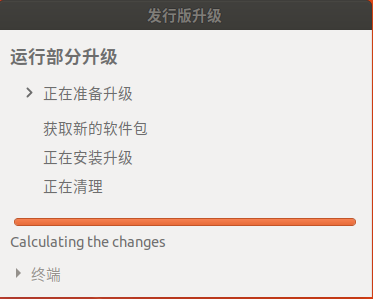
升级准备好后会进入下面的界面

点击开始升级,此时开始下载软件包,因为需要安装近 2000 个 package,所以需要有些耐心。软件包全部下载完成后会自动进入安装过程。
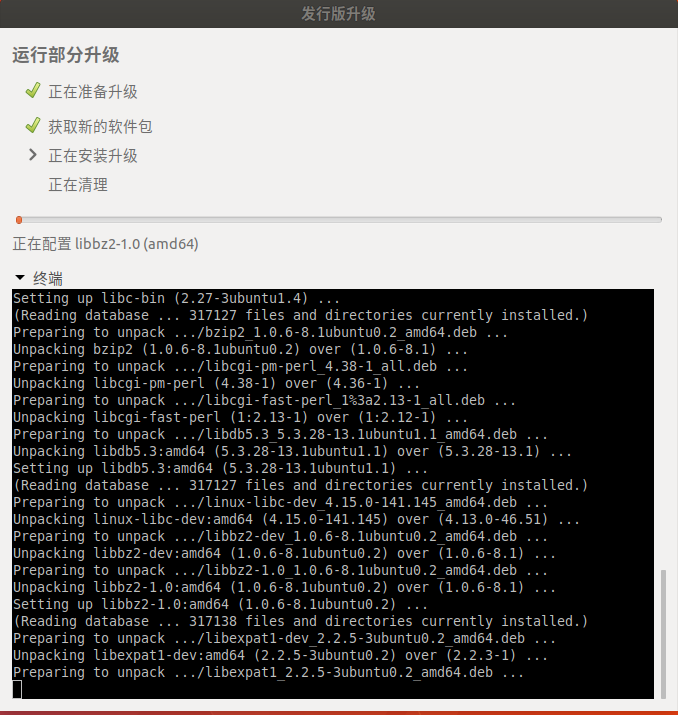
改为阿里源后下载还是比较快的,如上图已进入安装阶段
安装完成后,重启系统,重新进入系统桌面后,系统分辨率只有 800*600 ,打开软件更新器,找到驱动一栏,看到应该是没有加载显卡驱动,选中对应的显卡驱动,点应用然后重启机器,再次进入桌面后显示正常了。
查看系统版本,已升级为 18.04
$ lsb_release -a
No LSB modules are available.
Distributor ID:    Ubuntu
Description:    Ubuntu 18.04.5 LTS
Release:    18.04
Codename:    bionic
再次打开软件更新器,此时已显示可更新到 20.04
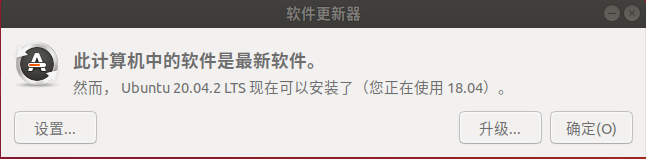
点击升级按钮
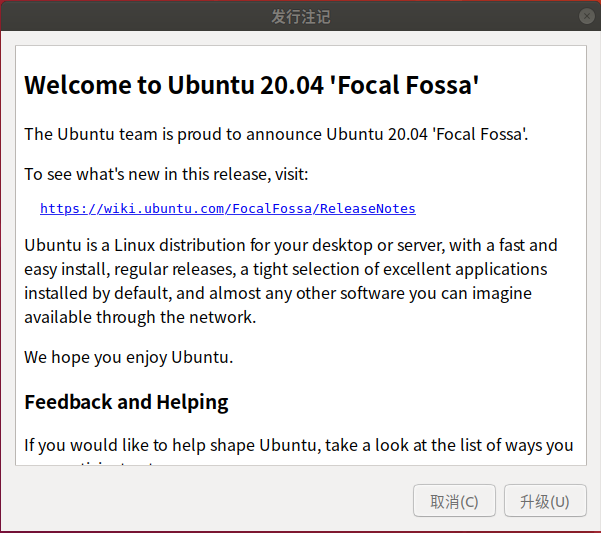
点击升级按钮
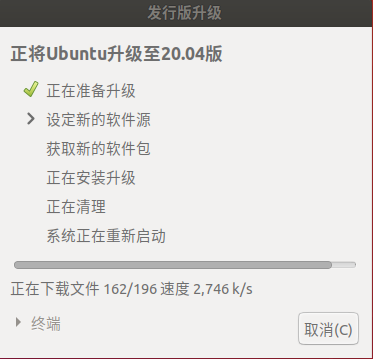
直到这里,我以为后面会比较顺利,谁知道后面遇到了下面这个问题,不得不终止了升级过程。
Unofficial software packages not provided by Ubuntu Please use the tool 'ppa-purge' from the ppa-purge package to remove software from a Launchpad PPA and try the upgrade again
然后在软件更新器里删除所有和 ppa 相关第三方安装源,重新升级没有这个错了,但是报了另外一个错误。估计还是和从 17.10 升级上来有关系,系统太老了,安装了很多第三方软件。升级软件无法计算需要升级安装哪些软件包。
没办法,只好选择手动修改源配置,然后部分升级。
修改 /etc/apt/sources.list,把 bionic 替换为 focal
deb http://mirrors.aliyun.com/ubuntu/ focal main restricted universe multiverse
deb http://mirrors.aliyun.com/ubuntu/ focal-security main restricted universe multiverse
deb http://mirrors.aliyun.com/ubuntu/ focal-updates main restricted universe multiverse
deb http://mirrors.aliyun.com/ubuntu/ focal-backports main restricted universe multiverse
deb-src http://mirrors.aliyun.com/ubuntu/ focal main restricted universe multiverse
deb-src http://mirrors.aliyun.com/ubuntu/ focal-security main restricted universe multiverse
deb-src http://mirrors.aliyun.com/ubuntu/ focal-updates main restricted universe multiverse
deb-src http://mirrors.aliyun.com/ubuntu/ focal-backports main restricted universe multiverse
打开软件管理器,提示可以部分升级

点击部分升级按钮

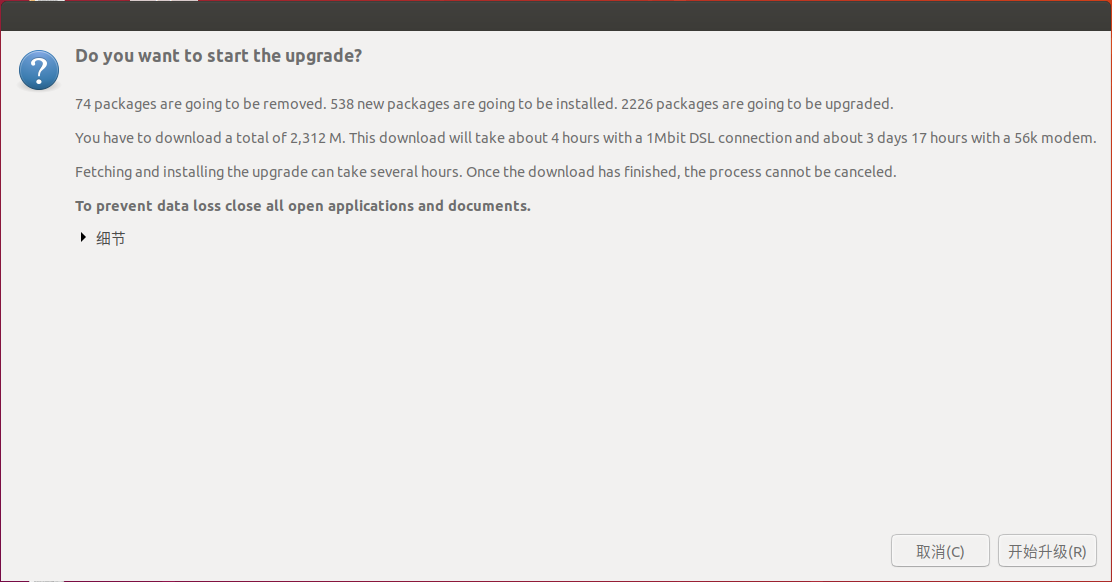
点击开始升级按钮,后面的过程和从 17.10 升级到 18.04 过程差不多,先是下载软件包,然后进行安装升级。

耐心等一段时间,一般都不会有什么问题。偶尔要看下屏幕,安装过程中,有些配置文件会询问你,是保留原有配置还是采用新的默认配置。我全部选择采用新的默认配置,覆盖已存在的配置。
安装完成后,还是选择立即重启,重启完成后进入新系统,第一感觉,整体风格更漂亮了。最后来看下升级成功后的版本显示,新系统代号 focal,已升级为 20.04
$ lsb_release -a
No LSB modules are available.
Distributor ID:    Ubuntu
Description:    Ubuntu 20.04.2 LTS
Release:    20.04
Codename:    focal
如果大家也在使用 Ubuntu 系统,最好安装 LTS 长期支持版本,官方团队一般会支持维护很长时间。而且升级到下一个 LTS 版本也通常很方便。当有新的 LTS 版本出来后,大家还是尽早升级比较好,升级一般不会对系统或者数据造成损失。尽早升级一方面可以体验新版本系统中新增的功能,另一方面减少升级过程中不必要的麻烦。
比较老的系统升级是比较痛苦的,说不准就会遇到什么奇怪的问题。此时官方技术团队的主要精力都在维护当前 LTS 版本以及未来的新版本,这些问题是否能解决就要看运气了。
此内容由惯性聚合(RSS阅读器)自动聚合整理,仅供阅读参考。 原文来自 — 版权归原作者所有。