






Emacs features have a discoverability problem, and we’re chipping away at it one demo at a time. The years since I wrote the last one of these have yielded more surprising and useful finds, so it’s time again for a “batteries included” report.
This is the third in a series of articles highlighting useful but lesser-known features included in Emacs.
Parts 1 & 2:
“Lesser-known” is a subjective judgment. Roughly, it means that at the time of writing, I have seen these features mentioned fewer than five times – and often never – in the past two decades of dipping in and out of online Emacs discourse. Some of the features covered in past entries are well known and often recommended today. I claim no credit.
If you’re a new Emacs user, don’t start here. This is not a getting-started guide. You will be better served by grokking basic Emacs concepts and sticking to the most widely recommended packages. Once you’ve experienced the Emacs equivalents of thoughts like “Why didn’t anyone think to put wheels on luggage until 1990?”, this series might be more helpful. My rule of thumb is that if you aren’t yet aware of undo-in-region, there is much low hanging fruit for the picking, and you can come back to this article after that supply has run out! .
Veteran Emacs users tend to use some relatively niche Emacs features, but in my experience it’s always a different subset for each user. So if you’ve been around the block a few times, I promise there will still be surprises below for you as well!
Same rules as before:
No packages, stock Emacs only
No steep learning curves. Learn each feature in under five minutes or bust.
No gimmicks. No doctor, tetris, snake, dunnet, zone,
butterfly… yes, we know about dissociated-press. Let’s move on.
Just the deltas. No commonly mentioned packages like Flymake, doc-view, outline-minor-mode, gnus or eww. Nothing that Emacs brings up automatically or a nonspecific Google search gets you.
Assume a modern Emacs, 28.1+.
Also, if you’re new to Emacs and still reading:
| Emacs jargon | Modern parlance |
|---|---|
M-x |
Alt + x |
C-x |
Ctrl + x |
| Frame | Emacs window |
| Window | split/pane |
| Buffer | Contiguous chunk of text/data |
| Point | Cursor position in buffer |
| Active Region | Text selection |
| Region | Text selection (not highlighted) |
| Face | Font, color and display properties |
I’m Sorry.
Okay? Let’s go:
Turn on dictionary-tooltip-mode to see word meanings in tooltips when you
hover over them:
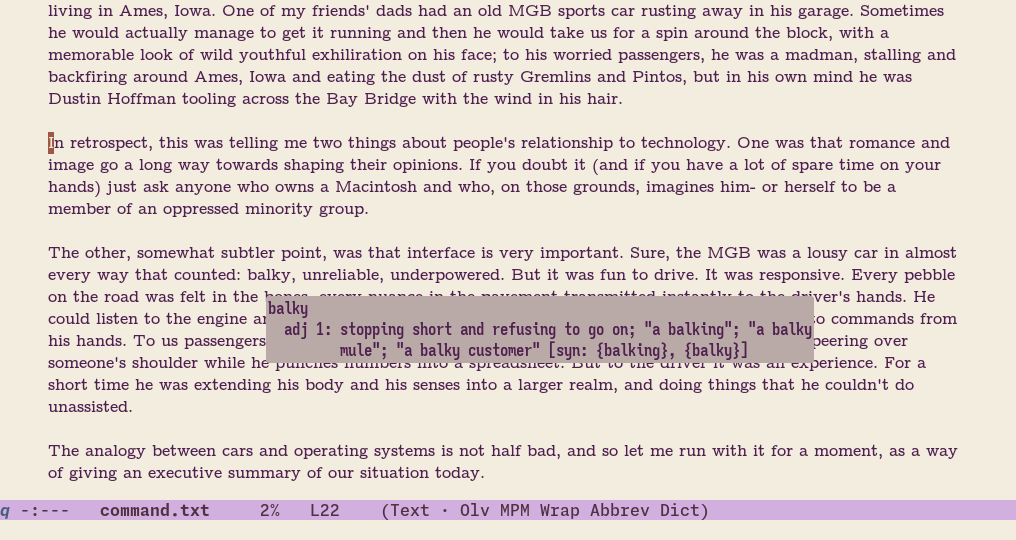
Of course, tooltip-mode will need to be enabled as well, but that’s the
default.
If you have local dictionaries set up, it will try those first. Note that Emacs’ dictionary can look up contemporary jargon and lingo too, usually via Wiktionary:
find-file and dired with wildcardsA surprisingly little known utility of two of the most used Emacs commands: you
can use wildcards when using both find-file and dired interactively.
find-file (C-x C-f), open multiple files at once
with a wildcard like *foo*.txt.Here’s a demo where both features are used to clean up some (very) old TeX compilation artifacts and then open a bunch of LaTeX files at once:
*/*_region_*: look for all files with
"_region_" in their name, but only in sub-directories.dired-toggle-marks, bound to t) and delete them.find-file with a wildcard, opening all TeX files in sub-directories.(The command used to see the list of open buffers is consult-buffer, and the
completions are displayed by Corfu.)
The fact that this is possible when calling them programmatically is evident from their function signatures. But realizing that this capability is also available during interactive use requires reading through the full docstring, and no one has the time for that!
In practice the Dired wildcard capability is superseded by a modern workflow
like consult-find exported as a Dired buffer by embark-export, but this
works out of the box.
You might be familiar with Emacs’ “find-file-at-point” feature, M-x ffap, that
checks if the cursor is on a valid file path and offers to open it.
This is accompanied by ffap-menu, a less well known but equally handy command.
ffap-menu scans the whole buffer for anything that looks like a file path or
URL and presents you with all of them:
Since it offers a completing-read interface, this opens up a small universe of
possibilities: you can export the list of (possibly filtered) completions into a
buffer, copy or open all or any subset of them, or otherwise act on them right
away with Embark.
Many Emacs applications (like EWW) include URLs as text properties and not
plain-text links, and ffap-menu misses them. Inspired by ffap-menu, I use a
home-brew version that fetches such links as well.
my/search-occur-browse-url, a custom command inspired by ffap-menuThe enhanced version:
(defun my/search-occur-browse-url (&optional use-generic-p)
  "Point browser at a URL in the buffer using completion.
Which web browser to use depends on the value of the variable
`browse-url-browser-function'.

Also see `my/search-occur-url'."
  (interactive "P")
  (let ((match nil)
        (match-data nil)
        (context
         (lambda (beg &optional shrp)
           (let* ((before (string-replace
                           "\n" ""
                           (buffer-substring-no-properties
                            beg (max (line-beginning-position) (- beg 30)))))
                  (link (string-replace
                         "\n" "" (buffer-substring-no-properties beg (point))))
                  (after (buffer-substring-no-properties
                          (point) (min (line-end-position) (+ (point) 30)))))
             (concat (propertize " " 'display '(space :align-to 65))
                     (propertize (concat "…" before) 'face 'shadow)
                     (if shrp
                         (propertize link 'face '(:inherit shadow :weight bold
                                                           :underline t))
                       link)
                     (propertize (concat after "…") 'face 'shadow))))))
    (save-excursion
      (goto-char (point-min))
      (while (search-forward-regexp my/search-url-regexp nil t)
        (push (cons (match-string-no-properties 0)
                    (funcall context (match-beginning 0)))
              match-data))
      (goto-char (point-min))
      (while (setq match (text-property-search-forward 'shr-url nil nil))
        (push (cons (prop-match-value match)
                    (funcall context (prop-match-beginning match) 'shrp))
              match-data)))
    (let* ((completion-extra-properties
            `(:annotation-function
              ,(lambda (cand) (concat " " (cdr (assoc cand match-data))))))
           (url (completing-read "Browse URL: " match-data nil t)))
      (if use-generic-p
          (browse-url-generic url)
        (browse-url url)))))
M-x compare-windows)There are more commands for comparing buffers and files in Emacs than you can
shake a stick at: there’s diff, diff-buffers, diff-backup,
diff-buffer-with-file, dired-diff, vc-diff, and a whole constellation of
ediff-, ediff-merge- and ediff-directories- commands. I lost count at
around twenty two, and can’t remember most of them.
But my favorite diff command is the lightweight compare-windows, which does
something very obvious and simple in a context-agnostic way.
It compares the text of two windows starting from their respective cursor
positions, and stops at and reports the next mismatch. The two windows are the
active one and whatever other-window would select. Obviously less powerful,
but so much easier and faster to run than Ediff
Have you tried ediff-regions-linewise? Setting this up is a four step
process, involving selecting buffers, marking regions and calling
exit-recursive-edit repeatedly, an advanced command that most Emacs users
should never encounter!
or diff:
M-x compare-windowscompare-windows is only concerned with the actual text in the two windows, and
not the provenance of this text. The buffer type, modification state, file,
version-control status – all irrelevant! You can even compare a
chunk of text in a buffer against another chunk a little further down in the
same buffer by displaying it in both windows. In a silly yet effective way, it
can even compare directory contents, including file attributes:
M-x compare-windowsAnd yes, you can call it with a prefix argument to ignore whitespace differences.
compare-windows is what you use when you find yourself playing
spot-the-difference between two views of any kind. It is my most used “diff”
command.
M-x dired-compare-directories)But speaking of comparing directories, Dired does (of course) provide a less
hacky way to do that. M-x dired-compare-directories in Dired prompts for a
directory to compare with, and marks all files whose names differ in both Dired
listings. That covers the most common use case, and might be everything you
need.
But we already did that with the rudimentary compare-windows.
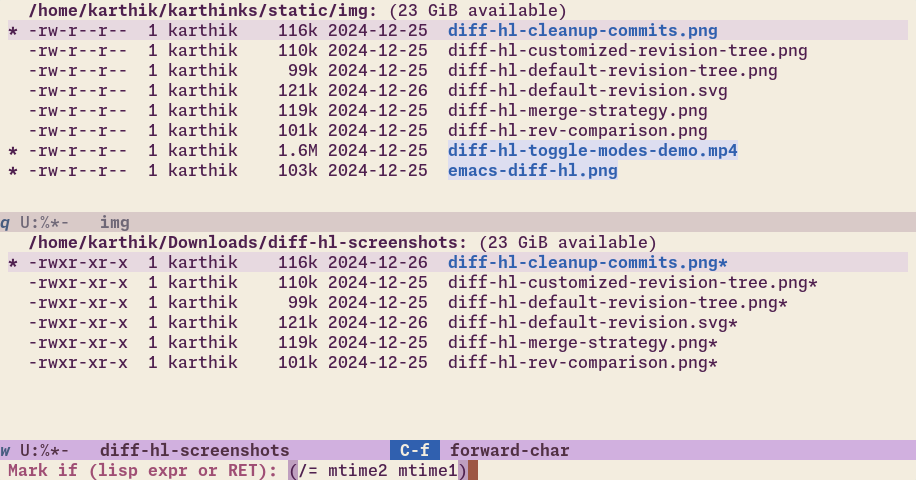
dired-compare-directories is an actual file-level comparison, so you can
provide custom matching predicates involving any file attribute, like
modification times or sizes. For instance,
(> mtime2 mtime1),(/= size1 size2)In this example, dired-compare-directories has marked (i) files that are not
common to the two listings and (ii) files with differing modification times:
If you want something more interactive/prescribed there is also an
ediff-directories, because there is an Ediff command for every occasion.
M-x highlight-changes-mode)While we’re on the topic of spotting differences, highlight-changes-mode is a
handy way to emphasize changes to the file, and a “live” alternative to diff
commands like diff-buffer-with-file:
highlight-changes-mode with save-buffer.
Now changes are highlighted until the next save.Visualization with highlight-changes is determined only by the mode itself, and
changes are highlighted from the time the mode is turned on until it’s turned
off. In general, this is not what we want. What we would like instead is to
highlight unsaved changes
There is M-x highlight-compare-with-file, but this is non-ergonomic enough to
the point of being unusable.
. We could do this with some finesse, or just throw in a couple of hooks:
(defun highlight-changes-mode-turn-off ()
  (and highlight-changes-mode (highlight-changes-mode -1)))

(defun highlight-changes-auto ()
  (when (buffer-file-name)
    (highlight-changes-mode-turn-on)
    (add-hook 'after-save-hook #'highlight-changes-mode-turn-on nil t)
    (add-hook 'before-save-hook #'highlight-changes-mode-turn-off nil t)))

(add-hook 'text-mode-hook #'highlight-changes-auto)
Now all changes in text-mode buffers are automatically highlighted.
highlight-unsaved as a standalone featureThe highlight-changes visualization can be customized to be more subtle, but you probably don’t want it turned on all the time nevertheless. The above hook logic can easily be turned into a minor-mode in its own right:
(require 'hilit-chg)
(defun highlight-changes-mode-turn-off ()
  (and highlight-changes-mode (highlight-changes-mode -1)))

(define-minor-mode highlight-unsaved-mode
  "Highlight all changes until the buffer is saved."
  :lighter "H"
  (cond
   ((not (buffer-file-name))
    (user-error "Highlight-until-save-mode is only meant for use in file-visiting buffers"))
   (highlight-until-save-mode
    (highlight-changes-mode 1)
    (add-hook 'after-save-hook #'highlight-changes-mode-turn-on nil t)
    (add-hook 'before-save-hook #'highlight-changes-mode-turn-off nil t))
   (t (highlight-changes-mode -1)
      (remove-hook 'after-save-hook #'highlight-changes-mode-turn-on t)
      (remove-hook 'before-save-hook #'highlight-changes-mode-turn-off t))))
Finally, highlight-changes-mode provides an auxiliary capability: you can jump
to the next and previous change in the buffer with
highlight-changes-next-change and highlight-changes-previous-change. Since
this is an independent consequence of change tracking you can use just this
navigation and turn off the change visualization with M-x highlight-changes-remove-highlight.
vc-diff variants)One last excursion to close out the theme of spotting and diffing changes.
This will require a tangent through the topic of Emacs backup files and is pushing both the five minute limit and the idea of a built-in, so please bear with me.
By default, Emacs makes a periodic backup of any file you edit and save.
This backup system is usually mentioned only in the context of being something
annoying you should disable (via make-backup-files). If you want actual
backups you could just use version control, right?
If you have security concerns with sensitive files being copied to elsewhere on disk, I sympathize. But otherwise, I think this is largely an ergonomics issue.
Changing the former is a user option
For example, see backup-directory-alist, kept-old-versions and
kept-new-versions.
, but the latter is entirely the case of a missing user interface.
The external package backup-walker provides this “time-machine” interface, along with a couple of others. But there is a simpler, satisfying fix available that simultaneously solves another problem.
Emacs’ built-in VC package offers an interface for viewing past versions of version-controlled files:
vc-diff (C-x v =)vc-ediffvc-revision-other-window (C-x v ~)This is a handy interface and not git-specific, unlike magit’s versions of these commands. , but of course they do nothing in files that aren’t version controlled.
In the spirit of getting the most out of every fiber of muscle memory, we can
extend the vc- interface for the purpose of inspecting backups as well.
We can overload all three VC commands so they always do something useful in a file:
vc-diff (vc-ediff) generates a diff of (runs Ediff
on) the buffer against the file.vc-diff (vc-ediff,
vc-revision-other-window) as usual.This forces functions into a single consistent mental model:
Compare against the previous version, for whatever “previous” means in this context.
As a bonus, we are also free to forget about a few different diff commands that
have been subsumed here, such as diff-buffer-with-file and ediff-current-file.
vc-* commands(defun my/read-backup-file-name (file)
(if-let* ((backup-files (file-backup-file-names file)))
(completing-read "Backup version: " backup-files nil t)
(user-error "No backup files available for file %s" (buffer-file-name))))
(defun my/vc-diff (&optional arg)
"Compare current buffer with its file, or file with backup or revision.
With prefix ARG, compare the file with a selected backup when the file
is not under version control."
(interactive "P")
(if (buffer-modified-p)
(diff-buffer-with-file (current-buffer))
(condition-case errdata (call-interactively #'vc-diff)
(error
(if (string-match-p "not under version control" (cadr errdata))
(if arg
(diff (my/read-backup-file-name (buffer-file-name))
(buffer-file-name))
(diff-backup (buffer-file-name)))
(apply #'signal errdata))))))
(defun my/vc-ediff (&optional arg)
"Run Ediff on the current buffer, file, or backup.
With prefix ARG, compare the file with a selected backup when the file
is not under version control."
(interactive "P")
(if (buffer-modified-p)
(call-interactively #'ediff-current-file)
(condition-case errdata (call-interactively #'vc-ediff)
(error
(if (string-match-p "not under version control" (cadr errdata))
(if arg
(ediff-files (my/read-backup-file-name (buffer-file-name))
(buffer-file-name))
(ediff-backup (buffer-file-name)))
(apply #'signal errdata))))))
(defun my/vc-revision-other-window (&optional arg)
"Visit the current file's past revision or backup in another window.
With prefix ARG, visit a selected backup when the file is not under
version control."
(interactive "P")
(condition-case errdata (call-interactively #'vc-revision-other-window)
(error
(if (string-match-p "not under version control" (cadr errdata))
(if arg
(find-file-other-window (my/read-backup-file-name (buffer-file-name)))
(if-let* ((backup (file-newest-backup (buffer-file-name))))
(find-file-other-window backup)
(user-error "No backup files available for %s" (buffer-file-name))))
(apply #'signal errdata)))))
See scroll all windows for a demonstration of the
generalized vc-diff working with backup files.
If you only use one help keybinding, it should be C-h k, describe-key, since
the very fact that every key press invokes a first-class function that you can
live-inspect and mess with can be a revelation.
If you learn two, there is a strong case for apropos being the second. It
bridges the gap between not knowing what to search for and getting a full
picture of how things are laid out. It’s a foot-in-the-door command.
But you already know apropos. What’s less evident is that apropos is a
whole family of commands that do increasingly specialized but useful look-ups
It’s ironic that the extended apropos family is itself not very discoverable.
.
Bind them all under C-h a, replacing apropos:
(defvar-keymap help-apropos-map
  :doc "Keymap for apropos subcommands."
  "a"   #'apropos
  "l"   #'apropos-library
  "f"   #'apropos-function
  "x"   #'apropos-command
  "v"   #'apropos-variable
  "V"   #'apropos-local-variable
  "u"   #'apropos-user-option
  "d"   #'apropos-documentation
  "C-f" #'customize-apropos-faces
  "g"   #'customize-apropos-groups
  "o"   #'customize-apropos-options
  "c"   #'customize-apropos
  "i"   #'info-apropos)
(keymap-set help-map "a" help-apropos-map)
prefix-help-commandYou don’t need to remember any of these! If you don’t already use a prompter like
which-key, you can press C-h after the prefix C-h a to bring up a listing of the
available commands.
My favorite of these is customize-apropos: it produces a bespoke customization
buffer for perusing or changing all options matching the thing you searched for:
C-h a)C-h to see available commands under this prefix. I used Embark for
this feature, but you should see a list of available commands no matter what.customize-apropos and search for “async”find-func goodies (M-x find-function-on-key, M-x find-function)One of the most useful things you can do in Emacs, if you don’t like what a keybinding does (or if you’re simply curious), is to jump to the definition of the command it calls to see how to modify its behavior live. Normally this is a multi-step process:
describe-key or C-h k + your key
sequence.s (for “source”).find-function-on-key obviates step 2, and takes you from keybinding to the
source. Bind it to a key and you’re off to the races.
C-h M-k for me, as it’s a variation of describe-key:
(keymap-set help-map "M-k" #'find-function-on-key)
Going from a keybinding to the source of the function in one step is a minor shortcut for the common route, but it’s magical the first time you try it. No video demo, because the effect is so instantaneous a video would be both (i) confusing and (ii) underwhelming!
copy-from-above-command and duplicate-dwimEmacs recently added some missing editing commands that have been part of most users’ tool-belts for decades. The two most useful of these are for duplicating text with the cursor as the destination and source. Respectively,
copy-from-above-command copies text from the first non-blank line above the
current one, similar to Vim’s C-y.duplicate-dwim copies text on the current line (or active region) below the
current one, similar to Vim’s yy<N>p1.In typical Emacs fashion, slight tweaks can make these commands work how your brain does:
copy-from-above-command copies as many characters from the above line as the
prefix argument. I typically want to copy the whole line, so I change the
prefix argument interpretation to “copy the above line and comment it out”, a
very common action when experimenting with code or prose:
  (define-advice copy-from-above-command (:around (func &optional arg) comment)
    (if (equal current-prefix-arg '(4))
        (progn
          (funcall func)
          (save-excursion
            (forward-line 0)
            (let ((ln (line-number-at-pos (point))))
              (backward-char)
              (skip-chars-backward "\n\t ")
              (unless (= (line-number-at-pos) ln)
                (comment-line 1)))))
      (funcall func arg)))
Note that the original prefix argument behavior still works, and you can copy
a fixed number of characters from above with a numeric prefix argument
(C-<N>).
duplicate-dwim has a choice to make about where to place the cursor after
the duplication: does the user mean to continue working with the duplicated
text or the original?
You can make that choice for yourself by setting a user option. I prefer to move the cursor and region to the duplicated text:
  (setq duplicate-region-final-position -1
        duplicate-line-final-position -1)
M-x kmacro-edit-lossage)Three facts about Emacs keyboard macros:
Vim’s . (dot) command is a solution here, since Vim is effectively
always recording a macro of your edits, and Emacs’ dot-mode package emulates this
with some success. But these are still limited to buffer edits, and not full
fledged keyboard macros.
Well. Emacs provides the confusingly named kmacro-edit-lossage command that
addresses this foresight problem, albeit in a manual way. At any time, you can
view your “lossage”, a record of the last 300 or so key-presses with the
view-lossage (C-h l) command.
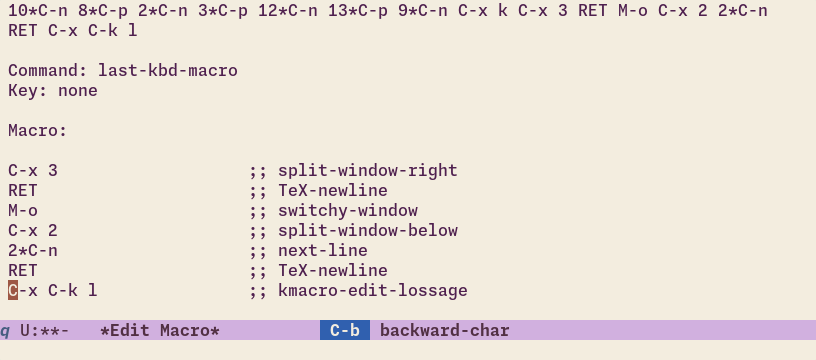
kmacro-edit-lossage takes this further, and lets you create a macro from your
key-press history at any time. The lossage is truly editable, you can and will
want to insert new commands into the lossage when creating a macro. An example
of creating a macro from a keystroke sequence that is setting up a window split:
“Oh, I need to do the complex thing I just did 200 times”
In practice, I edit macros I’ve already defined with edit-kbd-macro (C-x C-k e) more than I fashion new ones from the lossage, but on the infrequent
occasions that call for kmacro-edit-lossage, it’s a real lifesaver
The editing process generally requires a generous sprinkling of
kbd-macro-query calls into the lossage to be truly generalizable.
.
subword-mode, superword-mode and word syntaxEmacs offers word-based navigation and editing commands (forward-word,
forward-to-word, kill-word…) and major-mode-specific syntax tables,
leaving the question of “what is a word?” up to you.
subword-mode and superword-mode are two different answers to this
question. With subword-mode turned on, each component of a CamelCase symbol
counts as a word. As the documentation helpfully illustrates:
  Nomenclature           Subwords
  ===========================================================
  GtkWindow          =>  "Gtk" and "Window"
  EmacsFrameClass    =>  "Emacs", "Frame" and "Class"
  NSGraphicsContext  =>  "NS", "Graphics" and "Context"
When superword-mode is turned on, snake_case symbols like this_is_a_symbol
counts as one word
The string-inflection package provides a command to easily cycle between these
styles: this_is_a_symbol –> this-is-a-symbol –> This_Is_A_Symbol –>
thisIsASymbol –> ThisIsASymbol.
. In practice, this is less useful than subword-mode, since acting on
symbols is already well supported in Emacs via the *-sexp commands.
More generally, it can be worth taking a few minutes to modify the syntax table
of a major mode to fix annoyances you might be experiencing with structural
navigation. In Lisp-y contexts, my most useful change is to make “:” be
considered part of a word, so that I can backward-kill-word through keywords
like :foo:
(add-hook 'lisp-data-mode-hook
          (lambda () (modify-syntax-entry ?: "w")))
In Org mode, it’s treating the delimiters = and ~ as word constituents:
(add-hook 'org-mode-hook
          (lambda ()
            (modify-syntax-entry ?= "w")
            (modify-syntax-entry ?~ "w"))
See describe-syntax (C-h s) and modify-syntax-entry for how to specify the
syntax of characters.
Almost everywhere that Emacs displays an image, you can manipulate the display
by placing the cursor on the image and pressing i. Here is an example with
images displayed in Elfeed (an RSS feed reader) and in Org mode:
org-link-previewi +.i prefix because I use repeat-mode.I used the keyboard in this demo, but you could just use the C-<wheel>
shortcut familiar from browsers and other applications.
The most useful bindings are i + and i - to zoom, and maybe i r to rotate the
image by 90 degrees. But you can do other things like cropping the image with i c – see
M-x describe-keymap⮐ image-map.
If you use repeat-mode, you don’t need the i prefix after the first invocation
either, you can repeat with just +, - or r.
This functionality is provided via a keymap placed over images, and nothing needs to be turned on for this. Note that only the image display is modified, not the image on disk.
In web-pages and rendered-HTML buffers, there is one more useful command:
pressing z (shr-zoom-image) will split the image into horizontal strips
across several lines, and cycle through different image sizes. It’s an odd
command, probably intended to mitigate Emacs’ display engine limitations when
dealing with large images. But mitigate it does. Useful if you visit websites
with huge images in Emacs.
M-x visible-mode)Emacs can make buffer text selectively invisible. Marking text as invisible is
the basis of all “folding” behavior – think magit-section buffers, Outline
mode, Org mode and so on. Every mode that provides folding also provides
keybindings to toggle the fold state, and pressing TAB usually works.
Usually.
In practice, these keybindings tend to be all over the place. For when you
can’t be bothered to learn mode-specific conventions because you don’t use the
mode enough
Or because the interface is bonkers, like the default outline-minor-mode keybindings.
and just want to see all hidden text, you’ve got visible-mode.
outline-minor-mode enabled, run visible-mode. All text
is revealed.visible-mode again to restore the previous text invisibilty state.visible-mode for similar effects.visible-mode is somewhat low-level, it simply disables text invisibility
across the buffer until you call it again. So if the buffer is presenting a
“reactive” UI where (un)folding text has dynamic effects, things can appear
broken until you disable visible-mode. As such, it’s intended as a temporary
measure or a debugging tool, but since it always works it’s my go-to button
for showing all buffer text uniformly with one command.
isearch-toggle-invisible)And speaking of visible-mode, some Emacs commands like Isearch ignore
text invisibility out of the box, making it easy to search across the actual
document text
As usual, the full behavior is more complicated. Isearch also restores the
invisibility when you move out of an invisible region that was temporarily
revealed.
.
But this behavior also has a downside. When the buffer as presented is intended as a guide, automatically revealing invisible text breaks our assumptions about what Isearch will do. This is a problem when using Isearch as a navigation (and not a search) tool.
You can toggle searching invisible text when using Isearch with
isearch-toggle-invisible, bound to M-s i when searching:
isearch-abort (C-g)isearch-toggle-invisible (M-s i)This keybinding is not arbitrary – all the Isearch behavior toggles are under
the M-s keymap, mirroring Isearch’s default binding of C-s. (But that’s a
whole article unto itself.)
M-x ruler-mode)At some point in its eventful past, Emacs was intended to possess WYSIWYG word-processing features. This is not surprising, it’s difficult to find computing applications that Emacs doesn’t implement in its own janky, special way.
One of the byproducts of this ambition is that there are some semi-buried
WYSIWYG features lingering around. The center- commands are one such feature,
centering lines, paragraphs and regions relative to fill-column. Useful for
fancy comments in code… and not much else, unless you like to print from Emacs
buffers.
But customizable display margin and fringe widths are a welcome addition, as a
lot of functionality can be stuffed into this screen estate. The only problem
with specifying widths like margins is actually doing it.
You might think that the handily named set-left-margin and set-right-margin
commands do this, but they actually work like the center commands, indenting
the actual buffer text.
It’s surprisingly messy. There is no direct command for this, and setting the
display margins does not take effect until the window is displayed again.
ruler-mode has you covered:
ruler-mode.S-<mouse-1> and S-<mouse-3> to set the left and right margin for the buffer.<mouse-2> to set the fill-column.fill-column.ruler-mode.As a bonus you can set the fill-column too.
You can also set the goal column, but that’ll have to wait.
Of course, you could use the visual-fill-column or olivetti packages for
this, but if you like to change the margins on the fly instead of toggling
between preset widths, ruler-mode is arguably even more user-friendly.
M-x refill-mode)On the theme of text widths, Emacs provides a handy series of fill- commands
and an auto-fill-mode for filling text as you type.
The fact that auto-fill-mode features prominently in Emacs’ tutorial,
among the first things you’re expected to learn, suggests that Emacs takes
text filling very seriously, considering it a crucial text-editing feature.
Personally, the only people I know devoting any of their attention to text
widths on computer screens are professional typesetters… and some Emacs users.
If you’re reading this you might be one of them, so I ask you: isn’t it odd that
auto-fill-mode is not actually automatic? It only wraps the line you’re on,
leaving any earlier misalignment in the paragraph (caused by pasting text from
elsewhere, say) to be fixed manually.
refill-mode is Emacs’ actual automatic text-filling feature. It ensures that
your document stays wrapped at the fill-column:
M-x refill-mode and you’re set.
There are two commonly recommended scroll-related commands that new Emacs users find surprising, in the sense that they make you wonder why other software doesn’t have them.
The first is scroll-other-window, for scrolling the window that isn’t selected
without having to switch to it first. This is very handy when the next window
contains material that’s a reference for our work in this one. The second is
follow-mode (covered in an earlier installment), giving you a contiguous view
of a single buffer across multiple windows.
scroll-all-mode is almost as useful, but lesser known than these two. This
mode scrolls all windows on the frame simultaneously: very handy when you’re
looking at buffers that need to be “synced” in some way. A common use for me is
eyeballing two versions of a file without having to get locked into an Ediff
session:
vc-revision-other-window (actually my spin on it, covered above)scroll-all-modeIt’s just M-x scroll-all-mode.
While we’re on the topic of scrolling other windows, a common question is what happens if you have more than two windows on screen, and the window you want to scroll is not the “next-window” that Emacs picks This tip is recycled from The Emacs Window Management Almanac, but I wouldn’t blame you for missing it in a 15,000 word sea of blather. .
One solution is the built-in master-mode, where you can pre-designate (or
live-designate) buffers that should be scrollable from other buffers.
But a more immediately useful method is to set the strategy used to find the window to scroll. One option is
(setq other-window-scroll-default #'get-lru-window)
which will always scroll the least-recently-used window. This is useful if the window you want to scroll contains reference material that you won’t be editing, so the window will rarely be selected.
Alternatively, you might have two windows (of many), both of which see frequent edits. You’d then use the most-recently-used window as the other window to scroll:
(setq other-window-scroll-default
      (lambda ()
        (or (get-mru-window nil nil 'not-this-one-dummy)
            (next-window)               ;fall back to next window
            (next-window nil nil 'visible))))
Some combination of these should make scroll-other-window always
do-what-you-mean.
M-x emacs-lock-mode)If you try to quit Emacs with unsaved files, Emacs refuses until you answer the question of what to do about each of them. Annoying perhaps, but a useful check.
emacs-lock-mode extends this idea and hands you the controls. Call it in any
buffer to “lock” it.
Until the lock is disengaged, the buffer will refuse to be killed, throwing up a message instead:
Buffer "*scratch*" is locked and cannot be killed
and Emacs will refuse to exit:
Emacs cannot exit because buffer "*scratch*" is locked
This is handy for non-file-visiting buffers containing information you don’t want to accidentally lose, or just as a reminder that a task in that buffer is pending, and you shouldn’t throw away the context.
In a post Org-capture world, the former is rarely an issue, but locking is still useful in shell and compilation buffers, websites or other special applications that contain output or state you don’t want to lose.
M-x undelete-frame-mode and M-x undelete-frame)If you accidentally close an Emacs frame with a carefully curated workspace,
M-x undelete-frame has your back. Uh, if you’ve turned on
undelete-frame-mode, that is.
It does exactly what the more widely recommended (also built-in) winner and
tab-bar-history packages do, but for frames instead of windows. Turn on
undelete-frame-mode with your Emacs and don’t worry about closing frames
again. It can restore up to the last 16 deleted frames.
That’s twenty Emacs features I collided with in the last six years that have
survived contact with the reality of using Emacs in 2026. Several more Emacs
libraries discovered by fat-fingering the keyboard ended up being more
interesting as archaeological artifacts than as reliable solutions to common
user needs. allout-mode is Org mode from a parallel universe, an outline
manager with features like Org’s speed-keys and even per-subtree encryption.
shadowfile is implementing unison from inside Emacs, with questionable
utility. double-mode is a key-translation-based input-method for typing
non-keyboard characters that predates quail. The bs library was someone’s
attempt at a smarter list-buffers command, but ibuffer blew everything else
out of the water so there’s no reason to use it.
Other ostensibly handy features, like wrapping regions with delimiters using
electric-pair-mode, didn’t make the cut because the ratio of finickiness to
utility is too high. It’s better to just use an external package like
wrap-region, smartparens or embrace for this.
Then there’s the constellation of included Org and Org-adjacent libraries (like
appt) that add interesting but obscure features to Org mode. But that’s an
expansive story, best covered in a dedicated article.
Finally, a lot of my serendipitous finds were libraries new and old that
are primarily of interest to Elisp developers. The thunk library is an
example of this. These too deserve their own write-up.
Still, I hope you found at least a couple of useful tips among the batteries that passed testing. The lisp directory that ships with Emacs isn’t that big, but somehow this barrel never runs dry. I don’t doubt that more batteries remain to be found, even if it takes me a few more years of typos to stumble onto them. Until then, happy Emacsing!
A mini rant: This is your cue to tell me that yyp
is not a Vim command but a shining example of its command composition
language, where yy and p do different things. And mine to tell you that no
Vim user, including you or me, thinks about an exceedingly common action like
yyp this way in practice. Your fingers memorized the sequence years ago and
carry it out before you can muster the wherewithal to consider that you are
composing a yank and a paste. It’s simply not a high-level cognitive action, so
this is a distinction without a difference. ↩︎
此内容由惯性聚合(RSS阅读器)自动聚合整理,仅供阅读参考。 原文来自 — 版权归原作者所有。