惯性聚合 高效追踪和阅读你感兴趣的博客、新闻、科技资讯
阅读原文 在惯性聚合中打开

推荐订阅源

K
Kaspersky official blog
G
Google Developers Blog
Apple Machine Learning Research
V
Visual Studio Blog
WordPress大学
WordPress大学
博客园 - Franky
雷峰网
雷峰网
钛媒体:引领未来商业与生活新知
钛媒体:引领未来商业与生活新知
博客园 - 【当耐特】
人人都是产品经理
人人都是产品经理
月光博客
月光博客
V
V2EX
freeCodeCamp Programming Tutorials: Python, JavaScript, Git & More
IT之家
IT之家
小众软件
小众软件
Cloudbric
Cloudbric
量子位
N
News and Events Feed by Topic
Vercel News
Vercel News
Security Archives - TechRepublic
www.infosecurity-magazine.com
C
Check Point Blog
The Cloudflare Blog
Hugging Face - Blog
Hugging Face - Blog
T
Tenable Blog
S
Secure Thoughts
Know Your Adversary
Know Your Adversary
C
CXSECURITY Database RSS Feed - CXSecurity.com
C
Cyber Attacks, Cyber Crime and Cyber Security
Stack Overflow Blog
Stack Overflow Blog
Help Net Security
Help Net Security
L
LINUX DO - 最新话题
Google DeepMind News
云风的 BLOG
云风的 BLOG
OSCHINA 社区最新新闻
OSCHINA 社区最新新闻
cs.AI updates on arXiv.org
N
News | PayPal Newsroom
PCI Perspectives
PCI Perspectives
T
Troy Hunt's Blog
GbyAI
GbyAI
Attack and Defense Labs
C
Cybersecurity and Infrastructure Security Agency CISA
Y
Y Combinator Blog
美团技术团队
爱范儿
爱范儿
Martin Fowler
Martin Fowler
Last Week in AI
Last Week in AI
P
Privacy International News Feed
T
The Blog of Author Tim Ferriss
F
Full Disclosure

CrazyWong

香港銀行開戶推薦 (附邀請碼) CrazyWong AI LOGO 🎧 Anson Seabra - Keep Your Head Up Princess 是的,我又更換了域名 1.5 萬字 CSS 基礎拾遺(核心知識、常見需求) JavaScript - 日期 Date JavaScript - 數組 Array 域名更換 前端 JavaScript 自測清單 2 前端 JavaScript 自測清單 1 通過travis-ci或者GitHub Actions自動化部署GitHub Pages和Coding Pages 調研實現高性能動畫 在瀏覽器輸入 URL 回車之後發生了什麼(超詳細版) hexo-theme-butterfly 安裝文檔(一)快速開始 設置Windows電腦自動關機 Windows必裝軟件推薦 關於字符編碼,你所需要知道的(ASCII,Unicode,Utf-8,GB2312…) 好用的新浪圖床工具推薦 - Weibo-Picture-Store Java知識點複習(二) Java知識點複習(一) Visual Studio Code 插件推薦-VSC Netease Music 重裝系統後重新部署恢復 Hexo blog Windows上Java的環境變量配置 Adapter 9Patch 介紹 第一行代碼筆記-RecyclerView 為Blog添加版權説明 第一行代碼筆記-ListView 第一行代碼筆記-創建自定義控件 第一行代碼筆記-四大Layout Hexo和Next主題的相關設置(持續更新) 第一行代碼筆記-bulid.gradle 解析 第一行代碼筆記-Android Studio工程目錄結構介紹 第一行代碼筆記-工具日志log
添加Windows Terminal到鼠標右鍵菜單
MYW · 2019-11-11 · via CrazyWong

Windows上有很多命令行程序,例如CMD和PowerShell。微軟在Build 2019上推出了一款面向Windows10的命令行程序,這款程序集合了Windows上的PowerShell、CMD以及Windows Subsystem for Linux於一身,解決了不少惹人吐槽的毛病,甚至被稱為Windows下命令體驗的救世主。而我早在Preview版發佈時,就已經下載使用,現在也是我主要使用的命令行工具。然而畢竟現在還是體驗版的關係,所以並沒有集成在右鍵菜單上。在搜索了許久之後,終於在Github上找到了安裝方法。

軟件安裝

Windows Terminal 現在還是 Preview 狀態,我們可以在 Microsoft Store 上下載安裝。當然有能力的人,可以下載Github的代碼自己編譯。

Windows Terminal (Preview) - Microsoft Store

GitHub - microsoft/terminal: The new Windows Terminal, and the original Windows console host - all in the same place!

添加 Windows Terminal 到右鍵菜單

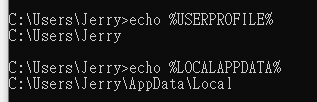
測試變量

下面的兩個變量後面的操作需要使用到。所以,先測試下是否正常。

1
2
echo %USERPROFILE%
echo %LOCALAPPDATA%

如果有報錯,接下來的操作,請把對應的部分進行替換。

%USERPROFILE% 替換成 C:\Users\[userName]
%LOCALAPPDATA% 替換成 C:\Users\[userName]\AppData\Local

注意 [userName]為自己的用户名
創建圖標

從以下地址下載圖標

圖標ico下載 , 打開網址,鼠標右鍵保存到電腦。

打開命令行,輸入

1
mkdir "%USERPROFILE%\AppData\Local\terminal"

這個命令是創建一個terminal文件夾,把下載的圖標ico複製到這個文件夾。

寫入註冊表

創建一個txt文檔,並把檔後綴改為reg。文檔的名字可自己創建,後綴名不可以錯。右鍵菜單出現Windows Terminal有兩種方法。一種是按shift+ 右鍵,另一種是直接右鍵

shift+ 右鍵

把下面的內容複製到reg去

1
2
3
4
5
6
7
8
9
Windows Registry Editor Version 5.00

[HKEY_CLASSES_ROOT\Directory\Background\shell\wt]
@="Windows Terminal"
"Icon"="%USERPROFILE%\\AppData\\Local\\terminal\\wt_32.ico"
"Extended"=""

[HKEY_CLASSES_ROOT\Directory\Background\shell\wt\command]
@="C:\\Users\\[user_name]\\AppData\\Local\\Microsoft\\WindowsApps\\wt.exe"

注意:請把[user_name]改成自己電腦的用户名

右鍵

把下面的內容複製到reg去

1
2
3
4
5
6
7
8
Windows Registry Editor Version 5.00

[HKEY_CLASSES_ROOT\Directory\Background\shell\wt]
@="Windows terminal here"
"Icon"="%USERPROFILE%\\AppData\\Local\\terminal\\wt_32.ico"

[HKEY_CLASSES_ROOT\Directory\Background\shell\wt\command]
@="C:\\Users\\[user_name]\\AppData\\Local\\Microsoft\\WindowsApps\\wt.exe"

注意:請把[user_name]改成自己電腦的用户名

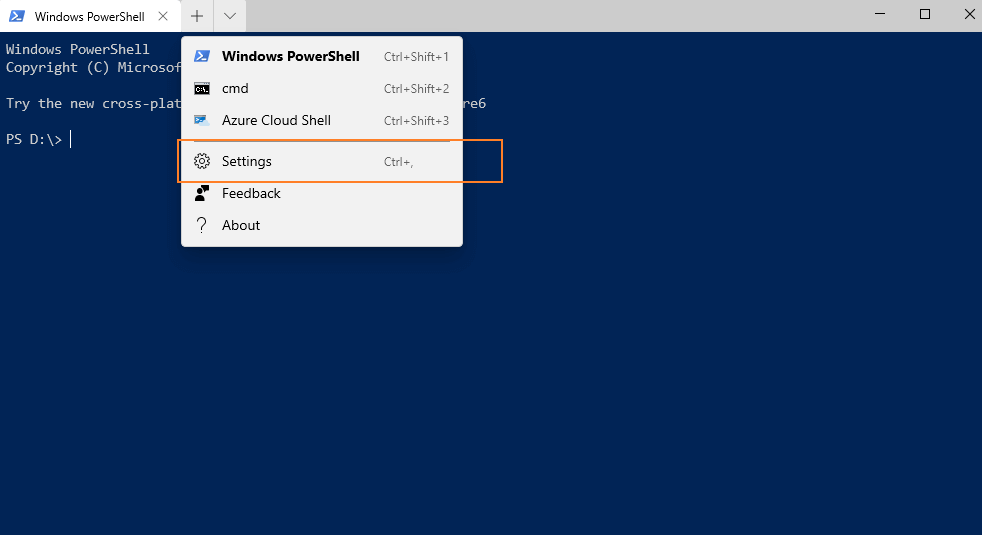
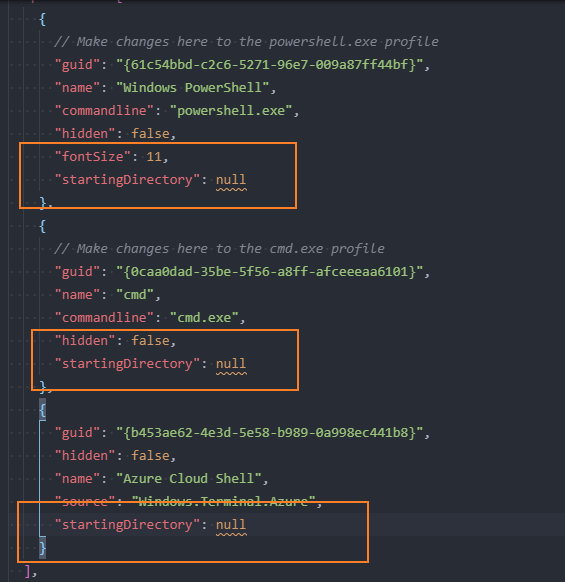
修改Windows Terminalprofile.json

打開profile.json

startingDirectory改為null,沒有的自己創建一個。

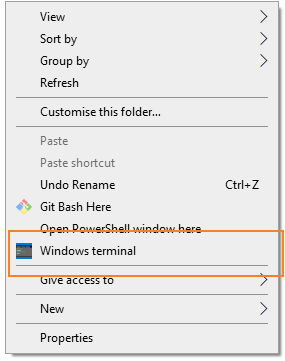
照著上面的方法操作,相信右鍵菜單已經出現Windows Terminal的入口了。
參考

  1. ‘Add “open Windows terminal here” into right-click context menu’ 下 yanglr 的回答

版權聲明: 本部落格所有文章除特別聲明外,均採用CC BY-NC-SA 4.0 授權協議。轉載請註明來源 CrazyWong