1. 简介
Jupyter Notebook(前称 IPython notebook)是一个交互式笔记本,支持运行 40 多种编程语言。
Jupyter Notebook 实际上是一个 Web 应用程序,可以创建和共享程序文档,支持实时代码,数学方程,可视化和 Markdown。 用途包括:数据清理和转换,数值模拟,统计建模,机器学习等。
2. 本地安装
2.1 本地安装
推荐使用 Anaconda,自带 Numpy、Scipy、Matplotlib 等多种 Python 开发包和 Jupyter notebook。
如果使用单独的 Python 解释器,则需要安装 Jupyter:
2.2 本地运行
3. Docker 安装 Jupyter
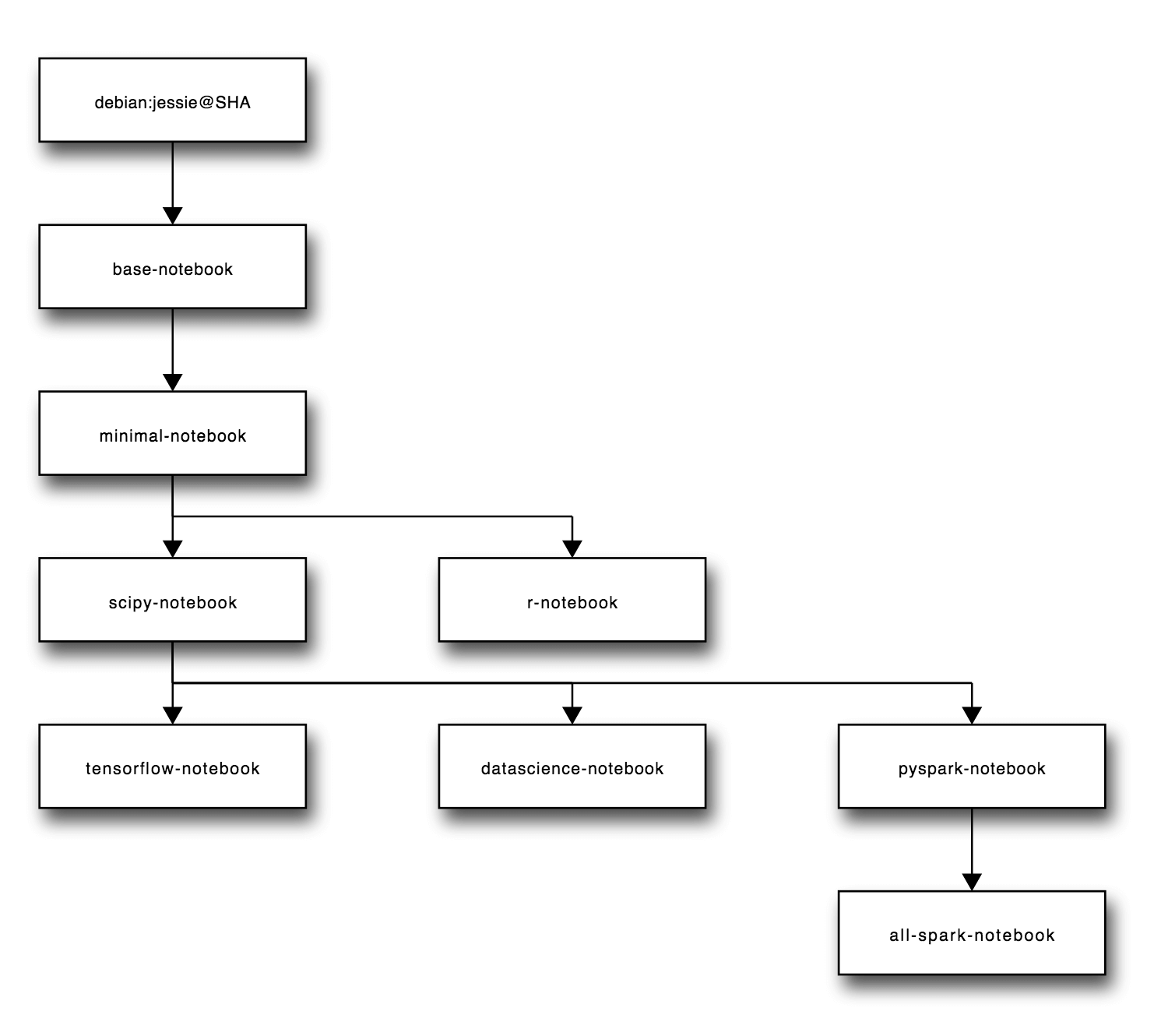
官方提供了 base-notebook、minimal-notebook、all-spark-notebook、pyspark-notebook、scipy-notebook、datascience-notebook、tensorflow-notebook 以及 r-notebook 可选。根据自己的需要选择合适的镜像。
3.1 安装 Docker
1
2
3
4
| # CentOS 7 上安装 Docker
yum install docker
# 启动 docker 服务进程
service docker start
|
3.2 运行 Jupyter
 1
 2
 3
 4
 5
 6
 7
 8
 9
10
11
| docker run -d --name jupyter \
-p 8888:8888 \
--user root \
-e GRANT_SUDO=yes \
-e NB_UID=1000 \
-e NB_GID=100 \
-v /home/jupyter:/home/jovyan/work \
jupyter/tensorflow-notebook start-notebook.sh \
--NotebookApp.password='sha1:080ffe3b42b2:f592d77b83d318bad8ee771ba44a51569af552d8'
# 增加 NB_UID 对目录的权限
chown 1000 /home/jupyter
|
参数解释:
- \ 表示换行,把一条命令拆成多行以方便阅读
- -d 表示启动的容器进入到后台运行;
- -p 表示指定端口,这里把宿主机的 8888 端口映射到容器的 8888 端口;
- –user=root,允许运行 sudo;
- -e 指定 jovyan 用户相关权限 ID;
- –name 表示给启动的容器设定名字;
- -v 表示把宿主机的目录挂载到容器中。Jupyter Docker 的文档目录是 /home/jovyan/work,为了使得容器被销毁时,文档不受影响,将本地目录 /home/local/jupyter 挂载到 /home/jovyan/work;
- -NotebookApp.password 是登录的密码,可以在 Ipython 中使用如下命令生成:
1
2
3
4
5
| In [1]: from notebook.auth import passwd
In [2]: passwd()
Enter password: 123456
Verify password: 123456
Out[2]: 'sha1:080ffe3b42b2:f592d77b83d318bad8ee771ba44a51569af552d8'
|
3.3 配置 Nginx
通过 nginx -t 命令找到 Nginx 的配置文件地址。在 nginx.conf 文件中,新增如下内容:
 1
 2
 3
 4
 5
 6
 7
 8
 9
10
11
12
13
14
15
16
17
18
19
20
21
22
23
24
25
26
27
28
29
30
| upstream notebook {
server localhost:8888;
}
server{
listen 80;
server_name yourdomain.com;
location / {
proxy_pass http://notebook;
proxy_set_header Host $host;
}
location ~ /api/kernels/ {
proxy_pass http://notebook;
proxy_set_header Host $host;
# websocket support
proxy_http_version 1.1;
proxy_set_header Upgrade "websocket";
proxy_set_header Connection "Upgrade";
proxy_read_timeout 86400;
}
location ~ /terminals/ {
proxy_pass http://notebook;
proxy_set_header Host $host;
# websocket support
proxy_http_version 1.1;
proxy_set_header Upgrade "websocket";
proxy_set_header Connection "Upgrade";
proxy_read_timeout 86400;
}
}
|
使用 nginx -s reload ,重启 Nginx 服务后生效。
4. 使用
Jupyter 的基本单元是编程 cell 组成,也就是一个 In[ ]:
Jupyter 有三种类型的 cells:code,markdown cells,raw cells,常用的是 code cells 和 markdown cells 类型。
Cells 状态分为命令模式和编辑模式,Enter 进入编辑模式,ESC 进入命令模式,命令模式和编辑模式下支持很多操作快捷键。
常用命令模式快捷键:
1
2
3
4
5
6
7
8
| - y: 单元进入代码状态
- m: 转入markdown状态
- r:转入raw状态
- a: 上方插入新单元
- b:下方插入新单元
- x:剪切选中单元
- c: 复制选中单元
- shift-v:粘贴到上方单元
|
直接输入 Markdown ,然后 Run 即可渲染结果。支持标题,文本,视频,图片等。
创建行内公式
1
| $\Gamma(n) = (n-1)!\quad\forall n\in\mathbb N$。
|
块级公式
1
| $x = \dfrac{-b \pm \sqrt{b^2 - 4ac}}{2a} $$
|
可以直接在页面输出代码块,只需要在前后加上```代码块 ```即可。
1
2
| from IPython.display import Image
Image(filename="yourpath.jpg")
|
可以嵌入本地音乐和网络音乐
1
2
| from IPython.display import Audio
Audio(filename="yourpath.wma")
|
1
2
| from IPython.display import Audio
Audio(url="http://yourpath.wma")
|
 1
 2
 3
 4
 5
 6
 7
 8
 9
10
| import io
import base64
from IPython.display import HTML
video = io.open('/home/test.mp4', 'r+b').read()
encoded = base64.b64encode(video)
HTML(data='''<video alt="test" controls>
<source src="data:video/mp4;base64,{0}" type="video/mp4" />
</video>'''.format(encoded.decode('ascii')))
|
1
2
| from IPython.display import IFrame
IFrame('http://yourpath.com', width='100%', height=350)
|
1
2
| from IPython.display import FileLink
FileLink('./test/a.ipynb')
|
所有以 % 开头的方法,都是所谓的魔术方法 (Magic function),也就是 IPython 内置的一些方法。需要注意的是,魔术方法有%和 %% 之分,比如 %timeit 和 %% timeit。在 IPython 中有专门的叫法,前者叫 line magic 后者叫cell magic。顾名思义,前者是专门针对一行的命令,后者针对多行的命令。
通过 %lsmagic可以查看所有的 magic 命令,使用 ? 或者 ?? 可以查看该命令的信息,后者可以查看源码。如: %alias?,会出现该方法的描述。
5. 参考







