




惯性聚合 高效追踪和阅读你感兴趣的博客、新闻、科技资讯
阅读原文 在惯性聚合中打开

推荐订阅源

cs.AI updates on arXiv.org
Security Archives - TechRepublic
Forbes - Security
Forbes - Security
C
Cyber Attacks, Cyber Crime and Cyber Security
Latest news
Latest news
V2EX - 技术
V2EX - 技术
Google DeepMind News
Cyberwarzone
Cyberwarzone
Vercel News
Vercel News
V
Vulnerabilities – Threatpost
I
InfoQ
GbyAI
GbyAI
有赞技术团队
有赞技术团队
雷峰网
雷峰网
阮一峰的网络日志
阮一峰的网络日志
A
Arctic Wolf
F
Full Disclosure
OSCHINA 社区最新新闻
OSCHINA 社区最新新闻
CTFtime.org: upcoming CTF events
C
Check Point Blog
Hugging Face - Blog
Hugging Face - Blog
Simon Willison's Weblog
Google DeepMind News
M
MIT News - Artificial intelligence
Engineering at Meta
Engineering at Meta
The Register - Security
T
Tor Project blog
T
Troy Hunt's Blog
Application and Cybersecurity Blog
S
Security Affairs
W
WeLiveSecurity
Exploit-DB.com RSS Feed
Stack Overflow Blog
Stack Overflow Blog
Apple Machine Learning Research
H
Heimdal Security Blog
S
Secure Thoughts
Y
Y Combinator Blog
K
KPMG report finds enterprise disconnect between AI and its ROI | CIO
Security Latest
Security Latest
Martin Fowler
Martin Fowler
G
Google Developers Blog
宝玉的分享
宝玉的分享
腾讯CDC
TaoSecurity Blog
TaoSecurity Blog
T
Threatpost
freeCodeCamp Programming Tutorials: Python, JavaScript, Git & More
Project Zero
Project Zero
Blog — PlanetScale
Blog — PlanetScale
大猫的无限游戏
大猫的无限游戏
MongoDB | Blog
MongoDB | Blog

陈少文的网站

巨变与机遇的未来十年 Kubernetes 平台管理软件压力测试方案 使用镜像部署 Hexo 静态页面 终于等到你 - GitHub 镜像仓库服务(ghcr.io) 一起来学 Go --(6)Interface 一起来学 Go --(5)Goroutine 和 Channel 什么是函数式编程 如何在 Kubernetes 集群集成 Kata 柯里化与偏函数 使用 PyGithub 自动创建 Label 软件产品是团队能力的输出 Helm 2 、Helm 3 比较 IoT 变现 Kubernetes 中的 DNS 服务 国内的 Helm 镜像源 Harbor 使用自签证书支持 Https 访问 DevOps 工具链之 Prow 如何使用 kfctl 安装 Kubeflow VS Code 无法下载 Go 插件的工具包 工程师更应具有服务精神 你不知道的 Docker 使用技巧 使用 Docker 运行 Tensorflow 论中国 什么是左移 如何清空 Git 仓库全部历史记录 一禅小和尚 有风吹过厨房 时间的玫瑰 如何在 CentOS 安装 GPU 驱动 开发 Tips(19) 使用 Velero 备份 Kubernetes 集群 Kubernetes Cheat Sheet 开发 Tips(18) 如何构建一个 Java 工程 开发 Tips(17) KubeSpray 安装 Kubernetes 报错 ip in ansible_all_ipv4_addresses 基于 Kubernetes 和 Jenkins 搭建自动化测试系统 在 Kubernetes 上动态创建 Jenkins Slave 使用 Jenkins 进行服务拨测 开发 Tips(16) Kubernetes 签发 Ingress 证书及日常故障运维 Kubernetes 中 Deployment 的基本操作 Kubernetes 中的证书 如何使用 KubeBuilder 开发一个 Operator Kubernetes 1.6.0 安装问题汇总 镜像管理工具 -- Harbor 开发 Tips(15) Docker 如何拉取镜像 开发 Tips(14) 使用 Helm 安装 harbor 开发 Tips(13) 使用 S2I 构建云原生应用 在 Kubernetes 中使用 emptyDir、hostPath、localVolume 开发 Tips(12) 开发 Tips(11) 代码质量分析工具 SonarQube 使用 Kubeadm 安装 Kubernetes 集群 一起来学 Go --(4)常用函数 Kubernetes 中的 Ceph Kubernetes 之 Volumes Kubernetes 之 Labels、Selectors 开发 Tips(10) 开源正在重构商业模式 Kubernetes 之网络 Kubernetes 之 API 使用 Helm 和 Operator 快速部署 Prometheus Kubernetes 复杂有状态应用管理框架 -- Operator Kubernetes 的包管理器 -- Helm 一起来学 Go --(3)Go Modules 如何一步一步地优化博客方案 kubectl 实用指南 Kubernetes 中的基本概念 搭建远程 Kubernetes 开发环境 大公司和小公司的 ToB 思路 开发 Tips(9) Go 入门指南 一起来学 Go --(2)数据与逻辑结构 如何预防 Web 富文本中的 XSS 攻击 django-xss-cleaner 云工作时代 一起来学 Go --(1)背景与特点 SaaS 开发团队的不同阶段 你不知道的 Git 使用技巧 输出既服务 微服务设计 继续奔跑 开发 Tips(8) 从账户安全到二次验证 Django 性能之数据库查询优化 Django 性能之分库分表 敏捷开发之研发流程 打造一致性的团队 开发 Tips(7) Pytest 进阶学习之 Mock PaaS 部署之 buildpack Go 开发配置 领域输出才是 PaaS 的核心竞争力 Pytest 入门学习 开发 Tips(6) 如何使用 Jenkins、Docker、GitLab 搭建 Django 自动化部署流程
自动化测试工具 - Selenium
微信公众号 · 2017-07-22 · via 陈少文的网站

1. Selenium 简介

Selenium 是一个 Thoughtworks 公司的集成测试工具。Selenium 的核心 Selenium Core 基于
JSUnit,完全由 JavaScript 编写,可以运行于任何支持 JavaScript 的浏览器上。

1.1 主要功能和特点

  • 开源、免费。
  • 多浏览器支持:Firefox、Chrome、IE、Opera,可以用于兼容性测试。
  • 多平台支持:Linux、Windows、Mac OS。
  • 多语言支持:Java、Python、Ruby、PHP、C#、JavaScript。
  • 支持录制用例:自动生成测试脚本,用于回归功能测试。
  • 支持分布式测试用例执行。

1.2 组成部分

  • Selenium IDE

Selenium IDE 是 Firefox 浏览器的一个插件,用于录制和回放 Selenium 测试脚本。

  • WebDriver、RC

WebDriver、RC 提供了各种编程语言 API 的支持,例如 Java、Python、Ruby、PHP、.NET 等,能够与不同的浏览器进行交互,驱动浏览器进行自动化测试。

  • Grid

Grid 提供了分布式测试和并行测试的能力,能够大幅地减少测试的执行时间。

Selenium 2.0 集成了 RC、Webdriver 来提供 Web UI 级自动化测试能力。

Selenium 3.0 新增了对 Edge 和 Safari 的原生驱动支持。

2. 原理介绍

WebDriver 是按照 Server–Client 的模式设计的。

Server 端就是 Remote Server,可以是任意的浏览器。使用脚本启动浏览器后,这个浏览器就是 Remote Server,它的职责就是等待 Client 发送请求,并做出相应。

Client 端就是 Test Script 测试代码。在测试代码中定义一些行为,比如打开浏览器,转跳到特定的 URL 等操作。这些操作是以 HTTP 请求的方式发送给 Remote Server(也就是被测试的浏览器)。Remote Server 接受请求,并执行相应操作,并在 Response 中返回执行状态、返回值等信息。

Webdriver的工作原理:

启动浏览器后,Selenium-Webdriver 会将目标浏览器绑定到特定的端口,启动后的浏览器则作为Webdriver 的 Remote Server。
Client端 (也就是测试脚本),借助 ComandExecutor 发送 HTTP 请求 Json 数据给 Sever 端。告诉 Selenium ,Client 端希望浏览器做什么。Sever 端需要依赖原生的浏览器组件,转化 Web Service 的命令为浏览器 Native 的调用来完成操作。

3. 用 Selenium IDE 录制和导出脚本

Selenium IDE 是 Firefox 浏览器的一个插件,用于记录用户对 Firefox 的操作,并且可以回放用户的操作。

3.1 安装 Selenium IDE

下载安装 Firefox,在浏览器中打开,https://addons.mozilla.org/en-US/firefox/addon/selenium-ide/,安装 selenium-ide。

需要提醒的是,selenium-ide 并不支持全部版本的 Firefox。如果打开 Firefox 工具栏的 【工具】- 【Selenium IDE】,提示报错,很有可能是版本不兼容问题。这时,需要在 selenium-ide 的安装页面,找到其支持的 Firefox 版本,安装兼容的 Firefox 版本即可。

3.2 基本构成
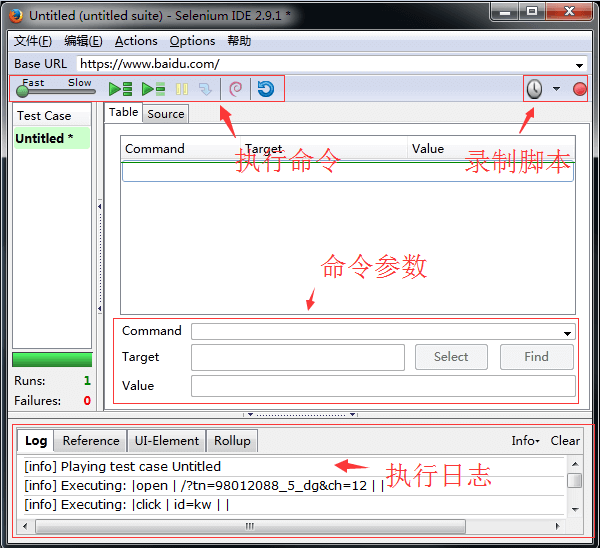
每个脚本都是由若干条 Action (行为)组成,而每个 Action 又由 Command,Target,Value 三者组成。

  • Command,命令

    有几类的命令:Action动作,包含 click、open、type 等、 Assertion 断言、Element Locators 指定元素、 Patterns 模式匹配

  • Target

    Web 中的某个对象,比如:文字,输入框等

  • Value

    使用 Xpath 指定某个对象

3.3 录制脚本

打开 Firefox, 在工具栏找到 【工具】-【Selenium IDE】,点击打开,默认开始录制脚本。
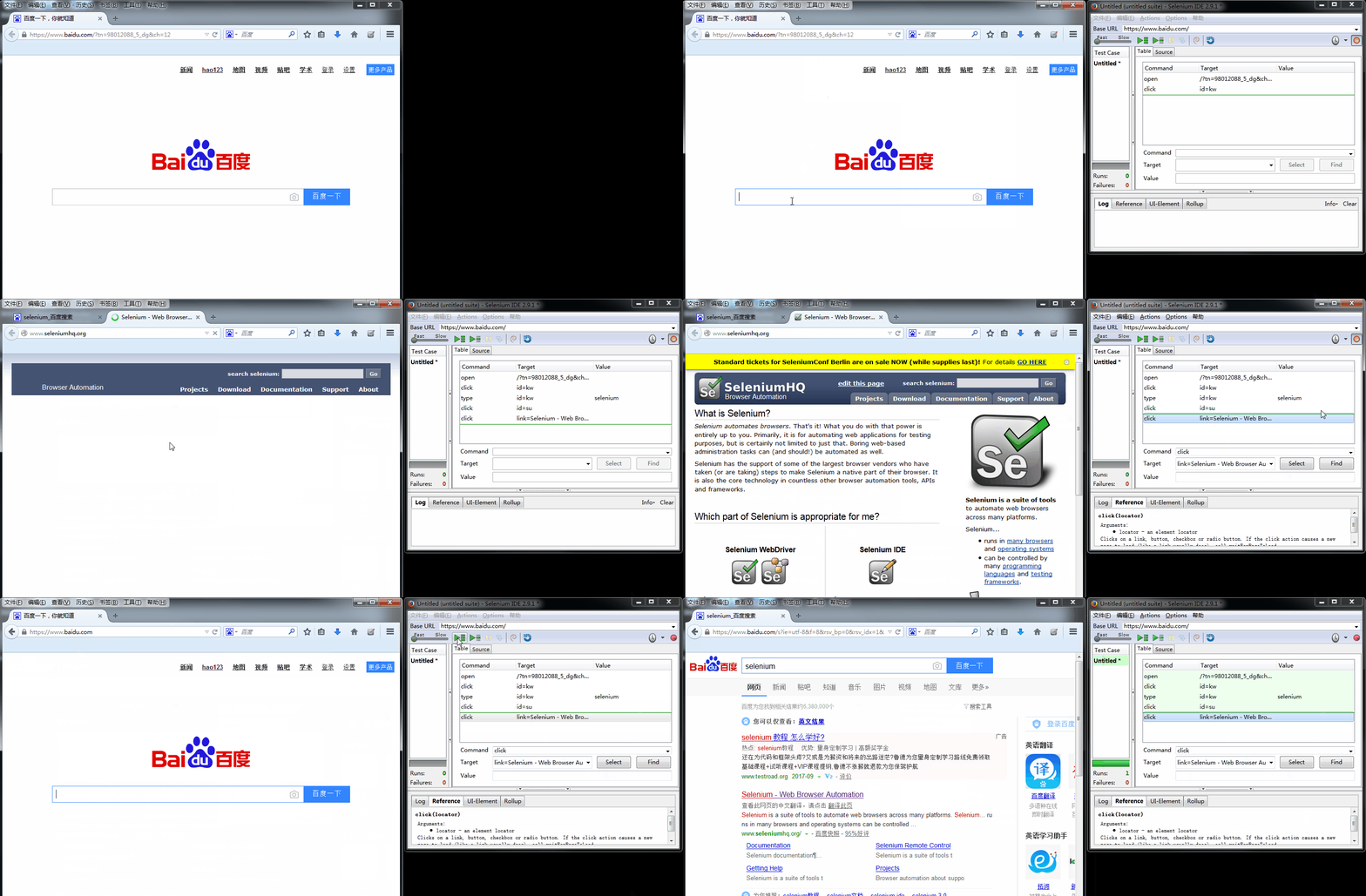
录制完毕后,点击录制停止按钮。在左侧的执行命令面板中,可以选择连接执行命令或者单步执行命令。

3.4 导出 Python 脚本
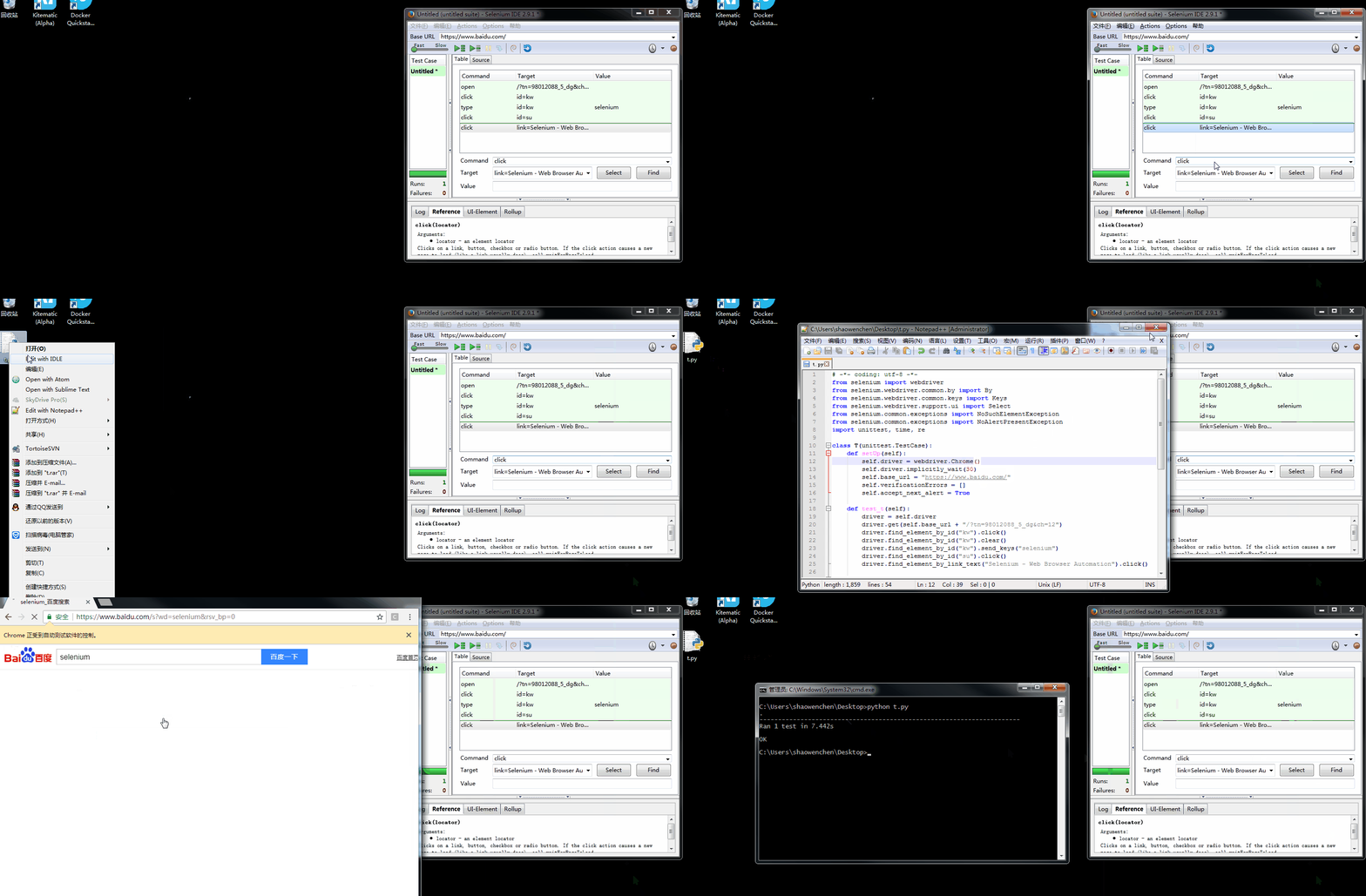
导出 Python 脚本之后,默认是使用的 Firefox()浏览器进行测试,这里修改为 Chrome()。需要安装 chromedriver 才能执行脚本。

导出的脚本内容如下:

 1
 2
 3
 4
 5
 6
 7
 8
 9
10
11
12
13
14
15
16
17
18
19
20
21
22
23
24
25
26
27
28
29
30
31
32
33
34
35
36
37
38
39
40
41
42
43
44
45
46
47
48
49
50
51
52
53
# -*- coding: utf-8 -*-
from selenium import webdriver
from selenium.webdriver.common.by import By
from selenium.webdriver.common.keys import Keys
from selenium.webdriver.support.ui import Select
from selenium.common.exceptions import NoSuchElementException
from selenium.common.exceptions import NoAlertPresentException
import unittest, time, re

class T(unittest.TestCase):
    def setUp(self):
        self.driver = webdriver.Chrome()
        self.driver.implicitly_wait(30)
        self.base_url = "https://www.baidu.com/"
        self.verificationErrors = []
        self.accept_next_alert = True

    def test_t(self):
        driver = self.driver
        driver.get(self.base_url + "/?tn=98012088_5_dg&ch=12")
        driver.find_element_by_id("kw").click()
        driver.find_element_by_id("kw").clear()
        driver.find_element_by_id("kw").send_keys("selenium")
        driver.find_element_by_id("su").click()
        driver.find_element_by_link_text("Selenium - Web Browser Automation").click()

    def is_element_present(self, how, what):
        try: self.driver.find_element(by=how, value=what)
        except NoSuchElementException as e: return False
        return True

    def is_alert_present(self):
        try: self.driver.switch_to_alert()
        except NoAlertPresentException as e: return False
        return True

    def close_alert_and_get_its_text(self):
        try:
            alert = self.driver.switch_to_alert()
            alert_text = alert.text
            if self.accept_next_alert:
                alert.accept()
            else:
                alert.dismiss()
            return alert_text
        finally: self.accept_next_alert = True

    def tearDown(self):
        self.driver.quit()
        self.assertEqual([], self.verificationErrors)

if __name__ == "__main__":
    unittest.main()

4. Selenium + Python 自动测试

4.1 安装 Selenium

4.2 编写测试脚本

test.py

1
2
3
4
5
6
7
#coding=utf-8
from selenium import webdriver
driver = webdriver.Firefox()
driver.get("http://www.baidu.com")
driver.find_element_by_id("kw").send_keys("Selenium2")
driver.find_element_by_id("su").click()
driver.quit()

4.3 执行测试

如果报错,提示:

1
2
3
  File "C:\python\lib\site-packages\selenium\webdriver\common\service.py", line 81, in start
    os.path.basename(self.path), self.start_error_message)
selenium.common.exceptions.WebDriverException: Message: 'geckodriver' executable needs to be in PATH.

那么需要下载geckodriver ,并将其存放路径,加入系统的环境变量 PATH 中。
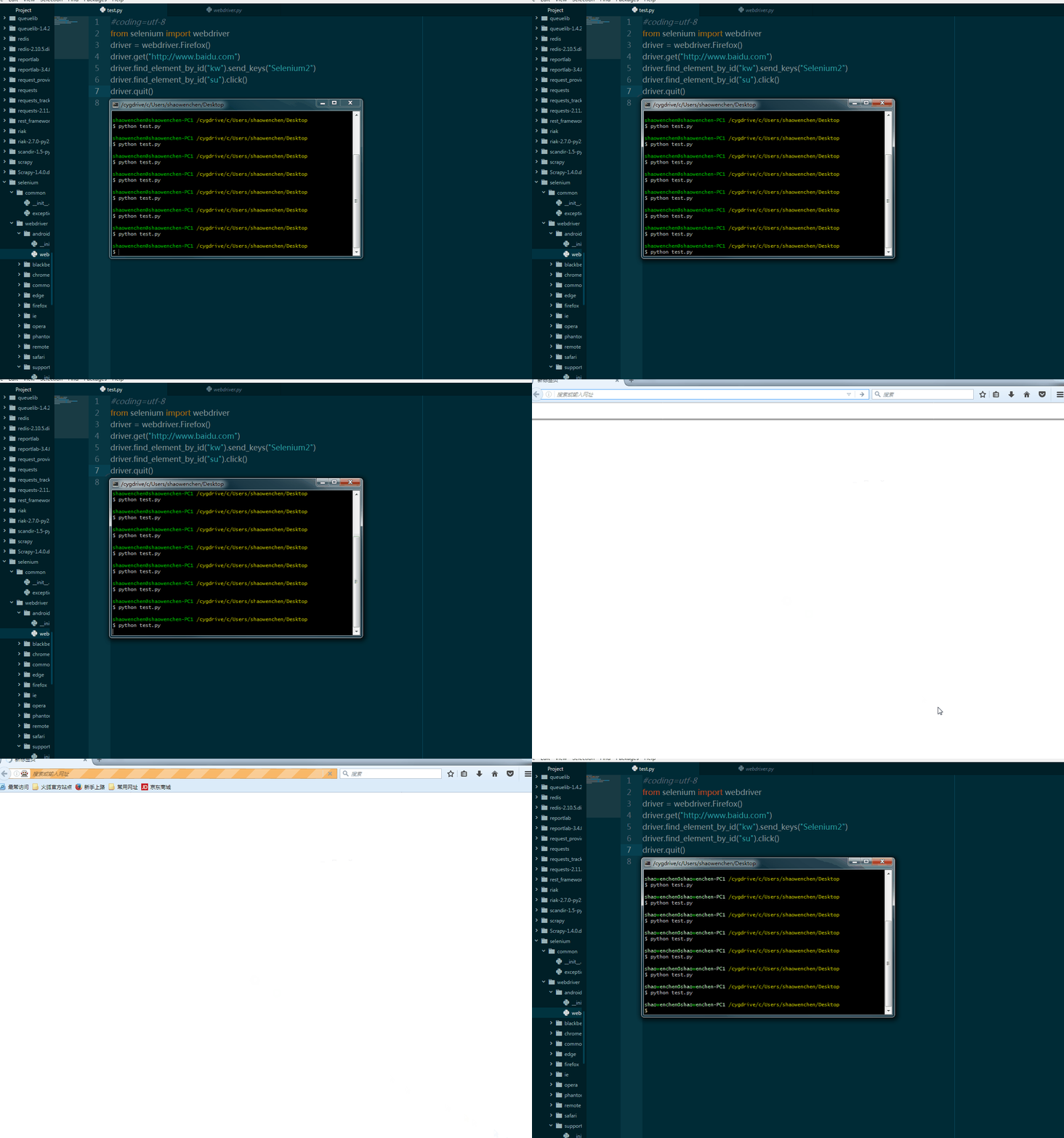
如果希望支持 IE、Chrome 需要下载相应的驱动,http://www.seleniumhq.org/download/ 下载IEDriverServer、chromedriver,并将其存放路径,加入系统的环境变量 PATH 中。

1
2
3
4
5
# 将 driver = webdriver.Firefox() 替换为
driver = webdriver.Chrome()
# 或者
driver = webdriver.Ie()
# 即可支持相应的浏览器

5. 参考