惯性聚合 高效追踪和阅读你感兴趣的博客、新闻、科技资讯
阅读原文 在惯性聚合中打开

推荐订阅源

L
LINUX DO - 最新话题
C
Cyber Attacks, Cyber Crime and Cyber Security
G
GRAHAM CLULEY
T
Tenable Blog
T
Threatpost
C
CXSECURITY Database RSS Feed - CXSecurity.com
I
Intezer
cs.CL updates on arXiv.org
D
Darknet – Hacking Tools, Hacker News & Cyber Security
K
Kaspersky official blog
Security Latest
Security Latest
P
Privacy & Cybersecurity Law Blog
Google Online Security Blog
SecWiki News
SecWiki News
P
Palo Alto Networks Blog
TaoSecurity Blog
TaoSecurity Blog
Webroot Blog
Webroot Blog
Spread Privacy
Spread Privacy
O
OpenAI News
The Last Watchdog
The Last Watchdog
P
Proofpoint News Feed
C
Check Point Blog
cs.CV updates on arXiv.org
人人都是产品经理
人人都是产品经理
S
Security @ Cisco Blogs
Scott Helme
Scott Helme
OSCHINA 社区最新新闻
OSCHINA 社区最新新闻
cs.AI updates on arXiv.org
月光博客
月光博客
S
Securelist
酷 壳 – CoolShell
酷 壳 – CoolShell
V
V2EX
T
Troy Hunt's Blog
W
WeLiveSecurity
GbyAI
GbyAI
N
News | PayPal Newsroom
Y
Y Combinator Blog
C
Cisco Blogs
H
Help Net Security
The GitHub Blog
The GitHub Blog
Threat Intelligence Blog | Flashpoint
博客园 - 【当耐特】
Jina AI
Jina AI
MongoDB | Blog
MongoDB | Blog
P
Proofpoint News Feed
让小产品的独立变现更简单 - ezindie.com
CTFtime.org: upcoming CTF events
云风的 BLOG
云风的 BLOG
小众软件
小众软件
N
News and Events Feed by Topic

Blogs

From OpenClaw to the One-Person Company · Blogs From OpenClaw to the One-Person Company · Blogs Using npx skills to Supercharge Your AI Agents · Blogs Using npx skills to Supercharge Your AI Agents · Blogs Why I Didn’t Use KMP for the Whole App · Blogs Why I Didn’t Use KMP for the Whole App · Blogs How I Privately Analyzed Baby Tracking Data Using OpenClaw + Ollama + OnlyBaby · Blogs How I Privately Analyzed Baby Tracking Data Using OpenClaw + Ollama + OnlyBaby · Blogs Clawdbot/OpenClaw + Ollama as your personal assistant · Blogs Clawdbot/OpenClaw + Ollama as your personal assistant · Blogs The God in the Cracks · Blogs The God in the Cracks · Blogs The World That Was Heard · Blogs The World That Was Heard · Blogs Building a Cross-Platform AI Chat App With Cursor + Kotlin Multiplatform (KMP) · Blogs Building a Cross-Platform AI Chat App With Cursor + Kotlin Multiplatform (KMP) · Blogs Run LLMs Locally on Mac Studio with Ollama, Cherry Studio, and RAGFlow · Blogs The Fissioned City · Blogs The Fissioned City · Blogs
Run LLMs Locally on Mac Studio with Ollama, Cherry Studio, and RAGFlow · Blogs
2025-11-09 · via Blogs

Original on Medium

I recently upgraded to a Mac Studio (M4 Max) — 16-core CPU, 40-core GPU, 126GB unified memory, and 2TB of storage. What a performance monster! 🚀 Benefit by the huge unified memory, I wanted to turn this machine into something more powerful: a fully offline AI assistant that can run local LLMs, experiment with prompts, and reference my own documents.

In this article, I’ll walk you through how I set up:

  • Ollama to serve LLMs locally
  • Cherry Studio for interactive prompt testing and knowledge base setup
  • RAGFlow to build a robust, retrievable AI system powered by my own content

🧠 Why Local LLMs?

Running an LLM stack locally gives you:

  • 🔐 Privacy: No internet dependency, no cloud APIs
  • 🚀 Speed: Instant responses using Apple Silicon’s hardware acceleration
  • ⚙️ Customizability: Your models, your data, your rules
  • 🌐 Network access: Serve LLMs across your LAN or to browser apps

Let’s break it all down.

🛠 Step 1: Running Ollama on Mac Studio

Ollama is the fastest way to get started with local LLMs.

🔧 Install and Launch

brew install ollama
ollama run llama3

That’s all you need to run a base model locally. But we’re just getting started.

🌐 Enable Network Access

If you want other devices or services to connect to Ollama, you need to expose the API.

✅ Using the GUI

Ollama now lets you toggle LAN access in the settings panel:

⚙️ Go to Settings → Enable “Expose Ollama to the network”
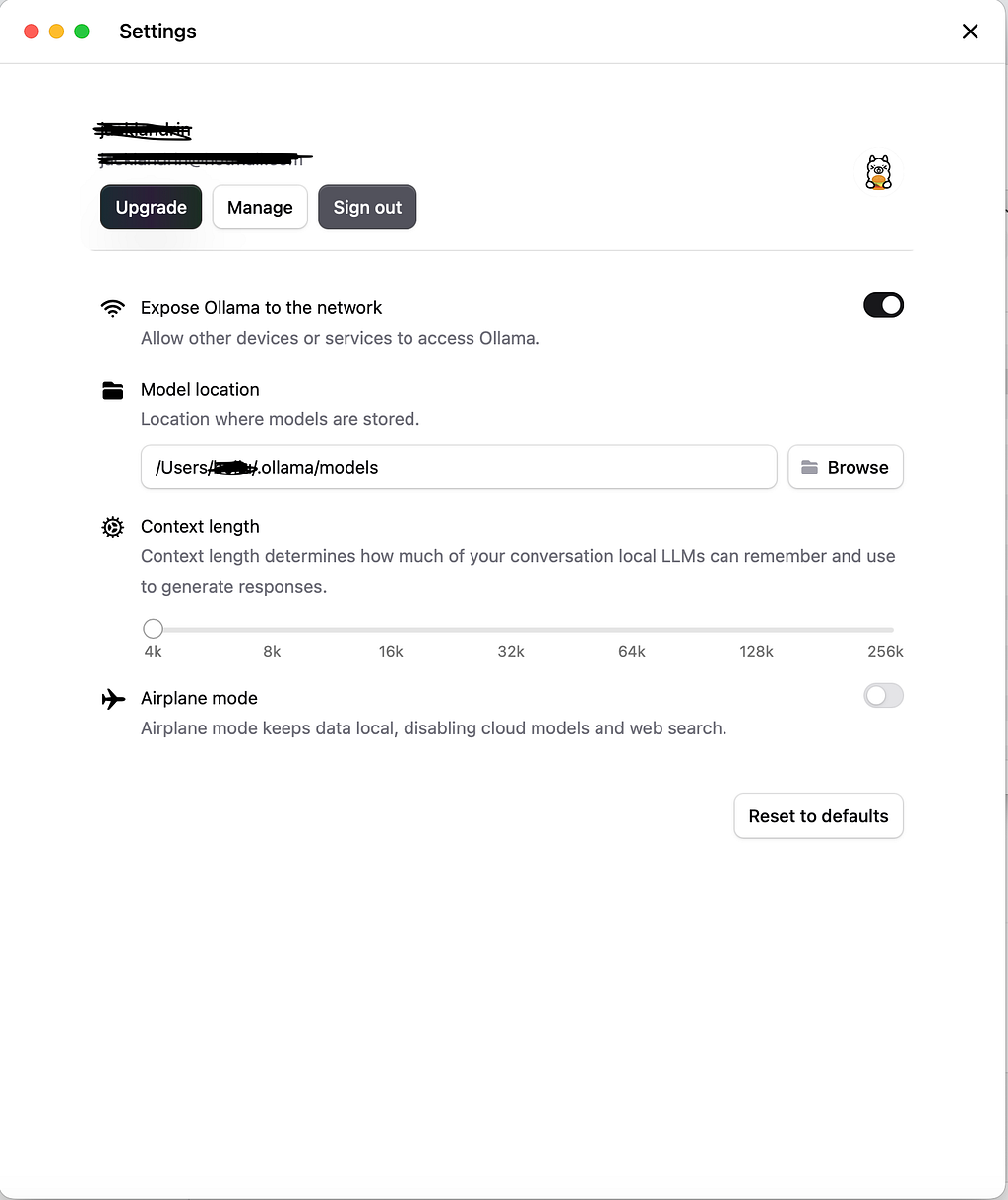
This lets you connect to the Ollama API from other devices, RAG pipelines, or browser-based apps.

🔓 Enable CORS (Cross-Origin Requests)

If you’re working with browser-based tools like Cherry Studio or RAGFlow:

launchctl setenv OLLAMA_ORIGINS "*"

This enables cross-origin access so frontends can talk to your locally hosted Ollama backend.

🤖 Try These Open Source LLMs

Here are a few high-performing models I’ve tested on the M4 Max:

Launch any with:

ollama run qwen3-coder

Pair them with Cherry Studio to compare outputs side-by-side.

🎨 Step 2: Cherry Studio for Prompting + Knowledge Base

Cherry Studio is more than a playground — it includes apps for building full workflows, including code generation, translations, and a visual knowledge base manager.

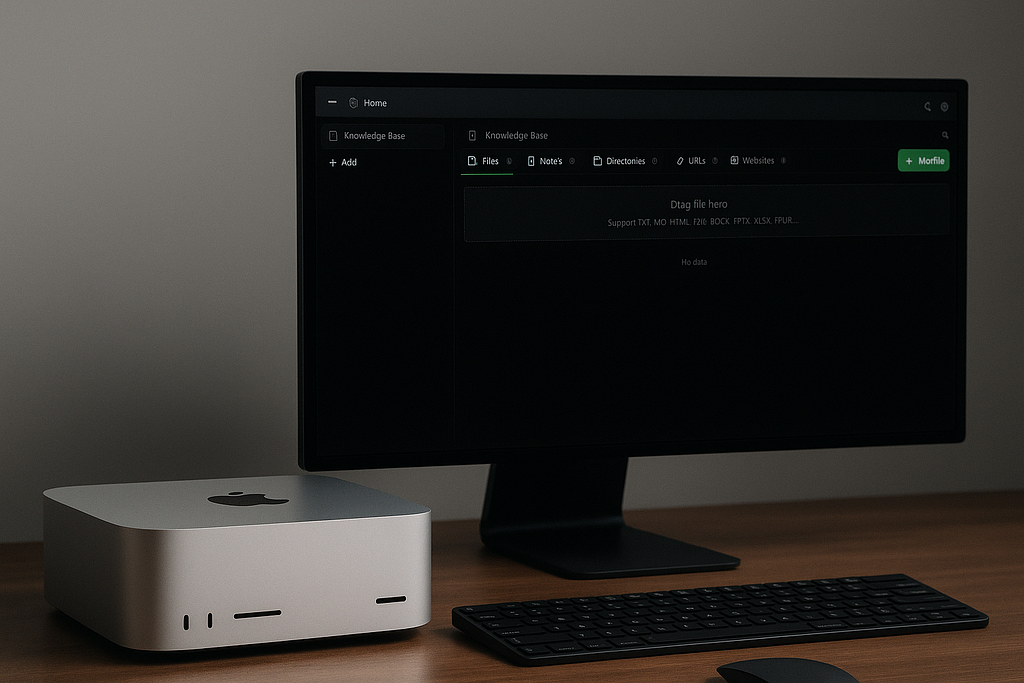
📚 Creating a Knowledge Base in Cherry Studio

As shown in your screenshots:

  1. Go to the Knowledge Base app
  2. Create a base (knowledge base1, for example)
  3. Add content:
  • 📄 Files (TXT, MD, PDF, DOCX, etc.)
  • 🔗 URLs and websites
  • 📝 Notes and directories

4. Choose an embedding model (e.g., mxbai-embed-large)

This is visually intuitive, no setup needed, and great for quick experiments or smaller knowledge bases.

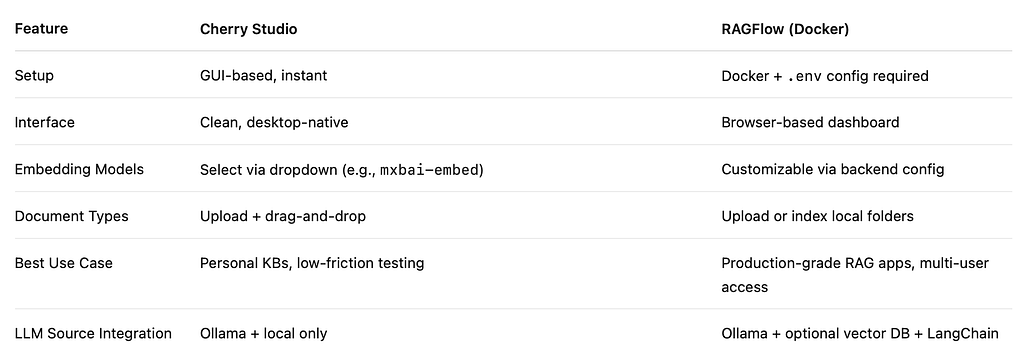
🔁 Cherry Studio vs. RAGFlow: Knowledge Base Comparison

Here’s how they stack up:

If you want something quick and visual, Cherry Studio wins.
If you need
advanced RAG pipelines and expansion, go with RAGFlow.

🧠 What’s a Knowledge Base?

A knowledge base is a curated collection of your documents — technical notes, blog drafts, PDFs, emails, even Notion exports.

RAG tools split these into chunks and turn them into embeddings — numeric representations of meaning.

📌 What’s an Embedding Model?

An embedding model converts chunks of your content into vector representations. These vectors are then used to search for semantically similar results when you ask a question.

Popular choices:

  • mxbai-embed-large
  • e5-large
  • bge-small-en
  • nomic-embed-text

You can select these easily in Cherry Studio or customize them in RAGFlow.

🐳 Step 3: Deploy RAGFlow via Docker

RAGFlow gives you a local, production-ready retrieval system. It’s built with LangChain and supports custom pipelines.

🏗️ Quick Setup

git clone https://github.com/ragflow/ragflow.git
cd ragflow

Edit your .env file:

OLLAMA_BASE_URL=http://host.docker.internal:11434

Launch it:

docker compose up --build

Now visit http://127.0.0.1 (the local address in terms of what you set up) and:
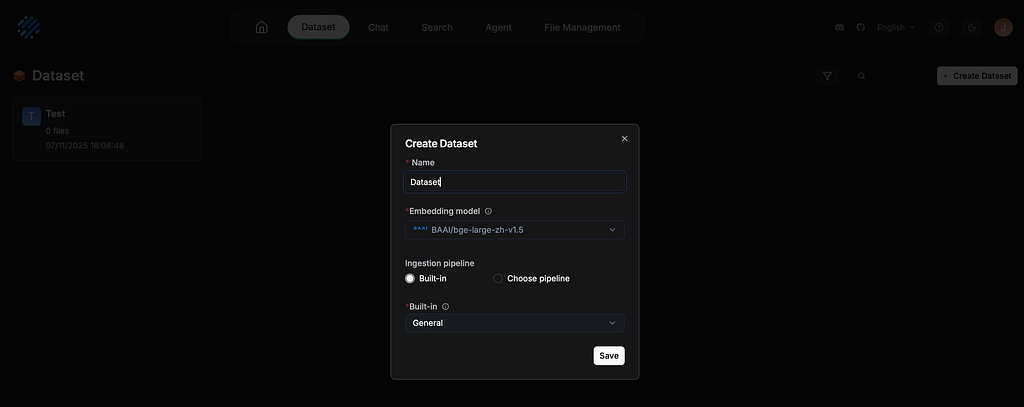
  • Setup Ollama’s models in Model Providers
  • Upload documents (PDFs, TXT, HTML, DOCX, etc.)
  • Use Ollama for generation
  • Add search capabilities across your files

🧩 Full Local Stack Summary

Here’s what my system looks like now — all running on a single Mac Studio:

Mac Studio (M4 Max)

├── Ollama (local LLM server) – LAN + CORS enabled
│ └── Models: qwen3, qwen3-coder, gpt-oss

├── Cherry Studio (prompting + knowledge base)
│ └── GUI KB builder, embedding model picker

└── RAGFlow (Docker)
└── Structured RAG pipeline, vector search, docs indexing

✅ Final Thoughts

With a Mac Studio like this, there’s no excuse to stay cloud-dependent. I now have:

  • 🔐 Private local LLMs
  • 🧠 A smart knowledge base from my own files
  • 🧪 Tools for prompt testing and evaluation
  • 🌐 Network access to serve apps and teammates

And all of it runs offline, leveraging my machine’s power instead of external APIs.