







With the advent of commercially available virtual reality headsets, such as the Meta Quest, the integration of virtual and augmented reality into our daily lives feels closer than ever before. As these devices become more common, so too will the need to secure and protect the data collected and stored by them.
The intention of this blog post is to establish a baseline security testing environment for Meta Quest 2 applications and is split into three sections: Enabling Developer Mode, Establishing an Intercepting Proxy, and Injecting Frida Gadget. The Quest 2 runs on a modified version of the Android Open Source Project (AOSP) in addition to proprietary software developed by Meta, allowing the adoption of many established Android testing methods.
The first step of setting up a security testing environment on the Quest is to enable developer mode. This allows users to connect to the headset via Android Debug Bridge (ADB) and provides programmatic access to the device’s file system.
A Meta account registered as an administrator of a Meta organization is prerequisite for enabling developer mode on the Quest 2. See the list below for links to the relevant Meta services for account and organization registration and verification.
Once the account is fully verified as an administrator, follow these steps to put the headset into developer mode:
Note: If the pop up is gone, check the notifications menu (the bell icon next to the time on the menu bar). Sometimes permission may need to be given again, even if the ‘Always allow’ button was checked previously. If there are problems with ADB, check the notifications on the headset to see if it’s asking to allow connections from the computer.
An important part of application security testing is analyzing data sent to and from the application and its server. To view data in transit, an intercepting proxy must be configured for the device. Typically, this involves having root access to the device; however, there is currently no publicly available method for gaining root access to the Quest. In lieu of the traditional root access method, a VPN tunnel will be used.
Start a Kali Linux virtual machine using virtualization software (such as VirtualBox or UTM), making sure that it is in bridged mode. Bridged mode puts the device in the same network position as your host, instead of hidden inside it. This allows other devices on the same network, such as the Quest 2, to reach it.
Use the following script to set up the OpenVPN service on the Kali virtual machine:
wget https://git.io/vpn -O openvpn-install.sh

sed -i "$(($(grep -ni "debian is too old" openvpn-install.sh | cut -d : -f 1)+1))d" ./openvpn-install.sh

chmod +x openvpn-install.sh

sudo ./openvpn-install.sh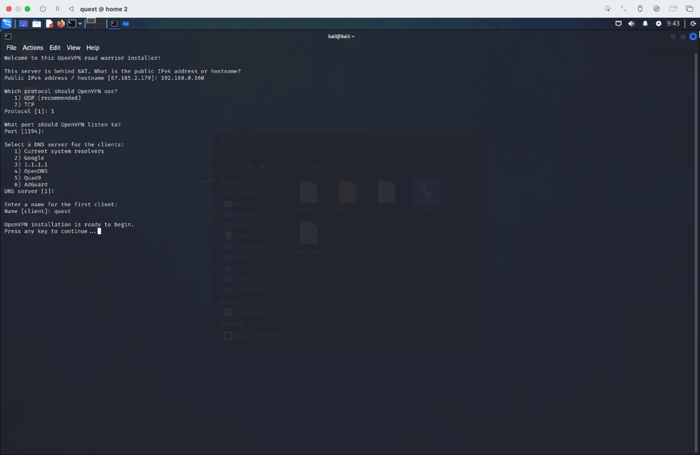
The first prompt will ask for the IP address to be used for the VPN; be sure to use the IP address of the Kali machine on the local network, for example 192.168.0.160. The rest of the prompts may be left to their default settings.
On completion, the script will output a .ovpn configuration file stored in the /root directory, which will need to be copied onto the headset. It can be downloaded on the headset using the browser by hosting the file on an HTTP server from the Kali machine. Move or copy it to a safe location and use Python to host an HTTP server: python3 -m http.sever. Note that this command opens the server on port 8000 by default.
OpenVPN is not currently available on the Meta Quest Store; however, it is possible to obtain a copy of it from other sites, such as Uptodown or F-Droid.
Once the APK has finished downloading, use ADB to install it: adb install openvpn-connect.apk
Apps installed via ADB can be found in the ‘Unknown Sources’ section of the list of applications and are conveniently not listed in the All Applications list.
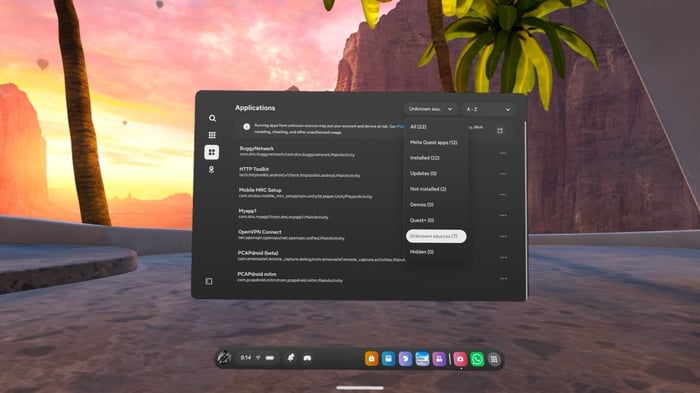
Note: If OpenVPN is stuck at the splash screen, try killing the process with adb shell am force-stop net.openvpn.openvpn. If that still doesn’t fix it, reinstalling it usually does the trick.
Now that OpenVPN is installed and (hopefully) working, it’s time to import the .ovpn file created earlier. On the quest, open the browser and navigate to the Kali host’s IP address at port 8000 (for example: http://192.168.0.3:8000). Click on the .ovpn file to download it, which should open OpenVPN with a prompt to import the profile. If OpenVPN does not automatically open, navigate to the Download folder in the Quest’s file system and open it from there. Once the profile is installed, connect to the Kali VPN tunnel.
Alternatively, the configuration file can be pushed directly to the device with adb if the Kali machine is able to interact with the headset directly.
adb push client.ovpn /sdcard/Download/
At this point the VPN tunnel is almost complete, all that is left is to route traffic from the VPN to burp. There are two options:
Note: iptables rules are not persistent, meaning these commands will need to be re-run each time the Kali machine restarts.
Use iptables to redirect traffic from the VPN (tun0) to Burp’s location on the host (192.168.0.2:8080) using DNAT. The MASQUERADE rules are used to route traffic back to its source. Note that the commands need to be run as root.
sudo iptables -A PREROUTING -t nat -i tun0 -p tcp --dport 80 -j DNAT --to-destination 192.168.0.2:8080

sudo iptables -A PREROUTING -t nat -i tun0 -p tcp --dport 443 -j DNAT --to-destination 192.168.0.2:8080

sudo iptables -t nat -A POSTROUTING -p tcp --dport 80 -j MASQUERADE

sudo iptables -t nat -A POSTROUTING -p tcp --dport 443 -j MASQUERADEUse iptables to redirect traffic from the VPN (tun0) to port 8080.
sudo iptables -A PREROUTING -t nat -i tun0 -p tcp --dport 80 -j REDIRECT --to-port 8080

sudo iptables -A PREROUTING -t nat -i tun0 -p tcp --dport 443 -j REDIRECT --to-port 8080Now that programmatic access and an intercepting proxy have been established, the last step is to set up dynamic instrumentation with Frida. This provides a means for injecting custom scripts into the application to analyze and manipulate its behavior during runtime. In a standard Android security test, Frida server could be pushed onto the device and run as root; however, without root access, Frida Gadget must be used instead. To simplify the patching process, the Objection framework will be used.
More information about Frida and Objection can be found here:
The first step to injecting Frida Gadget into the APK is to locate the APK file on the device and pull it to the host using adb. Take note of the package name (com.app.name) in addition to its path, as this will be needed later. Notably, application binaries are stored in the /data/app/ directory in Android. Meta Horizon World will be used as an example.
Locate the application binary:
adb shell pm list packages -f | grep 'horizon'

Pull the application binary to the host:

adb pull /data/app/~~ouwQTF17g8xKG5swSHqUUw==/com.facebook.horizon-2glm3BljDrGS8YX8I9l-uA==/base.apkNext, patch the APK using objection’s patchapk function.
objection patchapk -s base.apkOnce objection has completed its process, there should be a base.objection.apk in the current directory. Uninstall the current version of the application using its package name from the first step, then install the patched APK.
adb uninstall com.facebook.horizon

adb install base.objection.apkTo interact with the application using the Objection CLI, open the app on the device and run objection explore on the host. Note that the app will hang at its loading screen until it connects with the debugger from Objection.
The Objection CLI streamlines the exploitation process, allowing for more time experimenting and less time writing exploits. For example: instead of writing a Frida script to bypass SSL pinning, simply run android sslpinning disable to disable SSL pinning for the target application.
Other notable features of the Objection CLI include:
With objection set up and an intercepting proxy running, the environment setup is complete! Now it’s time to start looking for vulnerabilities such as broken access controls, insecure data storage, hardcoded credentials, and intent redirection.
With extended reality on the rise, it may only be a matter of time until there is a device in every home. As with all new technologies, security will play a major role in guiding its development. Stay ahead of the curve and book a consultation today!
此内容由惯性聚合(RSS阅读器)自动聚合整理,仅供阅读参考。 原文来自 — 版权归原作者所有。