“Another?” you mutter under your breath as the eighth Group DM with the same people pops up in your chat list. You’re used to it by now — when it’s game night and someone new tags along, another group chat forms that’s used just for the day.
Or perhaps you’re used to something else: your friends already talk as much as eight different chats, but all within *one* conversation stream, which makes catching up a job in itself.
If either of these sound familiar, consider creating a Discord server! In this guide, we’ll walk you through how to get a new server up and running, whether it’s your first time setting one up time or you’re showing friends just how helpful Discord servers can be.
So… What Even IS a Discord Server?
If you’re looking for the textbook definition of a “Discord server,” it’s an organized space for groups to chat in. But that doesn’t explain what makes servers special.
Think of it like this: a Discord server is where all your friends can gather online and hang out. You can talk while playing your favorite games, and in between breaks, everyone can stay connected and talk about whatever — like your non-gaming hobbies or the latest episode of your favorite show.
So let’s get you set up with your own Discord server, where your friends can talk and play to your heart’s content, and keep everyone in one space instead of many little spaces!
That Sounds Wonderful! How Do I Set Up a Server?
First thing’s first: download the app for your computer or smartphone at discord.com/download. Alternatively, you can access Discord on any computer or phone you can use a web browser on, without having to download an app, atdiscord.com/login.
Don’t have a Discord account yet? Create your shiny new Discord account at discord.com/register.
Once you’re all set up and signed in, you’ll see a circular + (plus) button on the left side of the app. Select that, and you’re on your way to making a new Discord server to chat in!
You’ll then be asked what your server’s about. Depending on what you pick, different sets of channels will be made for you. More on what channels are later. (Or learn early here.)
In our example server, we’ll use the “Gaming” template, but feel free to pick which one works best for you.
Next, the most important part of any server or group: its name. Even though we all play different game genres, there’s one type of game we all have in common: cozy farming life sims. (Yes, even our competitive FPS players need to unwind from time to time.) Let’s call it… “Plant Pals.”
If anything ever happens or you’ve left the farming sim life for greener(?) pastures, you can always change the server name and icon later on.
Aaand you’re done! Your new home for you and your buddies is ready to roll. But it’s missing something important… your friends!
My Server’s Ready! How Can I Invite My Friends?
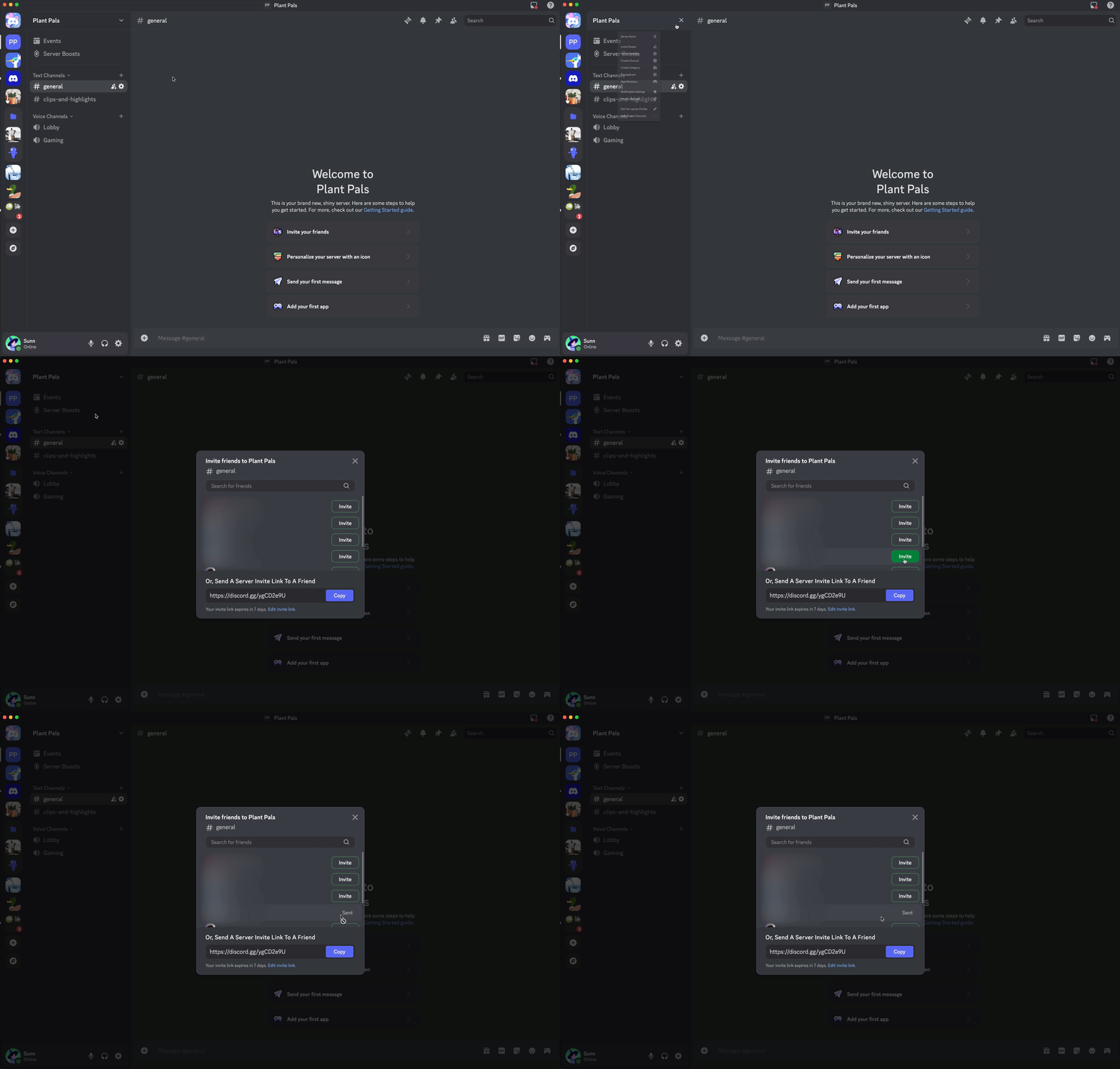
Now that you’ve created a new server, it’s time to bring your friends in! Smack-dab in the middle of your newly-made server, you should see a big “Invite Your Friends” button. Hit that, and you’ll see options to either invite your Discord friends directly or share an invite link that will work even outside of Discord.
If you already started talking away, that option might have scooted up and away. You can always invite friends by clicking your server’s name to show the “Invite People” option.
The drop-down menu will let you create an invite for your new server to share with your friends.
After inviting all your friends and sharing your invite, soon everyone you regularly play with will be gathered in your shiny new server!
What Are These “Text Channels” and “Voice Channels?”
In your new server, you’ll see two lists called “Text Channels” and “Voice Channels.” These are where you and your friends will be talking in all sorts of ways! How do they work? Weellllll…
Text channels are where you type
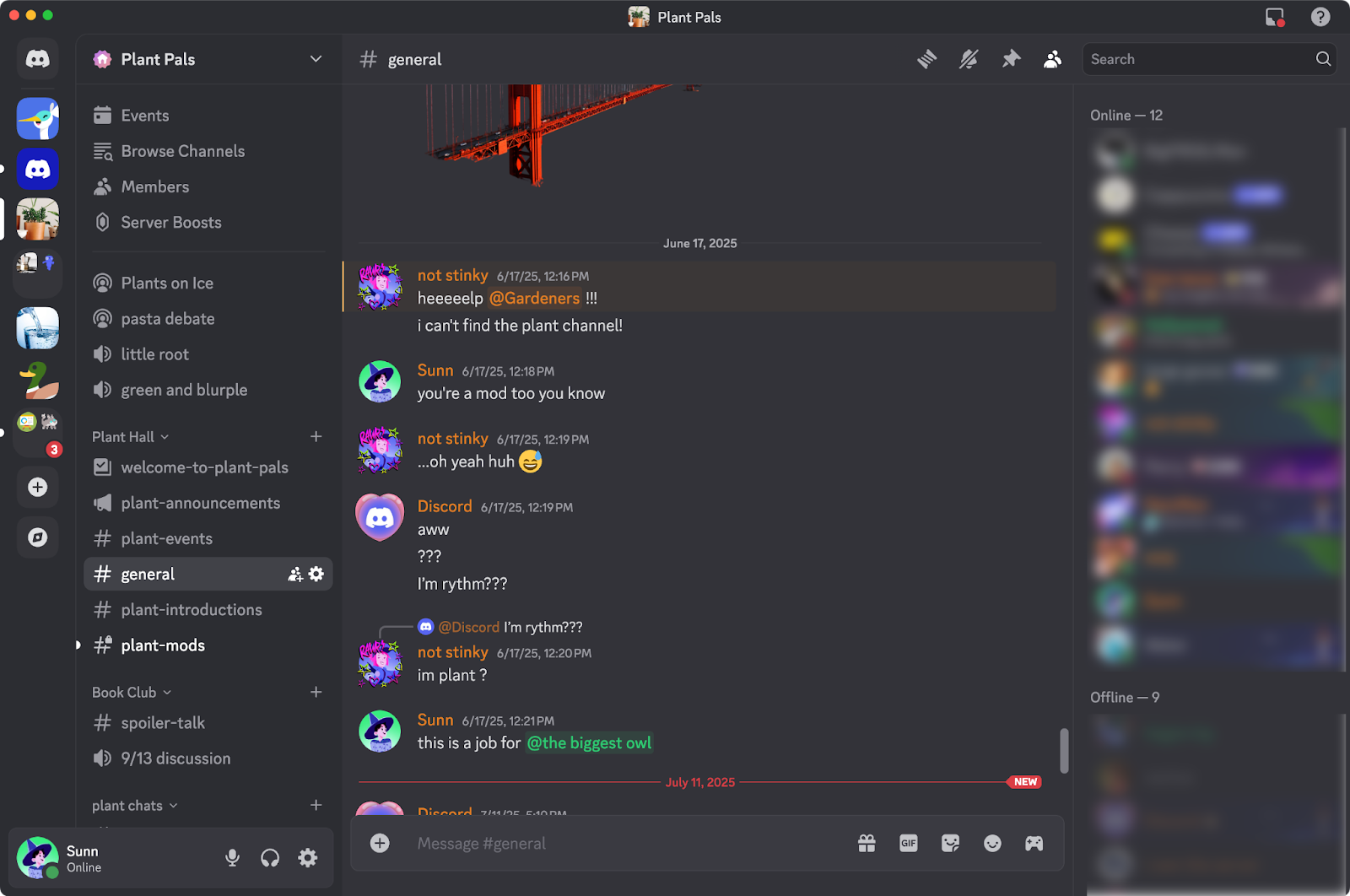
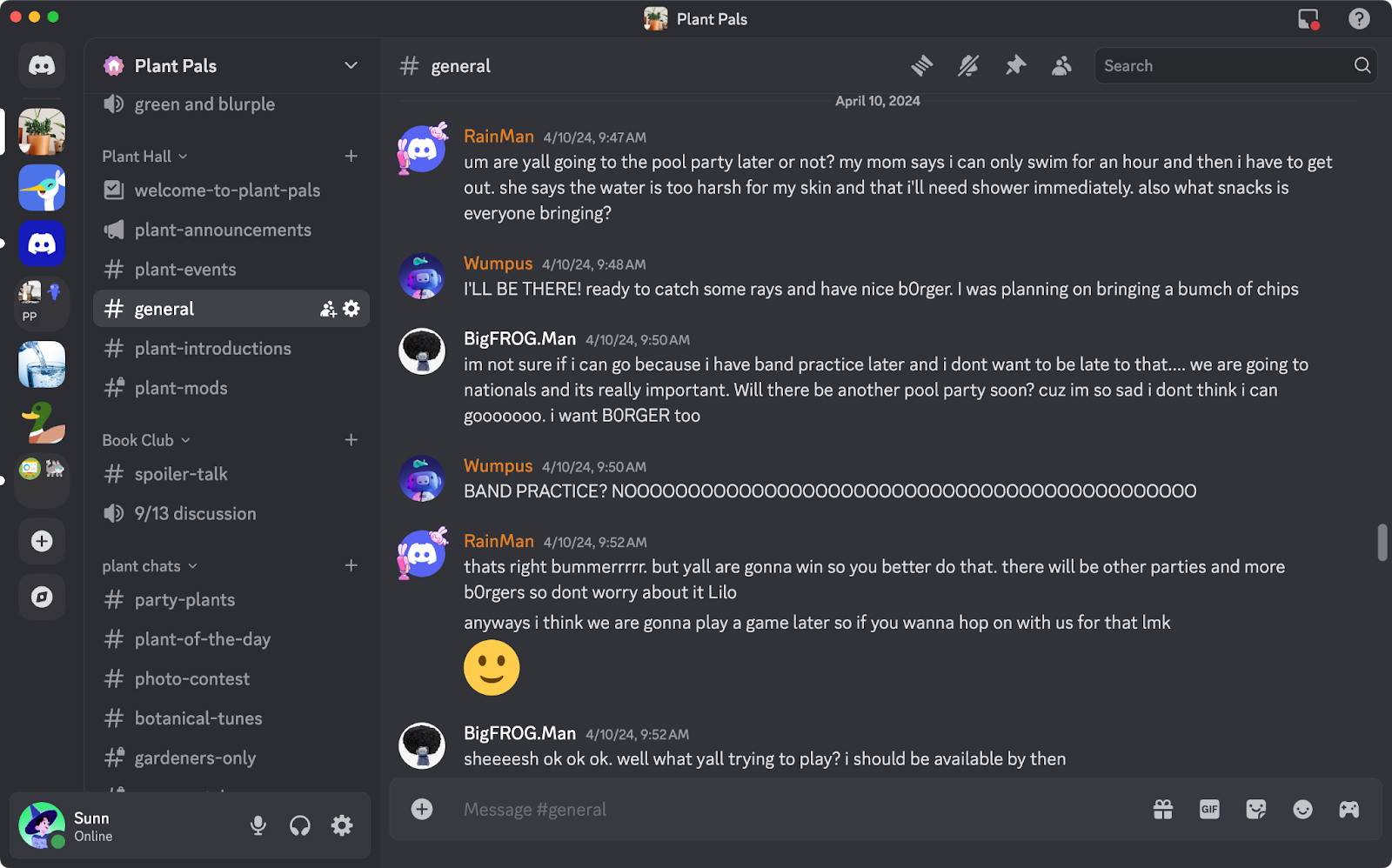
Text channels behave similarly to how you send messages on other platforms. Post long or short messages, share photos and files, or subject your friends to that one song stuck in your head. You can even type out someone’s name starting with an “@” and they’ll be notified when you post it, such as “@Fern.”
By default, if you make a text channel, everyone in your server will be able to see and post in it. It’s like making a new group chat to talk in, without having to reinvite everyone like you would in a normal Group DM.
im plant ?
Voice channels are where you talk
Voice channels are what makes Discord special. Remember when we talked about Discord servers being like having all your friends over to hang out? Voice channels make this possible.
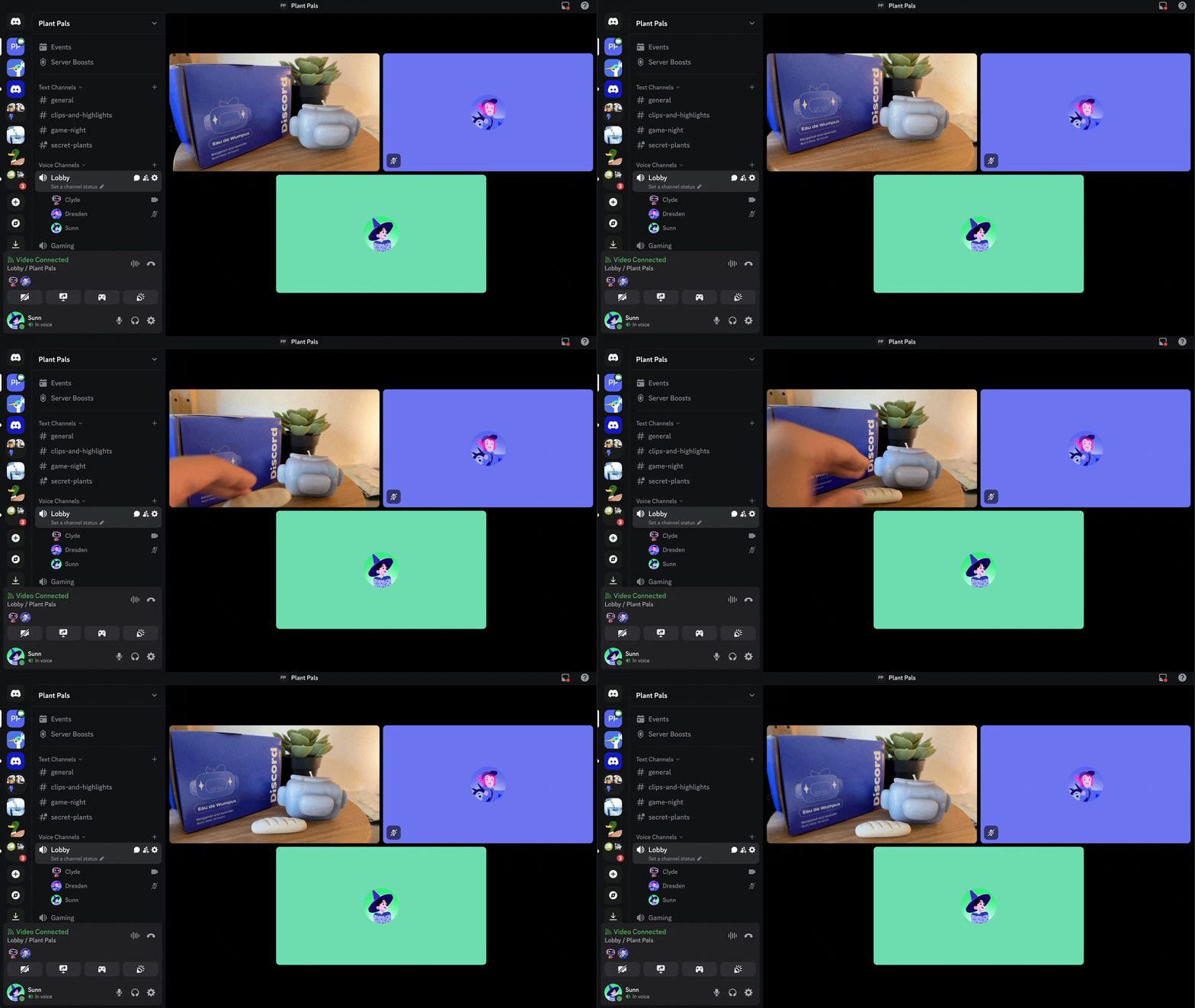
When you click on a voice channel, you’re placed in a call to talk using your device’s mic. Unlike DMs or calls on other platforms, your friends in the server won’t be startled by a LOUD ringtone when you join the voice channel.
Instead, they’ll see you listed in the Voice channel, and they can freely join and leave whenever they want. Think of it like walking into a room with your friends and joining their conversation!
You can have as many people you’d like in a voice-only call, and up to 25 people in a video call.
You can also use your device’s camera to video chat with friends, stream your game, or share your screen to show off a secret area you found in-game or spend over fifteen minutes guiding someone through your third character’s skill tree.
Voice channels even have their own space to post messages! Hovering over a voice channel will show a 💬 button next to its name. Clicking that will bring you to a sort-of mini text channel for posting messages in, great for when you want to share a dumb video or meme of a sunfish without having to plop it in an unrelated conversation with zero context. (Or maybe post it anyways, they’ll surely love a sunfish.)
Plus, each channel has its own name and holds its own chat history. You can think of a channel’s name as its conversation topic: a text channel named #game-talk could be where you what you’re playing lately, or #hit-that-clip to post your montage-worthy plays. You can even make multiple voice channels for different call topics, such as Chill Vibes or Raid Night.
How Can I Add or Remove New Channels?
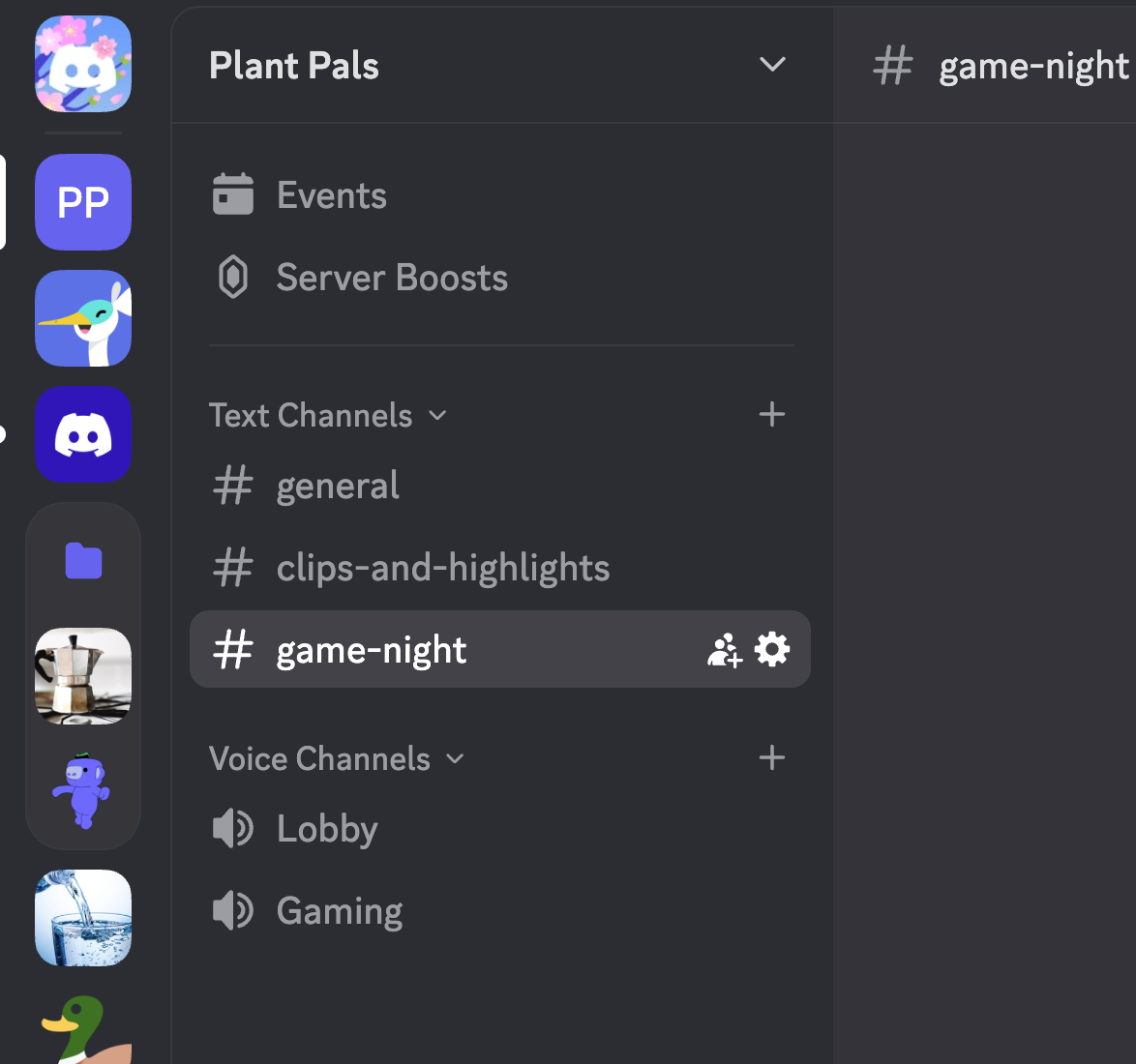
When we made our “Plant Pals” server, the “Gaming” template we used included four channels: two text channels called #general and #clips-and-highlights, and two voice channels called Lobby and Gaming. Since our group likes to host a game night every week, we’ll want a place where we can plan out what we want to play and talk about them as game night happens. So let’s make a channel for that!
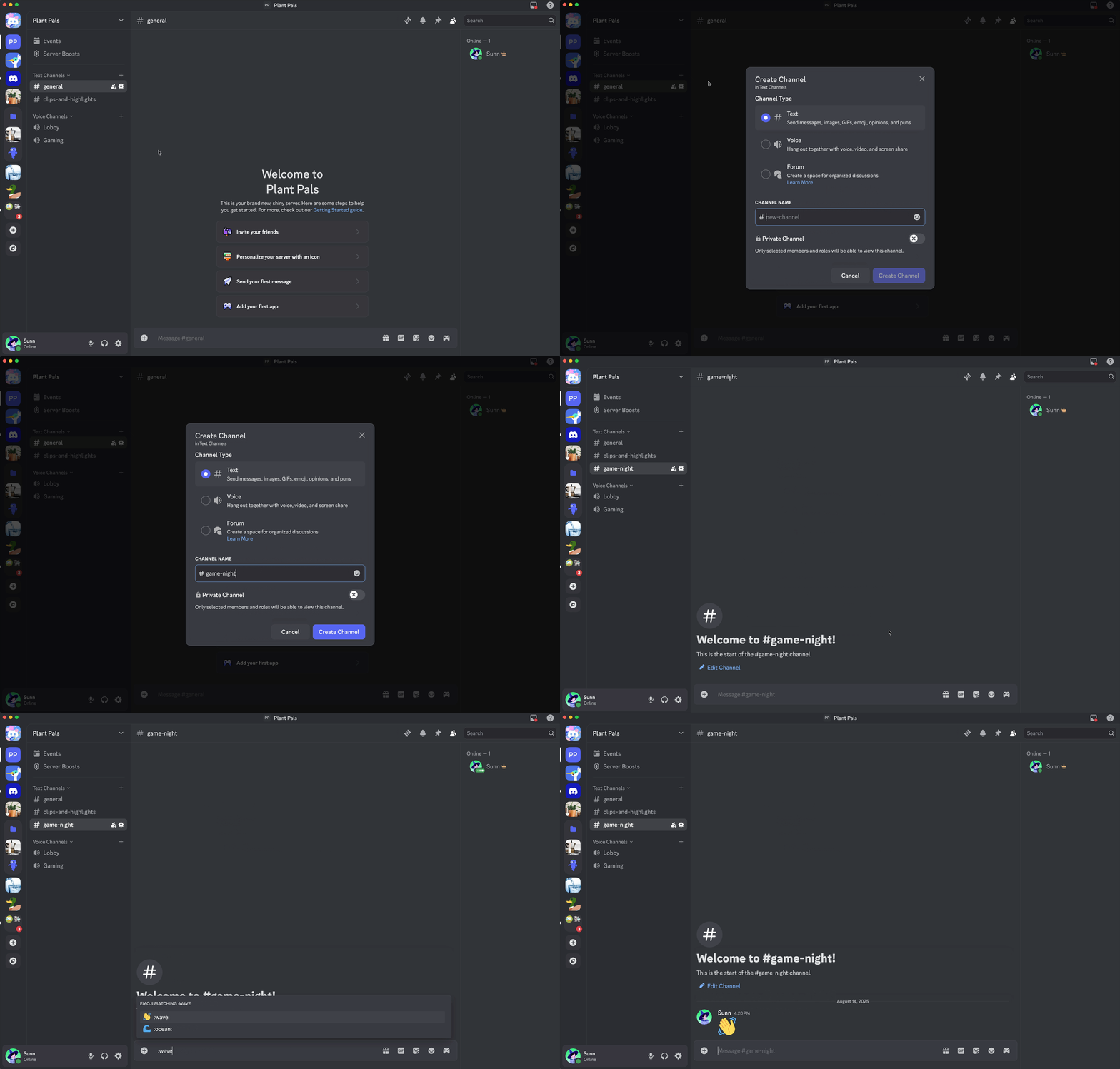
To make a new channel, simply head into your server’s drop-down menu on the top-left and select “Create Channel.” If you’re on mobile, swipe right to open your channel list, tap the server’s name and choose “Create Channel.”
Once you click that, a menu pops up to choose what kind of channel you want. We want an ongoing space to talk about our weekly game nights, so we’ll choose “Text Channel” and name it “#game-night.”
Aaaand that’s it! Your new channel dedicated to game night’s ready to roll. Talk about that trendy four-player co-op game, your favorite single-player game you want to stream to your friends, or just the same game y’all have played every weekend for the last ten years — that’s what the #game-night channel is for, after all!
How Many Channels Should My Discord Server Have?
When creating additional channels for your Discord server, it’s best not to get too crazy with how many you have. If you’re just starting out, we recommend starting off with a small number of channels and adjusting your selection as time goes on.
Let’s think about our starting #general channel: General is, well… extremely vague. But since we just made the server, we don’t truly know what people are going to talk about until they start talking!
Instead of trying to force conversations with channels like #games-we-play-on-tuesdays-after-dinner, just keep an eye on the conversation and see what gets talked about a lot! Who knows, maybe y’all actually do like to talk about #games-we-play-on-tuesdays-after-dinner, and not Thursdays or Saturdays.
A small number of channels is a good place to start. Expand as needed, but don’t go overboard.
You can also delete channels when you don’t need them anymore, but once a channel is deleted, all of its history will be gone for good. Be sure to make 100% certain you want to delete the contents of a channel before it’s gone — sometimes keeping an unused channel around is better than deleting it outright.
Can I Limit Channels to Just a Few Friends?
Sometimes, as the owner of a snazzy Discord server, you may want to keep certain conversation spaces only visible to a few friends. To help, you can designate a certain channel to be “Private channels,” making them accessible only to specific members.
Roles can also be powerful tools for larger servers, but those are for another conversation — for now, we’ll stick to specifying exactly who we want within our small friends server.
The next time you make a new channel, you’ll see an option to make a Private channel. Toggle that on, and hit Next.
From here, you can specify which members of your server (or entire Roles) you want to be able to access your new channel. Add everyone in, and hit “Create Channel.” You’ll see a brand new channel pop up, and if it’s a Text Channel, a list of the members who can see it.
In addition to members, you can also limit channels to specific roles if you’ve already made some for your server.
If someone ever wants to be added or removed from a private channel after it’s already made, you can right-click on the channel (or long-press on mobile), select “Edit Channel” and head to Permissions, which is where you can adjust who can see that particular space.
Note: If you’re the server owner, you’ll always be able to see all of the channels in your server — including all of its private channels.
Now You’ve Got a Growing Home for Your Closest Friends
Wumpus will be there!! Will you? (There will be b0rgers.)
Now that you’re all set up in your Discord server, go on and have fun! Hang out in a voice channel, post pictures of your gaming setups, or wave hi to each other in a video call before you all game the night away! Your server is what you make of it.
If you found this guide helpful (or you’re trying to explain to a friend what makes servers special), share it around! ! If you have any more in-depth questions, our Help Center is always available.