惯性聚合 高效追踪和阅读你感兴趣的博客、新闻、科技资讯
阅读原文 在惯性聚合中打开

推荐订阅源

H
Hackread – Cybersecurity News, Data Breaches, AI and More
C
Check Point Blog
Hacker News: Ask HN
Hacker News: Ask HN
cs.CL updates on arXiv.org
WordPress大学
WordPress大学
P
Proofpoint News Feed
V
Visual Studio Blog
C
Cyber Attacks, Cyber Crime and Cyber Security
N
Netflix TechBlog - Medium
C
CXSECURITY Database RSS Feed - CXSecurity.com
博客园 - 聂微东
Threat Intelligence Blog | Flashpoint
博客园 - 叶小钗
Cisco Talos Blog
Cisco Talos Blog
S
Schneier on Security
T
Threat Research - Cisco Blogs
腾讯CDC
cs.AI updates on arXiv.org
The Hacker News
The Hacker News
Google DeepMind News
Microsoft Security Blog
奇客Solidot–传递最新科技情报
奇客Solidot–传递最新科技情报
GbyAI
GbyAI
N
News | PayPal Newsroom
L
LINUX DO - 最新话题
酷 壳 – CoolShell
酷 壳 – CoolShell
P
Palo Alto Networks Blog
T
Tenable Blog
S
Secure Thoughts
T
Threatpost
V2EX - 技术
V2EX - 技术
大猫的无限游戏
大猫的无限游戏
Martin Fowler
Martin Fowler
freeCodeCamp Programming Tutorials: Python, JavaScript, Git & More
Vercel News
Vercel News
罗磊的独立博客
P
Privacy & Cybersecurity Law Blog
Engineering at Meta
Engineering at Meta
小众软件
小众软件
Google DeepMind News
N
News and Events Feed by Topic
Y
Y Combinator Blog
CTFtime.org: upcoming CTF events
C
Cybersecurity and Infrastructure Security Agency CISA
P
Proofpoint News Feed
L
Lohrmann on Cybersecurity
P
Privacy International News Feed
H
Heimdal Security Blog
量子位
B
Blog

轶哥博客

blog blog blog blog blog blog blog blog blog blog blog blog blog blog blog blog blog blog blog blog blog blog blog blog blog blog blog blog blog blog blog blog blog blog blog blog blog blog blog blog blog blog blog blog blog blog blog blog blog blog blog blog blog blog blog blog blog blog blog blog blog blog blog blog blog blog blog blog blog blog blog blog blog blog blog blog blog blog blog blog blog blog blog blog blog blog blog blog blog blog blog blog blog blog blog blog blog blog blog blog
blog
2022-05-10 · via 轶哥博客

在Kali Linux中安装VMware Workstation 16 Player和VMware Workstation 16 Pro的方法大体一致,与Debian的安装方法相似。在Kali Linux中安装VMware Workstation没有详细教程将会比较困难,特整理如下。

下载 VMware Workstation 16

VMware Workstation 16 Pro 下载地址:https://www.vmware.com/go/getworkstation-linux

VMware Workstation 16 Player 下载地址:https://customerconnect.vmware.com/en/downloads/details?downloadGroup=WKST-PLAYER-1623-NEW&productId=1039&rPId=85399

准备工作

开始安装之前,先升级Kali Linux的软件到最新版本。

sudo apt update
sudo apt upgrade -y
sudo reboot

一定要在解压之前执行下述命令作为准备,否则安装过程将会直接报错,看不到GUI安装界面。

sudo apt update
sudo apt install build-essential linux-headers-$(uname -r) libaio1 libcanberra-gtk-module

进入下载目录,给下载好的bundle文件执行权限:

chmod +x VMware-xxxx.x86_64.bundle

安装 VMware Workstation 16

执行解压和安装:

sudo ./VMware-xxxx.x86_64.bundle

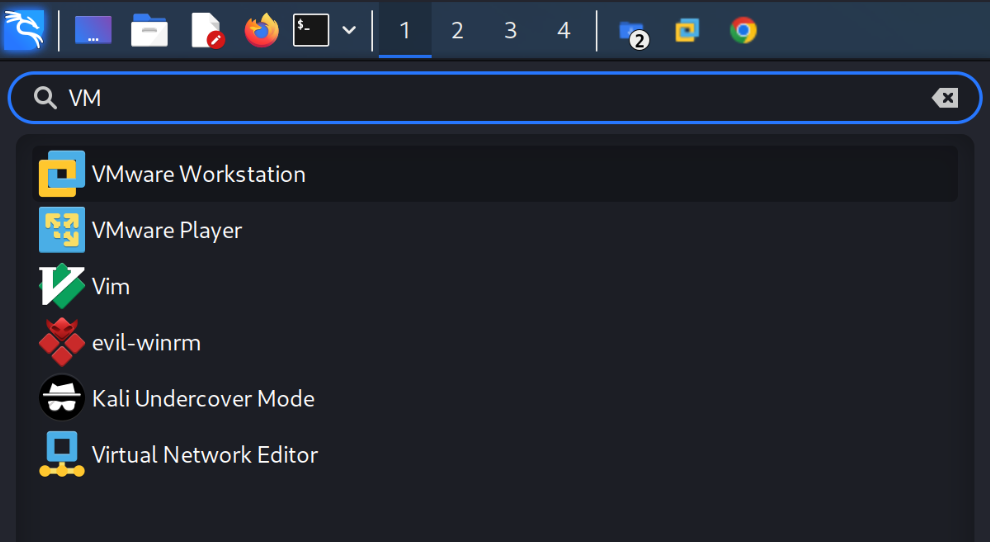
看到Installation was successful.后,在菜单中搜索VM

vmware.png

点击VMware Workstation即可进入常规安装GUI。如果此步骤报错,需要检查准备工作中的依赖是否正常安装并重新来过。可视化安装过程比较简单,不再赘述。

解决 vmmon 内核模块报错

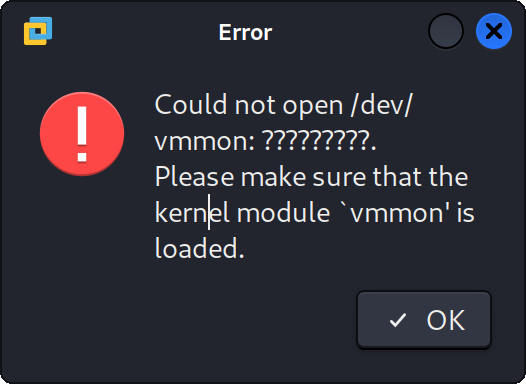
在Kali Linux的VMware Workstation 16中支持安装win11,但是需要额外编译一些内容并进行相关设置,否则会提示Could not open /dev/vmmon: ???. Please make sure that the kernel module 'vmmon' is loaded.

vmwareerror.png

需要克隆官方仓库并编译安装载入内核vmmon模块。

sudo apt install git
git clone https://github.com/mkubecek/vmware-host-modules.git
git checkout 对应版本

这里对应的版本需要与vmware --version保持一致。

例如执行vmware --version得到版本:

$ vmware --version   
VMware Workstation 16.2.3 build-19376536

那么相应的版本是workstation-16.2.3,则需要git checkout workstation-16.2.3

具体名称执行git branch -a查看。VMware Workstation 16 Player同理,选择player-开头的分支。

然后执行编译安装:

make
sudo make install

完成后重新加载模块:

sudo modprobe -r vmmon
sudo modprobe -a vmmon

完成上述操作后,再启动虚拟机则不会有vmmon相关报错。

文件用完不要删,大概率升级内核后还得再编译安装。

在 VMware Workstation 中安装 Windows 11

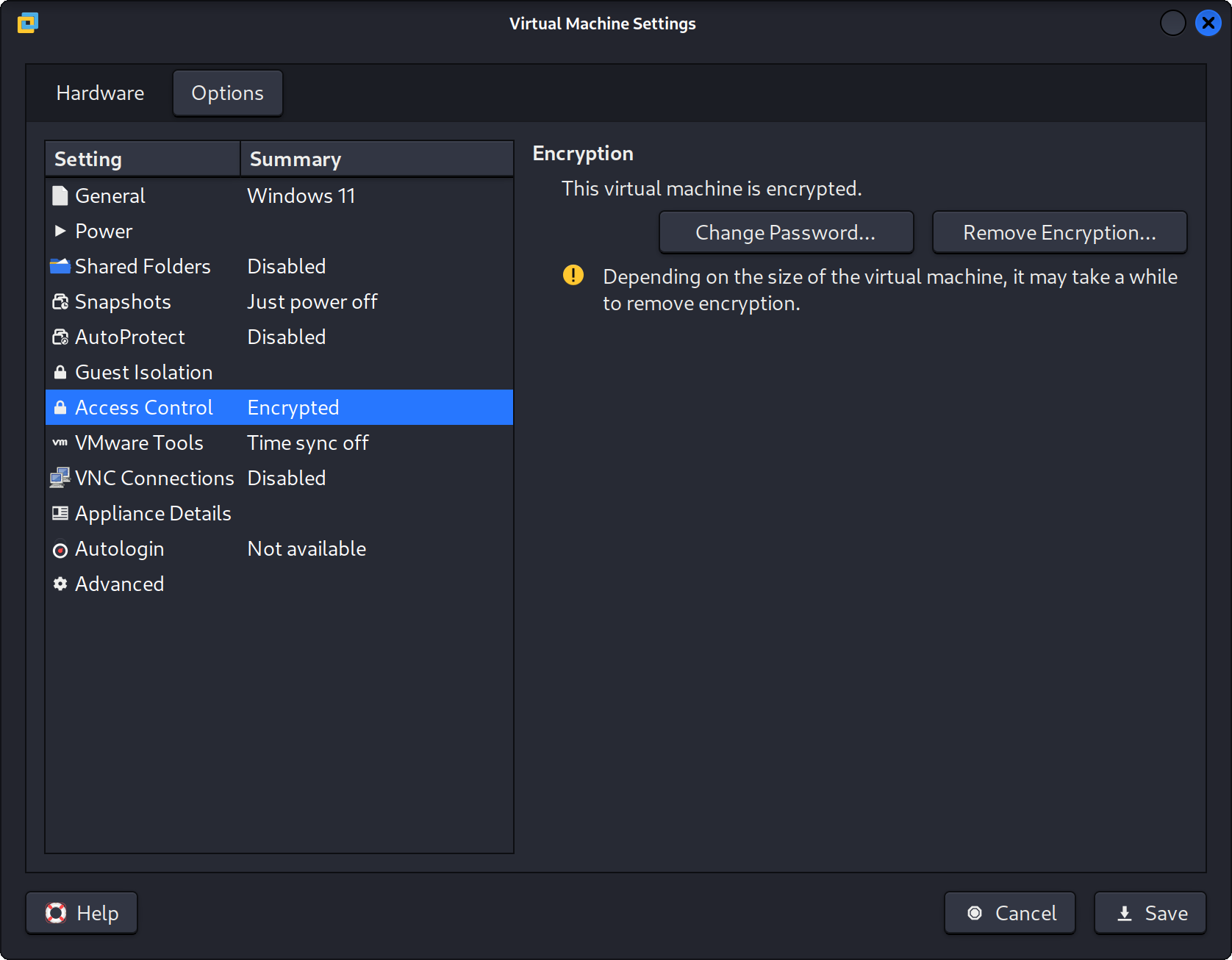
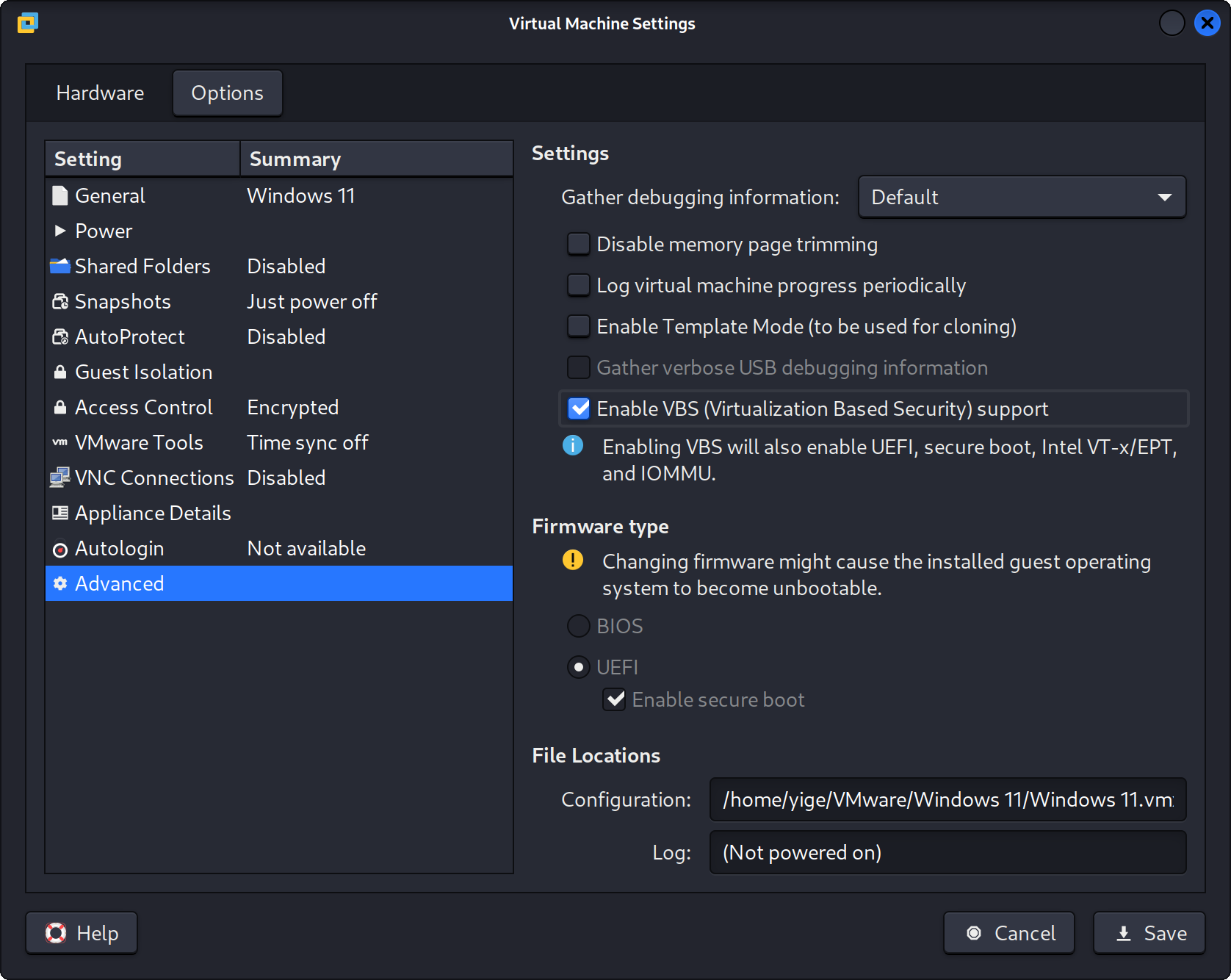
在VMware Workstation 16中安装win11,至少需要开启UEFI安全引导和TPM2.0模块,否则会提示这台电脑无法运行 Windows 11。为了获得更好的体验,建议在开启UEFI安全引导和TMP2.0的同时,开启VBS(Virtualization Based Security)和访问控制加密(Access Control Encrypted)。

新建虚拟机,选择引导为UEFI,并勾选安全引导

编辑虚拟机设置,选择选项,开启Access Control

encrypted.png

选择高级,开启VBS:

vbs.png

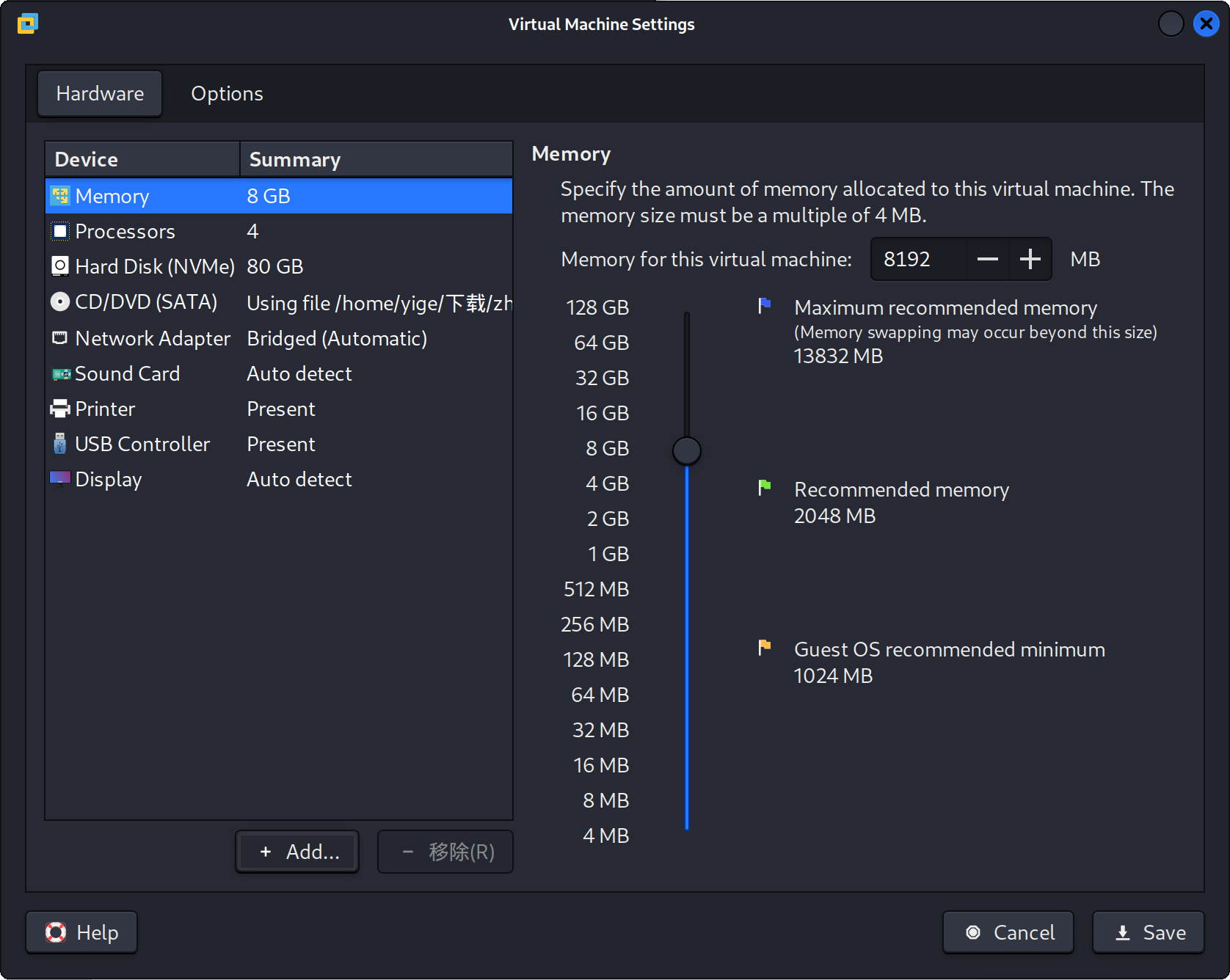
回到硬件(Hardware),选择添加硬件

addhardware.png

在弹出来的窗口中选择可信平台模块(Trusted Platform Module),添加该模块即启动TPM2.0。
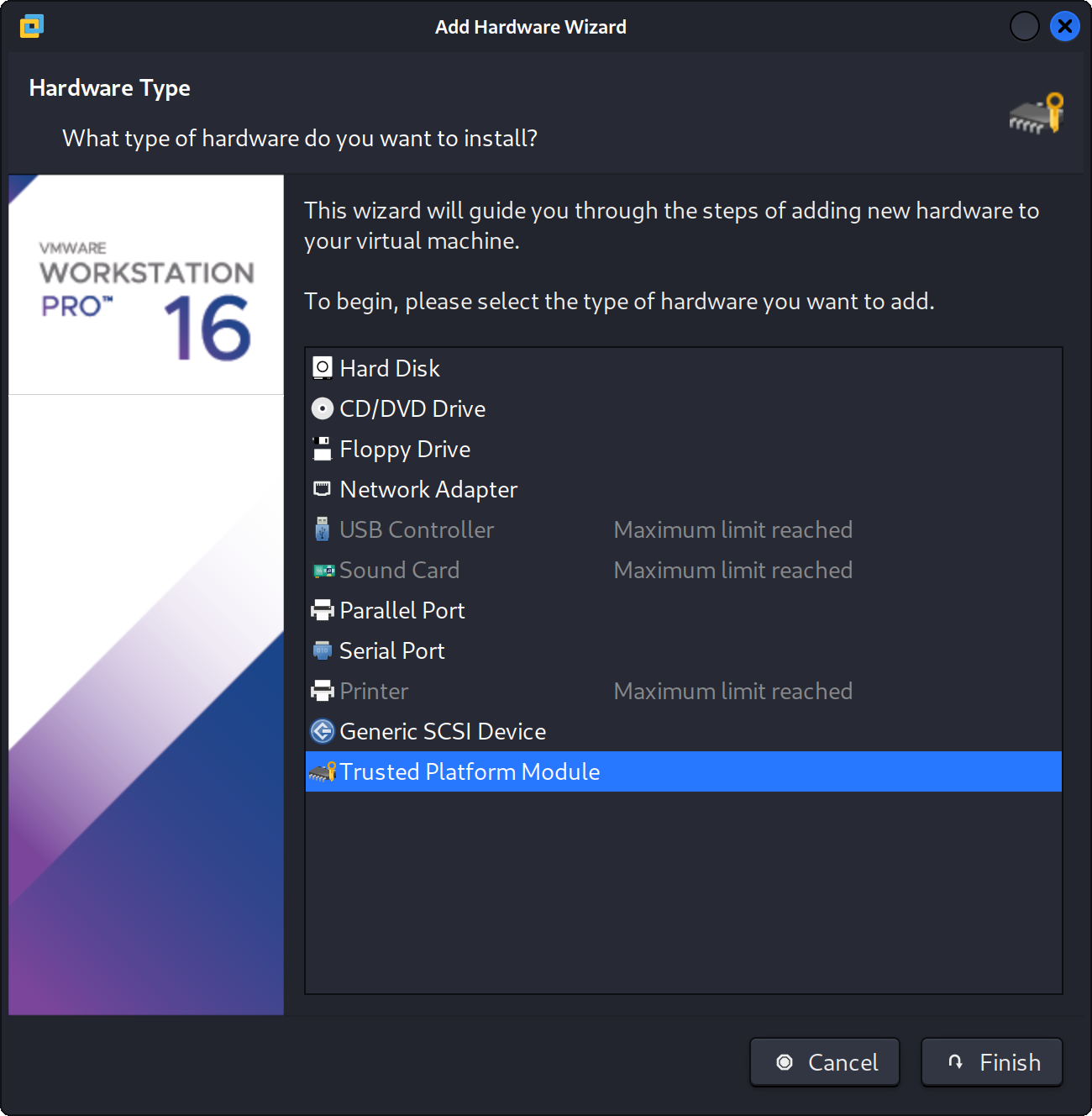
tmp2.0.png

此时即可正常安装和使用Windows 11了。