





2011-07-17 13:53 Henry Cui 阅读(2311) 评论() 收藏 举报
由于工作的关系,现在的项目要求表现层使用Silverlight来实现,本人也不得不走向Silverlight这条路了。也许只是匆匆过客,但是还是做个记录吧。
Microsoft Silverlight 是一种跨浏览器、跨平台的 .NET Framework 实现,用于为 Web 生成和提供下一代媒体体验和丰富的交互式应用程序 (RIA)。Silverlight 统一了服务器、Web 和桌面的功能,统一了托管代码和动态语言、声明性编程和传统编程以及 Windows Presentation Foundation (WPF) 的功能。
Silverlight 允许您创建具有以下功能的最先进的应用程序:
它是一种跨浏览器、跨平台的技术。它在所有常见的 Web 浏览器中运行,包括 Microsoft Internet Explorer、Mozilla Firefox 以及 Apple Safari 和谷歌浏览器,并在 Microsoft Windows 和 Apple Mac OS X 上运行。
它由可在数秒内安装的很小的下载程序支持。
它对视频和音频进行流处理。它将视频品质调整到适合各种环境:从移动设备到桌面浏览器以及 720p HDTV 视频模式。
它包括用户可以直接在浏览器中操作(拖动、旋转和缩放)的足够清晰的图形。
它读取数据并更新显示内容,但是不通过刷新整个页面来打断用户。
应用程序可以在 Web 浏览器中运行;您也可以配置应用程序,使用户可以在自己的计算机上运行该应用程序(浏览器外)。
第一个例子一般都是从Hello World开始,这里我就不从Hello World开始了,我建立一个稍微有点实际意义的一个Demo来开始第一次之旅吧。Get Person——获取人员的信息。
首先定义了Person:
public class Person
{
    public string Name
    {
        get;
        set;
    }

    public ImageSource HeadImg
    {
        get;
        set;
    }
}
我们获取两位牛人的信息:
private ObservableCollection<Person> GetPersons()
{
    return new ObservableCollection<Person>{
        new Person{
            Name="Bill Gates",
            HeadImg =  new BitmapImage(new Uri(@"http://album.jinti.com/Stars/UpFiles/FCKFiles/specialreports_2edb_bill_gates.jpg"))
        },
        new Person{
            Name = "Steve Jobs",
            HeadImg = new BitmapImage(new Uri(@"http://photocdn.sohu.com/20080115/Img254675210.jpg"))
        }
    };
}
然后定义了一个按钮以及一个List来显示:
       <Button Content="Get Persons" Height="24" Width="100"
                HorizontalAlignment="Left" Margin="10,5,0,0" Click="Button_Click" ></Button>
        <ListBox x:Name="lstPersons" Margin="10,10,0,0" Width="400">

        </ListBox>
按钮中的代码:
private void Button_Click(object sender, RoutedEventArgs e)
{
    var personList = GetPersons();
    this.lstPersons.ItemsSource = personList;
}
看下运行的效果:
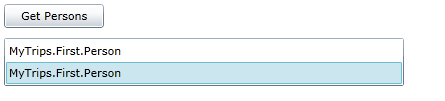
这好像不是我们要的效果,下面我们来做些改变。
我们需要List里面的信息能够按照我们期望的方式进行现实,我们需要自定义Template:
        <ListBox x:Name="lstPersons" Margin="10,10,0,0" >
            <ListBox.ItemTemplate>
                <DataTemplate>
                    <Grid>
                        <Grid.ColumnDefinitions>
                            <ColumnDefinition Width="Auto" />
                            <ColumnDefinition Width="*" />
                        </Grid.ColumnDefinitions>
                        <Image Height="100" Width="100" Grid.Column="0" Source="{Binding HeadImg}"></Image>
                        <TextBlock Text="{Binding Name}" FontSize="14" Margin="3" Grid.Column="1"></TextBlock>
                    </Grid>
                </DataTemplate>
            </ListBox.ItemTemplate>
        </ListBox>
这下我们来看下运行的效果:

这是Silverlight 4之旅的第一站,下面开始进入详细学习Silverlight中绑定的知识。
此内容由惯性聚合(RSS阅读器)自动聚合整理,仅供阅读参考。 原文来自 — 版权归原作者所有。