






安装discourse 有几个要点
1.安装docker,如果已有docker版本比较老的话,注意卸载干净
$ sudo yum remove docker \
                  docker-client \
                  docker-client-latest \
                  docker-common \
                  docker-latest \
                  docker-latest-logrotate \
                  docker-logrotate \
                  docker-selinux \
                  docker-engine-selinux \
                  docker-engine
curl -fsSL https://get.docker.com/ | sh
2.安装rvm
安装ruby所需的其他依赖包
yum install gcc-c++ patch readline readline-devel zlib zlib-devel \
 libyaml-devel libffi-devel openssl-devel make \
 bzip2 autoconf automake libtool bison iconv-devel sqlite-devel
修改ruby的gem源(改为国内的镜像),
gem sources   --查看当前使用的源地址
gem sources -a http://mirrors.aliyun.com/rubygems/    --添加阿里云镜像地址
gem sources -r https://rubygems.org/    --删除默认的源地址
gem sources -u    --更新源的缓存
安装rvm
gpg --keyserver hkp://keys.gnupg.net --recv-keys 409B6B1796C275462A1703113804BB82D39DC0E3 7D2BAF1CF37B13E2069D6956105BD0E739499BDB --获取密钥
curl -sSL https://get.rvm.io | bash -s stable --安装rvm
如遇到“Failed to connect to raw.githubusercontent.com port 443: Connection refused” 错误,可以在/etc/hosts文件中添加(参考https://blog.csdn.net/qq_43531694/article/details/106862753):
199.232.28.133 raw.githubusercontent.com
更新配置文件
source /etc/profile.d/rvm.sh
rvm list known --查看所有可安装版本
rvm install 2.6 --安装ruby2.6.3
rvm -v --查看当前ruby版本 -
其他错误
Could not resolve host: github.com for SamSaffron/pups.git
“
On CentOS8 this error is due to the RHEL7 docker rpms (there are no RHEL8 ones yet) not understanding the new nftables based firewall. One has to setup masquerading by hand for the docker0 interface
https://serverfault.com/questions/987686/no-network-connectivity-to-from-docker-ce-container-on-centos-8 4
”
To be specific I ran these commands in order like listed below. (source 2) - thanks to @paulraines68
# Masquerading allows for docker ingress and egress (this is the juicy bit)
firewall-cmd --zone=public --add-masquerade --permanent

# Specifically allow incoming traffic on port 80/443 (nothing new here)
firewall-cmd --zone=public --add-port=80/tcp
firewall-cmd --zone=public --add-port=443/tcp

# Reload firewall to apply permanent rules
firewall-cmd --reload
+ /usr/bin/docker run --shm-size=512m -d --restart=always -e LANG=en_US.UTF-8 -e RAILS_ENV=production -e UNICORN_WORKERS=3 -e UNICORN_SIDEKIQS=1 -e RUBY_GLOBAL_METHOD_CACHE_SIZE=131072 -e RUBY_GC_HEAP_GROWTH_MAX_SLOTS=40000 -e RUBY_GC_HEAP_INIT_SLOTS=400000 -e RUBY_GC_HEAP_OLDOBJECT_LIMIT_FACTOR=1.5 -e DISCOURSE_DB_SOCKET=/var/run/postgresql -e DISCOURSE_DB_HOST= -e DISCOURSE_DB_PORT= -e DISCOURSE_HOSTNAME=www.likequant.com -e DISCOURSE_DEVELOPER_EMAILS=******@163.com -e DISCOURSE_SMTP_ADDRESS=smtp.163.com -e DISCOURSE_SMTP_PORT=465 -e DISCOURSE_SMTP_USER_NAME=****@163.com -e DISCOURSE_SMTP_PASSWORD=**** -h VM-0-9-centos-app -e DOCKER_HOST_IP=172.18.0.1 --name app -t -p 80:80 -p 443:443 -v /var/discourse/shared/standalone:/shared -v /var/discourse/shared/standalone/log/var-log:/var/log --mac-address 02:e7:25:ff:d1:3d local_discourse/app /sbin/boot
c1c51bd308ca5ac31e19ab9a2103359fd87dfdb1478570e455e5e47db86fb68e
注意:由于调整配置后,进行rebuild或者bootstrap的时间特别长,甚至可能失败,可以直接通过上面的docker命令修改参数来调整测试,其次只是在本机试验,是可以在上面的docker命令中设置“DISCOURSE_HOSTNAME=127.0.0.1”即可,但这个是已经完成安装后,填写的域名是不可用的域名可用此法,可以正常解析的域名就不用了。
另外邮件通知我尝试很多次没有成功,可以用下面的命令先建立管理员账户,进入体验。上面的docker run带的参数是生效的,所以实验配置的时候没有必要每次重新rebuild,这个浪费了我太多时间。
root@localhost discourse]# ./launcher enter xy
Config file was not found, ensure containers/xy.yml exists

Available configs ( app, xyf )
[root@localhost discourse]# cd containers/
[root@localhost containers]# ls
app.yml xyf.yml
[root@localhost containers]# cp xyf.yml xy.yml
[root@localhost containers]# vim xy.yml
[root@localhost containers]# ./launcher enter xy
bash: ./launcher: No such file or directory
[root@localhost containers]# cd ..
[root@localhost discourse]# ./launcher enter xy
root@VM-0-9-centos-app:/var/www/discourse# rake admin:create
Email: xuyuan_77@163.com
User with this email already exists! Do you want to reset the password for this email? (Y/n) y
Password:
Repeat password:
Password is the same as your current password.
Email: xuyuan_77@163.com
User with this email already exists! Do you want to reset the password for this email? (Y/n) n

Ensuring account is active!

Account updated successfully!
Do you want to grant Admin privileges to this account? (Y/n) y

Your account now has Admin privileges!
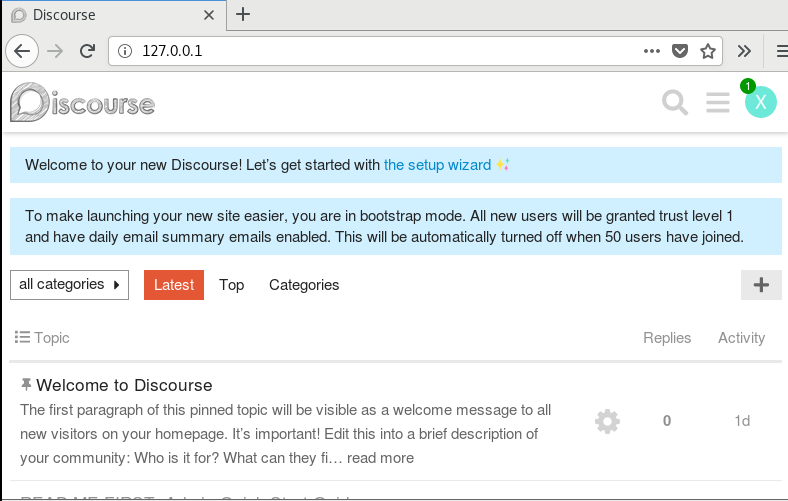
进入postgres数据库
 ./launcher enter app
su - postgres
psql
ALTER ROLE postgres WITH PASSWORD 'your-new-password';
references:
https://meta.discourse.org/t/troubleshooting-email-on-a-new-discourse-install/16326
此内容由惯性聚合(RSS阅读器)自动聚合整理,仅供阅读参考。 原文来自 — 版权归原作者所有。