







You may have heard a bit of news about a new thumbnail feature for themes coming to WordPress 2.9. Yes, you’ll be able to easily upload a post thumbnail. However, it’s not just thumbnails. The image will have various sizes. So, I’m going to refer to this feature as the post image feature.
In this tutorial, I’ll be covering the various things you can do with the post image feature. Some things will be specific to end users while others will be useful for theme and plugin developers.
One important thing to note is that this new feature is an image-based representation of a post. The image itself is directly tied to your post. You shouldn’t think of it as something different than that.
First, your theme must add support for it. Otherwise, you won’t be able to use it. At this point, let’s assume that your theme does support it. I’ll go over instructions for theme authors later.
To use this feature, you must be within the post editing screen of your WordPress admin. On this screen, you’ll see a new meta box labeled “Post thumbnail” (or “Page thumbnail” for pages). There’ll be a link to “Set thumbnail,” which will allow you to use the media uploader to load a new image.
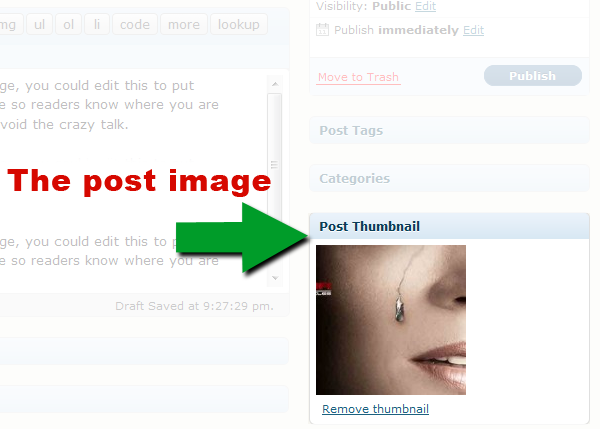
Even though it is called “post thumbnails,” we can technically use the feature for all sorts of things (e.g., feature images, medium-sized images for the front page, etc.).
By default, WordPress gives you several image sizes each time you upload an image. These image sizes are:
Some plugins even extend this by allowing more intermediate sizes. The important thing is that you understand that more than thumbnails can be used here.
Theme authors, I’m going to make this simple for you. You only need one line of code to turn this feature on for your users. Add this to your theme’s functions.php file:
add_theme_support( 'post-thumbnails' );Or, you can register support for specific post types. For example, let’s suppose you wanted to add thumbnail support for both the post and movie post type but not for the page post type. You’d use this instead:
add_theme_support( 'post-thumbnails', array( 'post', 'page' ) );Of course, that one line doesn’t actually add anything to the front end for you. You’ll need to call the image somewhere within The Loop in your template files. For example, you might want to add thumbnails to your category archives. You’d do this by adding this line of code:
<?php the_post_thumbnail( 'thumbnail' ); ?>Or, maybe you have a section on a special template that calls for medium-sized images:
<?php the_post_thumbnail( 'medium' ); ?>Or, a huge sliding feature area on your front page and need the full-sized image:
<?php the_post_thumbnail( 'full' ); ?>That’s all there is to it. As a theme author, you can hand over some powerful functionality to your users with just a couple of lines of code.
The rest of this tutorial will focus on developer features and some options for using older images.
Sometimes, you may need to check if a post has an image. There’s a function for that called has_post_thumbnail(), which will return true or false based on whether there’s an image.
In this example, we’ll check if there’s an image. If there’s not, we’ll show a default image instead.
<?php
	if ( has_post_thumbnail() )
		the_post_thumbnail( 'thumbnail' );
	else
		echo '<img src="default-image.png" alt="Example Image" title="Example" />';
?>Maybe you need to write your own custom script but still want to allow users to upload their own images. You can grab the post image ID and use it. This ID is saved as the meta value for the meta key _thumbnail_id. It is the ID of the attached file.
You only need to call the function in your code like so:
$image_id = get_post_thumbnail_id();In some scenarios, you might want to return the post image for use in your PHP code instead of displaying it.
Here’s an example of that functionality:
$image = get_the_post_thumbnail( $post->ID, 'thumbnail' );Some plugin developers may want to filter the image size (or maybe even child theme authors). The post_thumbnail_size filter hook is available for that. The filter function below is for changing the thumbnail size to medium.
Add this PHP code to your theme’s functions.php file or your plugin file:
add_filter( 'post_thumbnail_size', 'my_post_image_size' );function my_post_image_size( $size ) {
	$size = 'medium';
	return $size;
}
There may be some scenarios where you’ll want to change the HTML markup of the displayed image. In this example, I’ll show you how to wrap the image with a link to the post.
Add this PHP code to your theme’s functions.php file or your plugin file:
add_filter( 'post_thumbnail_html', 'my_post_image_html', 10, 3 );function my_post_image_html( $html, $post_id, $post_image_id ) {	$html = '<a href="' . get_permalink( $post_id ) . '" title="' . esc_attr( get_post_field( 'post_title', $post_id ) ) . '">' . $html . '</a>';	return $html;
}
If you’re like me and many others, you may have been using custom fields to add images to your posts for years. If you switch to this new method, everything will be lost.
I’ve got a solution for this problem: The Get the Image plugin.
Version 0.4 will be released when WordPress 2.9 is out. Not only will support be added for the new WordPress post image feature, but you won’t lose all of the hard work you’ve put in. The plugin will have the ability to check for post images in five different ways (in the below order):
For those of you already using this plugin or a theme of mine that includes the script, you’ll only have to upgrade the plugin or theme. The feature will be turned on for you by default, so you will be able to start using the new feature without touching anything but an upgrade button.
I hope this tutorial has given you an in-depth look at the post image feature. There are some limitations, but on the whole, this feature will make things much easier for end users compared to the currently-available methods.
If you’re a user of my Get the Image plugin or Hybrid theme, look out for an update within a few days of WordPress 2.9. You’ll be able to start using the post image functionality soon.
此内容由惯性聚合(RSS阅读器)自动聚合整理,仅供阅读参考。 原文来自 — 版权归原作者所有。