惯性聚合 高效追踪和阅读你感兴趣的博客、新闻、科技资讯
阅读原文 在惯性聚合中打开

推荐订阅源

Help Net Security
Help Net Security
G
Google Developers Blog
雷峰网
雷峰网
WordPress大学
WordPress大学
Threat Intelligence Blog | Flashpoint
Engineering at Meta
Engineering at Meta
Security Latest
Security Latest
T
Threat Research - Cisco Blogs
AWS News Blog
AWS News Blog
F
Full Disclosure
C
Cybersecurity and Infrastructure Security Agency CISA
T
The Exploit Database - CXSecurity.com
J
Java Code Geeks
U
Unit 42
C
Cyber Attacks, Cyber Crime and Cyber Security
V
V2EX
C
Cisco Blogs
博客园 - 司徒正美
Project Zero
Project Zero
L
LINUX DO - 热门话题
阮一峰的网络日志
阮一峰的网络日志
Blog — PlanetScale
Blog — PlanetScale
Scott Helme
Scott Helme
A
About on SuperTechFans
Hugging Face - Blog
Hugging Face - Blog
S
Securelist
小众软件
小众软件
aimingoo的专栏
aimingoo的专栏
S
Schneier on Security
G
GRAHAM CLULEY
酷 壳 – CoolShell
酷 壳 – CoolShell
Cyberwarzone
Cyberwarzone
MongoDB | Blog
MongoDB | Blog
钛媒体:引领未来商业与生活新知
钛媒体:引领未来商业与生活新知
博客园 - 叶小钗
T
Threatpost
Recorded Future
Recorded Future
C
CXSECURITY Database RSS Feed - CXSecurity.com
宝玉的分享
宝玉的分享
N
News and Events Feed by Topic
人人都是产品经理
人人都是产品经理
The Register - Security
S
Security Archives - TechRepublic
博客园 - Franky
N
News | PayPal Newsroom
Simon Willison's Weblog
S
SegmentFault 最新的问题
W
WeLiveSecurity
A
Arctic Wolf
B
Blog

博客园 - kkun

audit message types system_call specifies the system call by its name AUDIT SYSTEM REFERENCE ausyscall --dump NodeJS http 模块 NodeJS package.json NodeJS Hello world NodeJS 安装 透过 HoloLens,微软抢先看到了个人计算机的未来 [MSSQL2008]Spatial Data in SQL Server 2008 - 根据经纬度计算两点间距离 [MSSQL2005]再看CTE 博文阅读密码验证 - 博客园 博文阅读密码验证 - 博客园 [MSSQL2012]LEAD函数 [MSSQL2012]First_Value函数 [MSSQL2012]CUME_DIST函数 [MSSQL]SQL疑难杂症实战记录-巧妙利用PARTITION分组排名递增特性解决合并连续相同数据行 [ALM]一步一步搭建MS ALM环境 - 安装TFS + SQL SERVER [Hyper-V]制作一个干净的操作系统模板
[ALM]一步一步搭建MS ALM环境 - 安装域服务器
kkun · 2014-05-27 · via 博客园 - kkun

描述:

搭建并配置域服务器,先安装操作系统,配置网络,安装组件,配置域帐号

步骤:

1,打开Hyper-V Manager,参考[Hyper-V]使用操作系统模板创建新的虚拟机,先完成操作系统的安装,注意以下修改以下信息:

磁盘名称:dc.vhdx

磁盘存储位置:x:\VMs\DC

虚拟机名称:DC

使用现有的虚拟机磁盘:x:\VMs\DC\dc.vhdx

选择使用内网网卡:InternalVirtualNetwork

内存大小:512 MB

服务器域\名称:ALM\DC

服务器IP:192.168.35.5

网关IP:192.168.35.1

服务器角色:域控制器、DNS服务器

2,打开并登录到刚创建好的虚拟机,打开 Server Manager | Local Server | IPv4 address assigned by DHCP,IPv6 enabled

名称:Administrator

密码:Admin@1234!
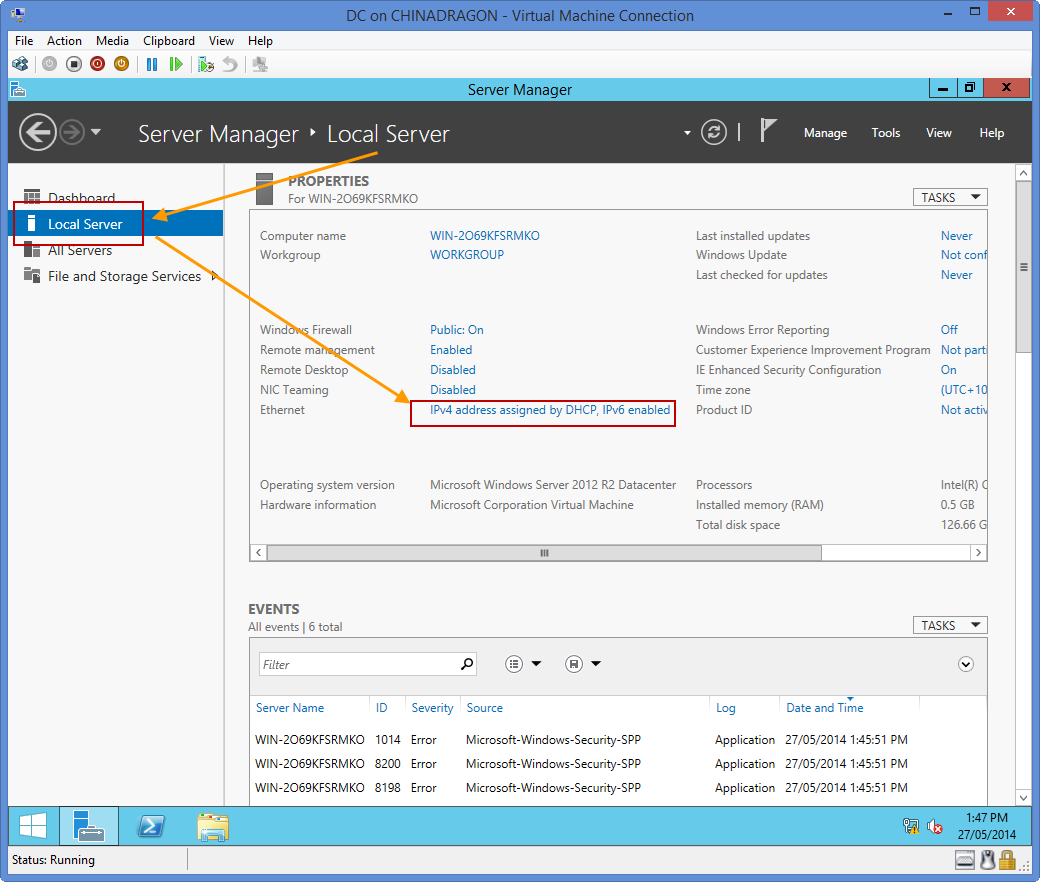
Network setting

3,打开网络连接,在 Ethernet 网卡上右键,属性,打到 Internet Protocol Version 4 (TCP/IPV4) 双击打开属性页面,配置IP、网关、DNS如下图所示:

Network setting

4,回到服务器管理界面,为该服务器命名,如下图所示,OK后按照提示重启计算机
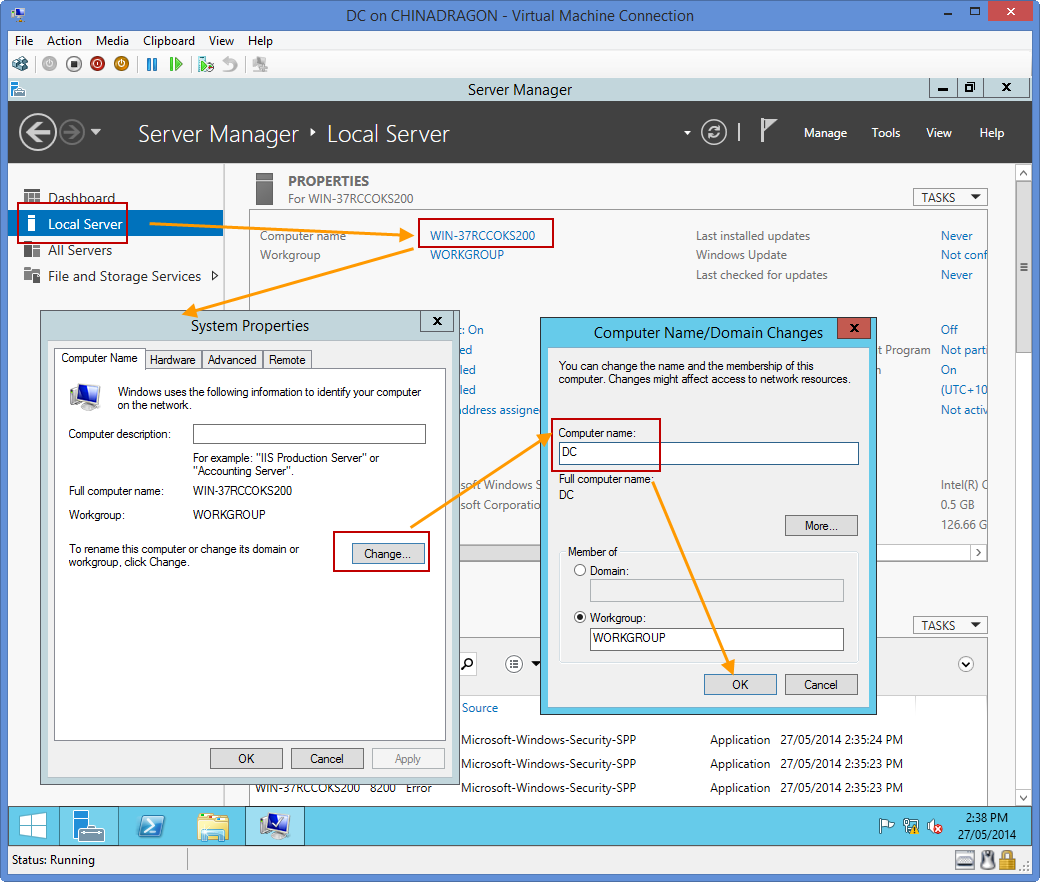
Name the computer

5,重启计算机后登录、服务器管理界面,为该服务器添加新功能、特性,提升其为-域服务器及DNS服务器
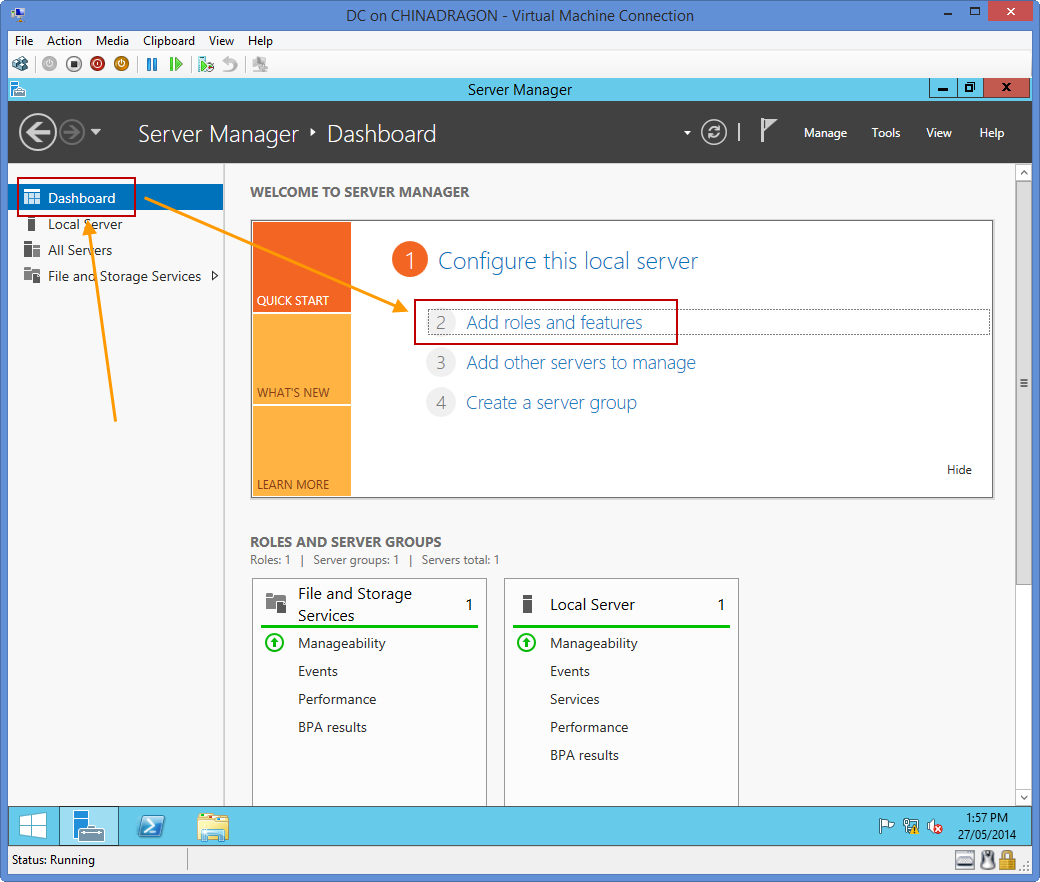
Add roles and features

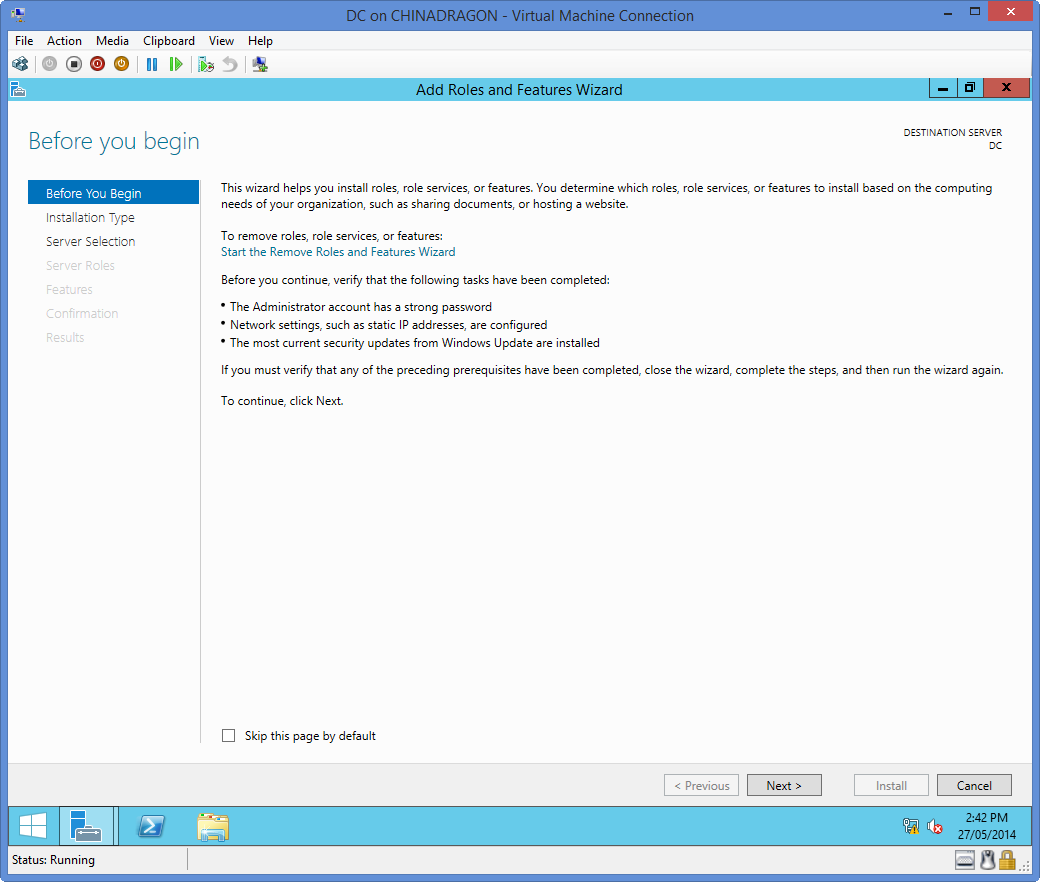
5,直接 Next

Add Roles and Features Wizard | Before You Begin

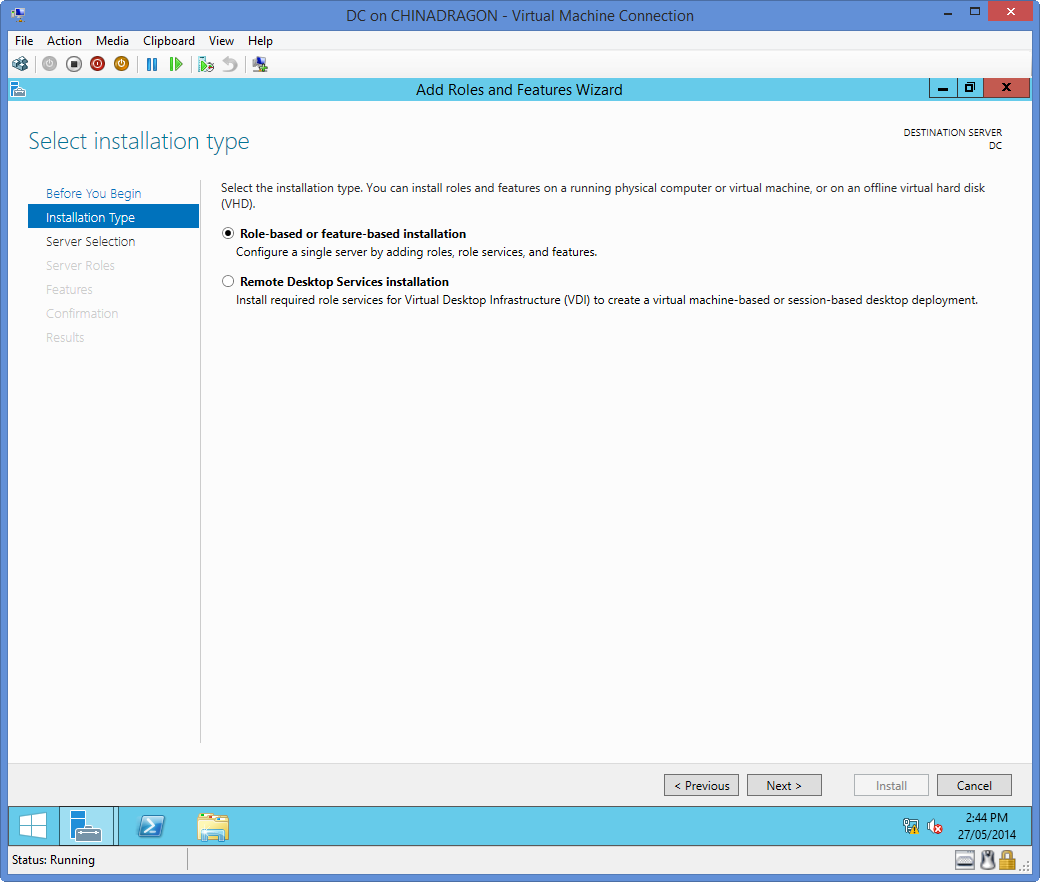
6,Next

Add Roles and Features Wizard | Installation Type

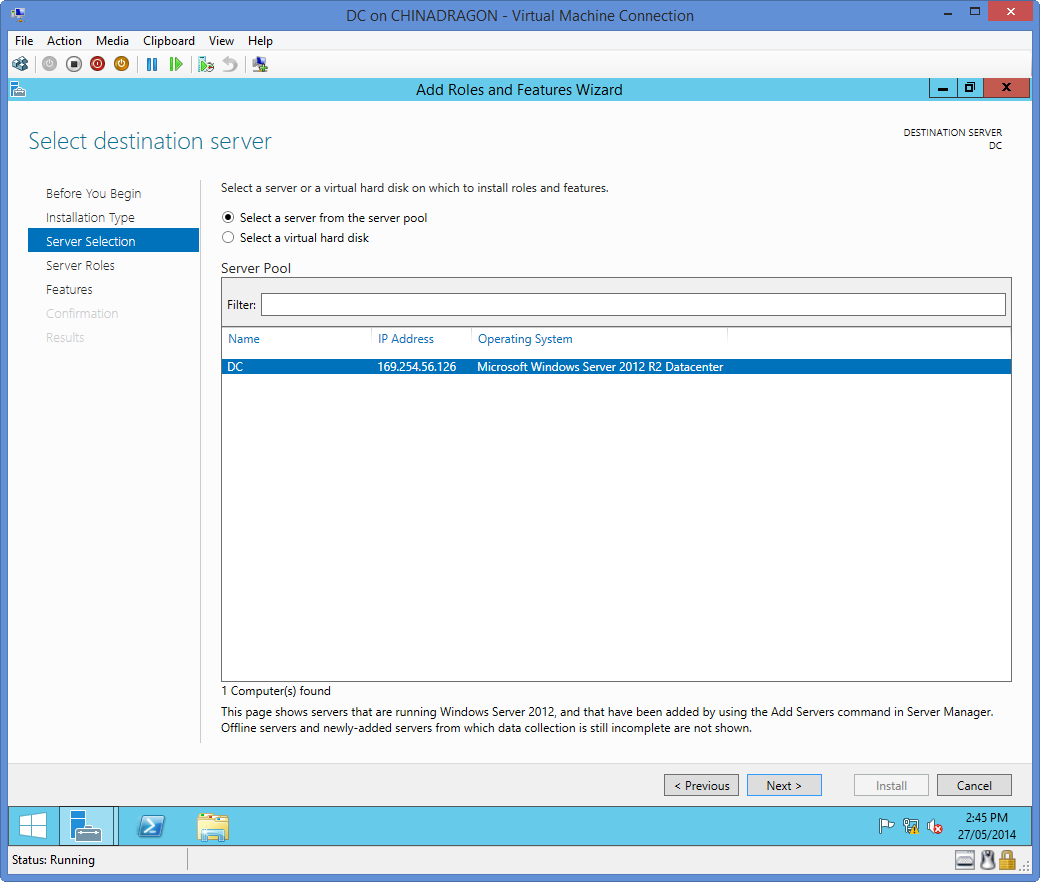
7,Next

Add Roles and Features Wizard | Server Selection

8,勾选 Active Directory Domain Services and DNS Server,单击 Next
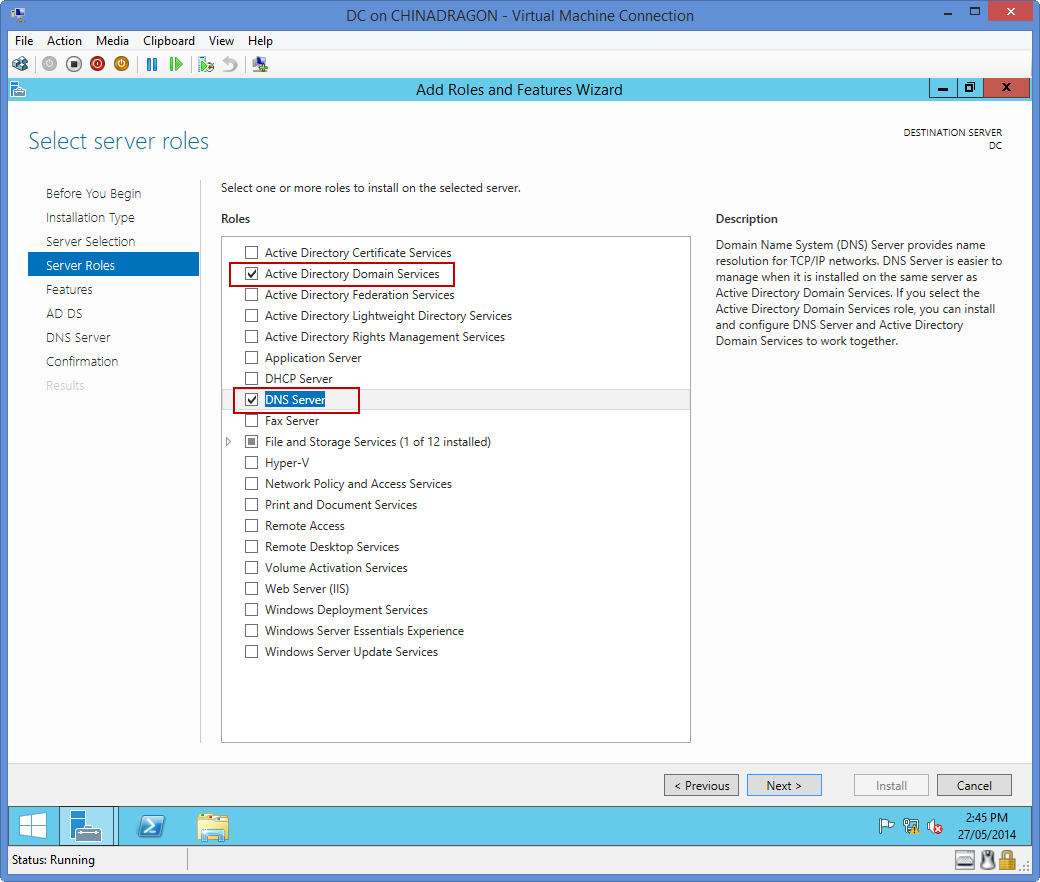
Add Roles and Features Wizard | Server Roles

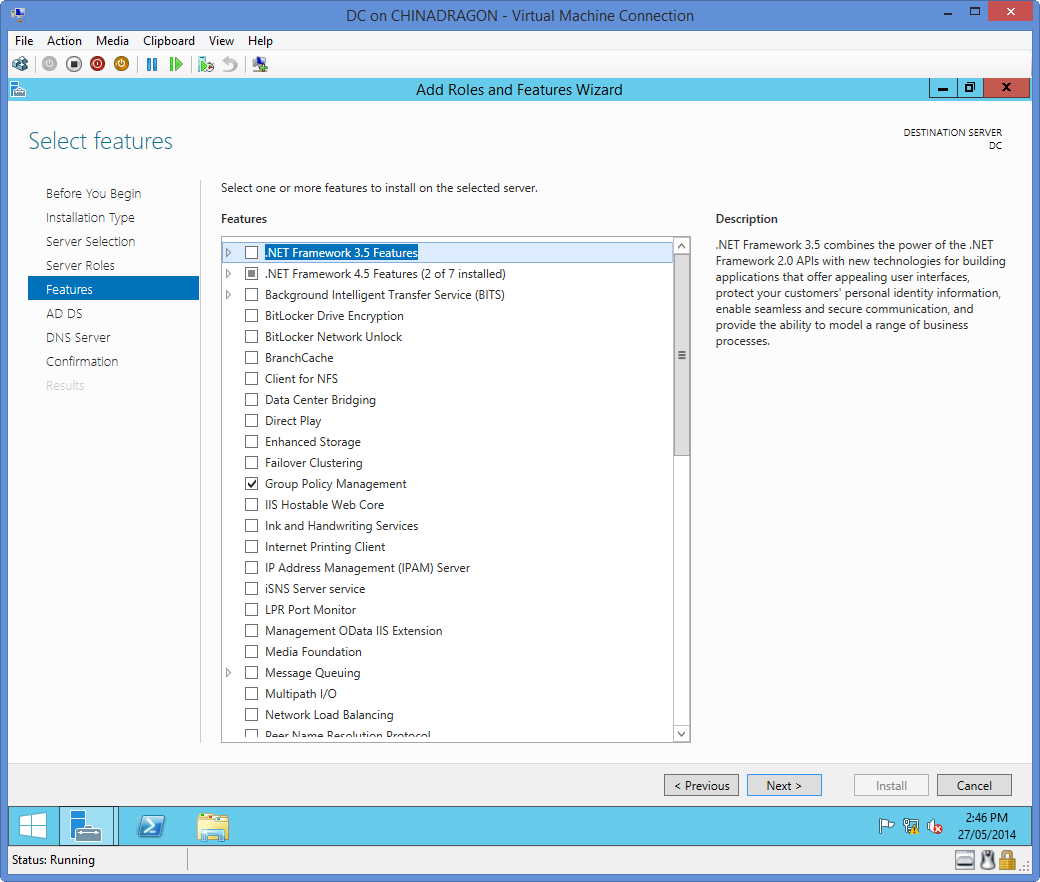
9,Next

Add Roles and Features Wizard | Features

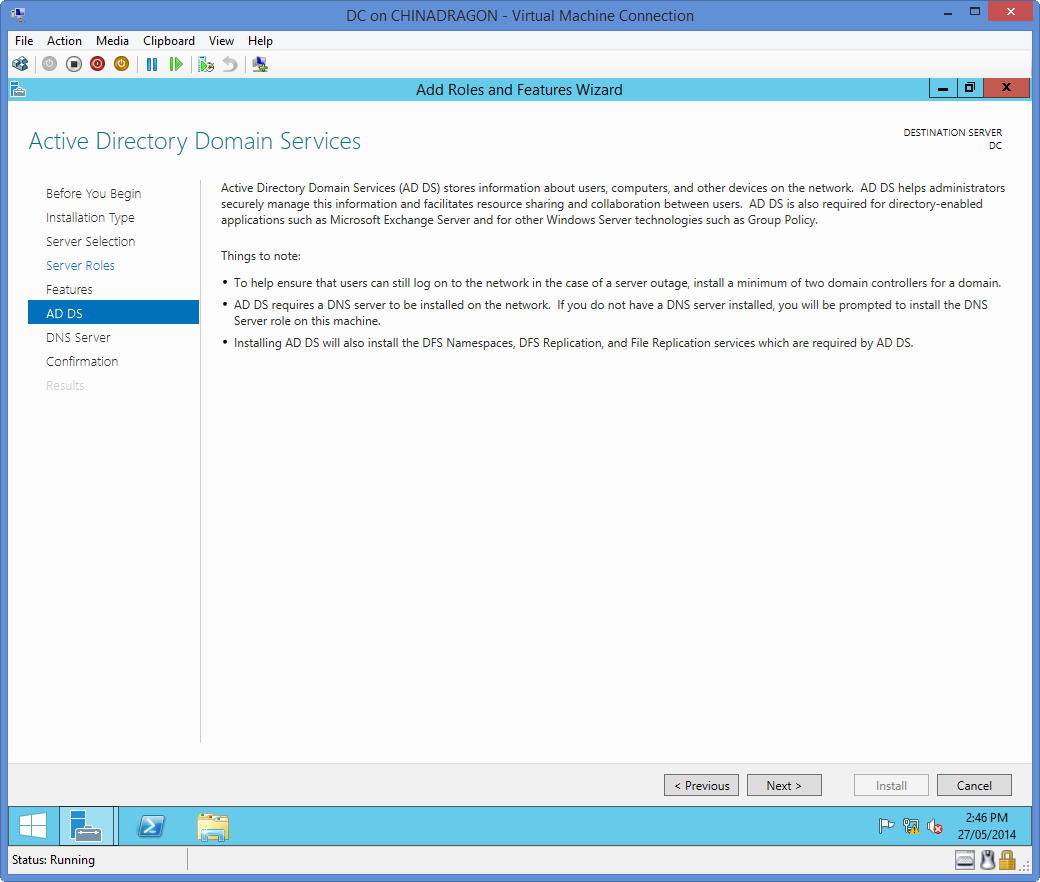
10,Next

Add Roles and Features Wizard | AD DS

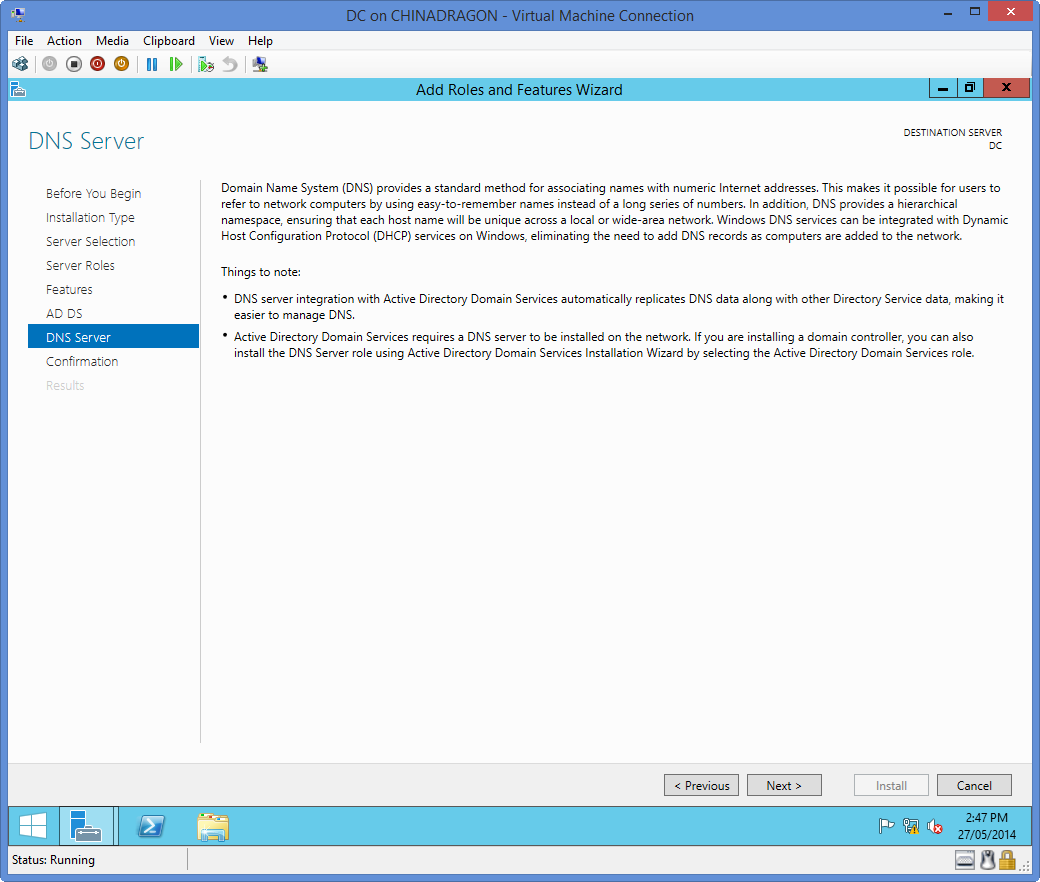
11,Next

Add Roles and Features Wizard | DNS Server

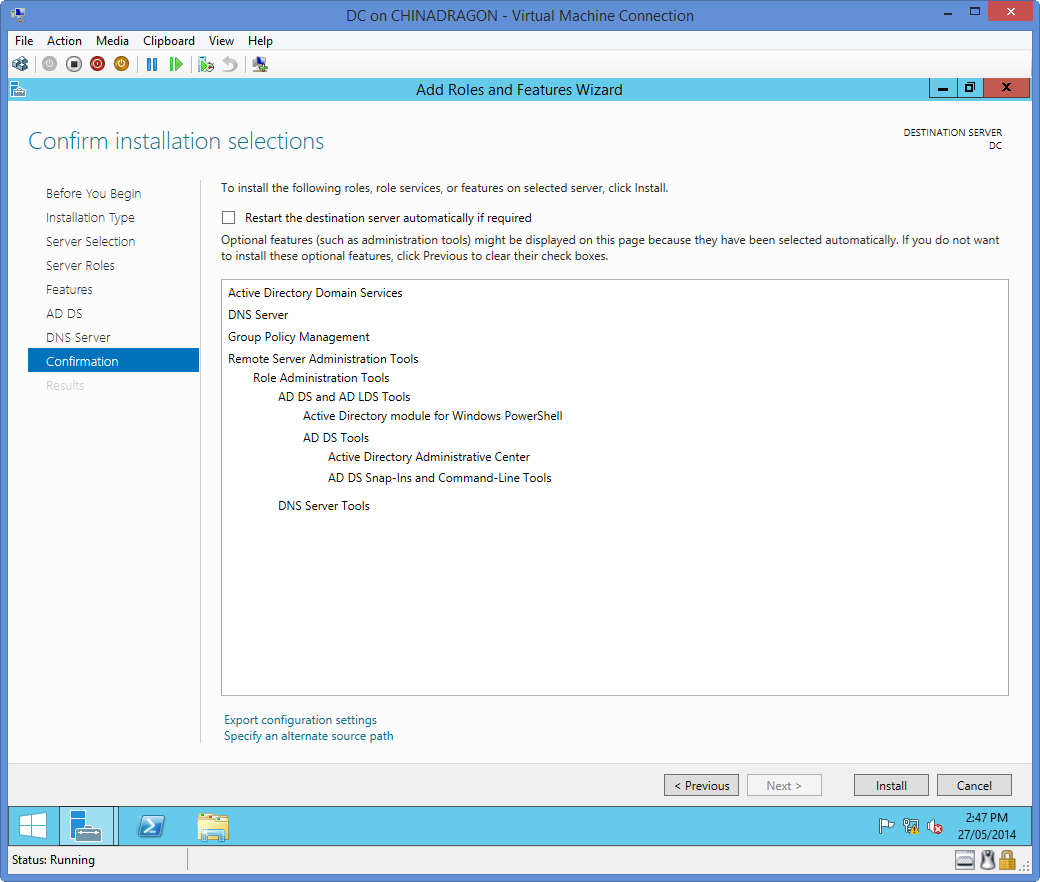
12,Install

Add Roles and Features Wizard | Confirmation

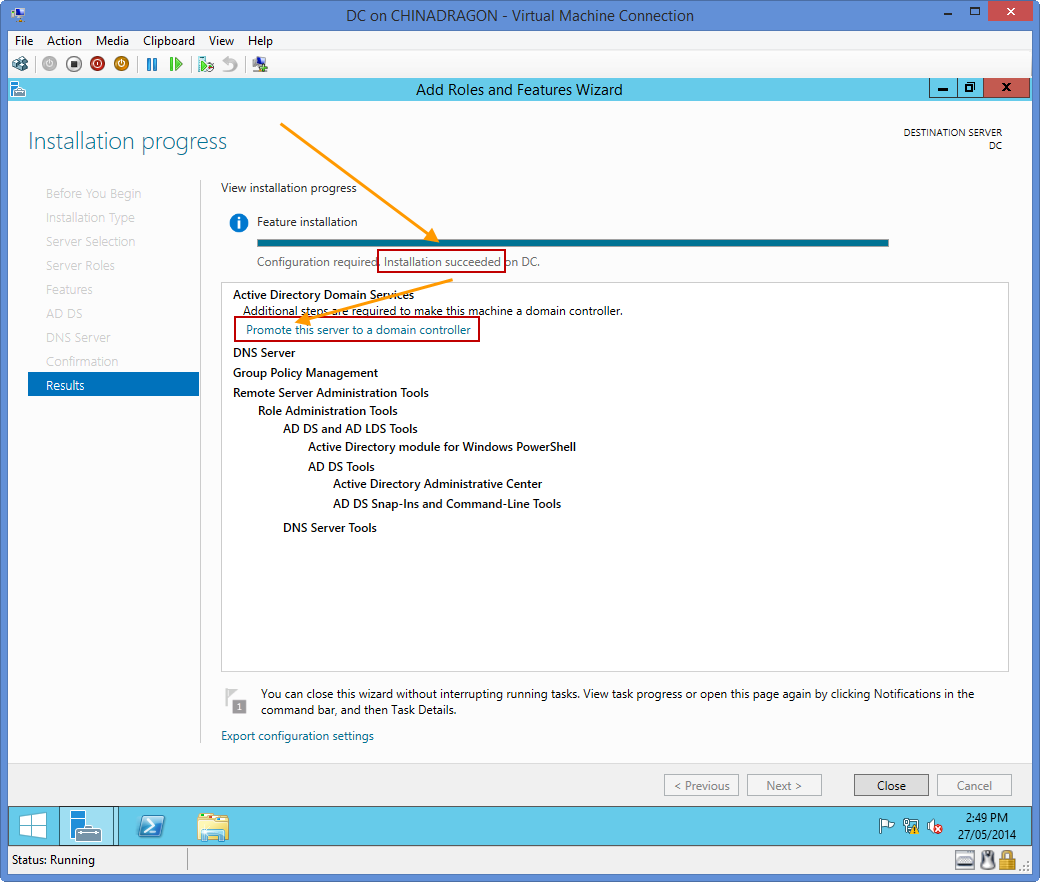
13,看到成功字样提示后,点击提升该服务器为域控制器链接

Add Roles and Features Wizard | Results

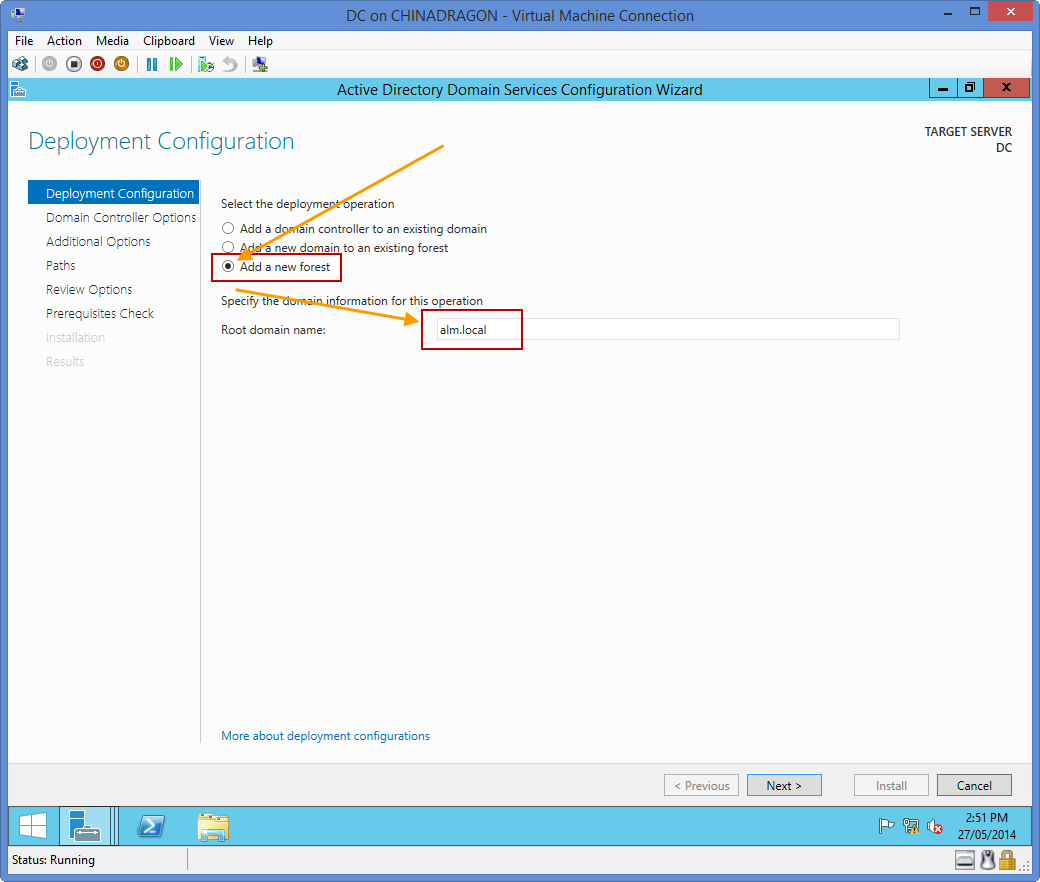
14,选择 Add a new forestRoot domain name中输入alm.local

Deployment Configuration

15,输入域管理员密码

Password:Admin@1234!

Domain Controller Options

16,Next

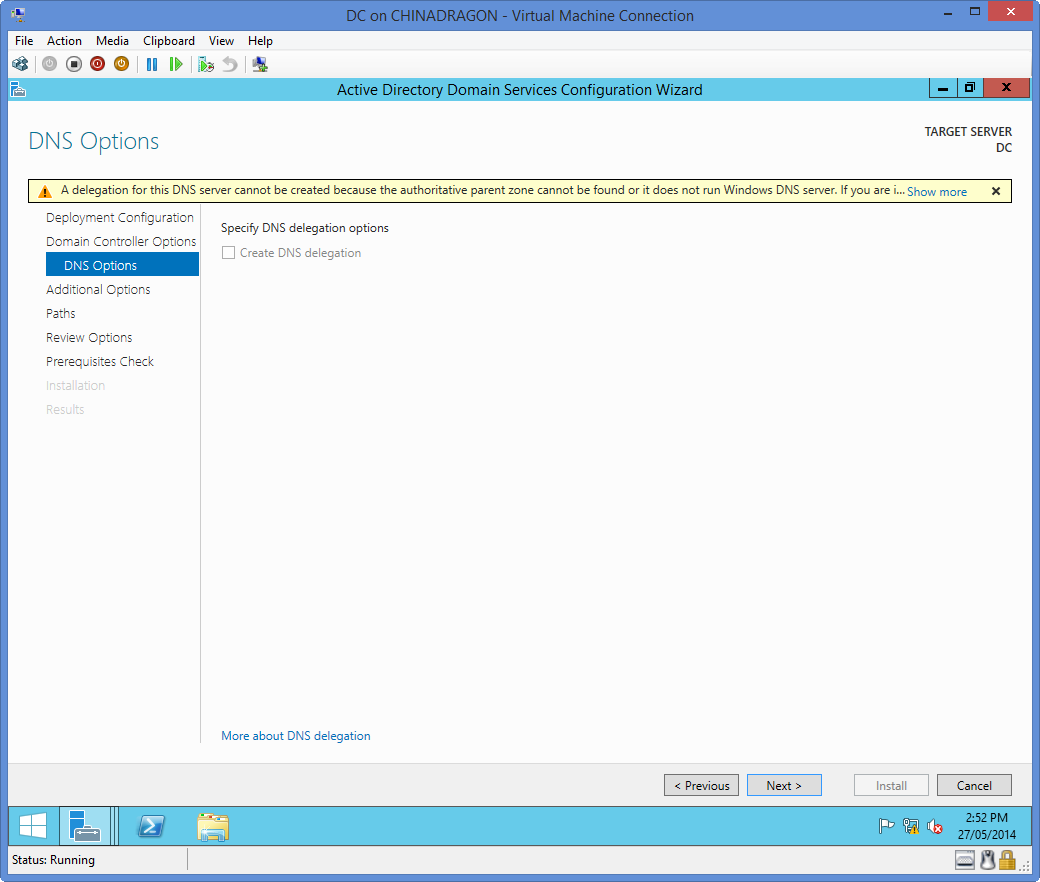
DNS Options

17,Next

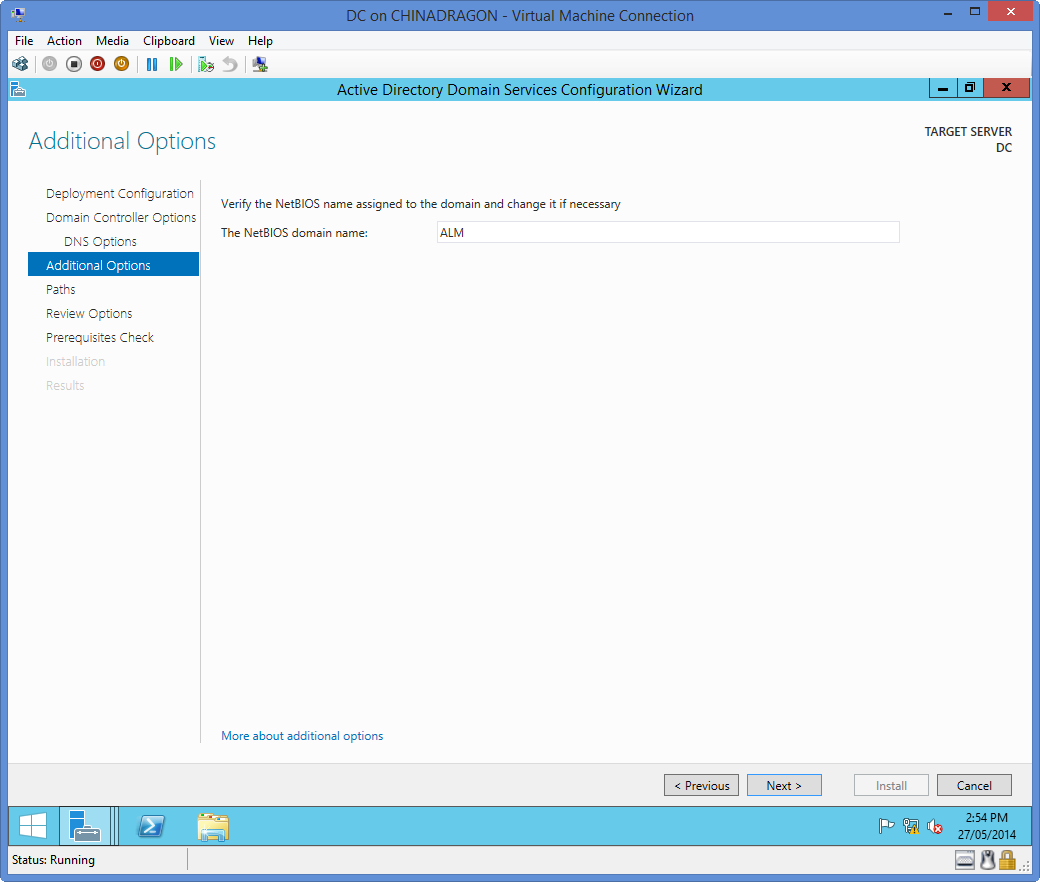
Additional Options

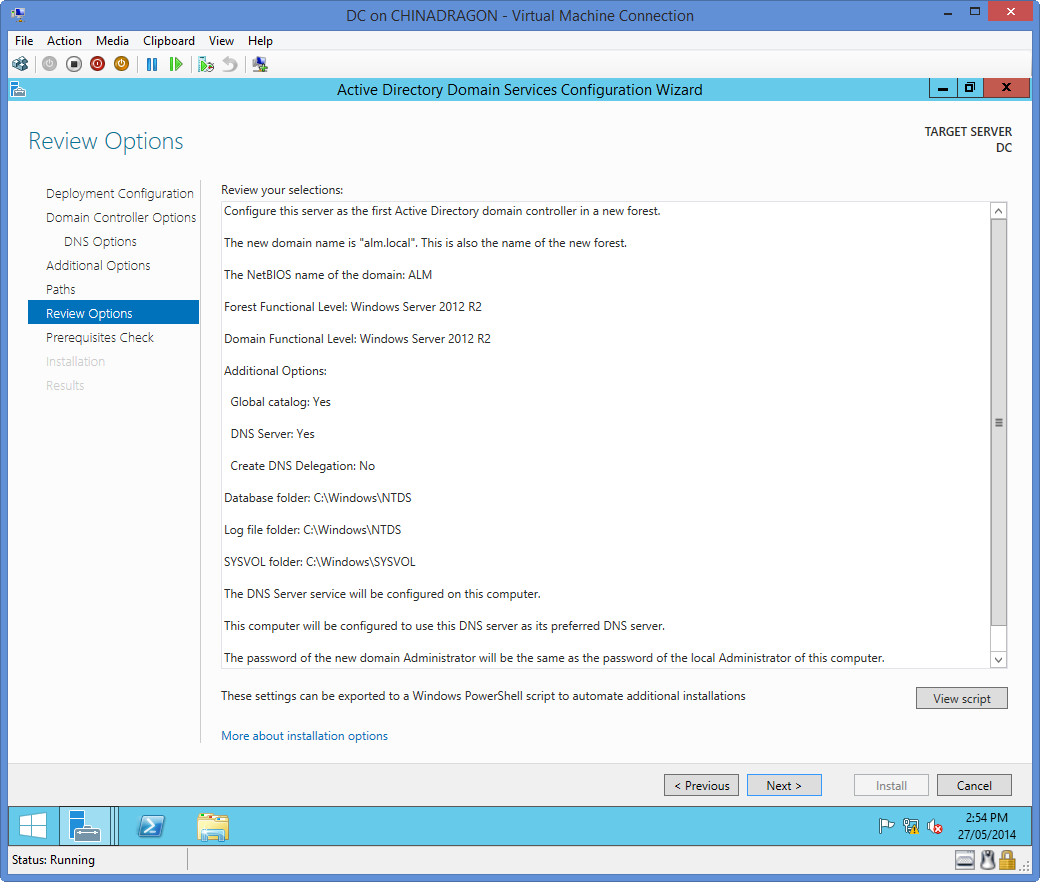
18,Next

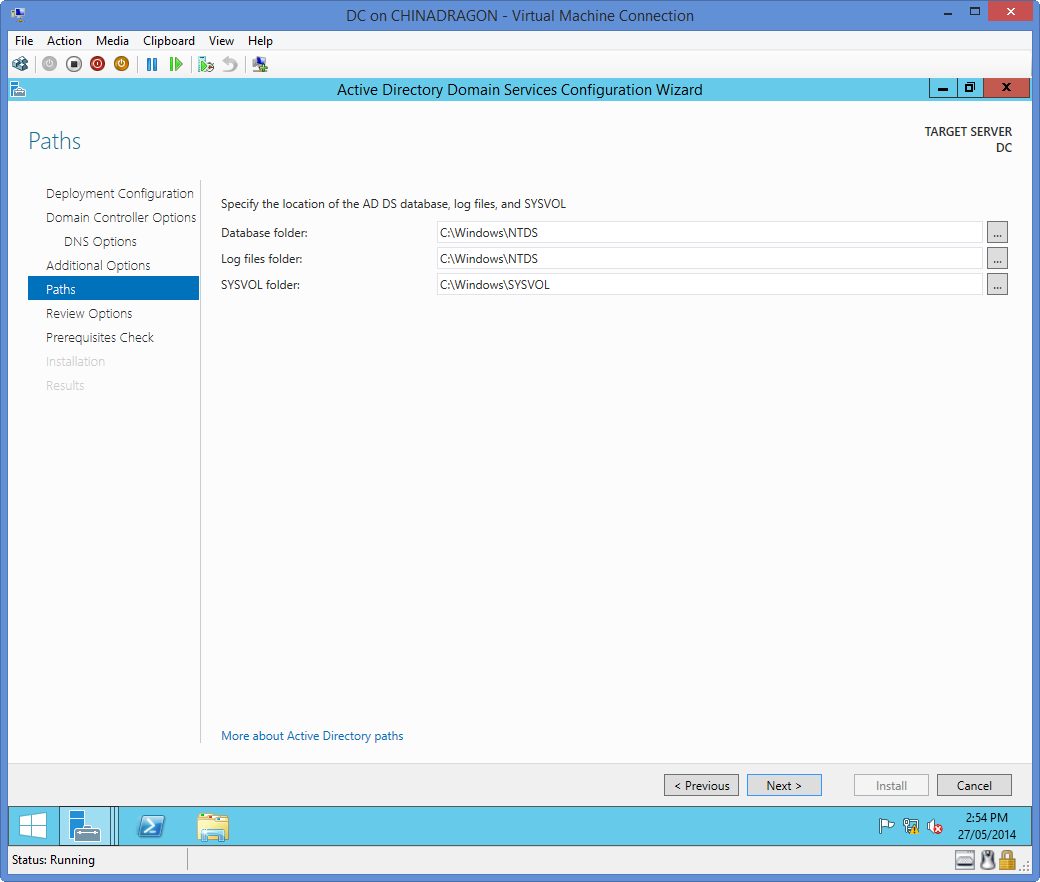
Paths

19,Next

Review Options

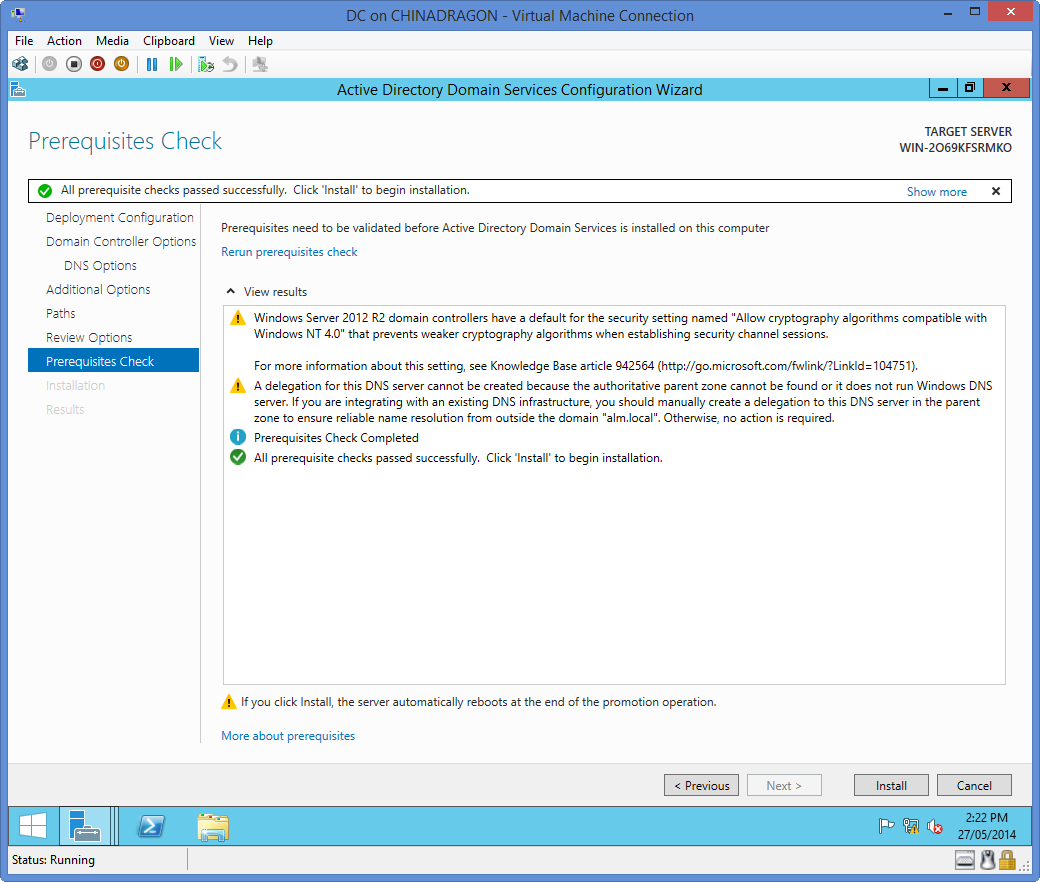
20,Prerequisites CheckInstall

Prerequistites Check

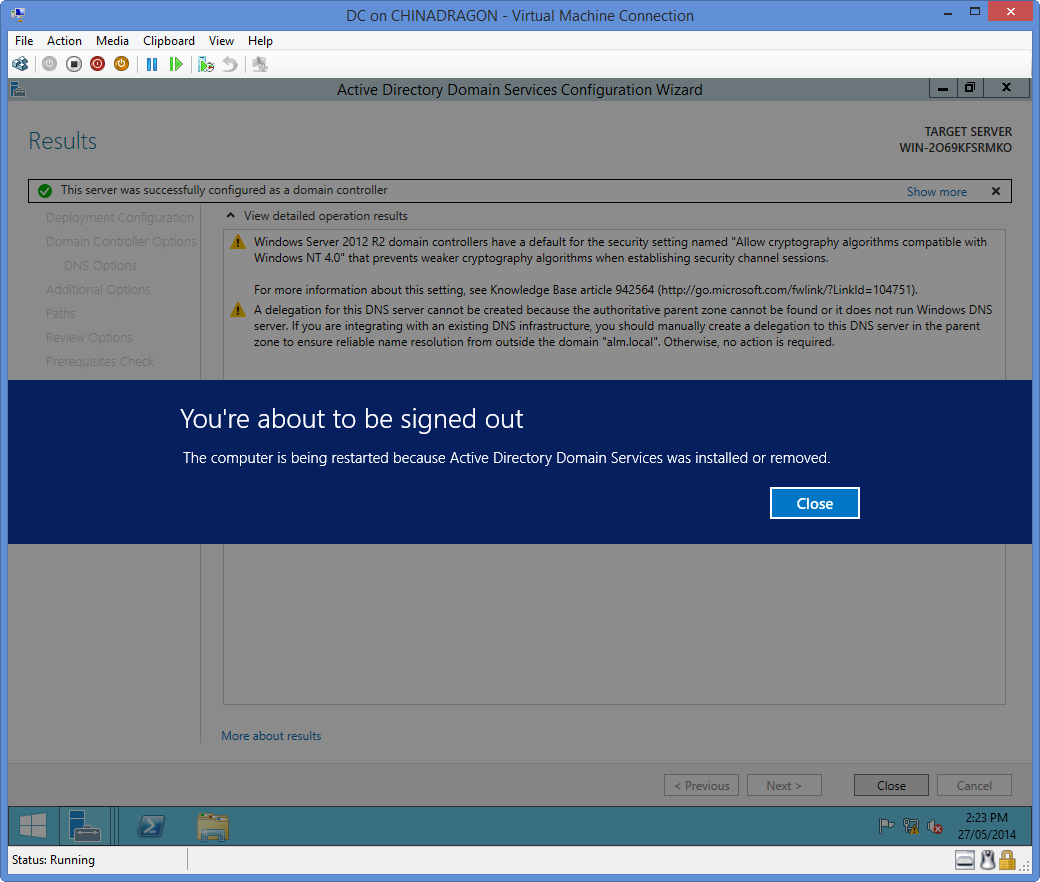
21,安装完毕后的注销提示,单击Close,片刻后机器自动注销

Logout

22,注意这里的Administrator是域管理员,请与本地管理员区分

本地管理员登录使用 .\Administrator

域管理员登录使用 ALM\Administrator
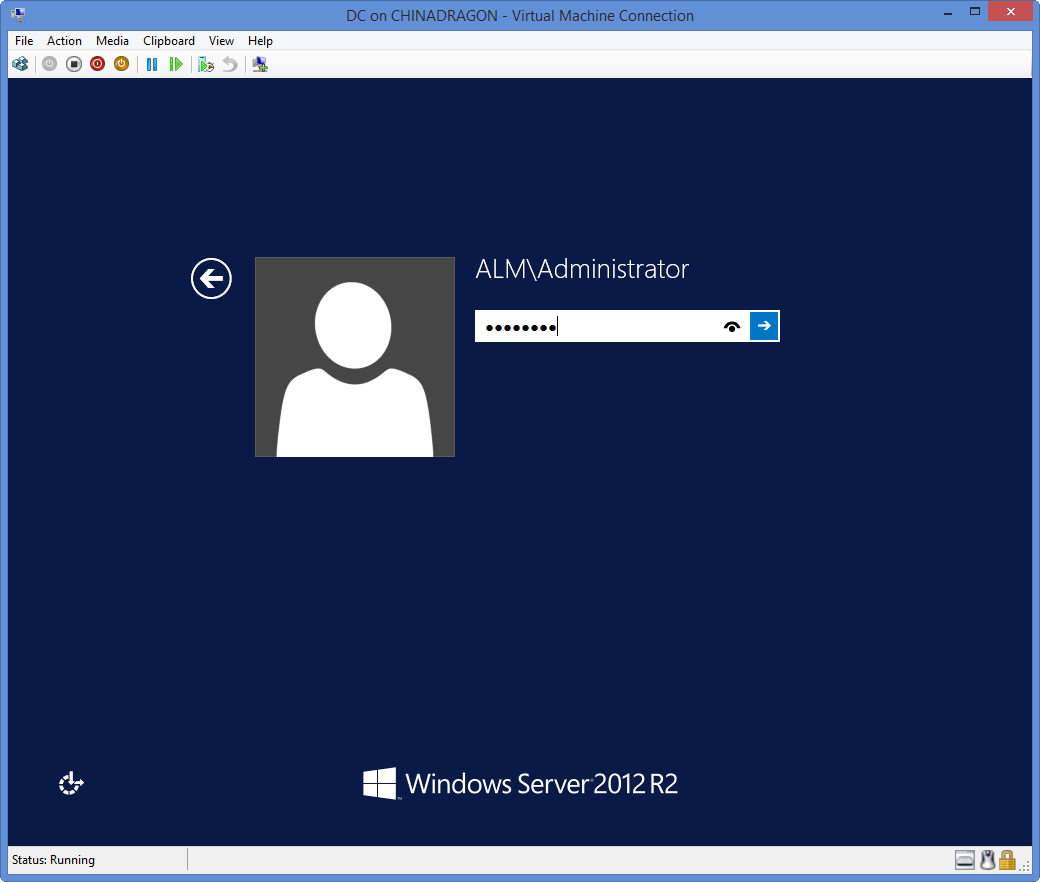
Login as Domain Administrator

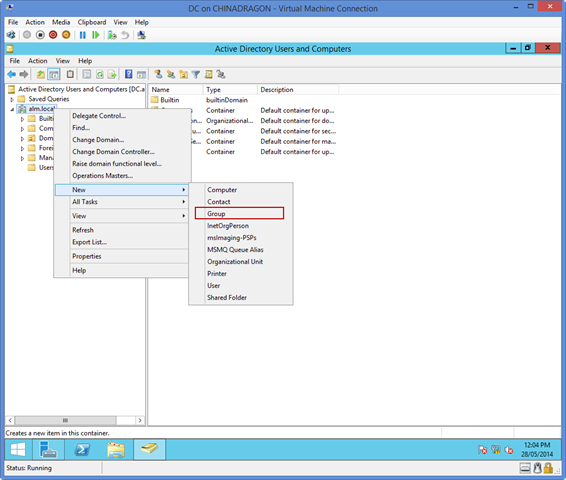
23,以上完成了域服务器的配置,下边需要预先配置一些域帐户,为后续的其它服务器使用做准备,接上述步骤登录到域服务器:

SNAGHTML14b59a82

24,

SNAGHTML14b6af4e

25,

26,

27,

28,

29,

30

------------------------------------------
除非特别声明,文章均为原创,版权与博客园共有,转载请保留出处
BUY ME COFFEE