







Memory Tiering in VCF 9.1 lets you extend your memory capacity by using high-speed NVMe devices as a Tier 1 layer alongside DRAM (Tier 0), and the business case is compelling. You can consolidate more VMs per host, lower your TCO by delaying costly DRAM upgrades, and consume existing resources far more efficiently. The hypervisor manages data placement automatically, so your workloads get more addressable memory without any major hardware changes.
What makes VCF 9.1 a genuine leap forward is how dramatically simpler the configuration experience has become. The entire setup happens in one place; vSphere Configuration Profiles, through a guided point-and-click workflow that applies consistently across every host in your cluster. No ESX CLI commands, no scripts, no manual host-by-host coordination. VCF 9.1 also introduces software mirroring as a brand-new feature, delivering enterprise-grade Tier 1 memory redundancy with no additional RAID controllers required. Before we dive in, let’s make sure you’ve got the right pieces in place.
Think of the draft as a staging area. You can build it incrementally and come back to add features like mirroring or encryption without starting over.
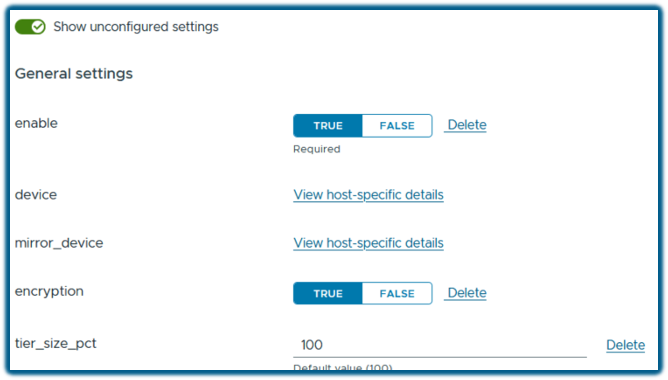
Within the draft editor, find the Memory Tiering section:
That’s the minimum viable configuration. If all you need is extended memory capacity, you’re already done. Make sure the NVMe devices you select are dedicated for this purpose and not shared with VM storage workloads or vSAN.
New in VCF 9.1, software mirroring adds redundancy to your Tier 1 memory layer — no specialized hardware required. This is actually a big deal, you get the redundancy you want without the extra expense of Hardware RAID or operational overhead that comes with it.
Each host needs two NVMe devices of equivalent capacity. The mirroring is handled entirely in software, protecting workloads from a single device failure with zero additional infrastructure investment.
If your environment has data-at-rest compliance requirements:
Easy enough to configure, and it adds meaningful coverage for regulated or multi-tenant workloads.
It’s worth the 60 seconds. Catching a misconfigured device selection here is a lot easier than after the automation has already run.
Click Apply Changes and then Remediate, and let the automation take over. Here’s what it handles for you, in order:
The process repeats until every host in the cluster is configured. Go grab a cup of coffee, it’ll all be done when you get back.
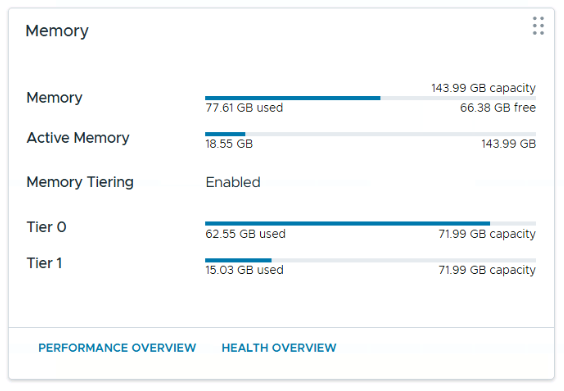
Once complete head to your cluster’s Summary tab. The Memory Tiering panel shows Tier 0 (DRAM) and Tier 1 (NVMe) capacity and utilization across the cluster, plus how many hosts have been enabled.
Drill into any individual host to see DRAM and NVMe capacity side by side, along with active memory utilization, the key metric in memory Tiering to make sure all active memory fits inside DRAM. Watch this over time to validate that Memory Tiering is delivering real value for your environment.
Configuring Memory Tiering in VCF 9.1 is genuinely a straightforward, guided workflow that handles the heavy lifting for you. You get more effective memory capacity, optional software-based mirroring for resilience, and full visibility into how your tiers are performing, all without touching the command line. Although you can still do all this from the CLI if you wish, just be aware that those commands are different in VCF 9.1. More on that in a future post, so stay tuned.
Happy Tiering!
Subscribe to get the latest posts sent to your email.
此内容由惯性聚合(RSS阅读器)自动聚合整理,仅供阅读参考。 原文来自 — 版权归原作者所有。