








Resumes are stored as unstructured documents such as PDFs, which makes it difficult for software systems to extract and analyze candidate information. Recruiters and hiring platforms need structured data like skills, job roles, companies, and years of experience to efficiently search, filter, and evaluate applicants.
In this tutorial, you will build a resume skill extraction pipeline using the Mistral-7B language model running on a DigitalOcean GPU Droplet. Using Python, you will process resume PDFs, extract their text, and send it to the model for structured information extraction.
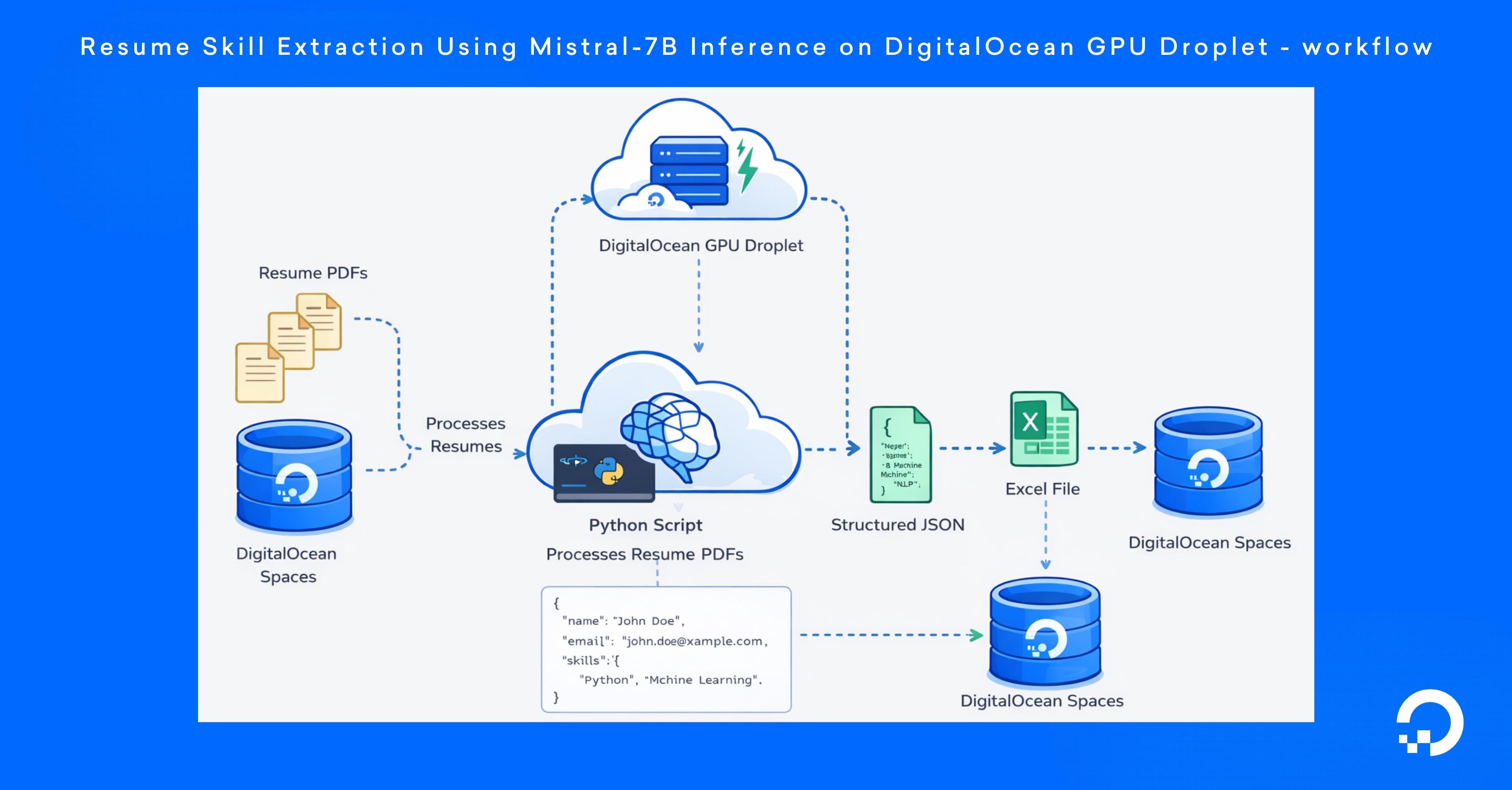
By the end of this tutorial, you will have created a pipeline that processes multiple resumes and exports the extracted candidate information into a JSON file and an Excel spreadsheet for easy review and analysis of candidate profiles. This workflow demonstrates how LLMs can convert unstructured documents into structured data using AI inference on DigitalOcean infrastructure.
LLMs can convert unstructured resumes into structured data. Using Mistral-7B, the pipeline extracts candidate details such as skills, roles, companies, and experience from resume PDFs.
DigitalOcean GPU Droplets are suitable for LLM inference. By running Mistral-7B with the vLLM inference engine on a GPU Droplet, the system can process multiple resumes quickly and efficiently.
DigitalOcean Spaces provides scalable storage for both input and output data. Resume PDFs are retrieved from Spaces, and the processed results are exported back to the bucket as structured Excel and JSON files.
Python and cloud infrastructure can automate large-scale resume analysis workflows. The tutorial explains how to combine PDF parsing, LLM inference, and structured data export to build automated candidate data extraction systems.
In this step, you will create the DigitalOcean GPU Droplet that will run the resume extraction pipeline.
First, sign in to your DigitalOcean account and create a new GPU Droplet. Select a GPU Droplet, choose Ubuntu 22.04 as the operating system, and complete the remaining configuration based on your preferred region and GPU size. In the Authentication section, add your SSH key for secure access to the server. After reviewing the remaining settings, click “Create GPU Droplet” to launch the instance.
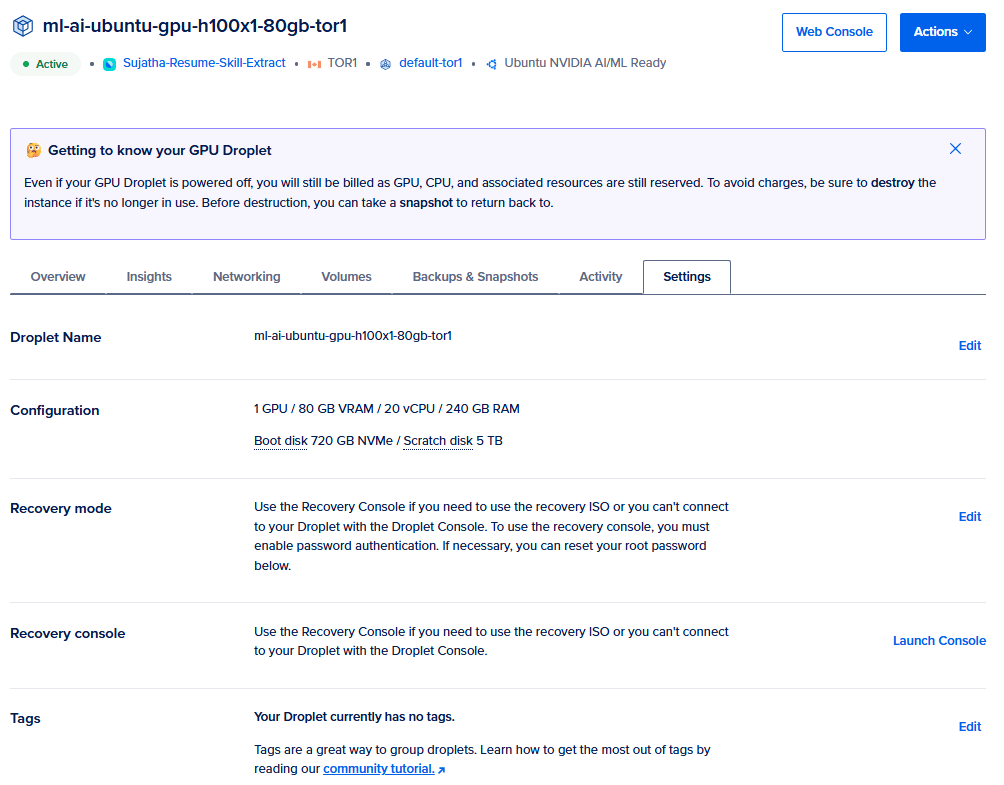
After the Droplet is created, open it from the DigitalOcean control panel. In the Droplet page, click Console to launch the browser-based terminal session. This tutorial uses the DigitalOcean Web Console for server access. You can also connect to the server from your local machine using SSH through your system’s command prompt or terminal.
After opening the Web Console session, you will see a prompt similar to the following:
root@ml-ai-ubuntu-gpu-h100x1-80gb-tor1:~#
This indicates that you are logged in as the root user on the GPU Droplet. All commands in the following steps will be executed from this terminal session.
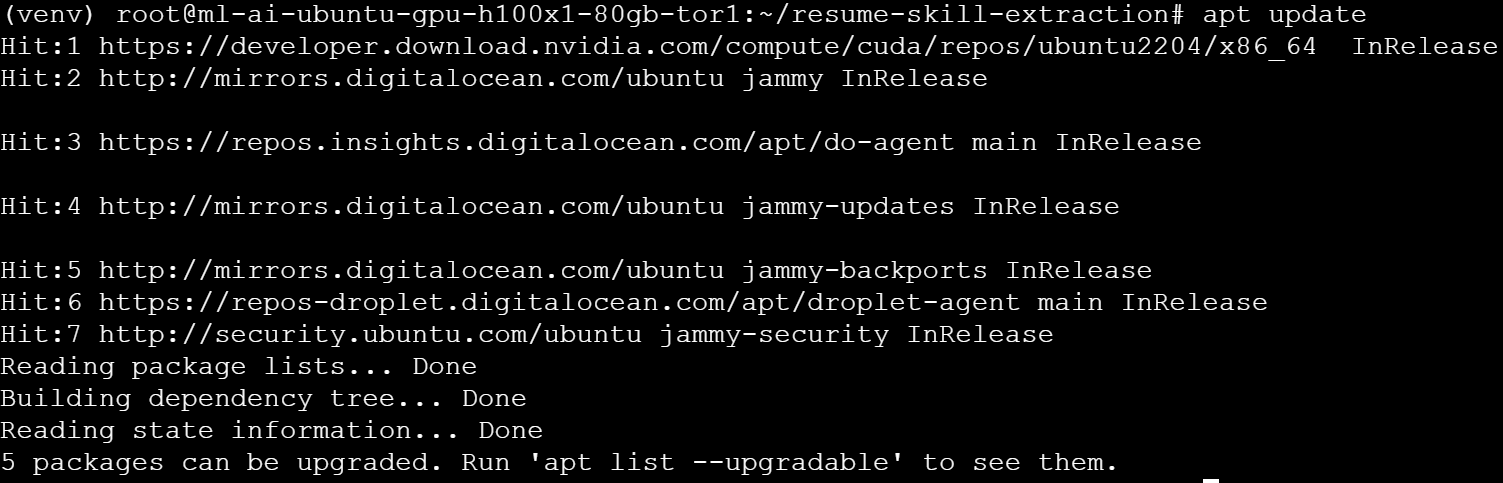
Update the package index so the server uses the latest package information before installing any software:
apt update
You should see output similar to the following:
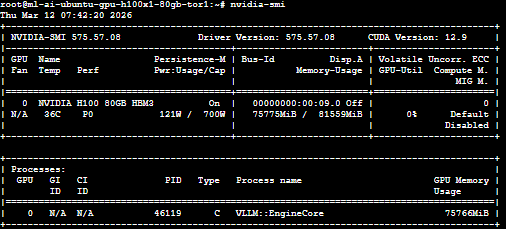
Next, verify that the GPU attached to the Droplet is available by running the following command:
nvidia-smi
This command displays information about the NVIDIA GPU installed on the server, along with the driver version, CUDA version, and available memory. If the GPU is configured correctly, the output will look similar to this:
In this step, you will install the Python tools required for the project and create a Python virtual environment. The virtual environment isolates the project’s dependencies from the system Python installation, helping prevent package conflicts.
The command python3 -m venv venv && source venv/bin/activate first creates a new Python virtual environment in a directory named venv using python3 -m venv venv. The && operator ensures that the second command runs only if the first command succeeds. The source venv/bin/activate command then activates the virtual environment so that any Python packages installed in the following steps are isolated from the system Python installation.
python3 -m venv venv && source venv/bin/activate
Next, navigate to the project directory where the resume processing scripts will reside:
cd ~/resume-skill-extraction
Now, you will install the Python libraries required to retrieve resumes from DigitalOcean Spaces, extract text from PDF files, and export structured data to Excel. With the virtual environment activated, install the required dependencies using pip:
pip install boto3 s3fs pandas pymupdf openpyxl requests
These libraries support different parts of the resume processing pipeline: boto3 provides the SDK used to interact with DigitalOcean Spaces using the S3-compatible API. s3fs helps Python applications to access files stored in Spaces. pandas organizes extracted candidate data into a tabular format. pymupdf extracts text content from resume PDF files. openpyxl exports the processed data into an Excel spreadsheet. requests sends HTTP requests to the language model inference endpoint.
You can verify that the required libraries are installed by running the following command:
pip list | grep -E "boto3|pandas|PyMuPDF|openpyxl|requests"
The output displays the installed versions of the libraries used for interacting with DigitalOcean Spaces, processing PDF resumes, and exporting structured data.

In this step, you will install vLLM, a high-performance inference engine used to serve large language models efficiently on GPUs. vLLM provides an OpenAI-compatible API for the applications to interact with the model using standard HTTP requests.
Install vLLM and the required dependencies using pip:
pip install vllm
The installation process downloads the libraries required for GPU-based inference, including CUDA-enabled packages and transformer dependencies.
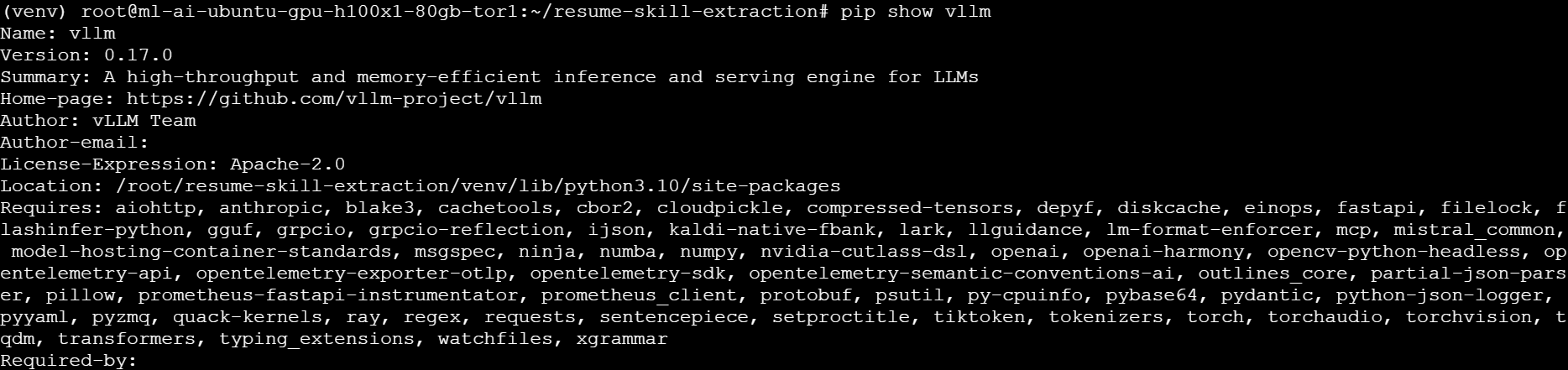
After the installation completes, verify that vLLM has been installed successfully by running the following command:
pip show vllm
This command displays information about the installed package, including the version, installation location, and the dependencies required by vLLM. You should see output similar to the following:
After installing vLLM, you can launch a self-hosted inference server that loads the Mistral model and exposes an API endpoint.
Run the following command:
python -m vllm.entrypoints.openai.api_server \
--model mistralai/Mistral-7B-Instruct-v0.2 \
--gpu-memory-utilization 0.8 \
--host 0.0.0.0 \
--port 8000
This command performs the following actions:
Loads the Mistral-7B model
Initializes GPU inference using vLLM
Limits GPU memory usage to 80% using the --gpu-memory-utilization 0.8 parameter. This helps prevent memory allocation errors and ensures that enough GPU memory remains available for other processes or system overhead.
Starts an OpenAI-compatible API server
Exposes the endpoint on port 8000
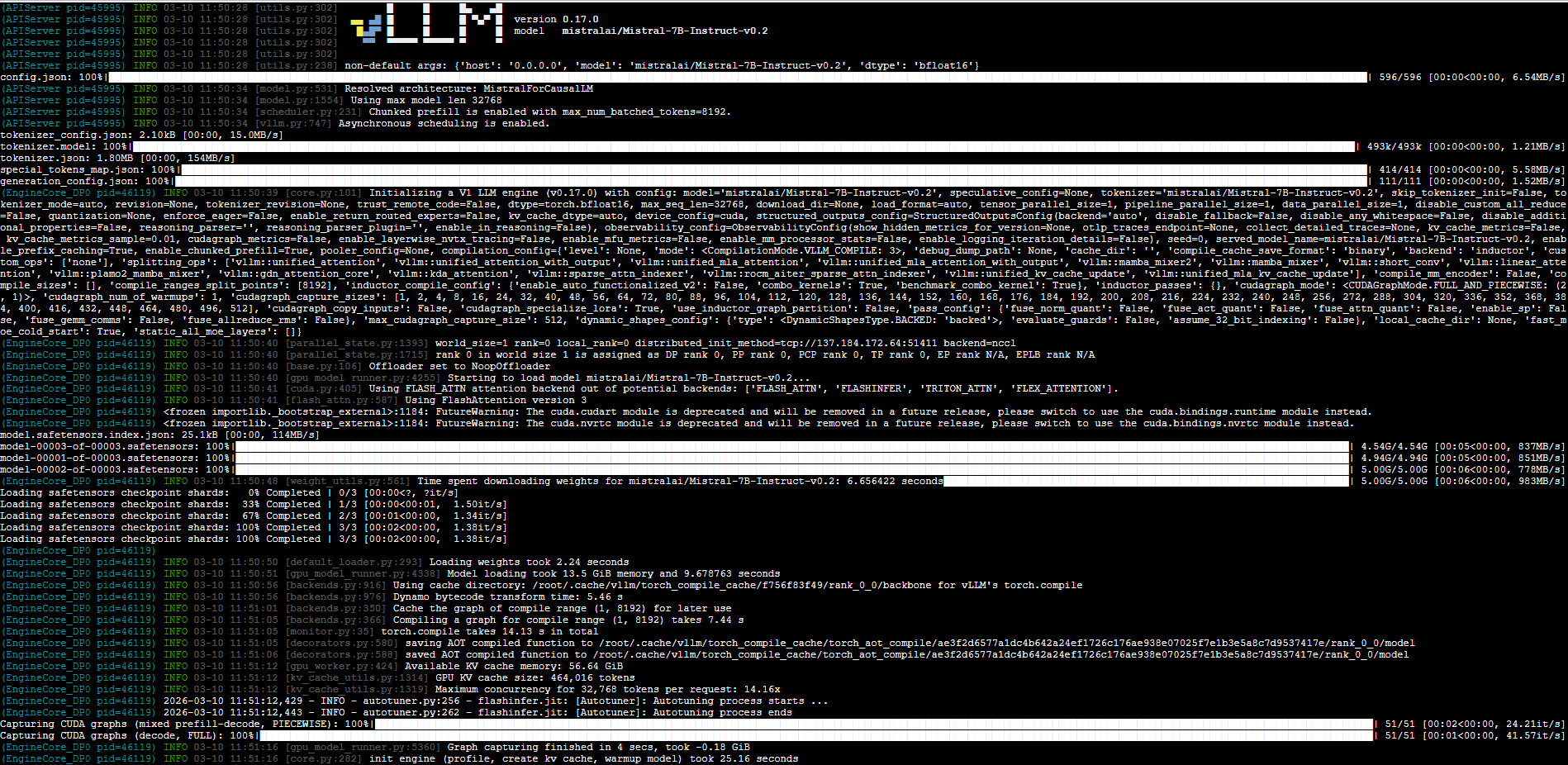
Once the server starts, it will display logs indicating that the API server is running.
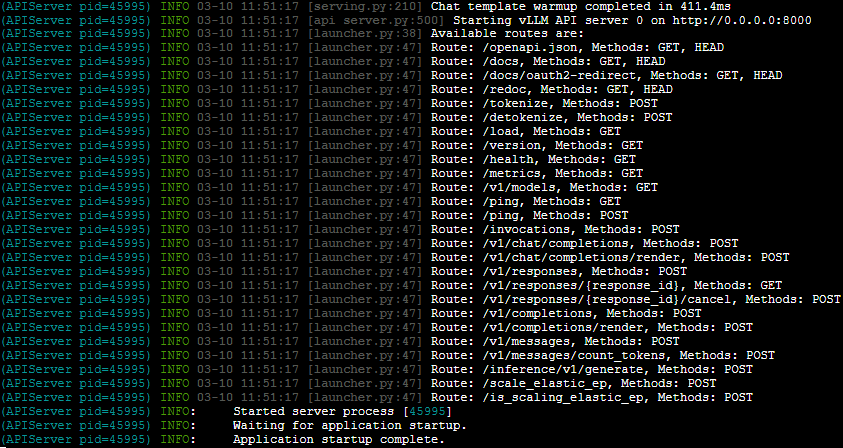
/v1/chat/completions
/v1/completions
/v1/models
In this step, you will verify that the self-hosted vLLM inference server is running correctly and that the Mistral-7B model is available through the local API endpoint.
Run the following command from your browser:
http://<your GPU Droplet ip>/v1/models
This command sends a request to the local OpenAI-compatible API exposed by vLLM and returns the list of available models currently loaded by the inference server.
If the server is running correctly, you should see a similar output in your browser:
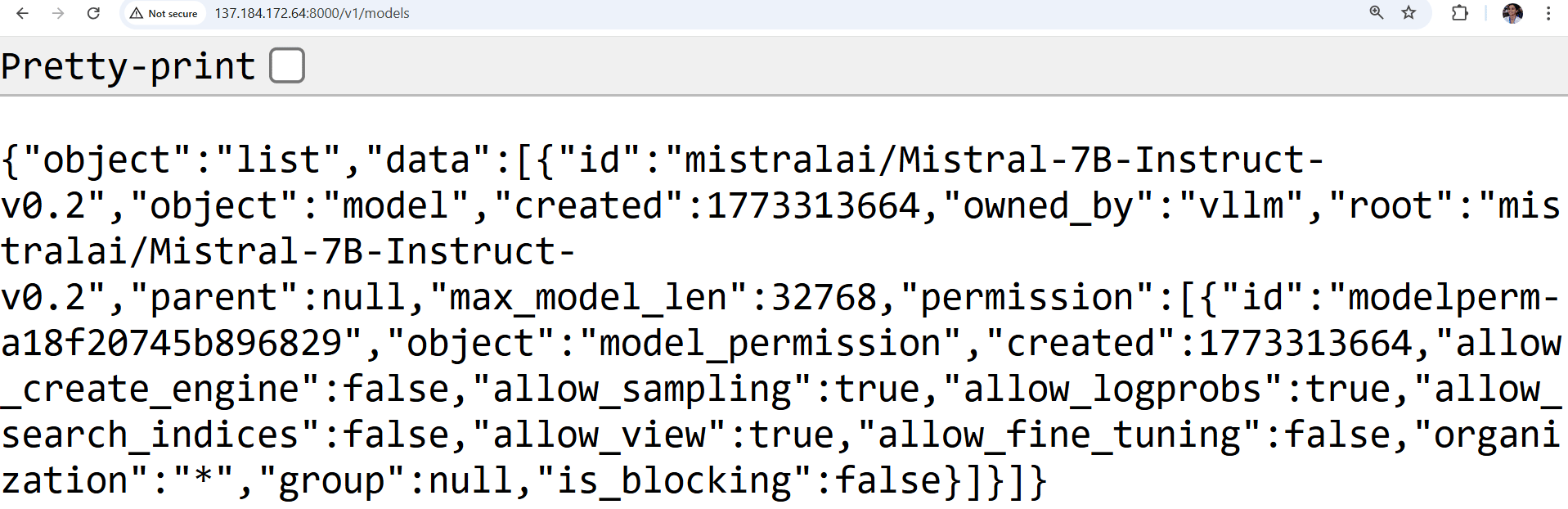
This confirms that the Mistral-7B model is loaded successfully and is ready to receive inference requests from the resume processing pipeline. At this point, the GPU Droplet is serving the language model locally, so that the Python application can send resume text to the endpoint for structured data extraction.
In this step, you will configure DigitalOcean Spaces to store the resume PDFs used as input for the processing pipeline and the generated Excel output files. DigitalOcean Spaces provides S3-compatible object storage for applications running on Droplets to retrieve and store files using standard APIs.
First, sign in to your DigitalOcean account and navigate to Spaces Object Storage from the control panel. For this tutorial, you can keep the default settings and provide a unique bucket name.
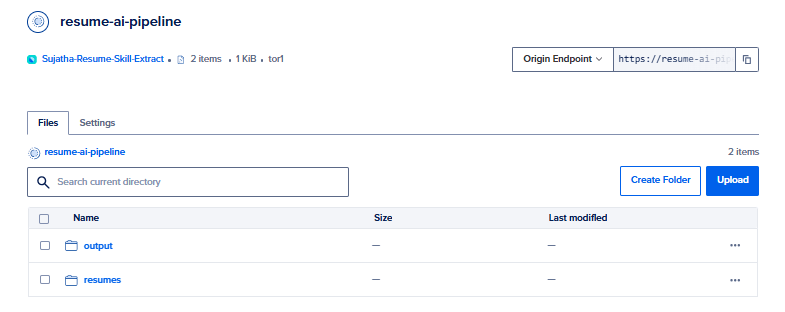
After the Space is created, open the bucket and create two folders to organize the files used by the pipeline:
resumes – stores the input resume PDF files
output – stores the generated Excel output file
Your bucket structure should look similar to the following:
Upload a few sample resume PDFs into the “resumes” folder. These files will be retrieved by the Python script in later steps and processed by the language model pipeline.
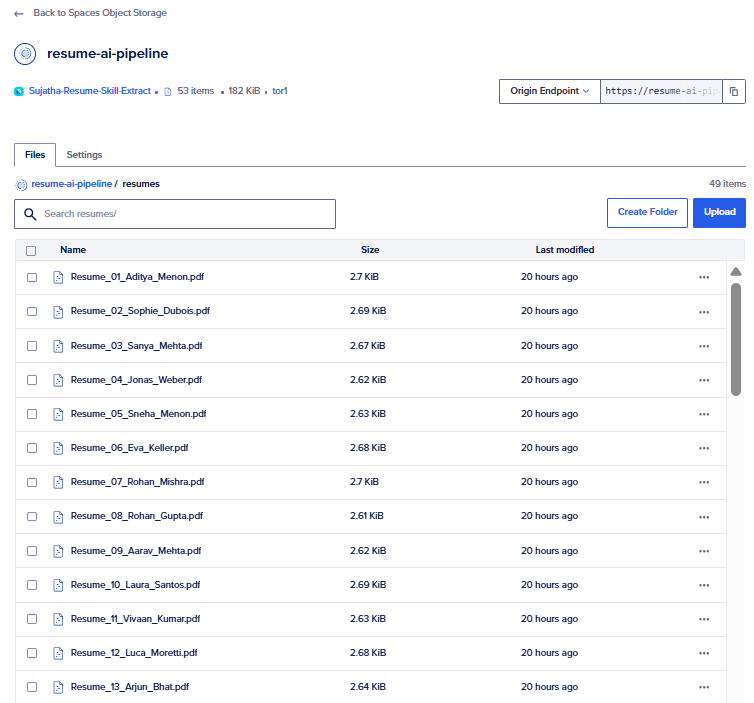
Next, create Spaces access credentials so the application running on the GPU Droplet can securely access the bucket. In the DigitalOcean control panel, navigate to Spaces Object Stoarge→Access Keys tab and generate a new key pair. Record the following values, as they will be required in later steps:
Access Key ID
Secret Key
Region
Bucket Name
These credentials allow the Python application to connect to DigitalOcean Spaces using the boto3 library installed earlier.
In this step, you will create an environment configuration file to securely store the credentials and configuration values required to access DigitalOcean Spaces. Storing credentials in an environment file helps prevent sensitive information, such as access keys, from being hard-coded directly into the application.
Next, create a new file named .env:
nano .env
Add the following configuration variables to the file:
[ label .env ]
DO_SPACES_ACCESS_KEY=your_access_key
DO_SPACES_SECRET_KEY=your_secret_key
DO_SPACES_REGION=your_region
DO_SPACES_BUCKET=your_bucket_name
DO_SPACES_ENDPOINT=https://your_region.digitaloceanspaces.com
Replace each placeholder value with the credentials and bucket information generated earlier when you created your DigitalOcean Spaces access keys. These variables will be loaded by the python-dotenv library so the application can securely access DigitalOcean Spaces using the boto3 SDK. Save the file and exit the editor.

At this point, your application has access to the configuration values needed to retrieve resume files from Spaces and store the generated output.
In this step, you will create the Python script that retrieves resume PDFs from DigitalOcean Spaces, extracts text from each PDF, sends the text to the inference endpoint, and writes the structured results to an Excel file.
Because the earlier dependency list did not include python-dotenv, install it now so the script can load the configuration values from the .env file:
pip install python-dotenv
This package loads the Spaces credentials and bucket settings from the .env file you created in the previous step.
Next, create the file process_resumes.py in your project directory:
nano process_resumes.py
Add the following code to the file:
process_resumes.py
import io
import json
import os
from typing import Any

import boto3
import fitz
import pandas as pd
import requests
from dotenv import load_dotenv


load_dotenv()

DO_SPACES_ACCESS_KEY = os.getenv("DO_SPACES_ACCESS_KEY")
DO_SPACES_SECRET_KEY = os.getenv("DO_SPACES_SECRET_KEY")
DO_SPACES_REGION = os.getenv("DO_SPACES_REGION")
DO_SPACES_BUCKET = os.getenv("DO_SPACES_BUCKET")
DO_SPACES_ENDPOINT = os.getenv("DO_SPACES_ENDPOINT")

INFERENCE_API_URL = os.getenv("INFERENCE_API_URL", "http://127.0.0.1:8000/extract")
RESUME_PREFIX = "resumes/"
OUTPUT_KEY = "outputs/hr_output.xlsx"


def create_spaces_client() -> boto3.client:
    return boto3.client(
        "s3",
        region_name=DO_SPACES_REGION,
        endpoint_url=DO_SPACES_ENDPOINT,
        aws_access_key_id=DO_SPACES_ACCESS_KEY,
        aws_secret_access_key=DO_SPACES_SECRET_KEY,
    )


def list_resume_files(client: boto3.client) -> list[str]:
    response = client.list_objects_v2(Bucket=DO_SPACES_BUCKET, Prefix=RESUME_PREFIX)
    objects = response.get("Contents", [])
    return [obj["Key"] for obj in objects if obj["Key"].endswith(".pdf")]


def extract_pdf_text(client: boto3.client, key: str) -> str:
    response = client.get_object(Bucket=DO_SPACES_BUCKET, Key=key)
    pdf_bytes = response["Body"].read()

    text_parts = []
    with fitz.open(stream=pdf_bytes, filetype="pdf") as doc:
        for page in doc:
            text_parts.append(page.get_text())

    return "\n".join(text_parts).strip()


def call_inference_api(resume_text: str) -> dict[str, Any]:
    payload = {"resume_text": resume_text}
    response = requests.post(INFERENCE_API_URL, json=payload, timeout=120)
    response.raise_for_status()
    return response.json()


def normalize_result(filename: str, result: dict[str, Any]) -> dict[str, Any]:
    return {
        "source_file": filename,
        "name": result.get("name", ""),
        "email": result.get("email", ""),
        "phone": result.get("phone", ""),
        "skills": ", ".join(result.get("skills", [])),
        "roles": ", ".join(result.get("roles", [])),
        "companies": ", ".join(result.get("companies", [])),
        "experience_years": result.get("experience_years", ""),
    }


def upload_excel_to_spaces(client: boto3.client, dataframe: pd.DataFrame) -> None:
    output_buffer = io.BytesIO()
    dataframe.to_excel(output_buffer, index=False, engine="openpyxl")
    output_buffer.seek(0)

    client.put_object(
        Bucket=DO_SPACES_BUCKET,
        Key=OUTPUT_KEY,
        Body=output_buffer.getvalue(),
        ContentType="application/vnd.openxmlformats-officedocument.spreadsheetml.sheet",
    )


def main() -> None:
    client = create_spaces_client()
    resume_files = list_resume_files(client)

    if not resume_files:
        raise ValueError("No PDF files were found in the resumes/ directory in Spaces.")

    rows = []

    for key in resume_files:
        resume_text = extract_pdf_text(client, key)
        extracted_data = call_inference_api(resume_text)
        rows.append(normalize_result(key, extracted_data))

    df = pd.DataFrame(rows)
    upload_excel_to_spaces(client, df)

    print(f"Processed {len(rows)} resumes.")
    print(f"Excel output uploaded to {DO_SPACES_BUCKET}/{OUTPUT_KEY}")


if __name__ == "__main__":
    main()
In this step, you will run the resume processing script to extract structured information from the PDF resumes stored in DigitalOcean Spaces. The script retrieves each resume file, extracts its text, sends the content to the inference endpoint, and generates a structured dataset containing candidate details.
Before running the Python script, ensure that the vLLM inference server hosting the Mistral-7B model is already running on your GPU Droplet. The resume processing script sends extracted resume text to the local inference API endpoint at localhost:8000, so the server must be active to generate structured outputs.
Open a new terminal. Ensure that the virtual environment is activated and that you are in the project directory. Then run the following command:
python process_resumes.py
This command executes the Python script that processes all resume files located in the resumes/ directory of your DigitalOcean Spaces bucket. This script performs the full batch workflow:
Create a Spaces client: The script connects to DigitalOcean Spaces using the credentials stored in the .env file.
Retrieve resume files: It lists all PDF files located in the resumes/ directory of the Spaces bucket.
Download and extract resume text: Each PDF is downloaded and its text content is extracted using PyMuPDF.
Send resume content to the inference API: The extracted text is sent to the inference endpoint using the requests library.
Normalize the extracted information: The API response is processed to capture fields such as name, email, skills, roles, and companies.
Organize the results: The structured data is stored in a pandas DataFrame for tabular processing.
Export the results to Excel: The DataFrame is written to an Excel file using openpyxl.
Upload the output file: The generated Excel file is uploaded to the outputs/ directory in the same DigitalOcean Spaces bucket.
The script identifies the available resume files stored in the resumes/ directory and processes them sequentially. For each file, the pipeline extracts the text content from the PDF, sends it to the inference endpoint for structured data extraction, and confirms completion before moving to the next resume.
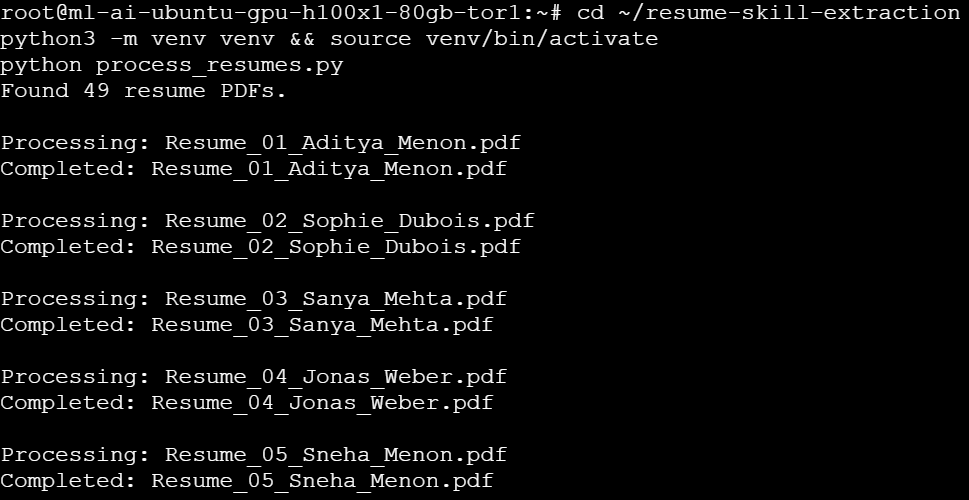
After all resumes are processed, the script generates structured output files containing the extracted candidate information. The results are saved locally as an Excel spreadsheet and a JSON file, and then uploaded to the outputs/ directory in your DigitalOcean Spaces bucket. This allows the processed data to be stored centrally for later analysis or integration with recruitment workflows.

After the pipeline completes, the script generates structured output files containing the extracted candidate information. These files are uploaded to your DigitalOcean Spaces bucket. To view the processed files, sign in to your DigitalOcean account and navigate to Spaces from the control panel. Open the Space you configured for this project.
Inside the bucket, open the outputs/ directory, where the pipeline uploads the generated files. You should see files similar to the following:
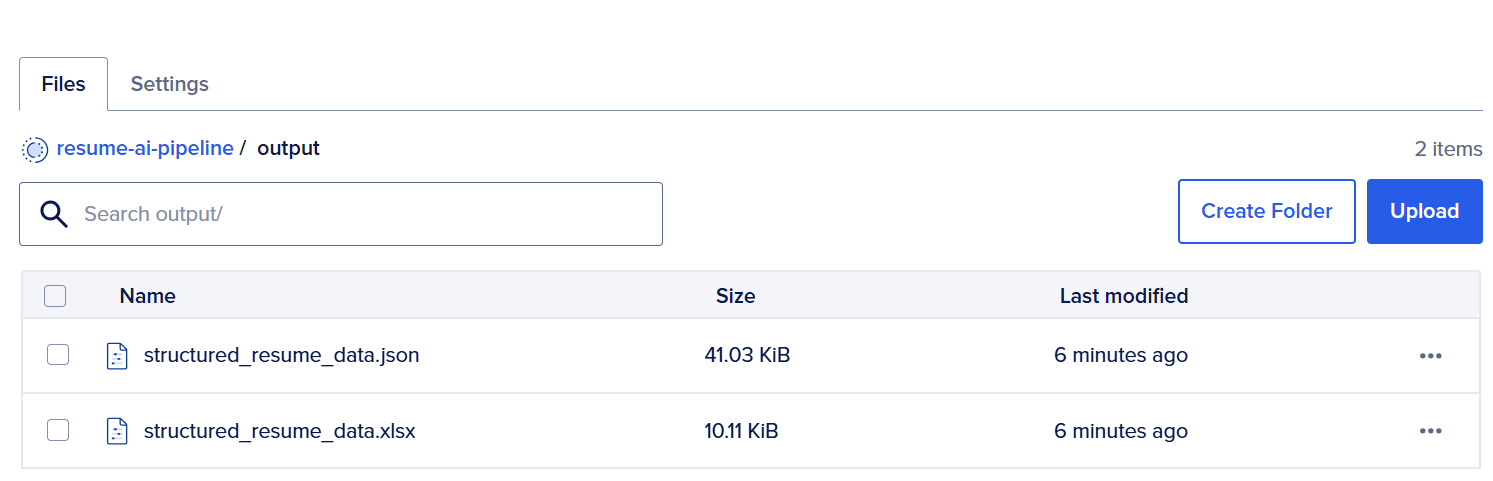
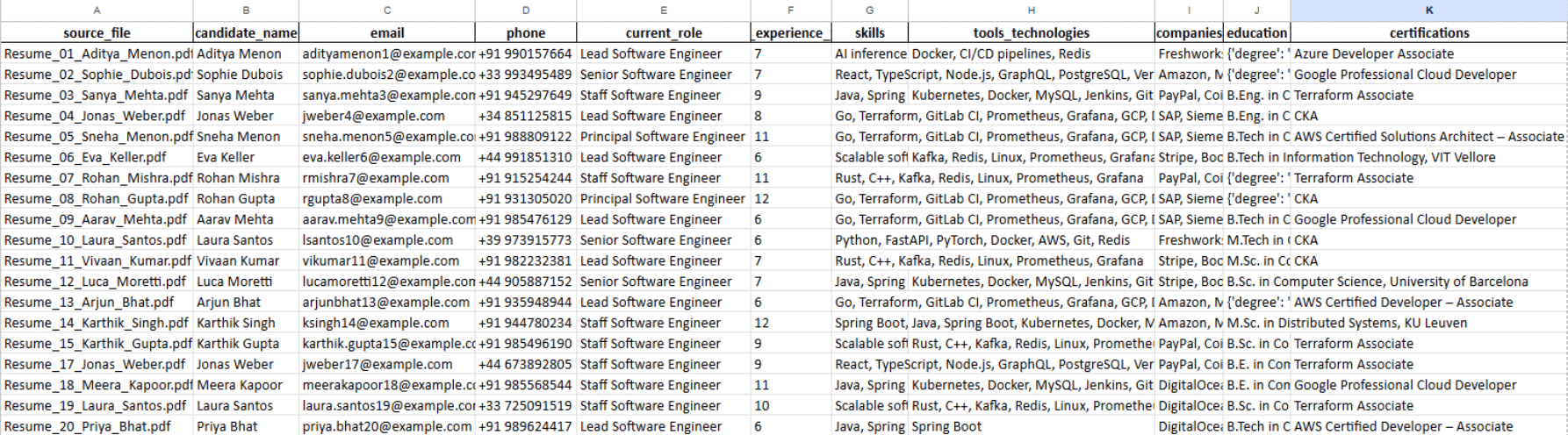
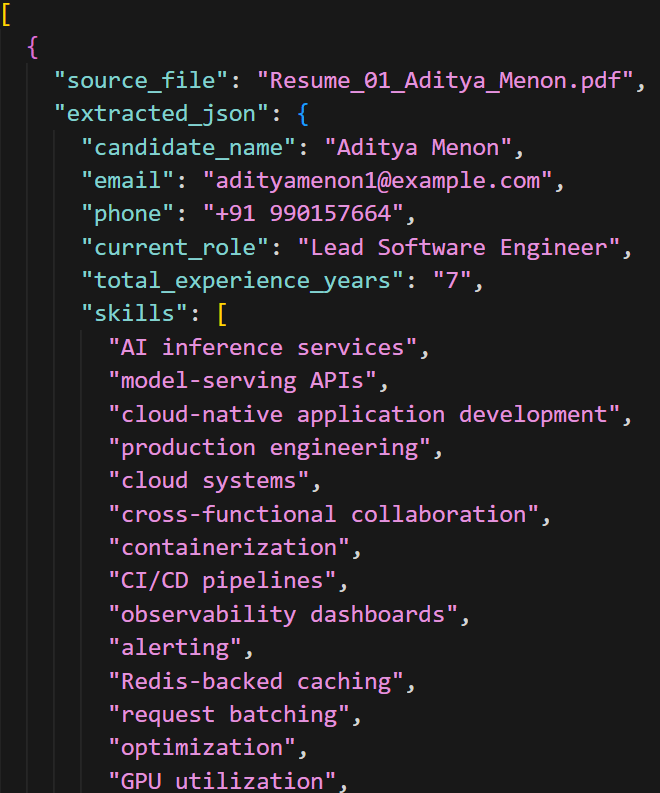
You can download these files directly from your Spaces bucket to review the extracted resume data locally or integrate them into downstream workflows.
Mistral-7B can run on a CPU, but performance is slower and impractical for real-world workloads. When you run the model on a GPU Droplet, the inference engine processes resumes much faster and handles larger batches of documents efficiently. GPU acceleration is recommended for production pipelines that process many resumes.
The pipeline in this tutorial processes resumes stored in PDF format. The script downloads PDF files from DigitalOcean Spaces, extracts their text using the PyMuPDF library, and sends the extracted content to the language model for analysis. The pipeline can be extended to support other formats like DOCX, images, or plain text by adding additional parsing libraries.
Mistral-7B-Instruct is a fine-tuned version of the base Mistral-7B model that is optimized for following structured prompts and generating formatted responses. For resume extraction tasks that require structured outputs such as JSON, the Instruct variant performs better because it is trained to follow instructions more reliably.
To scale the system, you can deploy multiple inference instances behind a Load Balancer or containerize the inference service using orchestration platforms. On DigitalOcean, this architecture can be extended by deploying additional GPU Droplets or running containerized inference services on DigitalOcean Kubernetes for the system to handle larger resume datasets and higher request volumes.
In this tutorial, you configured a DigitalOcean GPU Droplet and deployed a self-hosted Mistral-7B language model using the vLLM inference engine. You installed the required Python environment and dependencies, launched an inference API, and verified that the model was running successfully on the GPU.
You then configured DigitalOcean Spaces to store resume PDFs and output files and created environment variables to securely manage access credentials. You also built a Python pipeline that retrieves resume PDFs from Spaces, extracts their text using PyMuPDF, sends the extracted content to the locally hosted Mistral-7B inference API. Finally, you ran the pipeline to generate structured candidate information and export the results into an Excel file that was uploaded back to Spaces for centralized storage.
The pipeline built in this tutorial can be extended using DigitalOcean products to create more scalable and production-ready AI workflows:
Implement semantic search using DigitalOcean Managed Databases: Generate vector embeddings for each resume and store them in a vector-enabled database such as PostgreSQL on DigitalOcean Managed Databases. This would allow recruiters to perform natural language searches across resumes and quickly identify candidates with specific skills or experience.
Build a web-based interface using DigitalOcean App Platform: Deploy a lightweight web application that allows users to upload resumes, trigger the extraction pipeline, and visualize structured candidate insights through a browser-based dashboard.
Automate resume processing with DigitalOcean Functions and Spaces events: Configure serverless functions that automatically trigger the processing pipeline whenever new resume files are uploaded to DigitalOcean Spaces. This creates a fully automated workflow for document ingestion and analysis.
 This work is licensed under a Creative Commons Attribution-NonCommercial- ShareAlike 4.0 International License.
此内容由惯性聚合(RSS阅读器)自动聚合整理,仅供阅读参考。 原文来自 — 版权归原作者所有。