






Linux ps commands give you a snapshot of what is running on the system:
process IDs (PIDs), parent PIDs (PPIDs), owners, CPU and memory use, and the
command line that started each task. Unlike interactive monitors such as top,
ps is built for scripts, one-off inspection, and pairing with pipes (see
An Introduction to Linux I/O Redirection
for how redirection fits into the same toolkit).
This tutorial walks through twenty focused examples, from a plain ps through
ps aux, ps -ef, custom columns, trees, threads, and grep. Set up a lab
server with
Initial Server Setup for Ubuntu
if you need a fresh host. The article also adds
reference material that competing articles often skip: process state codes,
how ps behaves in containers, sorting output, when to use top or
pgrep instead, and small shell patterns you can paste into maintenance
scripts. For live resource monitoring on a server, pair these ideas with
How To Use top, netstat, du, & Other Tools to Monitor Server Resources.
ps reads process data exposed under /proc and prints a static picture at
the moment you run it; combine it with watch or a scheduler for repeated
checks.ps aux (BSD style) and ps -ef (POSIX / GNU long listing) are the two most
common starting points for listing all running processes on Linux.STAT (or S) column uses single-letter state codes such as R
(running) and Z (zombie); knowing them helps you interpret hung or stuck
tasks.--ppid help you trace service trees and session leaders.ps only sees processes in the container’s
PID namespace, so process lists look smaller than on the host.ps -C name, ps -p, and pgrep are often cleaner than
giant ps aux | grep pipelines (and easier to read alongside
Bash history and expansion tips).| Column | Meaning |
|---|---|
PID |
Process ID |
PPID |
Parent process ID |
USER / UID |
Account running the process |
%CPU |
CPU time divided by elapsed time (approximate load) |
%MEM |
Resident set size as a percent of physical memory |
VSZ |
Virtual memory size (KiB) |
RSS |
Resident set size (KiB) |
TTY |
Controlling terminal (? if none) |
STAT / S |
Process state code (see next table) |
START / TIME |
Start time or cumulative CPU time |
CMD / COMMAND |
Command with arguments |
Exact columns depend on which options you pass (for example ps aux versus
ps -ef).
STAT / S)These letters describe what the kernel thinks the process is doing. You will mostly see the first character; additional characters mark session leaders, threads, and priority hints.
| Code | Meaning |
|---|---|
R |
Running or runnable (on a run queue) |
S |
Interruptible sleep (waiting on I/O or an event) |
D |
Uninterruptible sleep (often disk or NFS); can look “stuck” |
Z |
Zombie (exited but not yet reaped by its parent) |
T |
Stopped by job control signal (SIGSTOP, SIGTSTP, or debugger) |
t |
Stopped by debugger during trace |
I |
Idle kernel thread (common on newer kernels in some views) |
If you see many D states during storage outages, investigate disk or network
filesystems. If you see Z, the parent should call wait(); fixing the parent
or restarting the service usually clears them.
psLinux ps accepts several historical option styles:
ps aux.
a shows processes for all users with a terminal; u adds user-oriented
columns; x includes processes without a controlling TTY.ps -ef.
-e selects every process; -f prints a full-format listing; -F is an
even wider variant on GNU ps.On the same host you can compare:
ps aux | head -n 5
ps -ef | head -n 5
Both list all processes in typical usage, but column names and layout differ. Pick one style for scripts and stay consistent.
ps command examples (20)The subsections below are the twenty practical examples. Each one shows the command and a sample screenshot from the original walkthrough.
ps without argumentsThe ps command without arguments lists processes tied to the current shell.
ps
Output 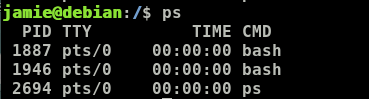
The output consists of four columns:
PID: the unique process IDTTY: the type of terminal the user is logged in toTIME: the time in minutes and seconds that the process has been runningCMD: the command that launched the processps -A or ps -eTo list every process on the machine, use ps -A or ps -e.
To have a glance at all the running processes, execute the command below ps -A
Output 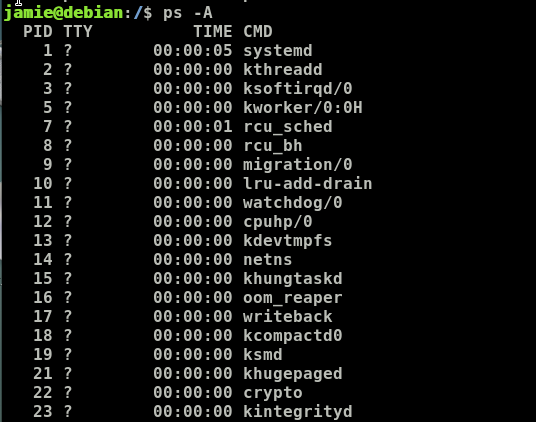
or ps -e Output 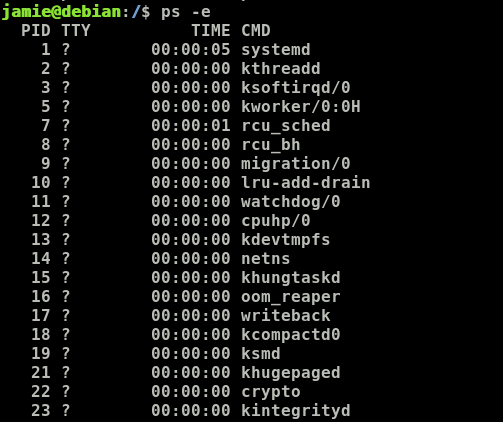
ps -TTo view processes associated with the terminal run ps -T Output 
ps -aTo view all processes except session leaders and those attached to a terminal,
run ps -a. A session leader is a process that started its session.
Output 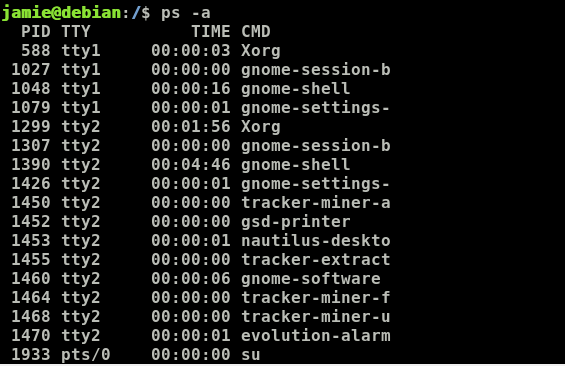
ps -axTo view all current processes (including those without a controlling tty):
ps -ax
Output 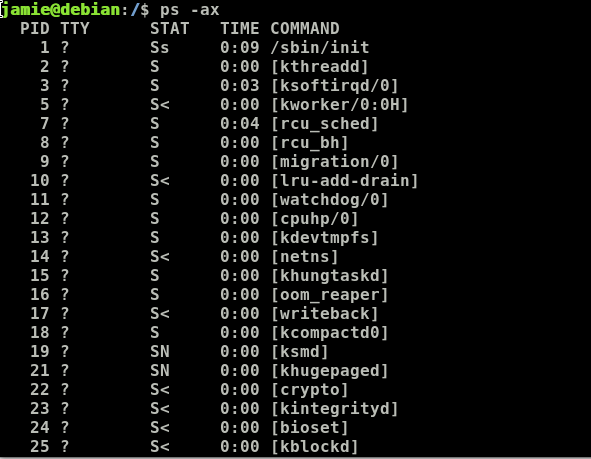
-a includes processes owned by others when they have a tty; -x adds
processes with no tty.
ps au and ps auxIf you wish to display processes in BSD format:
ps au
OR
ps aux
Output 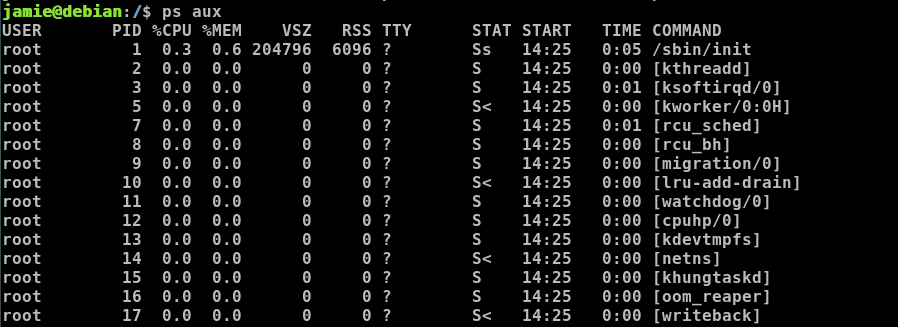
ps -ef and ps -eFTo view a full-format listing:
ps -ef
OR
ps -eF
Output 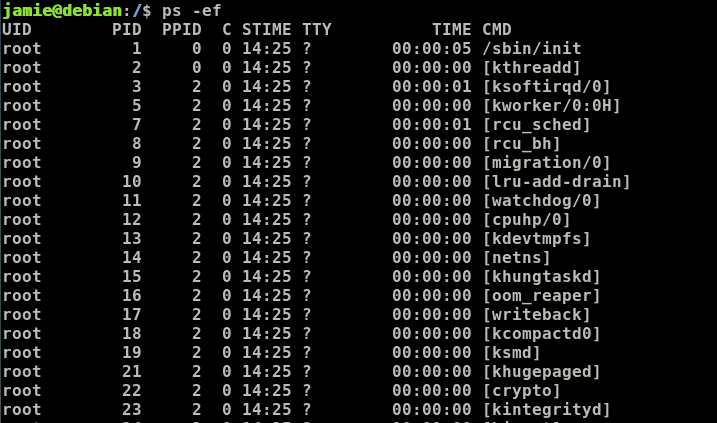
ps -uIf you wish to list processes for a specific user, use -u:
ps -u user
For example:
ps -u jamie
Output 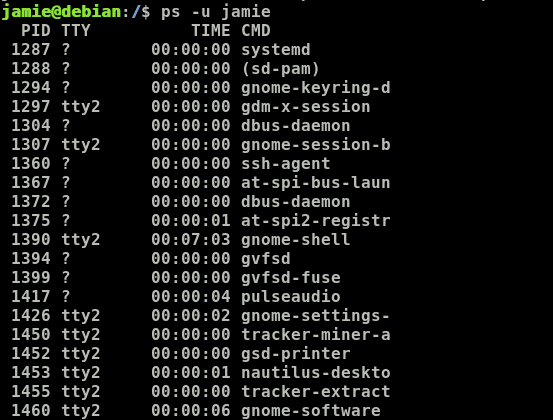
ps -LIf you wish to list threads for a particular process, use -L with a PID:
ps -L 4264
Output 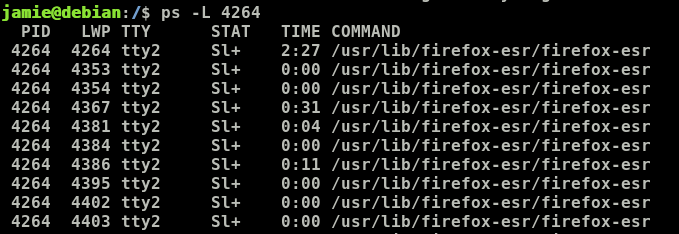
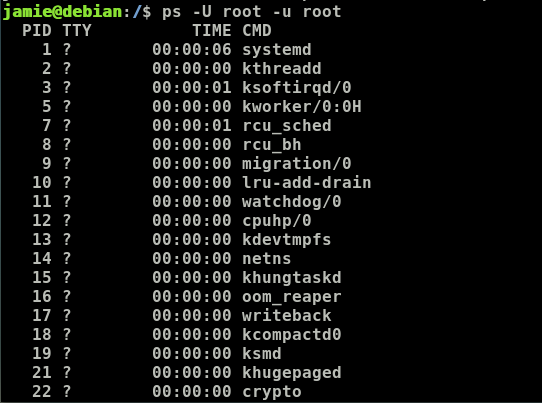
ps -U root -u rootSometimes you want every process whose real and effective user is root:
ps -U root -u root
Output
ps -fGIf you wish to list processes for a group by name or GID:
ps -fG group_name
Or:
ps -fG groupID
For example:
ps -fG root
Output 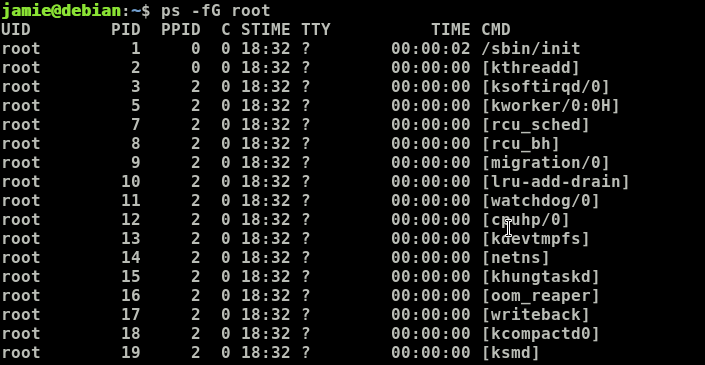
ps -CYou can search by executable name:
ps -C process_name
For example:
ps -C bash
Output 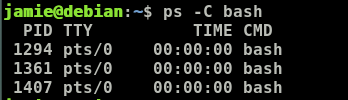
ps -fpDisplay one process in full format:
ps -fp PID
For example:
ps -fp 1294
Output 
ps --forestParent and child relationships are easier to see in a forest layout:
ps -f --forest -C bash
Output 
ps -oFor example, to show PID, user, and command for every bash process:
ps -o pid,uname,comm -C bash
Output 
The first process owned by root is often the main supervisor; workers may show under it.
ps --ppidTo list children of a known parent PID:
ps --ppid 1294
Output 
ps -p … -LTo list every thread row for one PID:
ps -p 1294 -L
Output 
Replace 1294 with the PID you care about.
ps -e -o …You can print only the fields you need:
ps -e -o pid,uname,pcpu,pmem,comm
Output 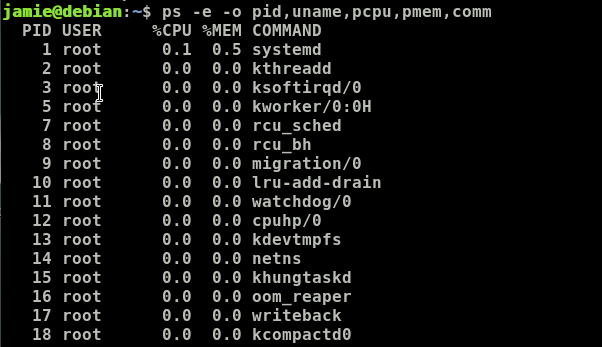
Rename columns at print time:
ps -e -o pid=PID,uname=USERNAME,pcpu=CPU_USAGE,pmem=%MEM,comm=COMMAND
Output 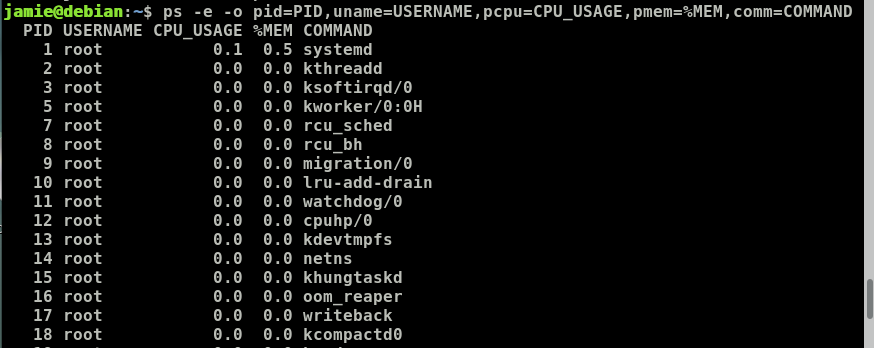
grepShow how long processes have been running:
ps -e -o pid,comm,etime
Output 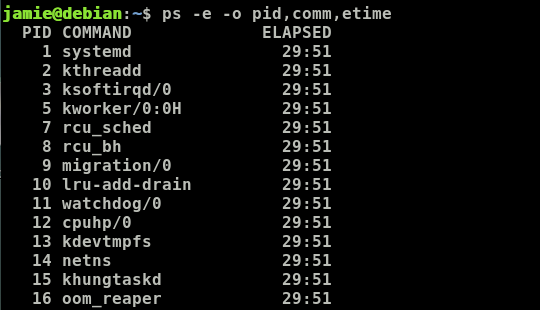
The -o option adds etime, which is handy when you suspect a stuck worker.
Finally, combine ps with grep when you need a quick filter (remember
grep also matches its own process unless you exclude it):
ps -ef | grep systemd
Output 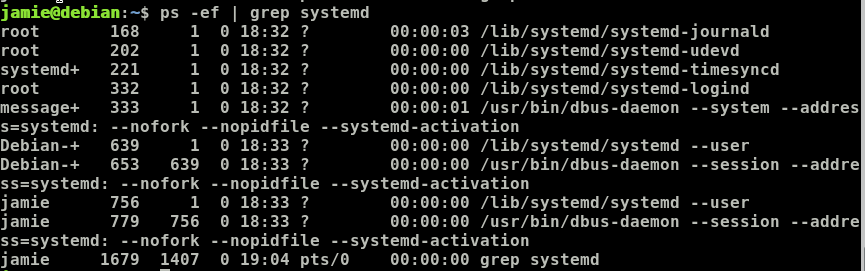
ps outputGNU ps supports --sort so you can rank processes without leaving the
command. Examples:
ps -eo pid,comm,%cpu,%mem --sort=-%cpu | head -n 15
ps -eo pid,comm,%cpu,%mem --sort=-%mem | head -n 15
A leading minus sorts descending. These pairs answer the common question how
to sort ps output by CPU or memory usage on Linux hosts.
ps with signals, kill, and servicesps helps you find a PID; kill, killall, or your init system performs the
action. Typical pattern:
ps -fp PID or ps -C service to confirm the process.sudo systemctl stop unit (see
How To Use Systemctl to Manage Systemd Services and Units).kill PID sends SIGTERM by default; use
kill -9 PID only when a process ignores normal termination.This keeps kill process by PID on Linux workflows explicit and avoids guessing IDs.
ps inside containers and Kubernetes podsContainers use PID namespaces. When you run ps inside a Docker or containerd
container, PID 1 is usually your entrypoint, and you only see processes in
that namespace, not every host process. That surprises people who expect the
full host list.
docker exec -it container ps auxkubectl exec -it pod -- ps auxFor cgroup-aware views across nodes, operators often rely on kubectl top or
metrics servers; ps remains useful for quick debugging inside the pod
filesystem.
ps versus top, htop, pgrep, and pstree| Tool | What it does best | Notes |
|---|---|---|
ps |
Scriptable snapshot, custom columns, easy to pipe | No built-in refresh |
top |
Live CPU and memory, sortable while running | Interactive; great for incidents |
htop |
Friendlier top, tree view, search |
May need install |
pgrep / pidof |
Return PIDs by name | Ideal for scripts |
pstree |
ASCII process tree | Shows parent/child without ps --forest |
When readers search top htop process monitoring tools, point them at top
for live dashboards and ps for repeatable listings.
Using ps -C avoids a fragile grep on the full aux table:
if ps -C nginx -o pid= | grep -q '[0-9]'; then
  echo "nginx is running"
else
  echo "nginx is not running"
fi
pgrep -x nginx is another clean option.
Zombies show Z in the state field. Example:
ps -eo pid,ppid,stat,cmd | awk '$3 ~ /Z/ { print }'
Investigate the parent PID in the second column; it should reap child exit statuses.
ps command used for in Linux?ps prints information about running processes: PIDs, users, CPU and memory
use, command lines, and kernel state codes. It is the standard tool for process
status on the Linux command line when you want a point-in-time list instead of
a live dashboard.
ps aux and ps -ef?They both list processes for all users in typical use, but they come from
different option styles. ps aux is BSD style (a, u, x). ps -ef is POSIX
style (-e every process, -f full format). Columns and ordering differ; pick
one format for monitoring scripts so parsers stay stable.
ps?Use ps aux, ps -ef, ps -e, or ps -A. For a wide GNU view, ps -eF adds
extra columns. These commands answer searches for list all running processes
Linux.
Use ps -C name, ps -ef | grep pattern (mind the extra grep line), or
pgrep. For a known PID’s details, ps -fp PID shows the full command line.
ps output?R means runnable, S means sleeping, D means uninterruptible sleep, Z
means zombie, and T means stopped. See the table in this guide for quick
reference when diagnosing stuck or dead processes.
ps output by CPU or memory usage?On GNU ps, add --sort=-%cpu or --sort=-%mem with an -o field list, for
example ps -eo pid,comm,%cpu,%mem --sort=-%cpu | head.
ps inside a Docker container?Yes. ps inside the container only sees that container’s PID namespace, so the
list is shorter than on the host. Install procps in minimal images if ps is
missing.
ps?A zombie is a process that exited but whose parent has not read its exit status.
In ps, the state column contains Z. Use
ps -eo pid,ppid,stat,cmd | awk '$3 ~ /Z/ { print }' to list them, then fix or
restart the parent service.
You now have a full set of Linux ps commands for daily administration:
listing processes, interpreting ps aux and ps -ef, working with PID and PPID,
formatting columns, sorting, spotting zombies, and understanding container
namespaces. Pair this knowledge with interactive monitors from
the server monitoring tools tutorial
when you need live graphs during incidents.
ps. This work is licensed under a Creative Commons Attribution-NonCommercial- ShareAlike 4.0 International License.
此内容由惯性聚合(RSS阅读器)自动聚合整理,仅供阅读参考。 原文来自 — 版权归原作者所有。