

惯性聚合 高效追踪和阅读你感兴趣的博客、新闻、科技资讯
阅读原文 在惯性聚合中打开

推荐订阅源

S
Secure Thoughts
云风的 BLOG
云风的 BLOG
Engineering at Meta
Engineering at Meta
A
About on SuperTechFans
Hugging Face - Blog
Hugging Face - Blog
钛媒体:引领未来商业与生活新知
钛媒体:引领未来商业与生活新知
WordPress大学
WordPress大学
U
Unit 42
月光博客
月光博客
美团技术团队
S
Security Affairs
L
Lohrmann on Cybersecurity
Latest news
Latest news
cs.AI updates on arXiv.org
Application and Cybersecurity Blog
Recent Announcements
P
Palo Alto Networks Blog
The Last Watchdog
The Last Watchdog
T
Tor Project blog
Schneier on Security
Jina AI
Jina AI
MongoDB | Blog
MongoDB | Blog
Cloudbric
Cloudbric
B
Blog RSS Feed
Project Zero
Project Zero
Hacker News: Ask HN
Hacker News: Ask HN
Security Latest
Security Latest
C
Cybersecurity and Infrastructure Security Agency CISA
NISL@THU
NISL@THU
M
MIT News - Artificial intelligence
H
Help Net Security
Google DeepMind News
L
LINUX DO - 热门话题
V
Visual Studio Blog
W
WeLiveSecurity
T
The Exploit Database - CXSecurity.com
Recent Commits to openclaw:main
奇客Solidot–传递最新科技情报
奇客Solidot–传递最新科技情报
T
Threat Research - Cisco Blogs
Help Net Security
Help Net Security
F
Fortinet All Blogs
IT之家
IT之家
A
Arctic Wolf
Apple Machine Learning Research
I
Intezer
D
DataBreaches.Net
C
Cyber Attacks, Cyber Crime and Cyber Security
Stack Overflow Blog
Stack Overflow Blog
SecWiki News
SecWiki News
Last Week in AI
Last Week in AI

DigitalOcean Community Tutorials

Mastering grep with Regular Expressions for Efficient Text Search It's Time to Break Up with Your Cloud: Why AI Teams are Switching We Built a Private-Document AI App to Test Platform Security. Here Is What We Could Actually Verify. PostgreSQL Explained: A Complete Beginner-to-Advanced Guide How To Install and Configure Postfix on Ubuntu How To Build a Web Application Using Flask in Python 3 Build AI Reading List with DigitalOcean Functions and Mistral How To Concatenate Strings in Python How to Allow MySQL Remote Access Securely How To Install and Use Docker on Rocky Linux How To Build a Multi-Agent AI System with Docker Agent DSPy Use Cases: Build Optimized LLM Pipelines How To Submit AJAX Forms with jQuery Build an AI-Powered GPU Fleet Optimizer with the DigitalOcean AI Platform ADK Monitor GPU Utilization in Real Time: A Complete Guide Reduce File Size of Images in Linux - CLI and GUI methods Reduce PDF File Size in Linux: Tools and Methods How To Set Up a Private Docker Registry on Ubuntu How To Troubleshoot Terraform: Errors and Fixes How to Use Go Modules Python Multiprocessing Example: Process, Pool & Queue Convert Class Components to Functional Components with React Hooks How To Install and Configure Ansible on Ubuntu LLM Tokenizers Simplified: BPE, SentencePiece, and More How To Monitor System Authentication Logs on Ubuntu How to Use Traceroute and MTR to Diagnose Network Issues How to Deploy Postgres to Kubernetes Cluster Importing Packages in Go: A Complete Guide Create RAID Arrays with mdadm on Ubuntu How To Make an HTTP Server in Go How To Set Up Time Synchronization on Ubuntu How To Use Struct Tags in Go apt-key Deprecation: Add Repositories with GPG on Ubuntu Linux ps Command: 20 Real-World Examples Python struct.pack and struct.unpack for Binary Data Deadlock in Java: Examples, Detection, and Prevention How To Use Find and Locate to Search for Files on Linux Structured Resume Skill Extraction Using Mistral-7B Inference How to Use the Python Main Function Build an End-to-End RAG Pipeline for LLM Applications From Single to Multi-Agent Systems: Key Infrastructure Needs Back Up Data to Object Storage Using Restic How to Generate Videos with LTX-2.3 on DigitalOcean GPU Droplets How To Install LAMP Stack (Apache, MySQL, PHP) on Ubuntu How to Download Files with cURL How To Use Variadic Functions in Go Generate UUIDs with uuidgen on Linux How To Use EJS to Template Your Node Application How to Install Node.js on Ubuntu (Step-by-Step Guide) MongoDB Indexes: Improve Query Performance with Node.js LLM Tool Calling with DigitalOcean AI Platform and Databases What are Text Diffusion Models? - An Overview Crafting a Game from Scratch with GPT-5.4 Building Long-Term Memory in AI Agents with LangGraph and Mem0 How To Install PHP 7.4 and Set Up a Local Development Environment on Ubuntu 20.04 Build a GraphQL API in Go to Upload Files to Spaces How To Lint and Format Code with ESLint in Visual Studio Code Train YOLO26 for Retail Object Detection on DigitalOcean GPUs How To Work with JSON in MySQL How to Use the JavaScript .map() Method Building a Scalable App with MongoDB Using DigitalOcean's MCP Server How to Create an SSH Key in Linux: Easy Step-by-Step Guide Measure MySQL Query Performance with mysqlslap How To Use *args and **kwargs in Python 3 Nemotron 3 helped me find the perfect dish rack? A2A vs MCP - How These AI Agent Protocols Actually Differ How To Install and Manage Supervisor Docker Container Images with Watchtower on Ubuntu Getting Started with Qwen3.5 Vision-Language Models How To Create a New Sudo-Enabled User on Ubuntu How to Use Ansible to Install and Set Up Docker on Ubuntu How To Enable Remote Desktop Protocol Using xrdp on Ubuntu 22.04 How To Convert a String to a List in Python How To Check If a String Contains Another String in Python How to Read a Properties File in Python Python Command Line Arguments: sys.argv, argparse, getopt Mastering Grep command in Linux/Unix: A Beginner's Tutorial Understanding Python Data Types How to Implement a Stack in C With Code Examples Python os.system() vs subprocess: Run System Commands How To Install and Use Docker Compose on Ubuntu How to Add and Delete Users on Ubuntu How To Order Query Results in Laravel Eloquent How To Define and Use Handlers in Ansible Playbooks How To Install and Use SQLite on Ubuntu How To Install and Use Homebrew on macOS How To Manage DateTime with Carbon in Laravel and PHP How To Install Git on Ubuntu How To Install and Secure Redis on Ubuntu How To Build and Install Go Programs on Linux Using ldflags to Set Version Information for Go Applications How To Build a Node.js Application with Docker How To Add JavaScript to HTML How To Reset Your MySQL or MariaDB Root Password How To Add Images in Markdown How To Set Up a Production Elasticsearch Cluster with Ansible How To Set Up a Firewall Using firewalld on CentOS Understanding Systemd Units and Unit Files How To Set Up Replication in MySQL How To Use the .htaccess File
How to Set Up NemoClaw on a DigitalOcean Droplet with 1-Click
2026-03-19 · via DigitalOcean Community Tutorials

At GTC 2026, NVIDIA announced NemoClaw, an open-source stack that makes it easy to run OpenClaw autonomous agents securely. OpenClaw is an open-source agent platform that Jensen Huang called “the operating system for personal AI.” We covered how to run OpenClaw on a Droplet in an earlier tutorial. NemoClaw takes a different approach - it wraps OpenClaw with sandboxing, security policies, and inference routing through NVIDIA’s cloud.

NemoClaw is still in alpha, so expect rough edges. Interfaces may change, features might be incomplete, and things could break. But if you’re curious to try it out or just want to see what NVIDIA’s vision for agents looks like, this tutorial will get you up and running on a DigitalOcean Droplet in under 10 minutes.

Prerequisites

Before you begin, you’ll need:

Step 1 - Create a Droplet from the Marketplace

Head to the NemoClaw 1-Click Droplet on the DigitalOcean Marketplace. Click Create NemoClaw Droplet.

When configuring the Droplet, select the CPU-Optimized plan with Premium Intel. You’ll want the option with 32 GB of RAM and 16 CPUs. NemoClaw runs Docker containers, a Kubernetes cluster (k3s), and the OpenShell gateway, so it needs the headroom.
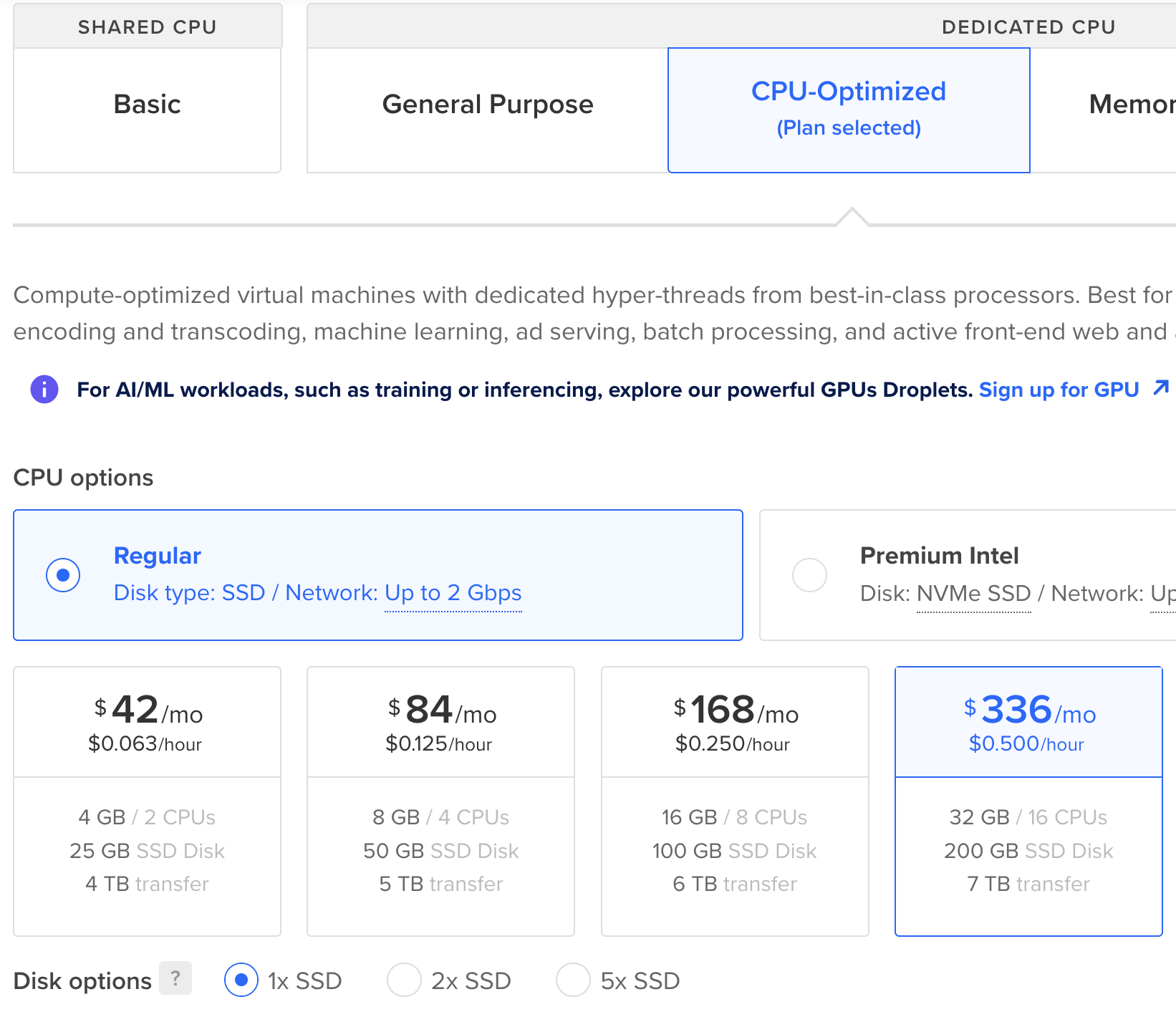
Droplet configuration showing CPU-Optimized plan selected with Premium Intel

Pick a datacenter region close to you, add your SSH key, and hit Create Droplet.

Heads up: This Droplet costs $336/mo, so make sure to destroy it when you’re done experimenting. It adds up fast if you forget about it.

Step 2 - SSH into the Droplet

Once your Droplet is ready, SSH in:

ssh root@your_server_ip

You’ll see the usual Ubuntu login banner, and then the NemoClaw onboarding wizard will kick off automatically. It runs through a series of preflight checks, making sure Docker is running, installing the OpenShell CLI, and spinning up the gateway. You’ll see checkmarks fly by as each step completes.
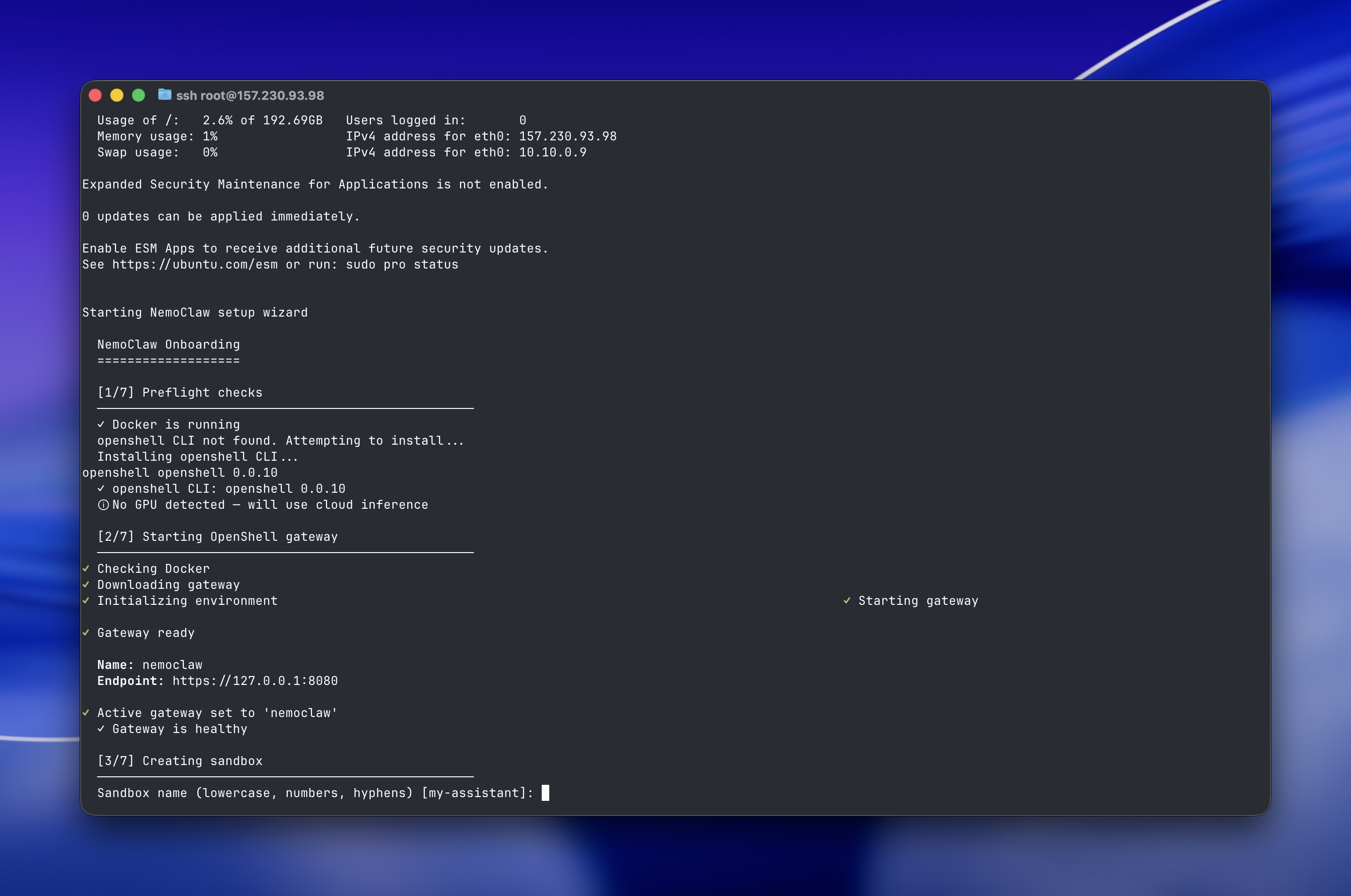
Terminal showing the NemoClaw onboarding wizard running preflight checks, starting the OpenShell gateway, and prompting for a sandbox name

Step 3 - Walk Through the Onboarding Wizard

The onboarding wizard will ask you a few things. Here’s what to do at each prompt:

Sandbox Name

The first prompt asks for a sandbox name. Just press Enter to accept the default (my-assistant). The wizard will then create the sandbox, build the container image, and push it to the gateway. This takes a couple of minutes, and you’ll see it run through about 20 steps as it builds and uploads everything.

NVIDIA API Key

Once the sandbox is ready, the wizard asks for your NVIDIA API key. In this setup, inference is routed through NVIDIA’s cloud using the nvidia/nemotron-3-super-120b-a12b model, so it needs a key to authenticate.

To get your key, head to build.nvidia.com/settings/api-keys, sign in, and click Generate API Key. Give it a name, pick an expiration, and hit Generate Key.
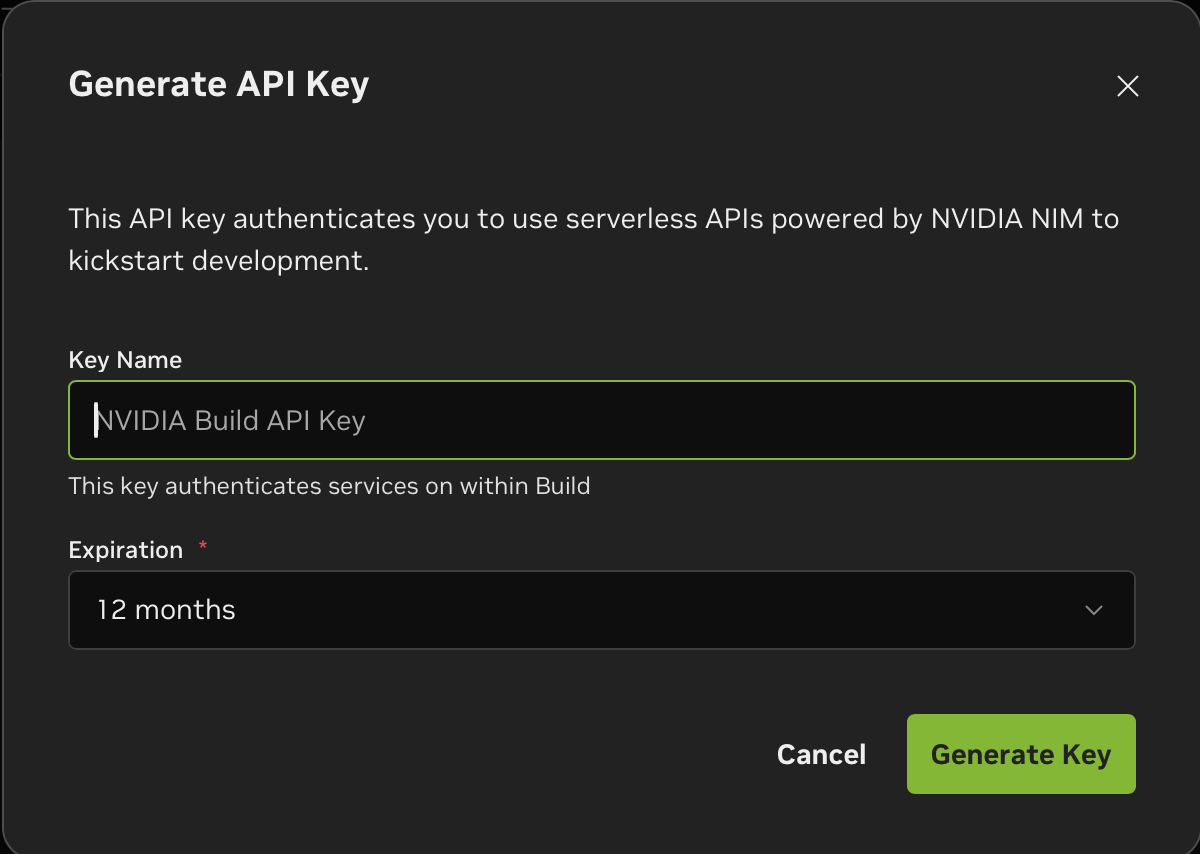
The NVIDIA Build dashboard showing the Generate API Key dialog

Copy the key (it starts with nvapi-), paste it into the terminal prompt, and press Enter.
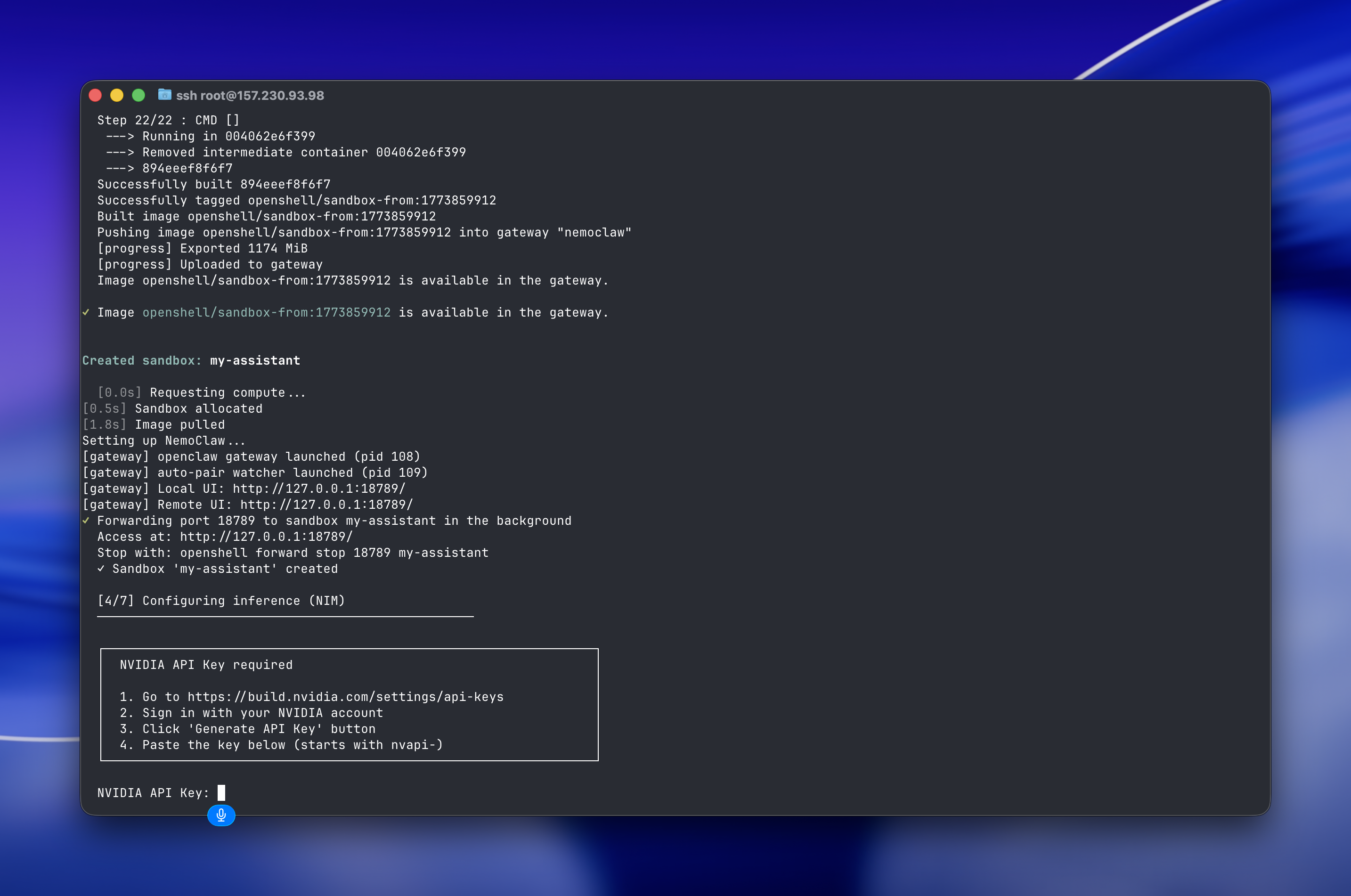
Terminal showing the sandbox creation complete and the NVIDIA API Key prompt with step-by-step instructions

The wizard saves the key to ~/.nemoclaw/credentials.json and sets up the inference provider. You’ll see it confirm the model and create an inference route.

Policy Presets

After the inference setup, NemoClaw sets up OpenClaw inside the sandbox and then asks about policy presets. You’ll see a list of available presets including Discord, Docker Hub, Hugging Face, Jira, npm, PyPI, Slack, and more. These control what external services the agent is allowed to reach.
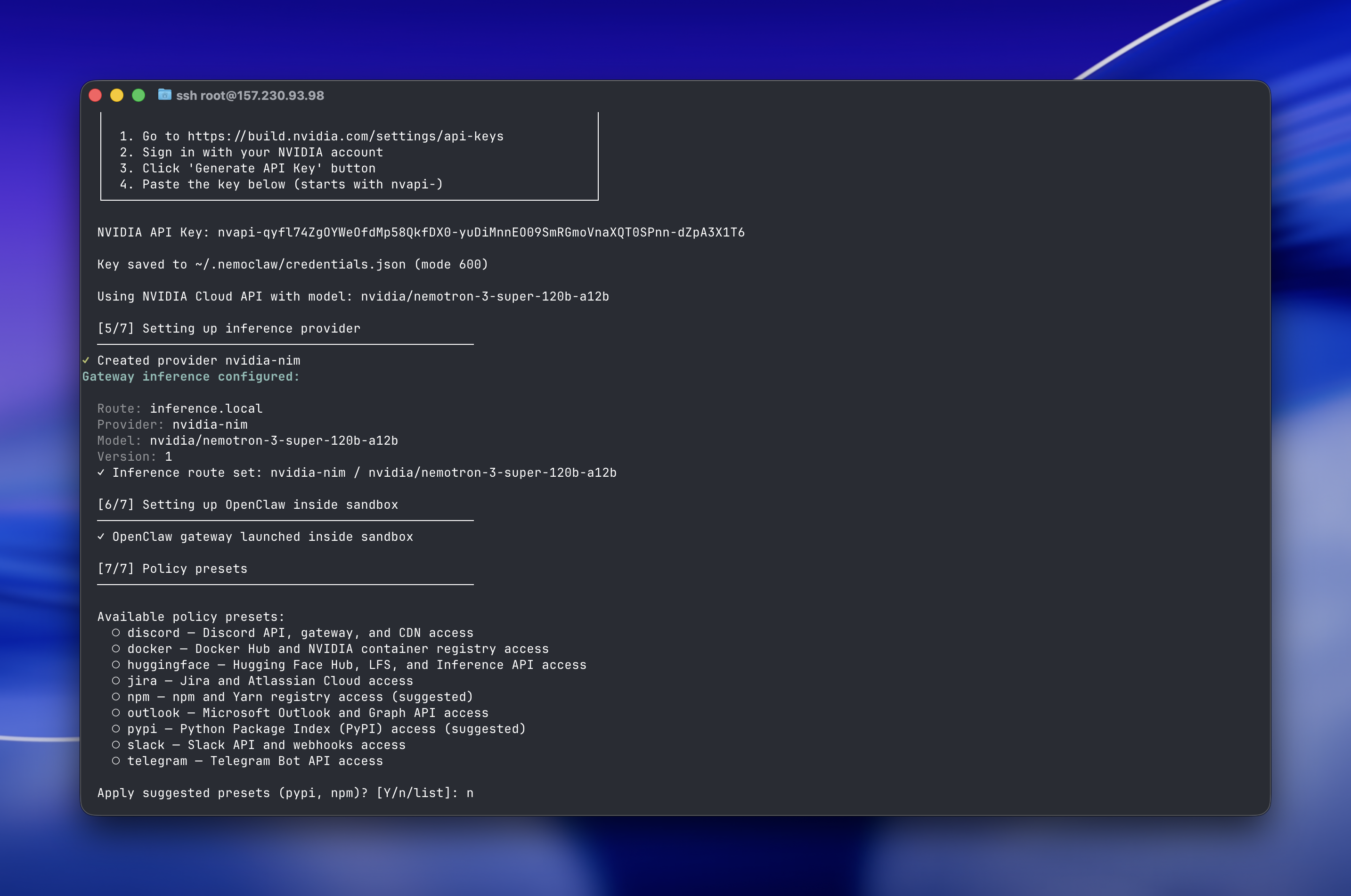
Terminal showing the inference provider configured, OpenClaw set up inside the sandbox, and the full list of available policy presets

At the bottom, the wizard asks:

Apply suggested presets (pypi, npm)? [Y/n/list]:

Type n and press Enter. These presets grant the sandbox network access to package registries, which you don’t need for a basic setup. You can always add them later if your agent needs to install packages.

Once onboarding finishes, you’ll see a clean summary with your sandbox details and the commands you’ll need going forward:
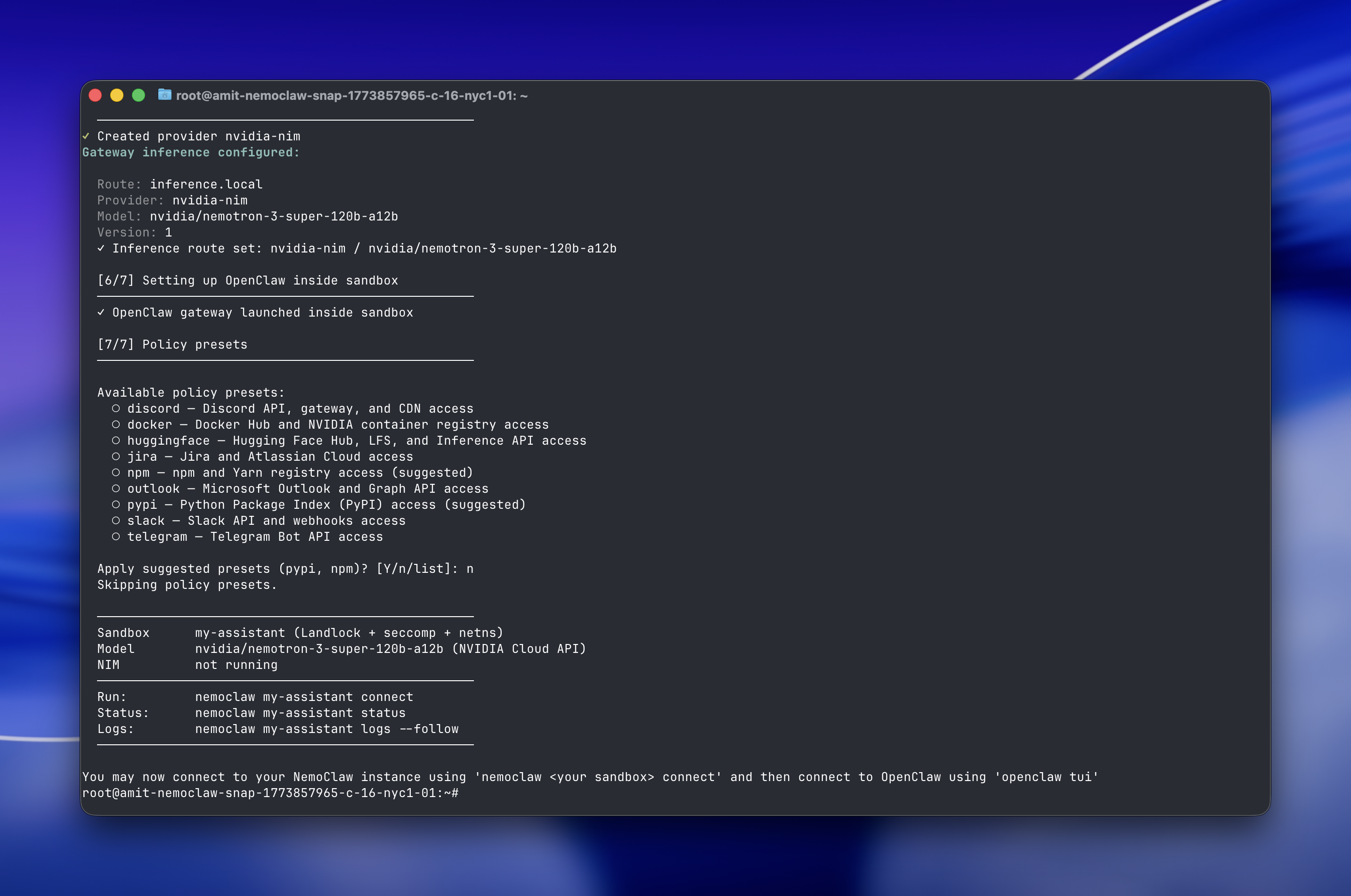
Terminal showing the completed onboarding with sandbox summary, model info, and the available run, status, and logs commands

Sandbox    my-assistant (Landlock + seccomp + netns)
Model      nvidia/nemotron-3-super-120b-a12b (NVIDIA Cloud API)
NIM        not running

Run:       nemoclaw my-assistant connect
Status:    nemoclaw my-assistant status
Logs:      nemoclaw my-assistant logs --follow

Step 4 - Connect to NemoClaw

Now for the fun part. Connect to your sandbox:

nemoclaw my-assistant connect

This drops you into a shell inside the sandboxed environment. From here, launch the OpenClaw TUI (terminal user interface):

openclaw tui

That’s it. You should see the OpenClaw chat interface come up. The agent will greet you and introduce itself, ready to chat.
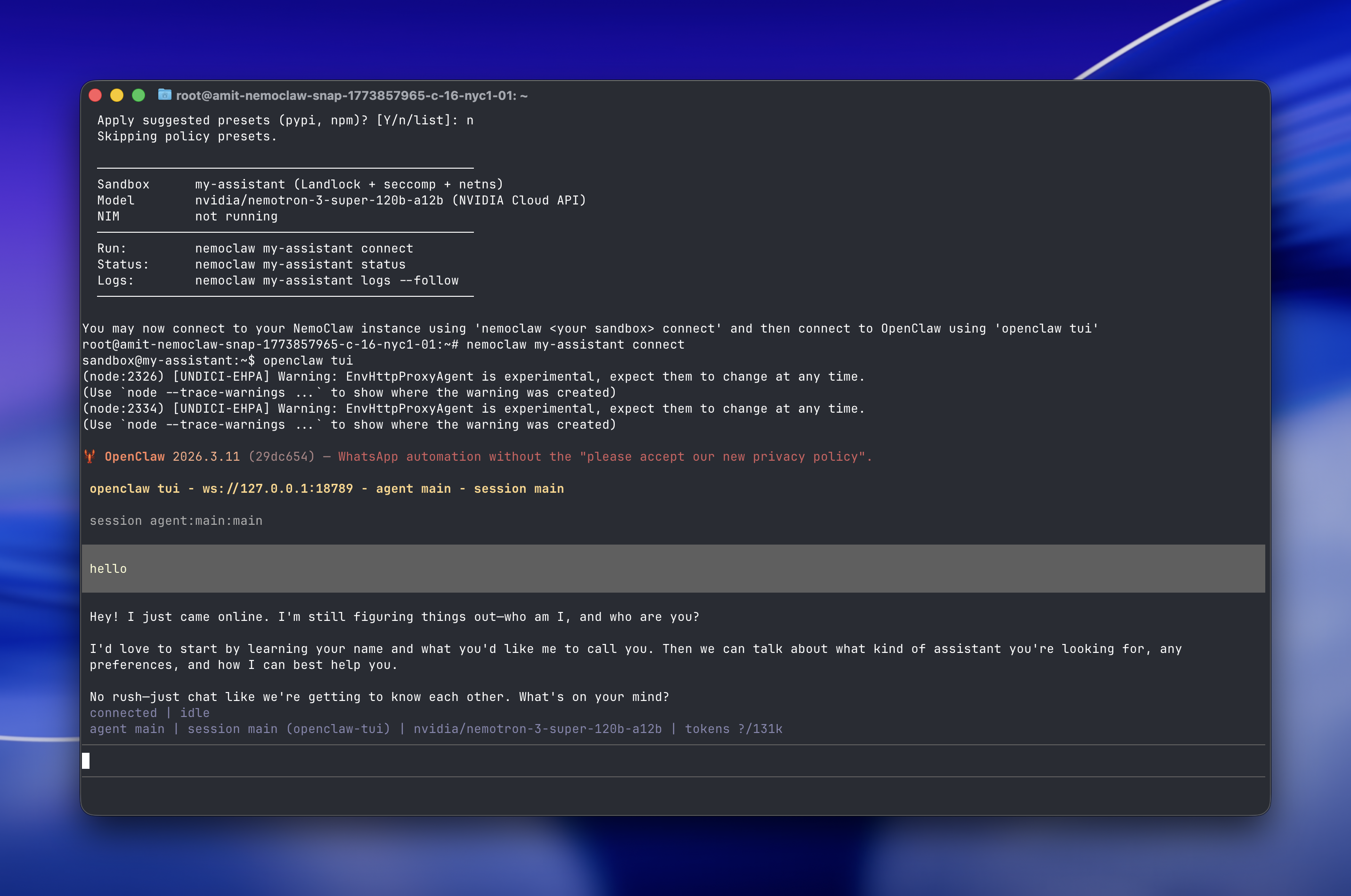
The OpenClaw TUI running inside the NemoClaw sandbox, showing the agent's greeting and an interactive chat session

Type a message and hit Enter. You’re now talking to an AI agent running inside a secure, sandboxed environment on your own Droplet.

Reconnecting After a New SSH Session

If you close your terminal and SSH back into the Droplet later, you’ll find that nemoclaw and related commands aren’t available. That’s because the onboarding script installed everything through nvm in a separate shell, and that doesn’t carry over to new sessions.

Run this once to fix it permanently. It adds nvm to your .bashrc so it loads automatically on every login:

echo 'export NVM_DIR="$HOME/.nvm"' >> ~/.bashrc && echo '[ -s "$NVM_DIR/nvm.sh" ] && \. "$NVM_DIR/nvm.sh"' >> ~/.bashrc && echo '[ -s "$NVM_DIR/bash_completion" ] && \. "$NVM_DIR/bash_completion"' >> ~/.bashrc && source ~/.bashrc

Then reconnect to your sandbox and launch the TUI the same way as before:

nemoclaw my-assistant connect
openclaw tui
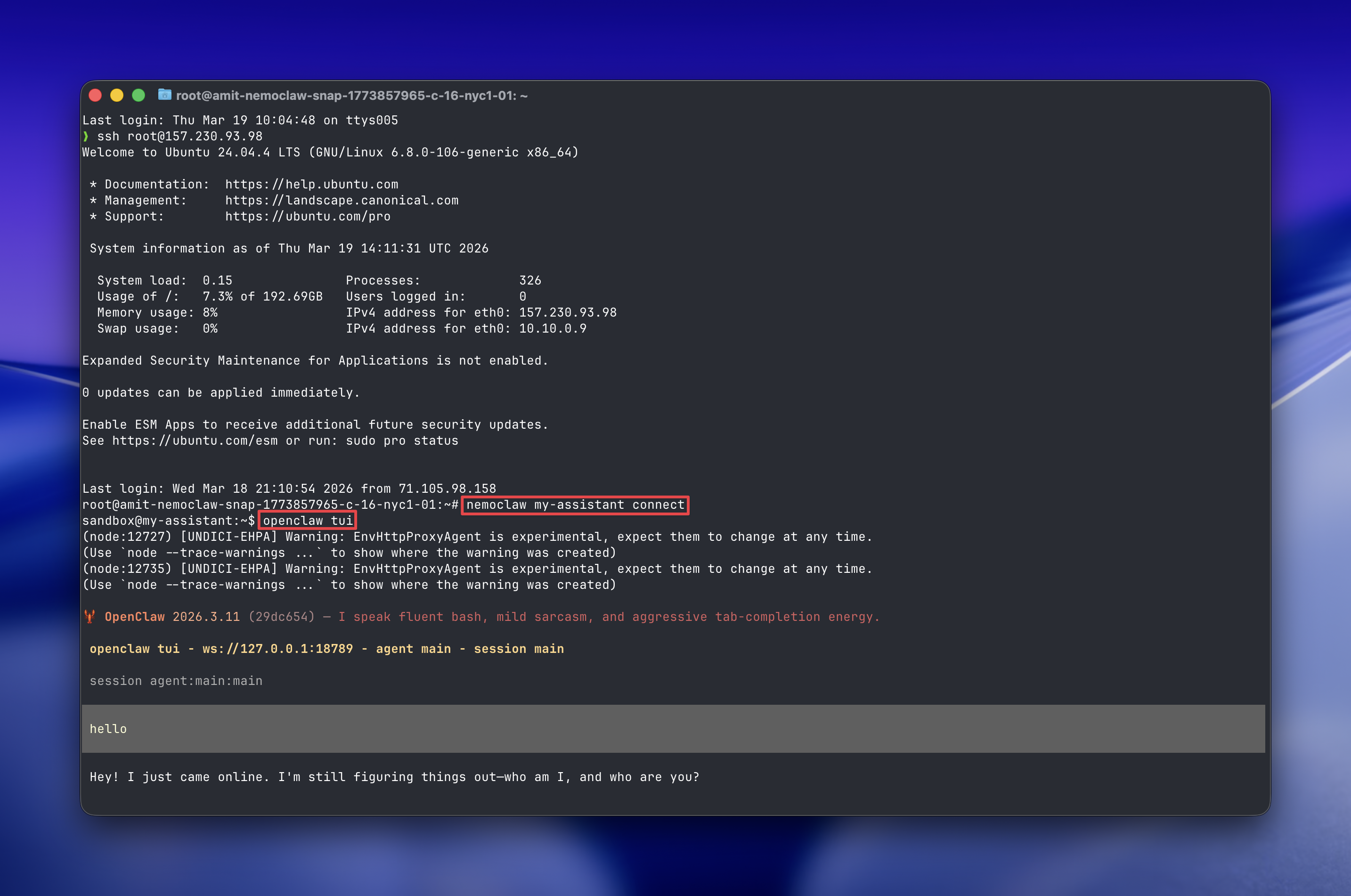
Reconnecting to the sandbox in a new SSH session using openshell sandbox connect, then launching openclaw tui

Everything picks up right where you left off. Your sandbox and agent are still running.

What’s Next

By default, the sandbox has limited network access, so the agent can’t reach external services out of the box. To unlock more capabilities - like connecting to Slack, GitHub, or pulling packages from PyPI - you’ll want to configure policy presets. Check the NemoClaw documentation for the full list of available integrations and how to set them up.

NemoClaw is still very early, so expect things to be rough around the edges. But if you want to get a feel for where always-on agents are headed, this is a good way to start poking around.

Resources

Was this helpful?

Creative CommonsThis work is licensed under a Creative Commons Attribution-NonCommercial- ShareAlike 4.0 International License.