







Grep, short for “global regular expression print”, is a command used for searching and matching text patterns in files using regular expressions. Furthermore, the command comes pre-installed in every Linux distribution. In this guide, we will look at the most common grep command use-cases.
Key Takeaways:
-i to ignore case sensitivity when searching. This flag ensures your search matches text regardless of uppercase or lowercase variations.-r flag enables recursive searching across directories. This allows you to search for patterns in all files within the current directory and subdirectories.-v option inverts the output to show non-matching lines. This is useful when you want to filter out or exclude lines containing a specific pattern.-n to display line numbers where patterns are found. This helps you quickly locate matches within large files.-w for exact word matching instead of partial pattern matching. This prevents false matches when your search term is part of a longer word.-E enables advanced pattern matching with alternation. You can search for multiple patterns simultaneously using | (e.g., grep -E "error|warning|failure").Grep command can be used to find or search a regular expression or a string in a text file. To demonstrate this, let’s create a text file welcome.txt and add some content as shown.
Welcome to Linux !
Linux is a free and opensource Operating system that is mostly used by
developers and in production servers for hosting crucial components such as web
and database servers. Linux has also made a name for itself in PCs.
Beginners looking to experiment with Linux can get started with friendlier linux
distributions such as Ubuntu, Mint, Fedora and Elementary OS.
Great! Now we are ready to perform a few grep commands and manipulate the output to get the desired results. To search for a string in a file, run the command below.
Syntax:
grep "string" filename
OR
filename grep "string"
Example:
grep "Linux" welcome.txt
Output:

As you can see, grep has not only searched and matched the string “Linux” but has also printed the lines in which the string appears. If the file is located in a different file path, be sure to specify the file path as shown below:
grep "string" /path/to/file
--color optionIf you are working on a system that doesn’t display the search string or pattern in a different color from the rest of the text, use the --color option to make your results stand out.
Example:
grep --color "free and opensource" welcome.txt
Output:

grep commandIf you wish to search for a string in your current directory and all other subdirectories, search using the -r flag as shown:
grep -r "string-name" *
For example:
grep -r "linux" *
Output:
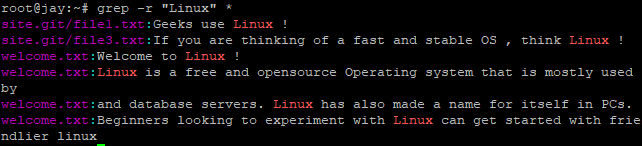
In the above example, our search results gave us what we wanted because the string “Linux” was specified in uppercase and also exists in the file in uppercase. Now let’s try and search for the string in lowercase.
grep "linux" filename
Nothing from the output, right? This is because grep could not find and match the string “linux” since the first letter is lowercase. To ignore case sensitivity, use the -i flag and execute the command below:
grep -i "linux" welcome.txt
Output:

Awesome, isn’t it? The -i flag is normally used to display strings regardless of their case sensitivity.
-c optionTo count the total number of lines where the string pattern appears or resides, execute the command below:
grep -c "Linux" welcome.txt
Output:

To invert the grep output, use the -v flag. The -v option instructs grep to print all lines that do not contain or match the expression. This means that instead of printing matching lines, grep does the opposite and prints all of the lines that don’t match the expression. Going back to our file, let us display the line numbers as shown. Hit ESC in the Vim editor, type a colon followed by:
set nu
Next, press Enter.
Output:

Now, to display the lines that don’t contain the string “Linux”, run:
grep -v "Linux" welcome.txt
Output:

As you can see, grep has displayed the lines that do not contain the search pattern.
-n optionTo number the lines where the string pattern is matched, use the -n option as shown:
grep -n "Linux" welcome.txt
Output:

-w optionPassing the -w flag will search for the line containing the exact matching word as shown:
grep -w "opensource" welcome.txt
Output:

However, if you try:
grep -w "open" welcome.txt
No results will be returned because we are not searching for a pattern but an exact word!
The grep command can be used together with pipes for getting distinct output. For example, if you want to know if a certain package is installed in an Ubuntu system, execute:
dpkg -L | grep "package-name"
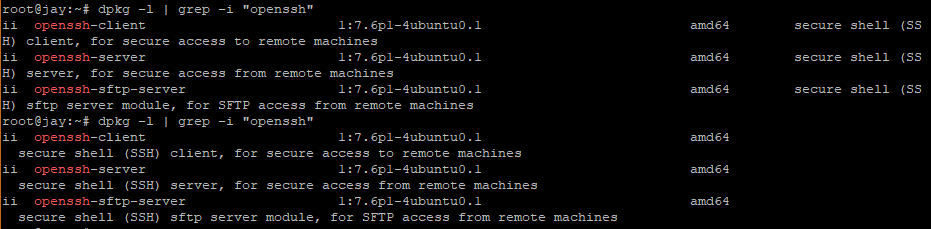
For example, to find out if OpenSSH has been installed in your system, pipe the dpkg -l command to grep as shown:
dpkg -L | grep -i "openssh"
Output:
You can use the -A or -B flags to display the number of lines that either precede or come after the search string. The -A flag denotes the lines that come after the search string and -B prints the output that appears before the search string. For example:
ifconfig | grep -A 4 ens3
This command displays the line containing the string plus 4 lines of text after the ens3 string in the ifconfig command.
Output:

Conversely, in the example below, the use of the -B flag will display the line containing the search string plus 4 lines of text before the ether string in the ifconfig command.
Example:
ifconfig | grep -B 4 ether

The term REGEX is an acronym for REGular EXpression. A REGEX is a sequence of characters that is used to match a pattern. Below are a few examples:
^      Matches characters at the beginning of a line
$      Matches characters at the end of a line
"."    Matches any character
[a-z]  Matches any characters between A and Z
[^ ..] Matches anything apart from what is contained in the brackets
Example:
To print lines beginning with a certain character, the syntax is:
grep ^character file_name
For instance, to display the lines that begin with the letter “d” in our welcome.txt file, we would execute:
grep ^d welcome.txt
Output:

To display lines that end with the letter ‘x’, run:
grep x$ welcome.txt
Output:

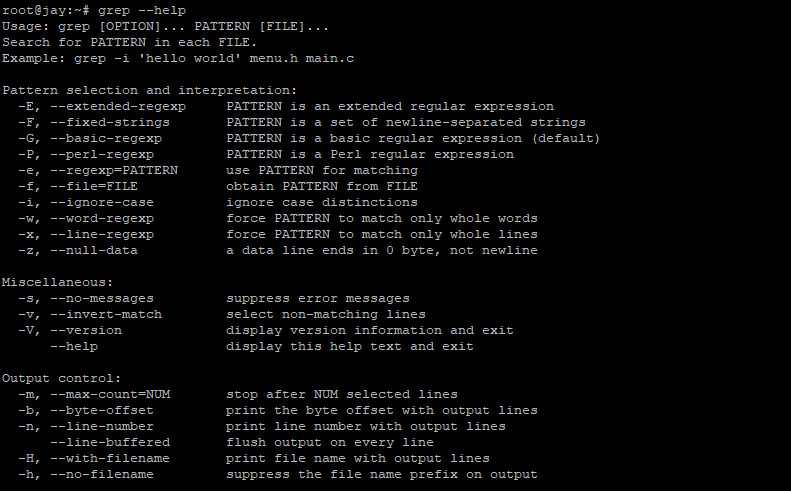
If you need to learn more about grep command usage, run the command below to get a sneak preview of other flags or options that you may use together with the command.
grep --help
Sample Output:
We appreciate your time for going through this tutorial. Feel free to try out the commands and let us know how it went.
grep with Advanced RegexThe grep command supports Extended Regular Expressions (ERE) using the -E flag, also known as egrep.
Example:
grep -E "error|warning|failure" logfile.txt
To search with groups and back-references, use:
grep -E "([0-9]{4})-([0-9]{2})-([0-9]{2})" dates.txt
For a deep dive into regex patterns, check out this tutorial on Using Grep Regular Expressions to Search for Text Patterns in Linux.
grep Handles Multi-threading with GNU ImplementationThe GNU grep implementation optimizes searches using multi-threading. If available, grep internally uses AVX2 vectorization to speed up pattern matching.
For multi-threaded searching on large files, you can use:
grep --mmap "pattern" largefile.txt
Or leverage parallel execution with xargs:
find /logs/ -type f | xargs -P 4 grep "error"
This allows grep to process multiple files in parallel, improving performance on multi-core systems.
grepWhen using grep -r, be mindful of:
Symbolic Links Loops: Use grep -R to follow symbolic links safely.
Binary File Output: Use grep --binary-files=text to process binaries as text.
Permission Errors: Run grep with sudo for restricted directories.
Example of a safer recursive search:
grep -r --exclude-dir={proc,sys,dev} "error" /
grep command in Linux?The grep (Global Regular Expression Print) command is a powerful text-searching utility in Linux/Unix that allows users to search for specific patterns in files or output streams. It supports basic and extended regular expressions to match complex text patterns efficiently.
For a more developer-friendly alternative, you can check out How to Install and Use Ack: A Grep Replacement for Developers on Ubuntu and Awk command in Linux.
grep in Linux?To search for a word or phrase in a file, use:
grep "pattern" filename
For recursive searching in directories, use:
grep -r "pattern" directory/
To enhance searching with regular expressions, refer to Using Grep Regular Expressions to Search for Text Patterns in Linux.
grep in Linux?Basic usage includes:
grep "text" file.txt
To ignore case sensitivity:
grep -i "text" file.txt
For advanced examples, you can check out this tutorial on Top 50+ Linux Commands You MUST Know.
To search for a pattern in all files within a directory:
grep -r "pattern" /path/to/directory
To include hidden files:
grep -r --exclude-dir=".*" "pattern" /path/to/directory
Be cautious with recursive searches, as large directories can slow down the process.
To search for a pattern across multiple files in subdirectories, use the -r flag:
grep -r "search_term" /directory
For better control, use the --include or --exclude options:
grep -r --include="*.log" "error" /var/logs/
One common pitfall with recursive searches is encountering symbolic links, which can be handled using the -R option instead of -r.
grep and awk Commands in Linux| Feature | grep |
awk |
|---|---|---|
| Primary Function | Search for patterns in text | Text processing and manipulation |
| Pattern Matching | Supports basic and extended regular expressions | Supports regular expressions and more advanced pattern matching |
| Output Control | Limited output control | Full control over output format and content |
| Data Manipulation | No data manipulation capabilities | Can perform arithmetic, string manipulation, and conditional statements |
| Complexity | Simple and easy to use | More complex and powerful, but steeper learning curve |
| Typical Use Cases | Quick searches, filtering text | Data extraction, transformation, and reporting |
grep is mainly used for searching patterns in text, whereas awk is more powerful for text processing and can manipulate data based on conditions.
Using grep:
grep "error" logfile.txt
Using awk:
awk '/error/ {print $2, $3}' logfile.txt
grep?grep supports regex for advanced searching:
grep -E "error|fail|warning" logfile.txt
Example:
^text - Matches lines starting with “text”.text$ - Matches lines ending with “text”.[0-9] - Matches any digit.For a detailed guide, refer to our tutorial on using Grep Regular Expressions to Search for Text Patterns in Linux.
grep be used in shell scripts?Yes! grep is widely used in shell scripts for filtering output.
if grep -q "error" logfile.txt; then
    echo "Errors found in the log."
fi
For more automation tips, check out this tutorial on Top 50 Linux commands.
此内容由惯性聚合(RSS阅读器)自动聚合整理,仅供阅读参考。 原文来自 — 版权归原作者所有。