










SSH (Secure Shell) is the standard way to log into remote Linux servers over
an encrypted connection. From your Ubuntu workstation or any client, run
ssh username@server_ip, accept the host key on first connect, then
authenticate with a password or—preferably—an SSH key pair.
This guide covers client usage, enabling OpenSSH on Ubuntu 24.04 LTS and
26.04 LTS, key-based login, sshd configuration, and common errors. For the
full protocol picture, see
SSH Essentials: Working with SSH Servers, Clients, and Keys.
Deploy your frontend applications from GitHub using DigitalOcean App Platform. Let DigitalOcean focus on scaling your app.
Version note: Commands below were validated on Ubuntu 22.04 LTS,
24.04 LTS (Noble Numbat), and 26.04 LTS (Resolute Raccoon). On current
LTS releases the systemd unit is ssh.service (manage it with
systemctl … ssh). OpenSSH on 24.04 and 26.04 reads drop-in files under
/etc/ssh/sshd_config.d/ before values in the main sshd_config. Cloud images
(including DigitalOcean Droplets)
often ship with openssh-server already installed and your SSH public key
injected at create time.
ssh user@host; use -p for a
non-default port and -i to pick a specific private key.sudo apt install openssh-server, then
sudo systemctl enable --now ssh.sshd settings in
/etc/ssh/sshd_config.d/ so they are not overwritten on package updates.sudo sshd -t before sudo systemctl reload ssh to catch config
syntax errors and avoid locking yourself out.ssh-keygen -t ed25519 over RSA for new keys; copy the public key
with ssh-copy-id.sudo ufw allow OpenSSH when the firewall
is active.PasswordAuthentication no and PermitRootLogin no for production servers.Open your terminal.
Run the SSH command:
ssh username@your_server_ip
Review and accept the host fingerprint when prompted on first connect.
Authenticate with your password or SSH key.
Disconnect with exit.
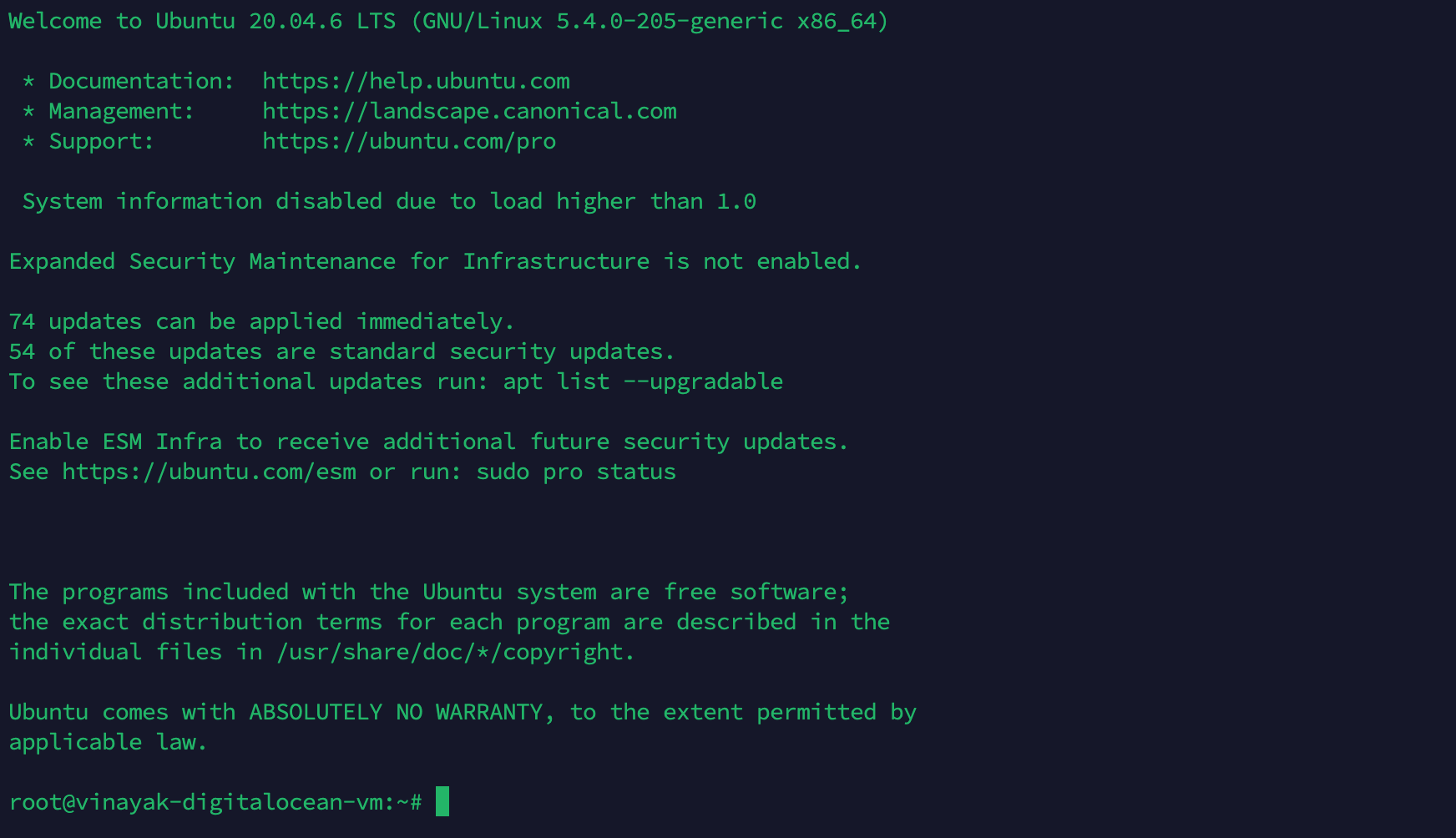 Successful SSH connection using Termius, showing Ubuntu welcome screen and shell prompt
Ubuntu Server cloud images usually include OpenSSH. Ubuntu Desktop often does not—you install it yourself. The steps are the same on 22.04, 24.04, and 26.04; differences are called out where they matter.
On the machine you want to reach remotely:
sudo apt update
sudo apt install openssh-server
sudo systemctl enable --now ssh
Confirm the service is listening:
sudo systemctl status ssh
ss -tlnp | grep ':22'
Expected state: active (running) and port 22 in LISTEN.
On Ubuntu, UFW may be inactive on local installs but is commonly enabled on servers. If UFW is active, allow SSH before connecting from another host:
sudo ufw allow OpenSSH
sudo ufw status
The OpenSSH application profile maps to port 22. For a custom port, allow that
port explicitly (see
How To Set Up a Firewall with UFW on Ubuntu).
| Topic | Ubuntu 22.04 LTS | Ubuntu 24.04 / 26.04 LTS |
|---|---|---|
| systemd unit | ssh.service |
ssh.service |
| Config drop-ins | Include /etc/ssh/sshd_config.d/*.conf |
Same; preferred place for custom rules |
| Typical OpenSSH | 8.9.x | 9.6.x (24.04), 10.x (26.04) |
Default PermitRootLogin |
often prohibit-password |
prohibit-password (key-only root) |
| Desktop: SSH server preinstalled | No | No |
| DO Droplet: SSH on first boot | Usually yes, with your SSH key | Usually yes, with your SSH key |
Official reference: OpenSSH server (Ubuntu Server documentation).
For first-time VPS hardening, follow Initial Server Setup with Ubuntu after SSH works.
To connect to a remote system, use the ssh command.
On Windows, install OpenSSH (built into current Windows 10/11), use
WSL,
or Git for Windows for a bash environment that
includes ssh. See
Microsoft’s OpenSSH documentation
for PowerShell setup.
On macOS and Linux, ssh is available in the terminal by default.
Basic form:
ssh remote_host
Replace remote_host with an IP address or domain name. If your username on the
remote system differs from your local username, specify it:
ssh remote_username@remote_host
After you connect, you may be prompted for a password unless key-based auth is configured. End the session with:
exit
SSH connects a client (ssh) to a server (sshd).
On most Ubuntu systems, sshd starts automatically once openssh-server is
installed. If the service is stopped, start it with:
sudo systemctl start ssh
If you cannot reach the host over the network, use your provider’s out-of-band console. On DigitalOcean, open the Droplet Access tab and launch the web Console—useful when SSH keys or firewall rules block normal login.
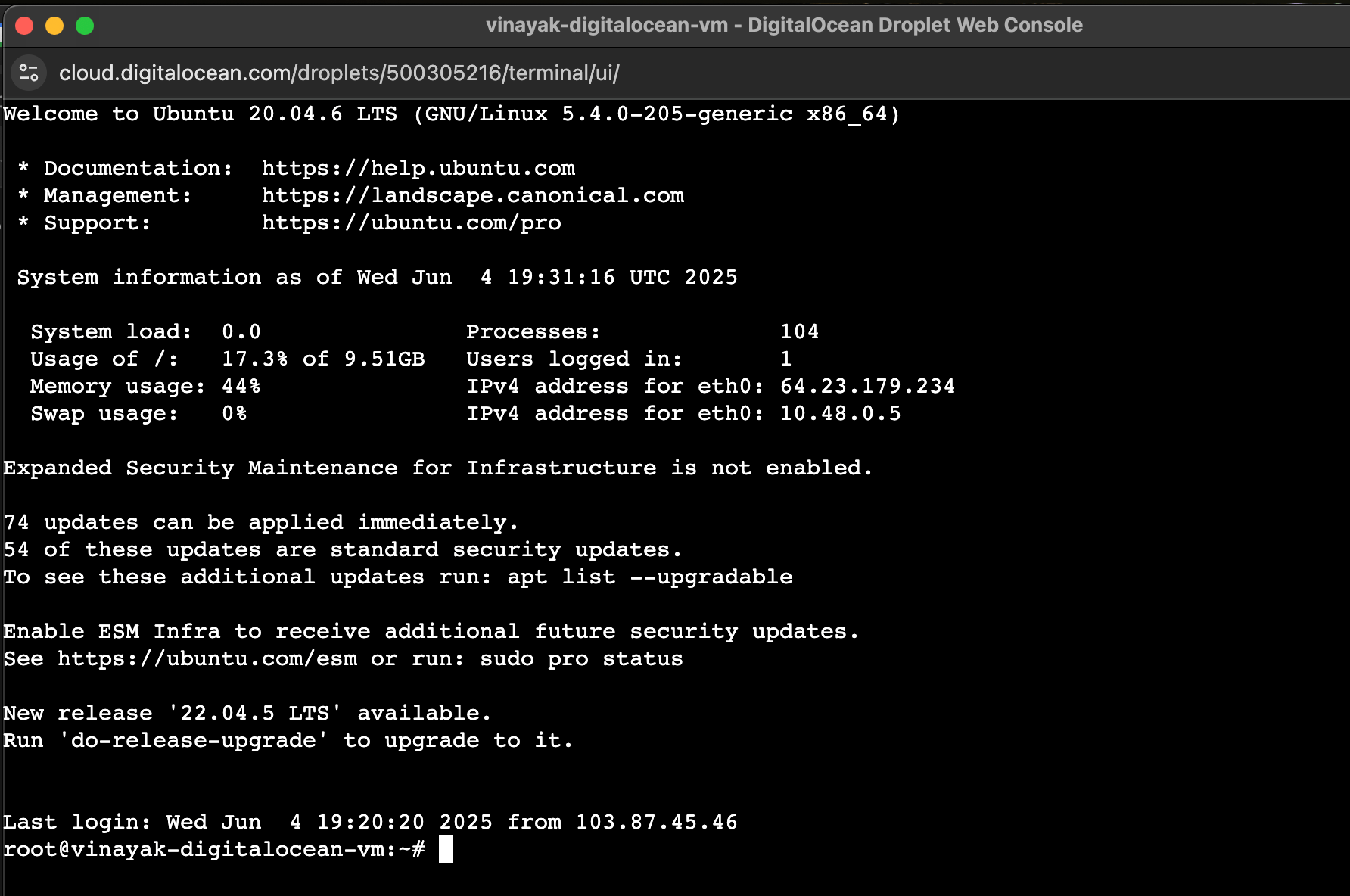 Access your server through DigitalOcean’s browser-based Console, ideal for emergency access without an SSH client.
For encryption and handshake details, read Understanding the SSH Encryption and Connection Process.
Server settings live in /etc/ssh/sshd_config. On Ubuntu 24.04 and
26.04, the first line is typically:
Include /etc/ssh/sshd_config.d/*.conf
OpenSSH applies the first value it finds for most directives. Store custom
changes in a drop-in such as /etc/ssh/sshd_config.d/99-custom.conf instead of
editing the main file when possible.
Back up before editing:
sudo cp /etc/ssh/sshd_config /etc/ssh/sshd_config.bak.$(date +%F)
Common directives to review:
Port 22
Leave at 22 unless you have a documented reason to change it. Nonstandard ports reduce noise from automated scans but are not a substitute for keys and firewall rules.
PermitRootLogin prohibit-password
On current Ubuntu LTS releases, direct root password login is usually
disabled; root may still log in with a key. For production, set
PermitRootLogin no after you have a sudo user with key access.
PubkeyAuthentication yes
PasswordAuthentication yes
KbdInteractiveAuthentication no
Older guides reference ChallengeResponseAuthentication; on OpenSSH 8.4+ use
KbdInteractiveAuthentication instead.
LogLevel INFO
Raise to DEBUG temporarily when diagnosing auth failures (revert afterward).
After edits, test and reload:
sudo sshd -t
sudo systemctl reload ssh
Keep a second terminal session open while testing so you can revert if something breaks.
~/.ssh/config for multiple connectionsCreate or edit ~/.ssh/config on your local machine:
Host dev-server
    HostName 192.168.1.10
    User devuser
    Port 2222
    IdentityFile ~/.ssh/dev_key
Connect with:
ssh dev-server
This helps when you manage several keys, users, or ports. See How to Configure SSH Key-Based Authentication on a Linux Server for a full walkthrough.
Password login works for testing; key-based authentication is faster and resists brute-force attacks.
You generate a private key (stays on your computer) and a public key
(copied to the server). The server challenges the client to prove it holds the
private key matching the public key in ~/.ssh/authorized_keys.
Generate keys on the machine you connect from (your laptop or workstation):
ssh-keygen -t ed25519
Press Enter to accept the default path (~/.ssh/id_ed25519). Optionally set a
passphrase for the private key.
For legacy systems that do not support Ed25519, use RSA:
ssh-keygen -t rsa -b 4096
Check permissions:
ls -l ~/.ssh/
Private keys should be mode 600; authorized_keys on the server should be
600 and the .ssh directory 700.
If password login still works:
ssh-copy-id username@remote_host
On DigitalOcean, you can also add keys at Droplet creation or in the control panel—see How to Add SSH Keys to Droplets.
Useful flags when connecting:
Non-default port (must match Port in sshd_config):
ssh -p port_number remote_username@remote_host
Changing the SSH port adds obscurity, not strong security. Pair key-based auth,
PermitRootLogin no, and firewall rules for meaningful protection.
Run one remote command:
ssh remote_host "command_to_run"
X11 forwarding (if enabled in sshd_config on both sides):
ssh -X remote_host
Verbose debugging:
ssh -vvv remote_username@remote_host
| Error | Possible cause | What to try |
|---|---|---|
| Connection refused | sshd not running or port blocked |
sudo systemctl start ssh; sudo ufw allow OpenSSH |
| Permission denied (publickey) | Missing key or wrong permissions | chmod 700 ~/.ssh; chmod 600 ~/.ssh/authorized_keys |
| Connection timed out | Firewall, wrong IP, or network | ping / traceroute; check cloud firewall and UFW |
| Host key verification failed | Server rebuilt or IP reused | ssh-keygen -R hostname_or_ip |
| Too many authentication failures | SSH agent offers too many keys | ssh -o IdentitiesOnly=yes -i ~/.ssh/id_ed25519 user@host |
| Error | Possible cause | Advanced fix |
|---|---|---|
| Connection closed by remote host | MaxAuthTries, idle timeout |
Check sshd_config; sudo journalctl -u ssh |
Bad owner or permissions on .ssh |
Loose permissions | chmod 700 ~/.ssh; chmod 600 private keys |
| Authentication refused | Password and keys both disabled | Ensure PubkeyAuthentication yes or restore password auth temporarily |
| Cannot resolve hostname | DNS typo | Use IP or fix /etc/hosts |
On the server, watch live logs:
sudo journalctl -fu ssh
After key login works, disable password-only auth.
Confirm your public key is in ~/.ssh/authorized_keys before disabling
passwords. Keep the web Console available until you verify key login.
Create or edit a drop-in on Ubuntu 24.04 / 26.04:
sudo nano /etc/ssh/sshd_config.d/99-disable-password.conf
Add:
PasswordAuthentication no
KbdInteractiveAuthentication no
PubkeyAuthentication yes
Validate and reload:
sudo sshd -t
sudo systemctl reload ssh
Test from a new terminal before closing your existing session.
PermitRootLogin no after creating a sudo user.openssh-server updated (sudo apt upgrade openssh-server).Windows: PowerShell, WSL, or Git Bash—all support ssh user@server_ip and
ssh-keygen.
macOS / Linux: Use the built-in terminal; same commands apply.
Generate keys:
ssh-keygen -t ed25519
Open Terminal and run:
ssh username@server_ip
Replace username with your account on the remote host and server_ip with its
public IP or hostname. The first time you connect, type yes to trust the host
key, then enter your password or use an SSH key if configured.
On the server, install and enable OpenSSH:
sudo apt update
sudo apt install openssh-server
sudo systemctl enable --now ssh
If UFW is active, run sudo ufw allow OpenSSH. On your client, generate
a key with ssh-keygen -t ed25519 and run ssh-copy-id user@server_ip to
install the public key.
The server package is openssh-server; the client tools are in
openssh-client (often preinstalled). Install the server with apt, start
ssh.service, and confirm with sudo systemctl status ssh. On Ubuntu Desktop
24.04 or 26.04, this step is required before remote login works.
sudo systemctl status ssh
Look for active (running). Also verify the port:
ss -tlnp | grep ':22'
From another machine, test with ssh -v user@host or nc -zv host 22.
Common causes:
openssh-server not installed (especially on Desktop)—install it with apt.sshd not running—sudo systemctl start ssh.sudo ufw allow OpenSSH or open the port in your cloud firewall.ssh -vvv for details.sshd_config—run sudo sshd -t; fix errors before reload.Use the provider console (DigitalOcean Console tab) if SSH is down but the VM is still running.
SSH remains the default for remote Linux administration because it is
encrypted, lightweight, and works across clouds and local networks. On Ubuntu
24.04 and 26.04, install openssh-server, use sshd_config.d for custom
settings, prefer Ed25519 keys, and test with sshd -t before reloading the
service.
Go deeper with:
Add SSH keys to new Droplets in one step—see How to Add SSH Keys to Droplets.
 This work is licensed under a Creative Commons Attribution-NonCommercial- ShareAlike 4.0 International License.
此内容由惯性聚合(RSS阅读器)自动聚合整理,仅供阅读参考。 原文来自 — 版权归原作者所有。