--摘抄自:http://blog.csdn.net/zhoufoxcn/article/details/14112473
在开发.NET应用中可能会遇到需要生成带图表(Chart)的Excel报表的需求,特别是在一些ASP.NET网站中,有时候我们并不能保证Web服务器上一定安装了Office组件,所以使用微软的Office来生成Excel并不保证在所有情况下都使用,有时候即使Web服务器上安装了Office也会出现一些运行权限方面的原因到导致调用Excel组件生成Excel失败,所以在这里介绍一种无需安装Office并且无需较高权限就能生成Excel的方法。
EPPlus简介
在介绍EPPlus之前,首先要介绍一下Office Open XML。以下文字来自于维基百科(网址:维基百科中Office Open XML的介绍,有删节):
Office Open XML(缩写:Open XML、OpenXML或OOXML),是由Microsoft开发的一种以XML为基础并以ZIP格式压缩的电子文件,支持Word、Excel、Office Note、PPT等文件格式。OOXML在2006年12月成为了ECMA规范的一部分,编号为ECMA-376;并于2008年4月国际标准化组织(ISO)的表決,在两个月公布为ISO/IEC 29500国际标准。从Microsoft Office 2007开始,Office Open XML文件格式已经成为Microsoft Office默认的文件格式。Microsoft Office 2010支持对ECMA-376标准文档的读操作,ISO/IEC 29500 Transitional的读/写,ISO/IEC 29500 Strict的读取。Microsoft Office 2013同时支持ISO/IEC 29500 Strict的读写操作。
EPPlus就是一个通过Open XML方式来读写Office文件的开源.NET类库,所以使用它生成Office文件完全不需要Microsoft Office(当然如果你需需要查看生成的文件就需要Office了)。它的官方网址是:http://epplus.codeplex.com/。如果需要体验本文中提到的效果,需要从这个网址下载最新版本的类库,我现在使用的这个名为EPPlus.dll类库仅658K,非常方便部署。
代码示例
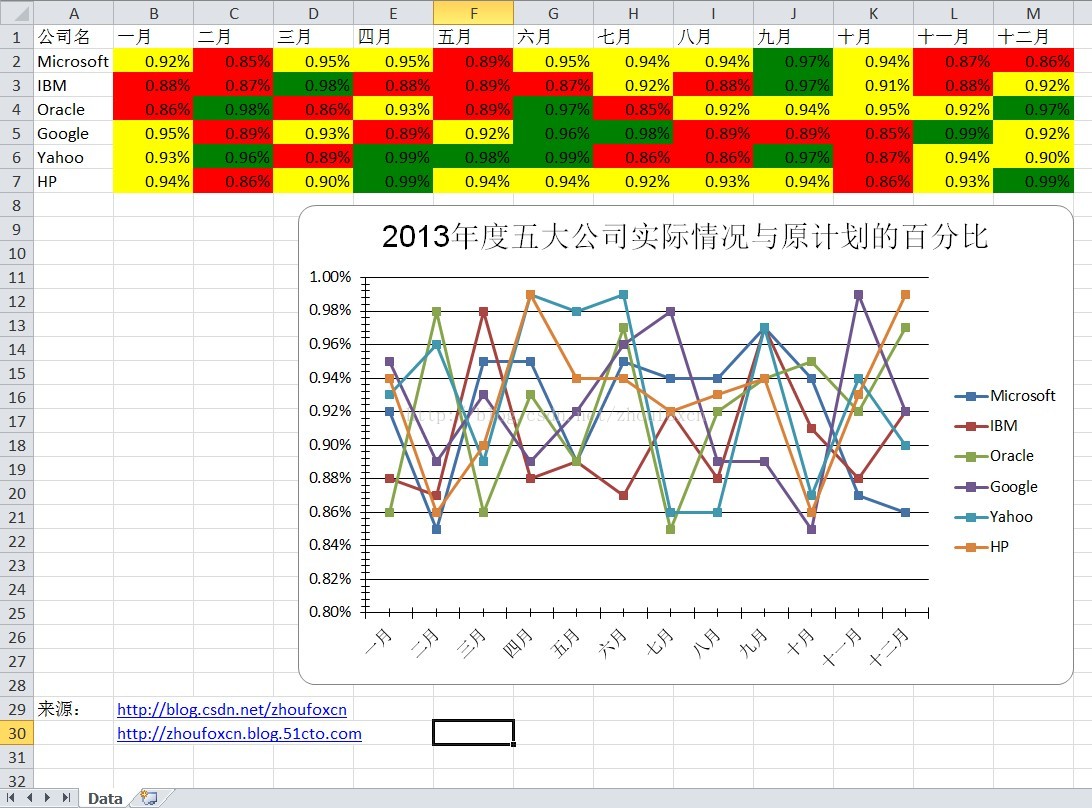
为了演示EPPlus的用法,这里写了一个简单的例子,在这个例子里演示模拟了几大公司实际业绩与计划业绩的百分比,如果这个百分比大于95%则会将所在的单元格显示为绿色,如果小于90%则会显示为红色,否则就显示为黄色,并且还会生成一个图标来直观表示每月实际完成情况与计划的百分比。
完整代码如下:
  /*
   ********************************************************************************
   *
   *    Project           A report project
   *    Module Name       Excel Report
   *    Author            Zhou, Jin-Qiao (周金桥)
   *    Creation Date     [11/03/2013]
   *    Description       Generate Excel Report with Chat demo by Epplus
   *
   *    © Copyright 2013 zhoufoxcn.
   *
   ********************************************************************************
   */
  using System;
  using System.Data;
  using System.Drawing;
  using System.IO;
  using OfficeOpenXml;
  using OfficeOpenXml.Drawing.Chart;
  using OfficeOpenXml.Style;

  namespace ExcelReportApplication
  {
      /// <summary>
      /// 使用EPPlus生成带图表(Chart)的Excel文件的例子,注意在运行的机器上无需安装Office,因为EPPlus是使用基于OpenXML技术生成的Excel文件。
      /// 任何网站和个人均可在不对本代码做任何修改的情况下转载本文及本文中示例的代码用于非商业用途,任何除去版权的行为均为侵权。
      /// 作者:周公(周金桥)
      /// 创建日期:2013-11-03
      /// 博客地址:http://blog.csdn.net/zhoufoxcn http://zhoufoxcn.blog.51cto.com
      /// 新浪微博地址:http://weibo.com/zhoufoxcn
      public class ExcelExportPage
      {
          private static readonly string[] MonthNames = new string[] { "一月", "二月", "三月", "四月", "五月", "六月", "七月", "八月", "九月", "十月", "十一月", "十二月"};
          //private static readonly string[] CommpanyNames = new string[] { "Microsoft", "IBM", "Oracle", "Amazon", "Google", "Facebook", "Twitter", "Paypal", "Yahoo", "HP" };
          private static readonly string[] CommpanyNames = new string[] { "Microsoft", "IBM", "Oracle", "Google","Yahoo", "HP" };

          static void Main(string[] args)
          {
              ExcelExportPage.GenerateExcelReport();
          }

          /// <summary>
          /// 周公(周金桥)说明:这个方法就是主要演示如何生成带图表(Chart)的Excel文件的例子
          /// </summary>
          public static void GenerateExcelReport()
          {
              string fileName = "ExcelReport-"+DateTime.Now.ToString("yyyy_MM_dd_HHmmss") + ".xlsx";
              string reportTitle = "2013年度五大公司实际情况与原计划的百分比";
              FileInfo file = new FileInfo("C:\\"+fileName);
              using (ExcelPackage package = new ExcelPackage(file))
              {
                  ExcelWorksheet worksheet = null;
                  ExcelChartSerie chartSerie = null;
                  ExcelLineChart chart = null;
                  #region research
                  worksheet = package.Workbook.Worksheets.Add("Data");
                  DataTable dataPercent = GetDataPercent();
                  //chart = Worksheet.Drawings.AddChart("ColumnStackedChart", eChartType.Line) as ExcelLineChart;
                  chart = worksheet.Drawings.AddChart("ColumnStackedChart", eChartType.LineMarkers) as ExcelLineChart;//设置图表样式
                  chart.Legend.Position = eLegendPosition.Right;
                  chart.Legend.Add();
                  chart.Title.Text = reportTitle;//设置图表的名称
                  //chart.SetPosition(200, 50);//设置图表位置
                  chart.SetSize(800, 400);//设置图表大小
                  chart.ShowHiddenData = true;
                  //chart.YAxis.MinorUnit = 1;
                  chart.XAxis.MinorUnit = 1;//设置X轴的最小刻度
                  //chart.DataLabel.ShowCategory = true;
                  chart.DataLabel.ShowPercent = true;//显示百分比

                  //设置月份
                  for (int col = 1; col <= dataPercent.Columns.Count; col++)
                  {
                      worksheet.Cells[1, col].Value = dataPercent.Columns[col - 1].ColumnName;
                  }
                  //设置数据
                  for (int row = 1; row <= dataPercent.Rows.Count; row++)
                  {
                      for (int col = 1; col <= dataPercent.Columns.Count; col++)
                      {
                          string strValue = dataPercent.Rows[row - 1][col - 1].ToString();
                          if (col == 1)
                          {
                              worksheet.Cells[row + 1, col].Value = strValue;
                          }
                          else
                          {
                              double realValue = double.Parse(strValue);
                              worksheet.Cells[row + 1, col].Style.Fill.PatternType = ExcelFillStyle.Solid;
                              worksheet.Cells[row + 1, col].Style.Numberformat.Format = "#0\\.00%";//设置数据的格式为百分比
                              worksheet.Cells[row + 1, col].Value = realValue;
                              if (realValue< 0.90d)//如果小于90%则该单元格底色显示为红色
                              {

                                  worksheet.Cells[row + 1, col].Style.Fill.BackgroundColor.SetColor(Color.Red);
                              }
                              else if (realValue>= 0.90d && realValue <= 0.95d)//如果在90%与95%之间则该单元格底色显示为黄色
                              {
                                  worksheet.Cells[row + 1, col].Style.Fill.BackgroundColor.SetColor(Color.Yellow);
                              }
                              else
                              {
                                  worksheet.Cells[row + 1, col].Style.Fill.BackgroundColor.SetColor(Color.Green);//如果大于95%则该单元格底色显示为绿色
                              }
                          }
                      }
                      //chartSerie = chart.Series.Add(worksheet.Cells["A2:M2"], worksheet.Cells["B1:M1"]);
                      //chartSerie.HeaderAddress = worksheet.Cells["A2"];
                      //chart.Series.Add()方法所需参数为:chart.Series.Add(X轴数据区,Y轴数据区)
                      chartSerie = chart.Series.Add(worksheet.Cells[row + 1, 2, row + 1, 2 + dataPercent.Columns.Count - 2], worksheet.Cells["B1:M1"]);
                      chartSerie.HeaderAddress = worksheet.Cells[row + 1, 1];//设置每条线的名称
                  }
                  //因为假定每家公司至少完成了80%以上,所以这里设置Y轴的最小刻度为80%,这样使图表上的折线更清晰
                  chart.YAxis.MinValue = 0.8d;
                  //chart.SetPosition(200, 50);//可以通过制定左上角坐标来设置图表位置
                  //通过指定图表左上角所在的行和列及对应偏移来指定图表位置
                  //这里CommpanyNames.Length + 1及3分别表示行和列
                  chart.SetPosition(CommpanyNames.Length + 1, 10, 3, 20);
                  #endregion research
                  package.Save();//保存文件
              }
          }

          /// <summary>
          /// 生成数据,由于这一步不是主要逻辑,所以采用随机生成数据的方式,实际中可根据需要从数据库或其它数据源中读取需要的数据
          /// </summary>
          /// <returns></returns>
          private static DataTable GetDataPercent()
          {
              DataTable data = new DataTable();
              DataRow row = null;
              Random random=new Random();
              data.Columns.Add(new DataColumn("公司名", typeof(string)));
              foreach(string monthName in MonthNames){
                  data.Columns.Add(new DataColumn(monthName, typeof(double)));
              }
              //每个公司每月的百分比表示完成的业绩与计划的百分比
              for (int i = 0; i < CommpanyNames.Length; i++)
              {
                  row = data.NewRow();
                  row[0] = CommpanyNames[i];
                  for (int j = 1; j <= MonthNames.Length; j++)
                  {
                      //这里采用了随机生成数据,但假定每家公司至少完成了计划的85%以上
                      row[j] = 0.85d + random.Next(0, 15) / 100d;
                  }
                  data.Rows.Add(row);
              }


              return data;
          }
      }
  }
最终生成的Excel文件内容如下:
此内容由惯性聚合(RSS阅读器)自动聚合整理,仅供阅读参考。 原文来自 — 版权归原作者所有。