





选择Report-打开属性窗口,设置默认边距(Margins)和默认纸张(PaperKind)。


一般情况下,Report 的Preview视图中的工具栏不用修改就可满足使用。但是当想修改或添加新的按钮执行自己的方法时就需要修改Preview工具栏了。
2.1 获取默认工具栏
DevExpress.XtraBars.Bar bar = Report.PrintingSystem.PreviewFormEx.PrintBarManager.Bars[0];
PrintingSystem:当前Report的默认打印组件,用于提供默认的打印预览对话框和打印功能。
可通过PrintingSystem.PreviewForEx.PrintBarManager获取设置打印预览窗口的工具栏和菜单。
获取DevExpress.XtraBars.Bar 之后就可以添加或删除新的BarItem和Menu。
2.2 添加新的按钮
bar.DockStyle = DevExpress.XtraBars.BarDockStyle.Top;
DevExpress.XtraBars.BarButtonItem printItem = new DevExpress.XtraBars.BarButtonItem(
printingSystem.PreviewFormEx.PrintBarManager, "打印", 1);
bar.AddItem(printItem);
2.3 隐藏不需要的按钮
事例:隐藏打印按钮
PrintingSystem.SetCommandVisibility(new PrintingSystemCommand[]{
PrintingSystemCommand.PrintDirect,PrintingSystemCommand.Print}, CommandVisibility.None);
SetCommandVisibility()方法:设置菜单和工具栏按键的显示及隐藏。
方法原形:
public void SetCommandVisibility(
PrintingSystemCommand[] commands,
CommandVisibility visibility
);
Parameters
commands
DevExpress.XtraPrinting.PrintingSystemCommand
指定可在打印系统的预览文件执行的命令。(详细说明请点击链接参见帮助文档)
visibility
指定用于打印系统命令的能见度标准。(详细说明请点击链接参见帮助文档)
All
这两个命令的工具栏项目和菜单项是可见的。
Menu
已过时;使用CommandVisibility全部代替。这两个命令的工具栏项目和菜单项是可见的。
None
这两个命令的工具栏按钮和菜单项是看不见的。
Toolbar
已过时;使用CommandVisibility全部代替。这两个命令的工具栏项目和菜单项是可见的。
使用Developer Express报表控件:
新建一个报表的时候,在添加新项中选择XtraReport V3 Class选项,名称自己命名,
点确定就会跳出它的设计界面。
它会有三个区域:PageHeader[one band per page],Detail,PageFooter[one band per page]这三个区域。
首先要添加一个ReportHeader[one band per report],可以在它的空白区域,右击鼠标-->Insert Band-->
ReportHeader即可。不需要PageHeader[one band per page]的话,可以把它删掉。
两者的区别主要是PageHeader[one band per page]打印出来的每个页都会显示PageHeader[one band per page]
所设计的内容。而ReportHeader[one band per report]打印出来的只有在首页才会显示。其它的页就不会了。
接着就是主要界面设计的问题,可以在它的空白区域,右击鼠标-->Insert Detail Report-->Unbound即可。
它就会跳出一个DetailReport,它下面还有一个Detail1,主要是用来显示主要内容用的。接着再添加一个用来
显示一个主要内容的列标头,就相当于标志以便更容易查看。可以右击鼠标-->Insert Band-->GroupHeader即可。
就会有一个GroupHeader1显示出来,它是在Detail1上面的,或者还要显示一些主要内容显示完之后的一些数据,
又要右击鼠标-->Insert Band-->GroupFooter即可。
如果又要让它同时显示另外一个,可以选中Detail,然后右击鼠标-->Insert Detail Report-->Unbound它就会
跳出另外一个DetailReport1,它下面还有一个Detail2,添加其它的同上。
要让以下的有数据的话,就要事先对它的数据进行绑定
DetailReport.DataAdapter = Adp '数据适配器
DetailReport.DataSource = dst '数据集
DetailReport.DataMember = "a" '表
如果想让所查找出来的数据,让它有顺序排列的话,就要使用它里面的事件了!
如Cell7单元格是在表格里面,但其它表格的单元格绑定在所查找的数据中,数据有5条的话,Cell单元格它就不会自己显示1,2,3,4,5这样排序了
。就要使用它本身单元格的事件。
Private Sub Cell7_BeforePrint(ByVal sender As Object, ByVal e As System.Drawing.Printing.PrintEventArgs) Handles
Cell7.BeforePrint
Dim lab As XRLabel = sender
lab.Text = s 's这个变量要定义一个全局变量,初始值设为1
s += 1
End Sub
还有一种情况,可能要对表格每一行数据中的某列进行求和或求个数。
'求个数
Dim XrSummary2 As DevExpress.XtraReports.UI.XRSummary = New DevExpress.XtraReports.UI.XRSummary
Cell32.DataBindings.Add("Text", dst, "a.id")
XrSummary2.FormatString = "{0}"
XrSummary2.Func = SummaryFunc.Count
XrSummary2.Running = DevExpress.XtraReports.UI.SummaryRunning.Group
Me.Cell32.Summary = XrSummary2 '就可以显示所要的个数
'求和
Dim XrSummary1 As DevExpress.XtraReports.UI.XRSummary = New DevExpress.XtraReports.UI.XRSummary
Me.Cell33.DataBindings.AddRange(New DevExpress.XtraReports.UI.XRBinding() {New DevExpress.XtraReports.UI.XRBinding("Text", dst, "a.startmoney", "{0}")})
XrSummary1.FormatString = "{0}"
XrSummary1.Func = SummaryFunc.Sum
XrSummary1.Running = DevExpress.XtraReports.UI.SummaryRunning.Group
Me.Cell33.Summary = XrSummary1
'单元格的绑定
XrTableCell30.DataBindings.Add("Text", dst, "Vouchers.Name")
Cell17.DataBindings.AddRange(New DevExpress.XtraReports.UI.XRBinding() {New DevExpress.XtraReports.UI.XRBinding("Text", dst1, "a.Depositdate", "{0:yyyy/MM/dd}")}) '日期格式的绑定
'如果要把两个表格中某一列的值相符累加起来
'定义两个变量interest1,interest2为Double型
'第一个表格的某个列
Private Sub Cell25_BeforePrint(ByVal sender As Object, ByVal e As System.Drawing.Printing.PrintEventArgs) Handles Cell25.BeforePrint
Dim lab As XRLabel = sender
Dim value As Double
value = Convert.ToDouble(lab.Text)
interest1 += value '就会求出这一列中所有数据的总和
End Sub
'第二个表格的某个列
Private Sub Cell23_BeforePrint(ByVal sender As Object, ByVal e As System.Drawing.Printing.PrintEventArgs) Handles Cell23.BeforePrint
Dim lab As XRLabel = sender
Dim value As Double
value = Convert.ToDouble(lab.Text)
interest2 += value
End Sub
'这样就会把这两列的值添加到单元格Cell19中
Private Sub Cell19_BeforePrint(ByVal sender As Object, ByVal e As System.Drawing.Printing.PrintEventArgs) Handles Cell19.BeforePrint
Me.Cell19.Text = interest1 + interest2
End Sub
在Web中打印预览
在Web程序中使用起来可能有点麻烦,但相对来说还是比较容易的。
1 在页面中分别添加ReportToolbar和ReportViewer。如图:
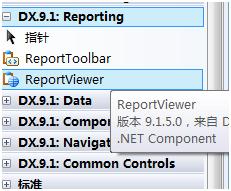
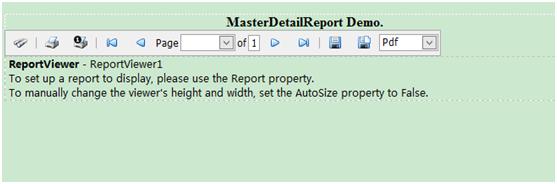
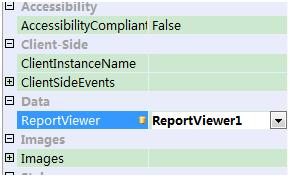
ReportToolbar提供一组工具命令,用来控件ReportViewer视图执行哪些操作,ReportToolbar最重要的属性就是ReportViewer属性,给其指定一个报表视图。如下图:
ReportViewer用来展现那Report报表,可以通过ReportViewer的Report属性指定(通过列表选择即可),如下图:
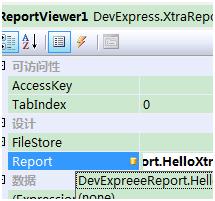
设置完成后,通过浏览器打开页面并预览报表。
此内容由惯性聚合(RSS阅读器)自动聚合整理,仅供阅读参考。 原文来自 — 版权归原作者所有。