





Windows Terminal 支持 UTF-8 输出内容,对 git-bash 和 cmd 自带的输出中文支持较好,而且支持 FiraCode 这种程序编码的连接字体。
准备
Windows Terminal 的下载页面:https://github.com/microsoft/terminal/releases
FiraCoda 字体的下载页面:https://github.com/tonsky/FiraCode/releases
Git-Bash 下载页面:https://git-scm.com/downloads
安装
Windows Terminal 安装包的扩展名是 .appxbundle ,如果双击安装包没有关联的程序可以打开,需要先在 Microsoft Store(系统自带的商店APP)中搜索安装:“应用安装程序”,在 Microsoft Corporation * 应用程序与工具 类别。
然后就可以双击安装了。
FiraCode 下载到 zip 文件包,解压后进入 ttf 目录,全选字体文件,右键 -> 安装。如果之前安装过低版本的 FiraCode 字体,需要先到 Fonts 中删除原有的 FiraCode 字体,如果无法删除,最好重启下电脑。
Git-Bash 直接安装 git 软件即可,建议安装后启动 git-bash(右键一个目录 -> Git Bash Here),配置 git,输入:
# 请更改为你的用户名和邮箱
git config --global user.name "yourname"
git config --global user.email "yourname@domain.com"
# 配置仅推送当前分支
git config --global push.default current
# 若需要推送全部分支
# git config --global push.default matching
# 配置非ASCII字符输出
git config --global core.quotepath off
# 配置禁用自动换行符替换(仅Windows)
git config --global core.autocrlf false
# 配置大小写敏感(仅Windows)
git config --global core.ignorecase false
# 配置 gui 文本编码(仅Windows)
git config --global gui.encoding utf-8
右键Git Bash窗口标题栏 -> 选项...
打开选项窗口,在“文本”分类里配置:字符集:UTF-8,本地Locale选择:zh_CN;
在“窗口”分类里配置:界面语言:zh_CN;
点击“应用”按钮后,点“保存”。
配置 Windows Terminal
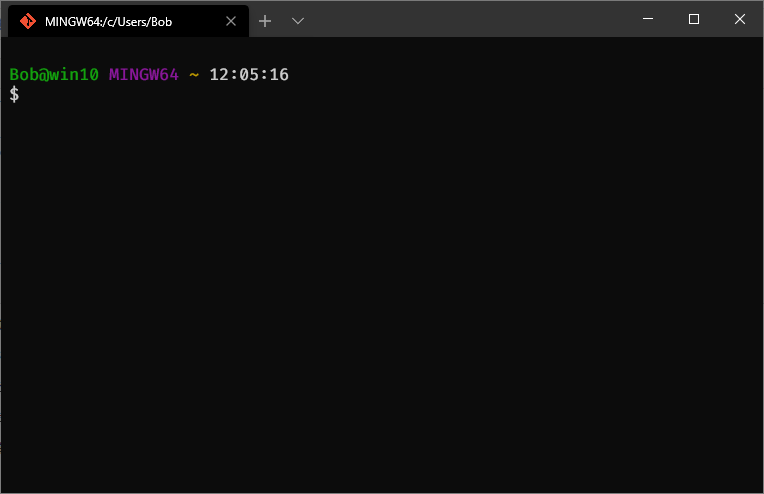
启动 Windows Terminal,默认打开了一个 PowerShell,点击标题栏的向下箭头->设置命令,会用默认程序打开一个 settings.json 配置文件(最好先关联json文件用你熟悉的文本编辑工具打开)
然后在 list 数组中加入下面内容:
            {
                "guid": "{f323ab3c-9641-4904-a3a6-dc4e4992b6ae}",
                "name": "Git Bash",
                "commandline": "%programfiles%\\Git\\bin\\bash.exe --login",
                // "startingDirectory": "%userprofile%",
                "hidden": false,
                "closeOnExit": true,
                "fontFace": "Fira Code Retina",
                "fontSize": 12,
                "historySize": 9001,
                "icon": "%programfiles%\\Microsoft VS Code\\resources\\app\\extensions\\git\\resources\\icons\\git.png"
            }
如果你的git-bash没有安装到C:盘位置,你需要修改为正确的路径,icon也是,我使用了 VSCode 中的 git.png 作为图标,如果没有可以去掉这个属性。
如果没有安装 Fira Code 字体,可以将 fontFace 和 fontSize 去掉。
默认启动目录使用了用户目录。命令行中 --login 参数是必须的,这样,与单独启动 git-bash 的行为一样,会自动执行 .bash_profile 的配置。
如果想让 git bash 作为默认的启动 Shell,可以在配置中找到 defaultProfile,更改为git bash的guid,这里是 {f323ab3c-9641-4904-a3a6-dc4e4992b6ae}
当然也可以自己配置任意的 guid,可以是 PowerShell 中输入 New-Guid 获得。
为了集成到Windows的右键菜单,所以注释掉了 startingDirectory。
集成右键菜单
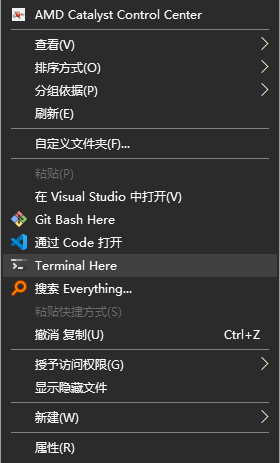
在explorer的地址栏里直接输入 wt 就可以在当前目录启动 Windows Terminal,为了方便鼠标使用,可以通过注册表集成到目录的右键菜单里。
wt.exe 的完整路径是 %userprofile%\AppData\Local\Microsoft\WindowsApps\wt.exe
加入注册表需要将环境变量 %userprofile% 替换正确的位置,也就是你的用户目录下。
我写了一个 bat 脚本来自动安装或者卸载它,内容如下:
Microsoft.Terminal.Here.bat

:: install or uninstall windows terminal here
:: written by m2nlight
@echo off
setlocal enabledelayedexpansion
set regkey=HKCR\Directory\Background\shell\wt_shell
set regkey2=HKCR\Directory\shell\wt_shell
set exe="%userprofile%\AppData\Local\Microsoft\WindowsApps\wt.exe"
set title=Windows Terminal
set cmdText=Terminal Here
set cmdLine=\"%exe%\"
set icon=
:: check UAC
set getadminfile="%temp%\getadmin.vbs"
echo %title%
echo ============================
echo Starting, please allow UAC window...
>nul 2>nul "%SYSTEMROOT%\system32\cacls.exe" "%SYSTEMROOT%\system32\config\SYSTEM"
if %ERRORLEVEL% equ 0 (
    goto :start
) else (
    if %ERRORLEVEL% equ 2 (
        goto :pathErr
    ) else (
        goto :getUAC
    )
)
:pathErr
echo.
echo Please open "%~n0%~x0" in explorer.exe
echo.
echo Press any key to explore the folder...
pause>nul
start "" "%SYSTEMROOT%\system32\explorer.exe" /select,"%~f0"
goto :eof
:getUAC
echo Set sh = CreateObject^("Shell.Application"^) > %getadminfile%
echo sh.ShellExecute "%~f0", "", "", "runas", 1 >> %getadminfile%
ping 127.1 -n 1 >nul
"%SYSTEMROOT%\system32\cscript.exe" %getadminfile% >nul 2>nul
goto :eof
:start
if exist %getadminfile% ( del %getadminfile% )
cls
rem UAC code end
echo %title%
echo ============================
:: check is installed
reg query "%regkey%" >nul 2>nul
if errorlevel 1 goto :install
goto :uninstall
:install
:: check wt.exe is existed
if not exist "%exe%" (
    echo Please install %title%, first!
    pause>nul
    goto :eof
) else (
    :: find WindowsTerminal.exe and set icon
    if "%icon%"=="" (
        for /f %%i in ('dir /b /w "%programfiles%\WindowsApps\Microsoft.WindowsTerminal_*"') do (
            set wtfull=%programfiles%\WindowsApps\%%~i\WindowsTerminal.exe
            if exist "!wtfull!" (
                set icon=!wtfull!
                goto :breakfor
            )
        )
    )
    :breakfor
    call :regadd "%regkey%"
    call :regadd "%regkey2%"
    echo %cmdText% is installed
)
goto :end

:regadd
reg add "%~1" /ve /t REG_SZ /d "%cmdText%" /f >nul 2>nul
if not "%icon%"=="" reg add "%~1" /v Icon /t REG_SZ /d "%icon%" /f >nul 2>nul
reg add "%~1\command" /ve /t REG_SZ /d "%cmdLine%" /f >nul 2>nul
goto :eof

:uninstall
set /p ok=Uninstall %title% (y/N)?^
if /i "%ok%"=="y" (
    reg delete "%regkey%" /f >nul 2>nul
    reg delete "%regkey2%" /f >nul 2>nul
    echo %cmdText% is uninstalled
) else (
    goto :eof
)
goto :end
:end
timeout /t 5
View Code
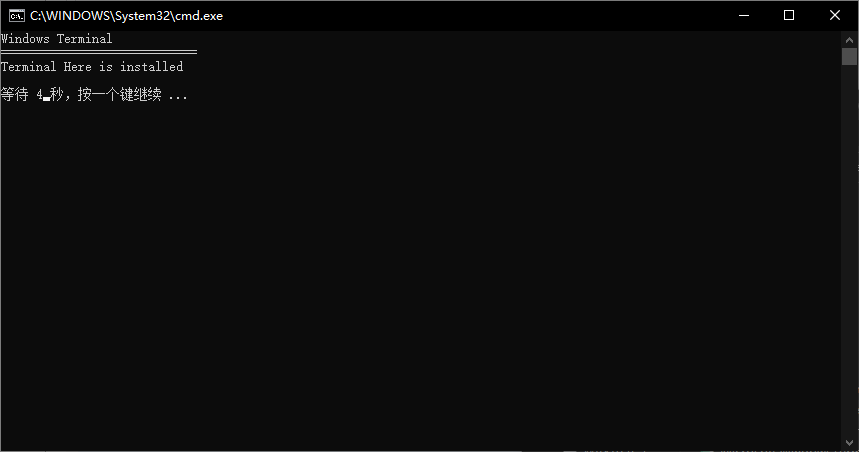
双击后,出现 Terminal Here is installed 表示安装成功。(请忽略:错误: 系统找不到指定的注册表项或值。)
再次双击会删除 Terminal Here
集成VSCode
修改VSCode的配置文件,如下:
"terminal.explorerKind": "external",
"terminal.external.windowsExec": "C:\\Users\\你的用户名\\AppData\\Local\\Microsoft\\WindowsApps\\wt.exe"
这样在VSCode左侧的 EXPORER 右键一个目录,选择“Open in terminal”命令,就可以启动 Windows Terminal。
此内容由惯性聚合(RSS阅读器)自动聚合整理,仅供阅读参考。 原文来自 — 版权归原作者所有。