


惯性聚合 高效追踪和阅读你感兴趣的博客、新闻、科技资讯
阅读原文 在惯性聚合中打开

推荐订阅源

freeCodeCamp Programming Tutorials: Python, JavaScript, Git & More
腾讯CDC
cs.AI updates on arXiv.org
L
LINUX DO - 热门话题
D
Darknet – Hacking Tools, Hacker News & Cyber Security
Project Zero
Project Zero
V
Vulnerabilities – Threatpost
Cisco Talos Blog
Cisco Talos Blog
P
Palo Alto Networks Blog
C
Cisco Blogs
A
Arctic Wolf
月光博客
月光博客
The GitHub Blog
The GitHub Blog
T
The Blog of Author Tim Ferriss
量子位
小众软件
小众软件
Latest news
Latest news
OSCHINA 社区最新新闻
OSCHINA 社区最新新闻
Microsoft Security Blog
T
The Exploit Database - CXSecurity.com
Security Latest
Security Latest
N
Netflix TechBlog - Medium
K
Kaspersky official blog
人人都是产品经理
人人都是产品经理
Cyber Security Advisories - MS-ISAC
博客园_首页
Y
Y Combinator Blog
P
Proofpoint News Feed
H
Hackread – Cybersecurity News, Data Breaches, AI and More
M
MIT News - Artificial intelligence
T
Threat Research - Cisco Blogs
S
Schneier on Security
D
Docker
Scott Helme
Scott Helme
MyScale Blog
MyScale Blog
Spread Privacy
Spread Privacy
cs.CL updates on arXiv.org
Threat Intelligence Blog | Flashpoint
GbyAI
GbyAI
有赞技术团队
有赞技术团队
Google DeepMind News
The Hacker News
The Hacker News
H
Help Net Security
Simon Willison's Weblog
J
Java Code Geeks
C
Cyber Attacks, Cyber Crime and Cyber Security
T
Tenable Blog
B
Blog
Know Your Adversary
Know Your Adversary
IT之家
IT之家

博客园 - 东国先生

MongoDB - 安装及相关资料 8种Nosql数据库系统对比 Apache 服务器安装和配置相关资料 ffmpeg: error while loading shared libraries: libavdevice.so.53 亚马逊S3 - The difference between the request time and the current time is too large. Imagick setFont() 不能设置字体问题 当Linux中glibc被无意删除后…… vim终端下中文乱码问题 解决Linux中文乱码 Linux下PHP文件操作提示无权限 还原sql server数据库时,无法获得对数据库的独占访问权 zen-cart开发教程 - 通知者/观察者模式 修改zen-cart下单和付款流程以防止漏单 利用反射设置对象的属性(Property) 【转载】Paypal 标准变量列表 C#中的委托 zen-cart开发教程 - 概述 PHP文件操作函数 2009年终总结
zen-cart开发教程 - 开发Sidebox插件
东国先生 · 2010-03-12 · via 博客园 - 东国先生

首先需要搞清楚什么是SideboxSidebox是一个显示在左侧或者右侧的内容区域,当然你也可以将Sidebox的单栏状态打开,使其显示在网页的任何位置。你可以通过进入后台的Tools/Layout Boxes Controller来进行Sidebox的设置。注意的是如果开启了单栏Sidebox的话,你必须通过一句代码手动将其显示到模板中去,否则你是看不到任何效果的。zen-cart中自带了很多Sidebox, 例如显示产品分类的Sidebox, 显示最新产品的Sidebox, 选择语言的Sidebox等等。

  1. Sidebox相关的文件和目录

    输出左侧sidebox的文件:/includes/modules/column_left.php

    输出右侧侧sidebox的文件:/includes/modules/column_right.php

    输出单栏sidebox的文件:/includes/modules/column_single.php

    存储sidebox的位置:/includes/modules/sideboxes

    Sidebox模版位置:/includes/templates/template_default/sideboxes

    默认左侧sidebox模版/includes/templates/template_default/common/tpl_box_default_left.php

    默认右侧sidebox模版:/includes/templates/template_default/common/tpl_box_default_right.php

    默认单栏sidebox模版:/includes/templates/template_default/common/ tpl_box_default_single.php


  2. 实例: hello_sidebox的开发
    下面我们来开发一个简单的sidebox,以说明开发一个Sidebox的基本步骤,该sidebox只显示一段文字,并不实现任何功能, 我们将这个 sizebox命名为 hello_sidebox
    1). 设置语言和要在sidebox中显示的内容
       在目录
    ” /includes/languages/english/extra_definitions”新建一个PHP文件,命名为” hello_sidebox.php”, 并设置英语环境下sideboxTitle和要显示的内容。该文件中定义了两个常量BOX_HEADING_HELLOW_SIDEBOX(sidebox的标题), 'BOX_HEADING_HELLOW_SIDEBOX_CONTENT(显示的内容),代码如下

    define(BOX_HEADING_HELLOW_SIDEBOX, "Hello sidebox");
    define(BOX_HEADING_HELLOW_SIDEBOX_CONTENT, "This is a sidebox demo");

    2).   新建sidebox文件
       在目录”/includes/modules/sideboxes”下面新建一个 文件, 命名为” hello_sidebox.php”, 并输入以下代码, 其中第一行加载了hello_sidebox的模板文件, 第二行设置了sidebox的标题, 第三行代码加载了用来输出sidebox的模板文件.

     require($template->get_template_dir('tpl_wp_cats.php',DIR_WS_TEMPLATE, $current_page_base,'sideboxes'). '/tpl_hello_sidebox.php');
      
    $title =  BOX_HEADING_HELLOW_SIDEBOX;  
     
    require($template->get_template_dir($column_box_default, DIR_WS_TEMPLATE, $current_page_base,'common'. '/' . $column_box_default);


    3).   新建sidebox模版文件
         sidebox模板文件实际上并不会输出任何内容到网页上面, 这里只是构造了要在Sidebox内部显示的内容(变量$content). 这里, 我们的内容仅仅是将常量BOX_HEADING_HELLOW_SIDEBOX_CONTENT的值赋给$content,代码如下.

    $content = "";
    $content .= BOX_HEADING_HELLOW_SIDEBOX_CONTENT;


    4).
       安装sidebox

    进入管理后台>>Tools>>Layout Boxes Controller, 就可以看到我们刚才开发的hello_sidebox插件了, 选中hello_sidebox, 点击编辑按钮, Left/Right Column Status设置为on, 再点击Update按钮, 这样安装过程就完成了. 现在再刷新一下首页, 是不是就能看到我们的hello_sidebox盒子了呢?
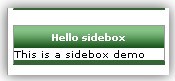
    5).   发布sidebox

    将刚才的文件按照原始的目录结构进行打包, 下图所示, 就算发布成功了. 这样就可以把我们开发好的插件共享给别人使用了.

    怎么样,很简单吧。该示例虽然很简单,却也涵盖了开发Sidebox的基本步骤,有了这些基础,你可以开发出更多复杂的应用。