



以下是做项目时实现的二种类似于QQ表情弹出框功能的实现方法,方法一采用DataGridView实现,方法二通过ToolStripDropDown实现。
一先贴出实现效果。
方法一 DataGridView效果
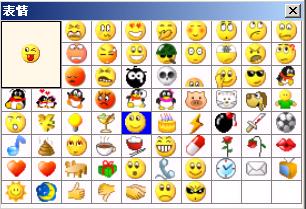
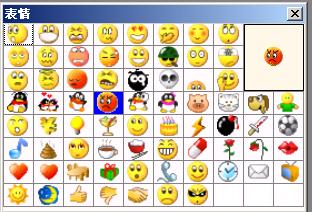
方法二ToolStripDropDown效果
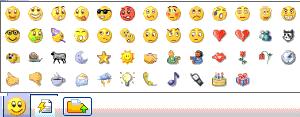
二 二种方法实现的对比:
方法一 效果类似于QQ,鼠标放在上面时,可以看到显示的效果,但加裁速度有些慢。
方法二的效果类似于MSN,加裁速度比较快,鼠标放在上面时能显示图片的ToolTipText。
三 实现源代码
(1) 方法一。该方法是把图片的位置值存放到DataGridVeiw各个单元格中,在DataGridView的dataGridView1_CellFormatting。这里使用到了e.Value中的Object类型。由于 e.Value为Object类型,所以可以直接显示图片。
private void dataGridView1_CellFormatting(object sender, DataGridViewCellFormattingEventArgs e)
{
//如果值不为空
if(e.Value!=null)
{
string path = e.Value.ToString();//得到路径值
e.Value = GetImage(path);//根据路径值获取图片。因为e.Value是Object,图片文件可以直接显示
}
else
{
e.Value = Properties.Resources.snow;//默读背景图片
}
}
在GetImage方法中,读取图片时采用File.OpenRead(path) 方法,该方法可以防止图片文件正在被另一程序访问或只读或未释放。如果采用Image.FormFile()则可能会出现异常。
/// <summary>
/// 加裁图片
/// </summary>
/// <param name="path"></param>
/// <returns></returns>
private object GetImage(string path)
{
try
{
FileStream fs = File.OpenRead(path);//调用该方法,可以防止文件正在防问或只读或被锁定状态
int filelength = 0;
filelength = (int)fs.Length; //获得文件长度
Byte[] image = new Byte[filelength]; //建立一个字节数组
fs.Read(image, 0, filelength); //按字节流读取
System.Drawing.Image result = System.Drawing.Image.FromStream(fs);
fs.Close();
return result;
}
catch (Exception)}
当鼠标通过图片时用PictureBox显示图片
DataGridViewCellStyle sty = new DataGridViewCellStyle();
sty.BackColor = Color.Snow;
object path = dataGridView1.Rows[e.RowIndex].Cells[e.ColumnIndex].Value;
foreach (DataGridViewRow row in dataGridView1.Rows)
{
foreach (DataGridViewCell cell in row.Cells)
{
cell.Style = sty;
}
}
DataGridViewCellStyle sty2 = new DataGridViewCellStyle();
sty2.BackColor = Color.Blue;
if (path != null)
{
dataGridView1.Rows[e.RowIndex].Cells[e.ColumnIndex].Style = sty2;
Image img = Bitmap.FromFile(path.ToString());
if (e.RowIndex < 4 && e.ColumnIndex < 4)
{
pictureBox1.Visible = false;
pictureBox31.Visible = true;
}
else
{
pictureBox1.Visible = true;
pictureBox31.Visible = false;
}
pictureBox1.Image = img;
pictureBox31.Image = img;
}
else
{
pictureBox1.Image = Properties.Resources.snow;
pictureBox31.Image = Properties.Resources.snow;
}
以上就是方法一的主要实现过程,该方法有一个不好的地方就是速度比较慢,因为dataGridView1_CellFormatting事件发生太频繁,导致一直在加裁图片。
以下为完整代码:
 代码
代码
方法二 通过ToolStripDropDown(http://msdn.microsoft.com/zh-cn/library/system.windows.forms.toolstripdropdown_methods.aspx)实现.
2 Flow
如果 LayoutStyle 属性设置为 Flow 或 Table,将不会显示大小调整手柄。
这里设置emotionDropDown.LayoutStyle = ToolStripLayoutStyle.Table;//设置布局.
主要实现代码为
private ToolStripDropDown emotionDropDown = new ToolStripDropDown();
代码
1 private void UCChatForm_Load(object sender, EventArgs e)
2 {
3 lock (richtxtChat.Emotions)
4 {
5 richtxtChat.Emotions[":)"] = Properties.Resources.face01;//微笑face01
6 richtxtChat.Emotions[":D"] = Properties.Resources.face02;//大笑face02
7 richtxtChat.Emotions[":-o"] = Properties.Resources.face03;//惊讶face03
8 richtxtChat.Emotions[":P"] = Properties.Resources.face04;//吐舌笑脸face04
9 richtxtChat.Emotions["(H)"] = Properties.Resources.face05;//热烈的笑脸face05
10 richtxtChat.Emotions[":@"] = Properties.Resources.face06;//生气face06
11 richtxtChat.Emotions[":S"] = Properties.Resources.face07;//困惑face07
12 richtxtChat.Emotions[":$"] = Properties.Resources.face08;//尴尬face08
13 richtxtChat.Emotions[":("] = Properties.Resources.face09;//悲伤face09
14 richtxtChat.Emotions[":'("] = Properties.Resources.face10;//哭泣的脸face10
15 richtxtChat.Emotions[":|"] = Properties.Resources.face11;//失望face11
16 richtxtChat.Emotions["(A)"] = Properties.Resources.face12;//天使face12
17 richtxtChat.Emotions["8o|"] = Properties.Resources.face13;//咬牙切齿face13
18 richtxtChat.Emotions["8-|"] = Properties.Resources.face14;//书呆子face14
19 richtxtChat.Emotions["+o("] = Properties.Resources.face15;//生病face15
20 richtxtChat.Emotions["<:o)"] = Properties.Resources.face16;//聚会笑脸face16
21 richtxtChat.Emotions["|-)"] = Properties.Resources.face17;//困了face17
22 richtxtChat.Emotions["*-)"] = Properties.Resources.face18;//正在思考face18
23 richtxtChat.Emotions[":-*"] = Properties.Resources.face19;//悄悄话face19
24 richtxtChat.Emotions[":-#"] = Properties.Resources.face20;//保守秘密face20
25 richtxtChat.Emotions["^o)"] = Properties.Resources.face21;//讽刺face21
26 richtxtChat.Emotions["8-)"] = Properties.Resources.face22;//转动眼睛face22
27 richtxtChat.Emotions["(L)"] = Properties.Resources.face23;//红心face23
28 richtxtChat.Emotions["(U)"] = Properties.Resources.face24;//破碎的心face24
29 richtxtChat.Emotions["(M)"] = Properties.Resources.face25;//Messenger face25
30 richtxtChat.Emotions["(@)"] = Properties.Resources.face26;//猫脸face26
31 richtxtChat.Emotions["(&)"] = Properties.Resources.face27;//狗脸face27
32 richtxtChat.Emotions["(sn)"] = Properties.Resources.face28;//蜗牛face28
33 richtxtChat.Emotions["(bah)"] = Properties.Resources.face29;//黑羊face29
34 richtxtChat.Emotions["(S)"] = Properties.Resources.face30;//沉睡的弯月face30
35 richtxtChat.Emotions["(*)"] = Properties.Resources.face31;//星星face31
36 richtxtChat.Emotions["(#)"] = Properties.Resources.face32;//太阳face32
37 richtxtChat.Emotions["(R)"] = Properties.Resources.face33;//握手face33
38 richtxtChat.Emotions["({)"] = Properties.Resources.face34;//左侧拥抱face34
39 richtxtChat.Emotions["(})"] = Properties.Resources.face35;//右侧拥抱face35
40 richtxtChat.Emotions["(K)"] = Properties.Resources.face36;//红唇face36
41 richtxtChat.Emotions["(F)"] = Properties.Resources.face37;//红玫瑰face37
42 richtxtChat.Emotions["(W)"] = Properties.Resources.face38;//凋谢的玫瑰face38
43 richtxtChat.Emotions["(O)"] = Properties.Resources.face39;//时钟face39
44 richtxtChat.Emotions["(Y)"] = Properties.Resources.face40;//太棒了face40
45 richtxtChat.Emotions["(N)"] = Properties.Resources.face41;//太差了face41
46 richtxtChat.Emotions["(C)"] = Properties.Resources.face42;//咖啡face42
47 richtxtChat.Emotions["(E)"] = Properties.Resources.face43;//电子邮件face43
48 richtxtChat.Emotions["(li)"] = Properties.Resources.face44;//闪电face44
49 richtxtChat.Emotions["(I)"] = Properties.Resources.face45;//灯泡face45
50 richtxtChat.Emotions["(T)"] = Properties.Resources.face46;//电话听筒face46
51 richtxtChat.Emotions["(8)"] = Properties.Resources.face47;//音符face47
52 c.Emotions["(mp)"] = Properties.Resources.face48;//移动电话face48
53 richtxtChat.Emotions["(^)"] = Properties.Resources.face49;//生日蛋糕face49
54 richtxtChat.Emotions["(G)"] = Properties.Resources.face50;//礼品盒face50
55 }
56
57
58
59 emotionDropDown.ImageScalingSize = new Size(15, 15);//图片大小
60 emotionDropDown.LayoutStyle = ToolStripLayoutStyle.Table;//设置布局
61 foreach (string str in richtxtChat.Emotions.Keys)
62 {
63 emotionDropDown.Items.Add(null, richtxtChat.Emotions[str], emotion_Click).ToolTipText = GetToolTipText(str);
64 }
65 ((TableLayoutSettings)emotionDropDown.LayoutSettings).ColumnCount = 13;//设置每行显示数目
66 }
其中richtxtChat为RtfRichTextBox。在这里设置每行显示13个。
显示注释的方法GetToolTipText(str):
代码
 代码
代码
/// <summary>
/// 发送表情
/// </summary>
/// <param name="sender"></param>
/// <param name="e"></param>
private void emotion_Click(object sender, EventArgs e)
{
ToolStripItem item = (ToolStripItem)sender;
if(item==null)
{
return;
}
string text = item.ToolTipText;
if (text.Split(' ').Length > 1)
{
text = text.Split(' ')[1];
}
richtxtSend.AppendText(text);//发送Text
richtxtSend.Focus();
SendButton.Enabled = true;
}
以上是主要代码。RtfRichTextBox 下载
此内容由惯性聚合(RSS阅读器)自动聚合整理,仅供阅读参考。 原文来自 — 版权归原作者所有。