


In our previous post, we have provide a quick step by step guide on how to install the new Debian release (Debian 11 codename Bullseye). Since we have been providing some scripts to ease the installation of xrdp on top of Debian distribution, our next step would have been to re-validate the provided script and ensure that xRDP installation would process accordingly and that xRDP functionality would be working as expected.
So, we have encountered some issues that you might want to be aware of. So, let’s move forward….
When we wrote the installation process for Debian 10, the default Desktop manager was Mate-Desktop. In our previous post, we wen through the necessary steps to install the Debian 11 operating system. During this installation process, we have decided to install as default Desktop Interface Gnome Shell. This post will be focusing exclusively on Gnome Desktop, xRDP and Debian 11.
If you have followed the steps described in our previous post , you should have already an up and running Debian 11 machine. You should see the following login screen

Click on Picture for better Resolution
So, you can provide username and password in order to access your desktop interface which will be in our specific case Gnome shell. Our Desktop environment will look like the following (see screenshot below). This is the default theme. Obviously, you can customize it as required.
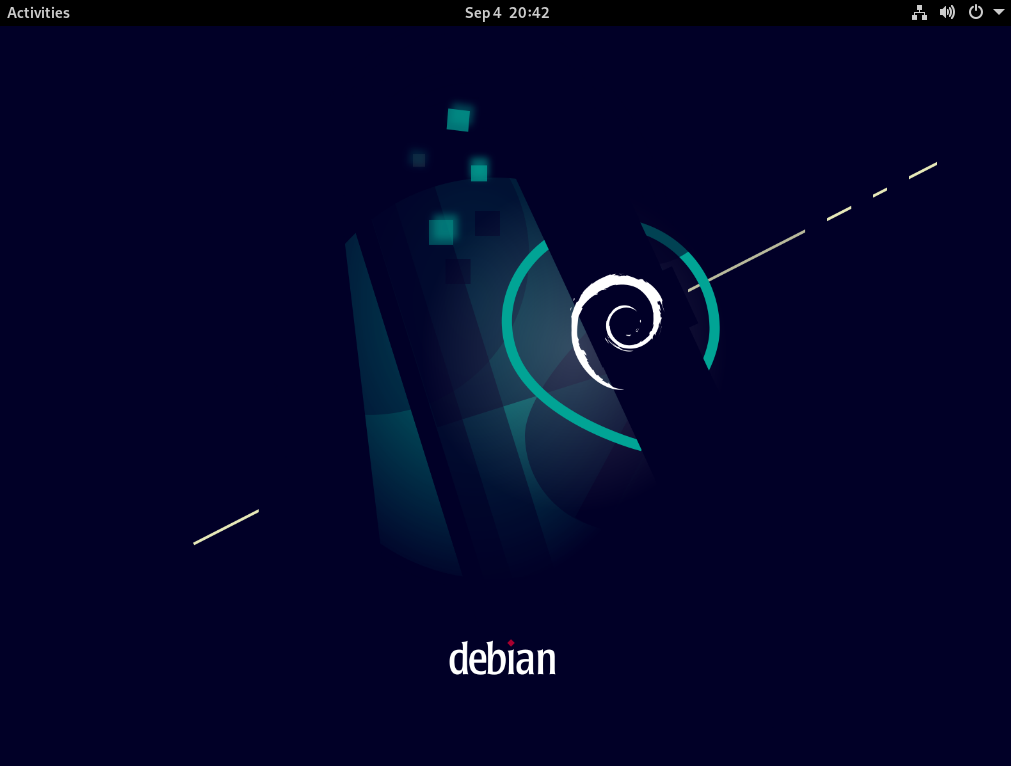
Click on Picture for better Resolution
At this stage, you are ready to download our famous xrdp-installer script and perform an automated installation of xRDP. So far, we have published two scripts that can be used to automate xRDP installation on top of Debian Distributions which are
In our scenario, we will be using the second option. This script is a consolidated version of the Debian script and the Ubuntu script. In order to avoid maintaining multiple scripts version
If you are following us for a long time, you know that the script can perform a standard installation (meaning using the package made available on the Debian repository) or you can perform a custom installation (meaning that the xrdp package will be compiled from source). In our specific scenario, we will be performing a standard installation…
In order to use the script and perform a standard installation (and to simplify the process), open up a Terminal console and issue the following commands as shown below
cd ~/Downloads
wget https://www.c-nergy.be/downloads/xRDP/xrdp-installer-preview-2021.zip
unzip xrdp-installer-preview-2021.zip
chmod +x  ~/Downloads/xrdp-installer-preview-2021.sh
To perform a standard installation, you execute the script with no parameters. Open a Terminal console, browse to the location where the script has been downloaded and issue the following command
./xrdp-installer-preview-2021.sh
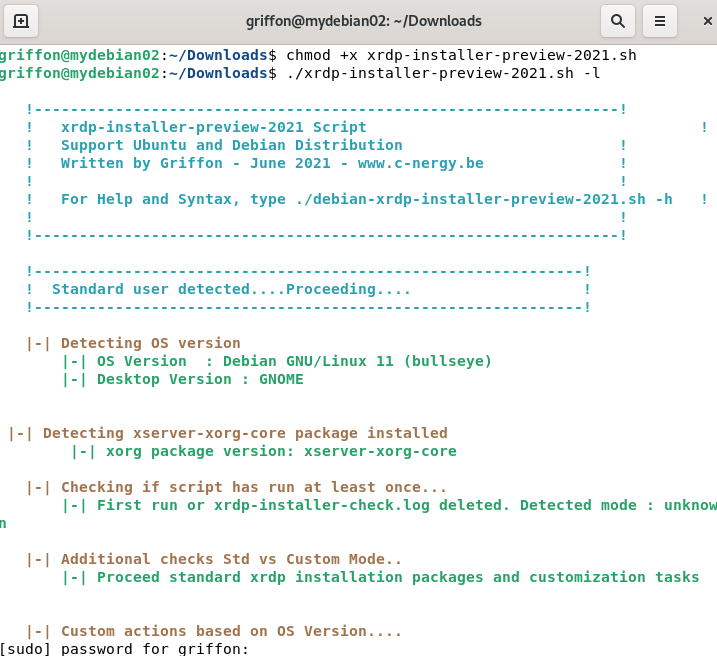
Click on Picture for better Resolution
When the xrdp installation package will start, you be requested to enter your password. Provide the password and proceed with the installation. Wait for completion of the script. The machine will not reboot automatically when done so you can review the actions performed by the script….
After executing the script, you can check the version of the xRDP package you have installed by issuing the following command in a Terminal console
sudo xrdp -v
You will see that if you have performed a standard installation, the xRDP package will be set to 0.9.12
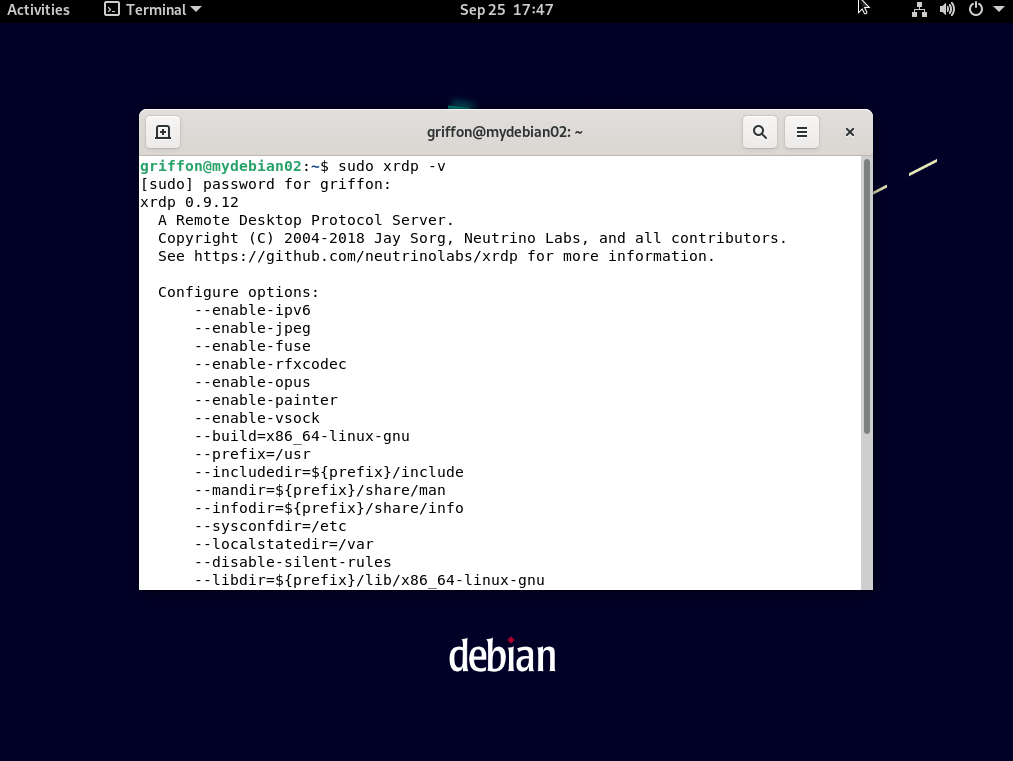
Click on Picture for better Resolution
After the script has run and after the reboot/shutdown and start process, it’s time to test and see if you can indeed perform a smooth remote connection to your Ubuntu machine. Start your favorite rdp client and simply enter your credentials and start testing your installation.
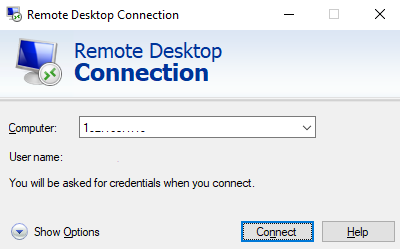
Click on Picture for better Resolution
As you would expect, the xRDP login screen will be presented to you (something similar to the screenshot below)
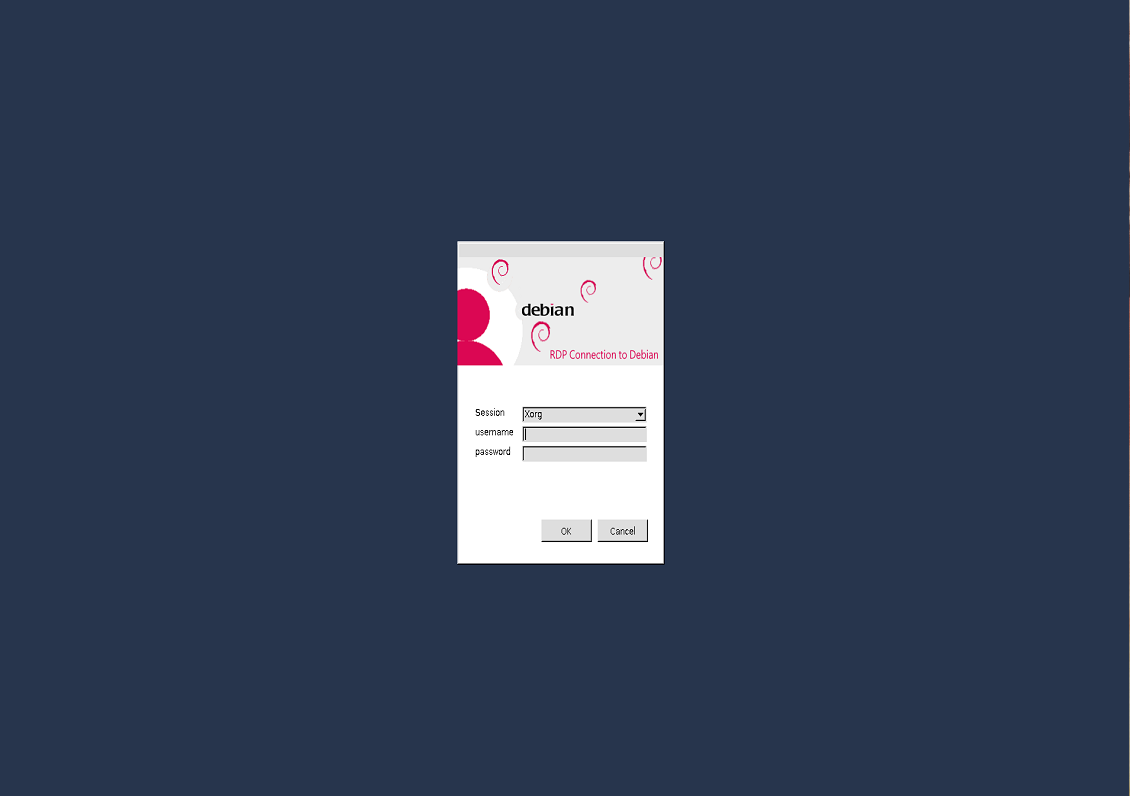
Click on Picture for better Resolution
Provide your username and password (and ensure that no one is logged on locally on the Debian computer). After a few moments, you will see the following error message displayed on the screen
Oh No ! Something has gone wrong
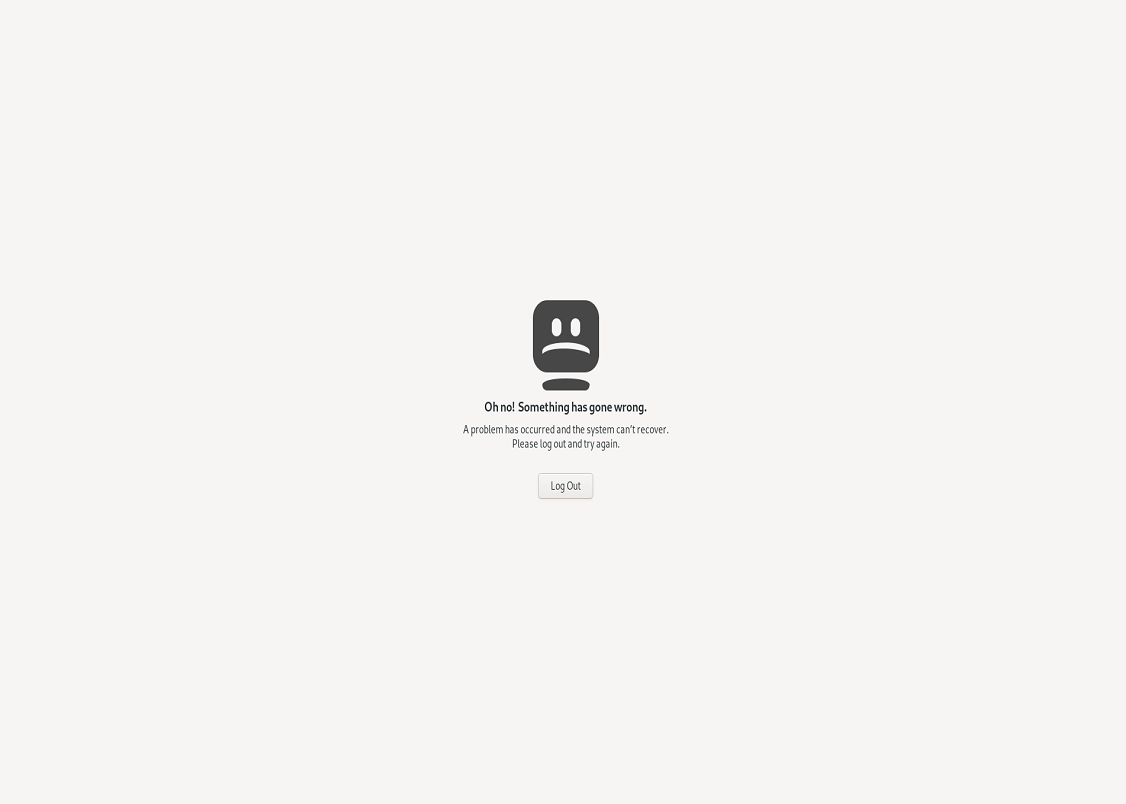
Click on Picture for better Resolution
Clearly, there is a problem and the remote desktop will not be presented to the user !!!
The problem seems to affect only Debian “Bulleyes” with Gnome Desktop. We have tried with KDE interface and it seems that everything works as expected. We were able to access the remote Desktop and the kde desktop was presented accordingly. To have xRDP working against Gnome Desktop on top of Debian 11, the quick fix we can offer you is to perform a custom installation of xRDP.
If you have installed the xRDP package using the script, it’s recommended to uninstall it first before perform a custom installation. Issue the following commands in a Terminal console, browse to the location where the script has been downloaded and issue the following command
./xrdp-installer-preview-2021.sh -r
./xrdp-installer-preview-2021.sh -c -l
Again, to check which xRDP version you are running, you can again issue the command
sudo xrdp -v
If everything went fine, you should see that the xRDP package version would be set to 0.9.17
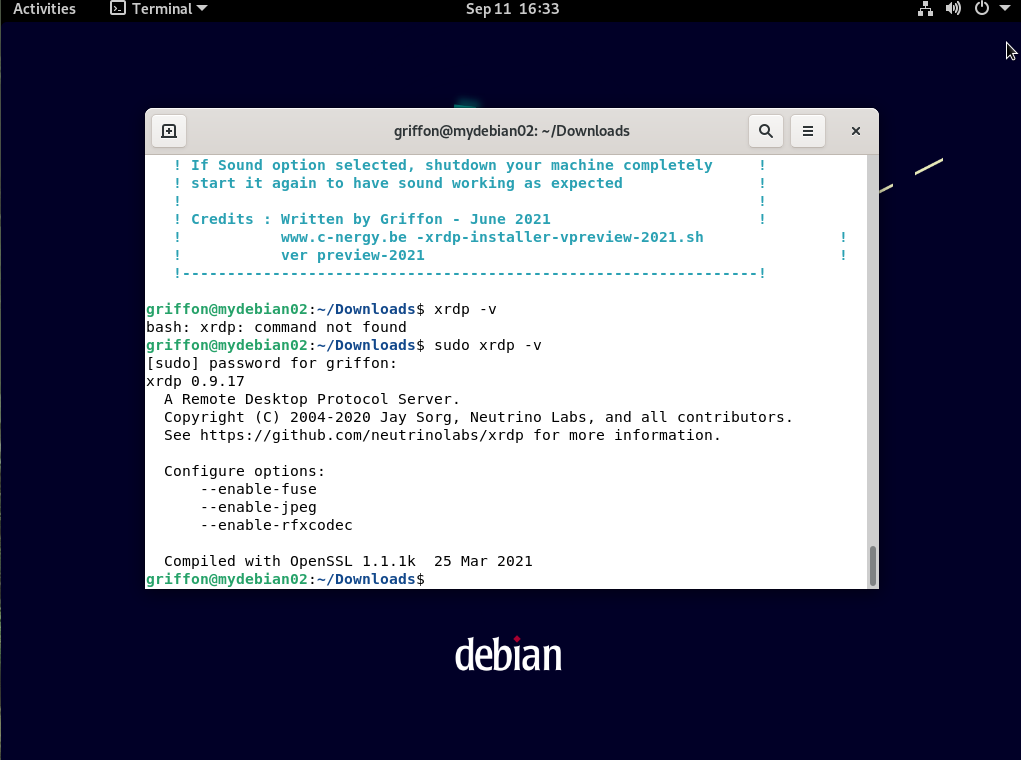
Click on Picture for better Resolution
Again, ensure that no one is locally connected on the Debian machine. Start up your favourite rdp client and perform a remote connection to your Debian 11 running Gnome Desktop where xrdp 0.9.17 package has been installed.
As in the previous configuration, you should see the xRDP login screen (something similar to this) presented to you. Enter your username and password
Click on Picture for better Resolution
And surprisingly, the remote desktop connection is going through this time. You can see that we have performed a successful remote connection to the Debian 11 and the gnome desktop is accessible…
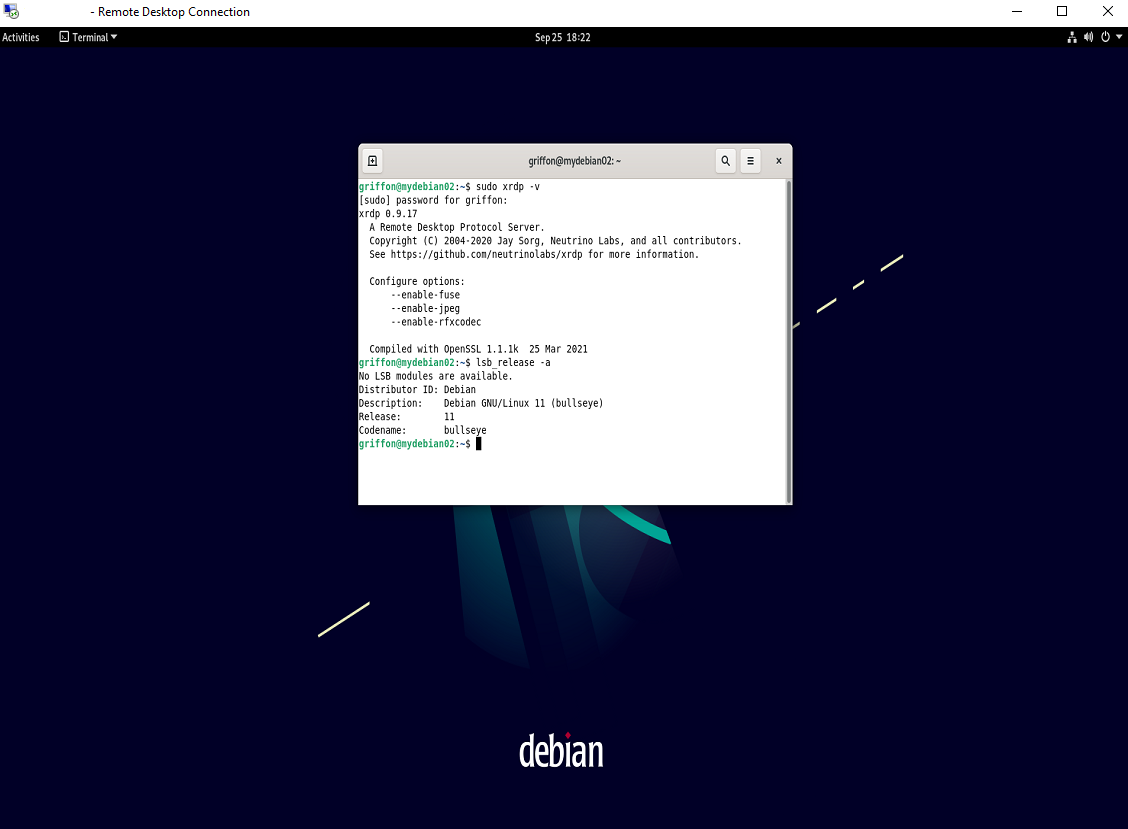
Click on Picture for better Resolution
We had to look a little bit further in order to find out what it’s really causing the issue. Based the the bug/issue reported to the team behind xrdp software (see https://github.com/neutrinolabs/xorgxrdp/issues/156), the problem is only present when using the xorgxrdp package version 0.2.12. Previous version of Debian (Debian 10) was using the package version 0.2.9 and we didn’t encountered the issue…Debian 11 is shipping with the problematic version (i.e. 0.2.12) and this explain why the connection is failing.
The only fix proposed by xRDP team is basically to upgrade the xorgxrdp package to a more recent version which is exactly what’s happening when you are performing the custom installation….
This is it for this post !
We have found out that Debian 11 with Gnome Desktop interface bring a small annoyance with the xRDP software package. Indeed, a standard installation of xRDP (using our script or if you perform a manual installation) will prevent the access to the remote desktop. The standard installation will install and configure xrdp version 0.9.12. Again, the problem seems to happens only with Gnome Desktop. We have tested the same setup but with KDE desktop and everything is working as expected.
So far, the only option to have xRDP working against Debian 11 where Gnome Desktop is the default interface consist of performing a custom installation of xRDP (i.e. compile from sources). This will install the xrdp package version 0.9.17. This version of xRDP does not have the problem and you will be able to perform your remote desktop connection. The root cause issue seems to be a problem with the xorgxrdp package shipping with Debian 11 which causes the issue with gnome Desktop….As long as Debian maintainer do not update this package, the issue might remains and the only option left is to perform a custom installation of xRDP. Again, with our xrdp-installer script, the process is really easy and you will be able to enjoy your remote session also on Debian 11…
If you have time, please try the xrdp script against Debian 11 with different desktop interfaces in order to validate the installation process.
此内容由惯性聚合(RSS阅读器)自动聚合整理,仅供阅读参考。 原文来自 — 版权归原作者所有。