






By Gary Taylor, Solutions Architect
This detailed guide gives you 11 solutions to common API problems, so you can automate and streamline your deployments with ease.
With automation pervading the networking world in recent years, APIs have become standard for software and IT specialists. While the jury is out on the exact number of public APIs offered today, all estimates point to their massive (and ever-growing) popularity.
Megaport is one of the many thousands of vendors that provides public API access to all our services, enabling our customers to automate and streamline their deployments.
But for those still familiarizing themselves with a new set of APIs, it can be overwhelming to determine the cause of an error. That’s why we’ve put together this beginner-friendly guide, with 11 step-by-step solutions to common API issues, so you can bookmark and come back to it whenever you need.
If you aren’t already familiar, we recommend first memorizing these HTTP status codes. When they appear, they can offer valuable insight as to what your issue may be.
Code | Meaning |
200 | OK. A successful request. |
400 | Bad request. This error is typically caused by missing or incorrect request parameters. |
401 | Unauthorized. This error indicates the request is missing the required authentication credentials, usually a missing or invalid API access token. |
403 | Forbidden. You do not have the required permissions to perform this request. |
500 | Server error. When this occurs, Megaport developers are notified of the error via email from the server. |
503 | Server is unavailable, possibly down for maintenance. |
If you’re using Postman and following our setup guide ‘Creating an API Key’, the following suggestions can help with a number of common errors.
When creating a request, using the incorrect request type (GET, PUT, POST, etc.) can result in errors like the below:
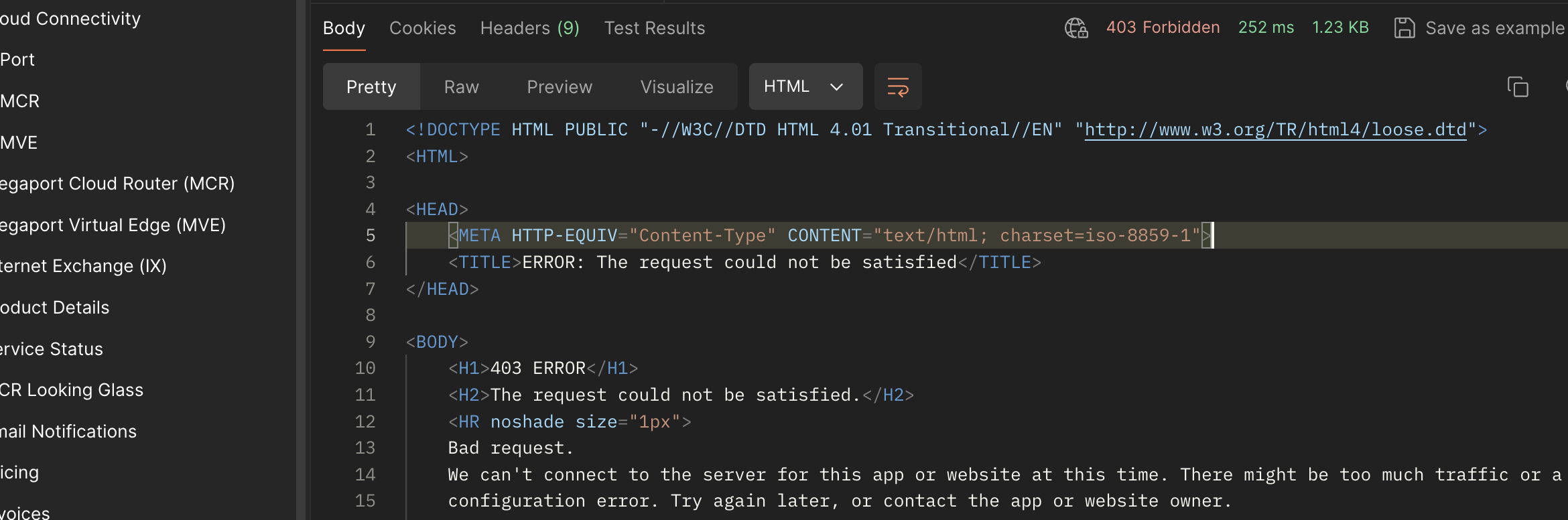
The error message for this issue is usually self-explanatory:
{
   "message": "Request method 'POST' not supported",
   "terms": "This data is subject to the Acceptable Use Policy https://www.megaport.com/legal/acceptable-use-policy",
   "data": [
       "Unsupported Http Methods: POST",
       "Supported Http Methods: [GET]"
   ]
}
To avoid this error, make sure you use the correct request type.
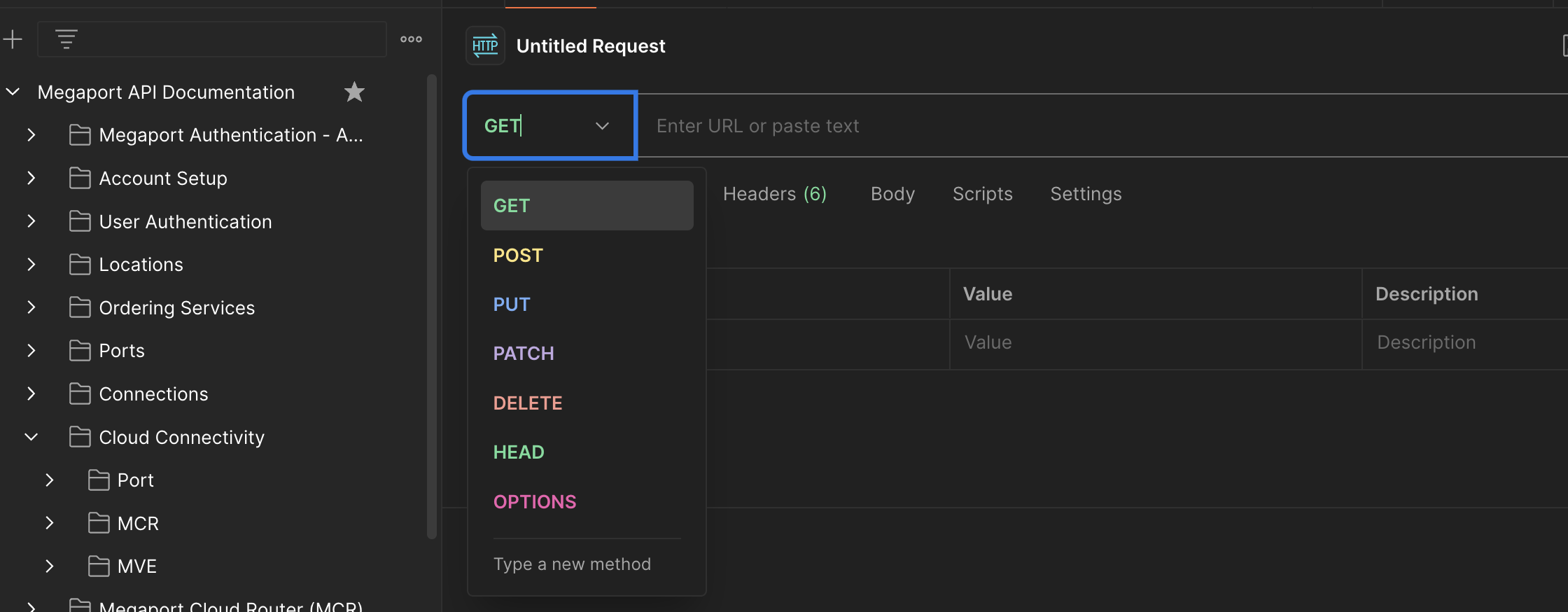
After first generating an access token (which is done as a POST request), the URL you enter will depend on whether you’re using our staging or production environment. Not using the correct URL will cause the error below:
{
   "error": "invalid_client"
}
Include the correct token authentication URL for your API:
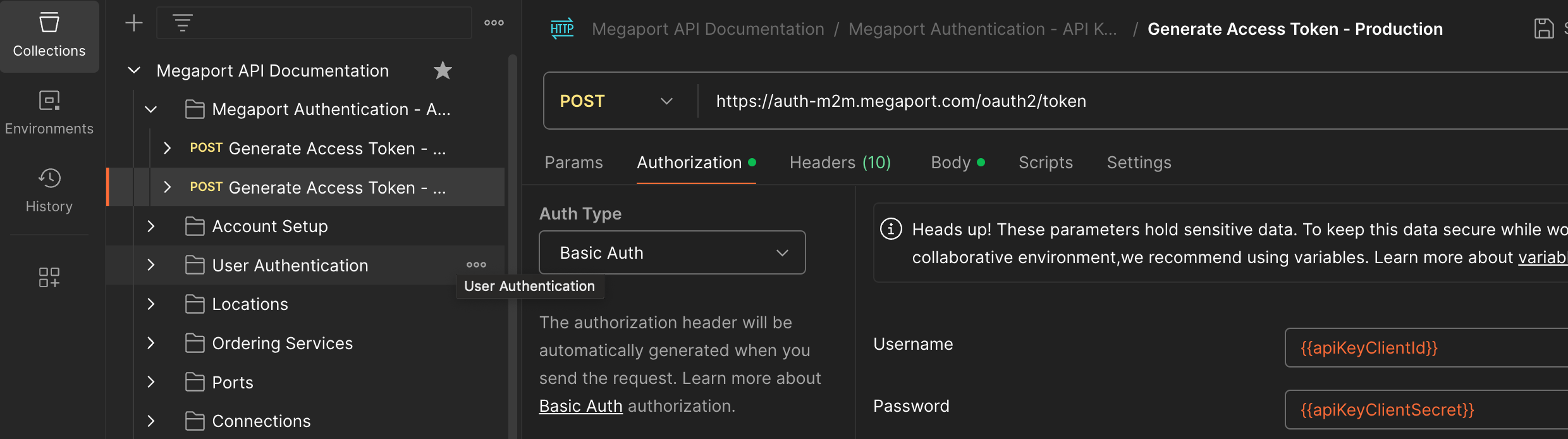
https://api.megaport.com/: This is the live production environment. You will be liable for any services ordered in this system.https://auth-m2m.megaport.com/oauth2/token.https://api-staging.megaport.com/: This is the test staging environment. You can test any action in this environment and the API calls and responses will mirror the production system, but the services won’t be deployed and you won’t be billed for any activity.https://auth-m2m-staging.megaport.com/oauth2/token.When retrieving the access token, ensure “Auth Type” is set to “Basic Auth”:
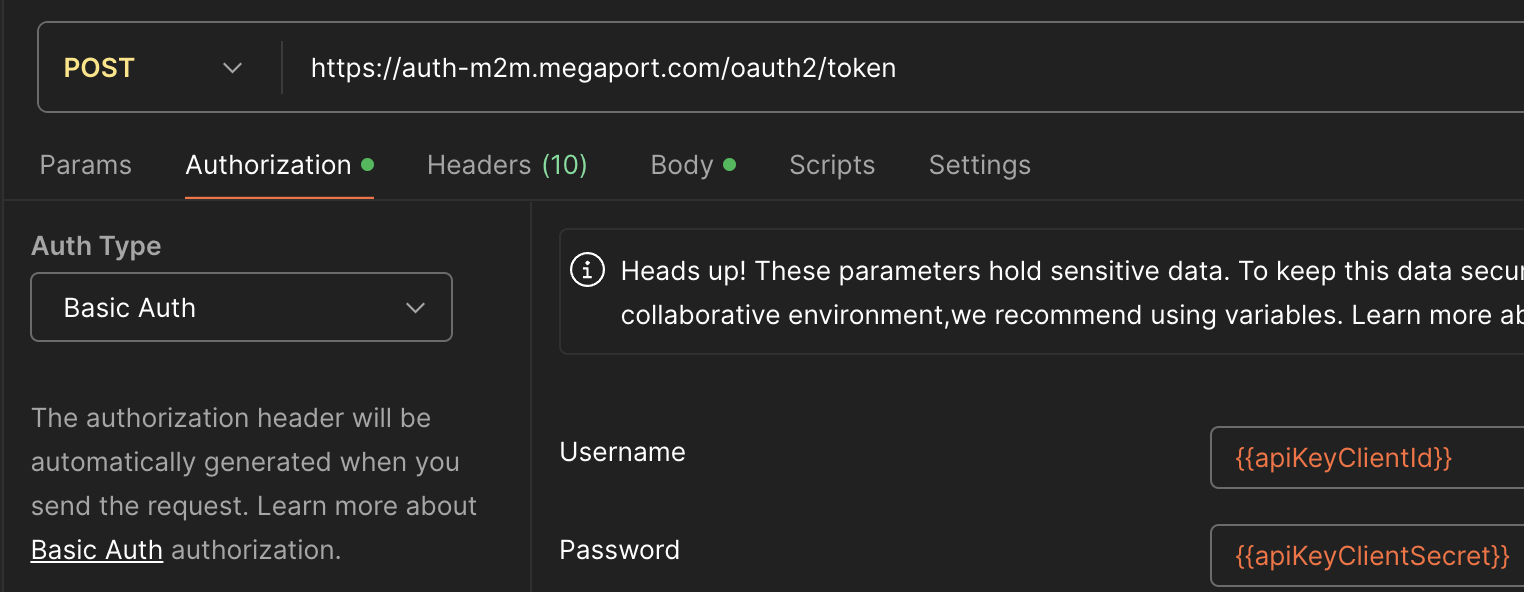
For additional API calls, the Auth Type should be set to “Bearer Token” and the token should be set to the access token variable {{accessToken}}.
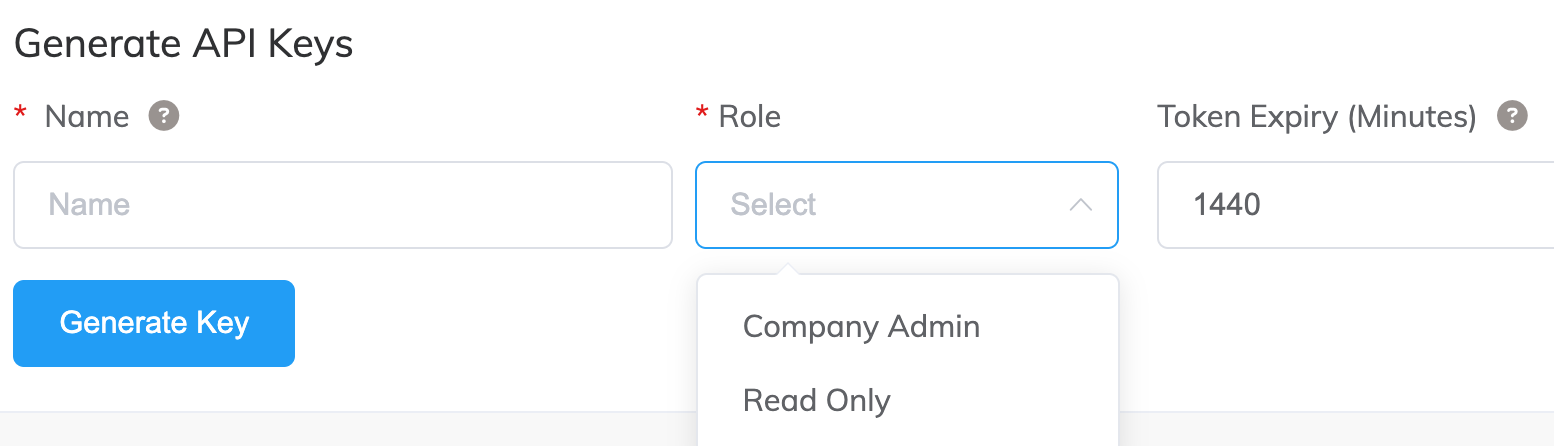
When creating the API Key and Secret you can choose the role, namely “Company Admin” or “Read Only”. Choosing the incorrect role can result in errors.
Ensure the correct role is chosen for the user.
To improve security, it is also recommended that you add the API Client and Secret as a variable within the authorization section.
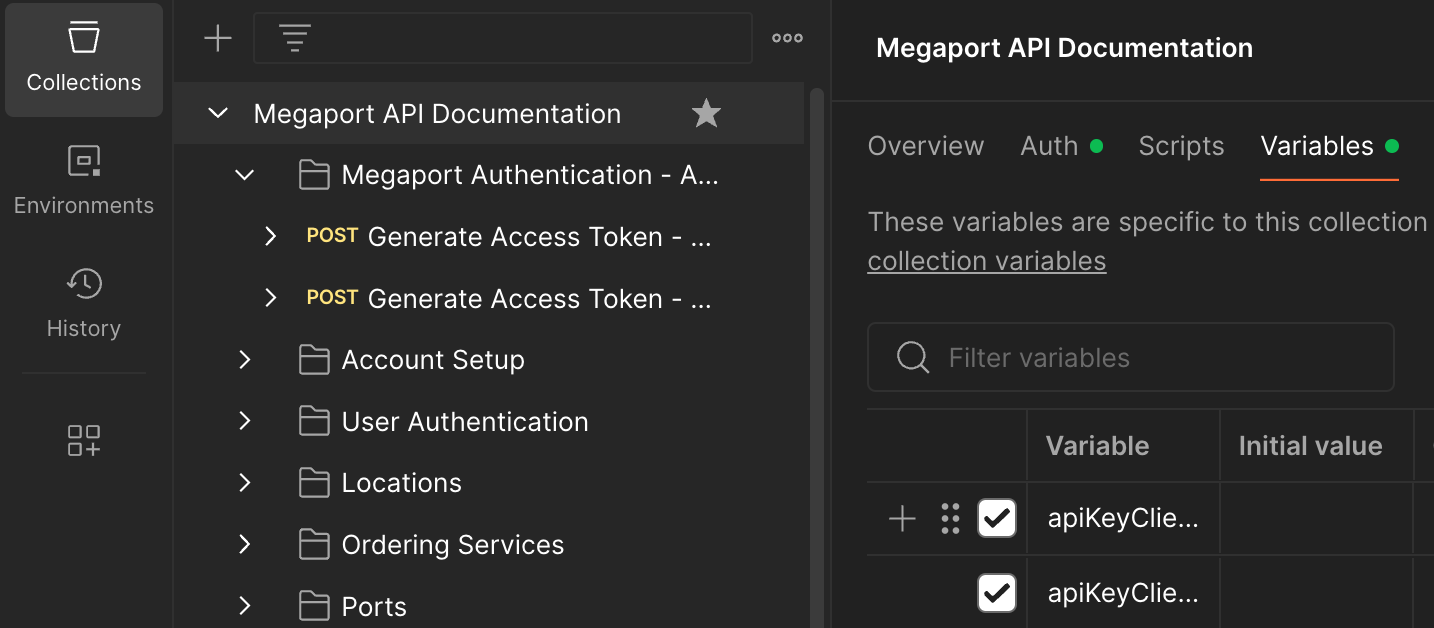
You can then add the details to just the collection under “Edit”.
Here, you need to remove the brackets:
As the Megaport MVE portfolio increases, the image ID can change over time. A common deployment error is to reuse an old image ID without confirming the latest image ID version, resulting in an error like this one:
{
   "message": "Validation failed",
   "terms": "This data is subject to the Acceptable Use Policy https://www.megaport.com/legal/acceptable-use-policy",
   "data": "MVE product code null not found"
}
Before adding your image ID, ensure you have the latest one by https://api.megaport.com/v3/product/mve/images checking current image IDs for each vendor.
  "data": {
       "mveImages": [
           {
               "id": 63,
               "version": "vION 3108v-6.4.1",
               "product": "Prisma SD-WAN 3108v",
               "vendor": "Palo Alto",
               "vendorDescription": "Engineering Build - Not for Production Use",
               "releaseImage": false,
               "productCode": "prisma-3108"
           },
           {
               "id": 56,
               "version": "6.4.15",
               "product": "FortiGate-VM",
               "vendor": "Fortinet",
               "vendorDescription": null,
               "releaseImage": true,
               "productCode": "fortigate"
           },
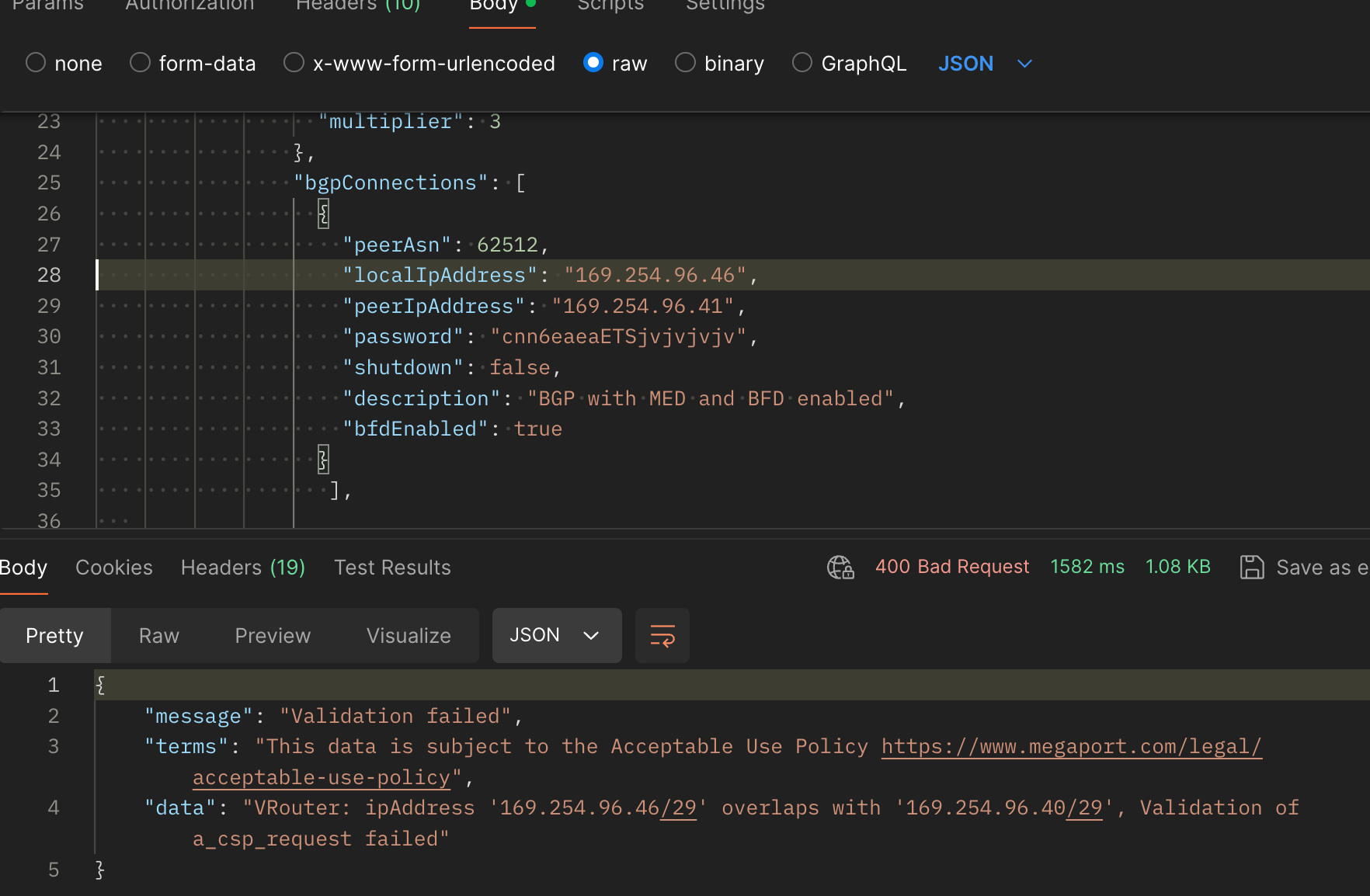
When a VXC with a specific IP schema is deployed and the same API call is made, you will get an error as follows:
data": "VRouter: ipAddress '169.254.96.46/29' overlaps with '169.254.96.40/29', Validation of a_csp_request failed"
Duplicate IP addresses are not allowed. Likewise, no overlapping VLAN IDs are permitted per individual Megaport, MCR, or MVE. Remove these duplicates and overlaps to resolve the issue.
There are two ways to deploy an Azure ExpressRoute:
Each deployment method has a slightly different tag statement, and it’s easy to confuse the two – but doing so will cause issues.
Confirm your ExpressRoute deployment method and follow the relevant steps:
1. Single Azure Peering VLAN: The A-End (Megaport) and B-End (Azure) will have the same VLAN ID. Megaport passes/translates the Azure inner VLAN (C-TAG) as defined in the ExpressRoute portal. In the example below it is 200:
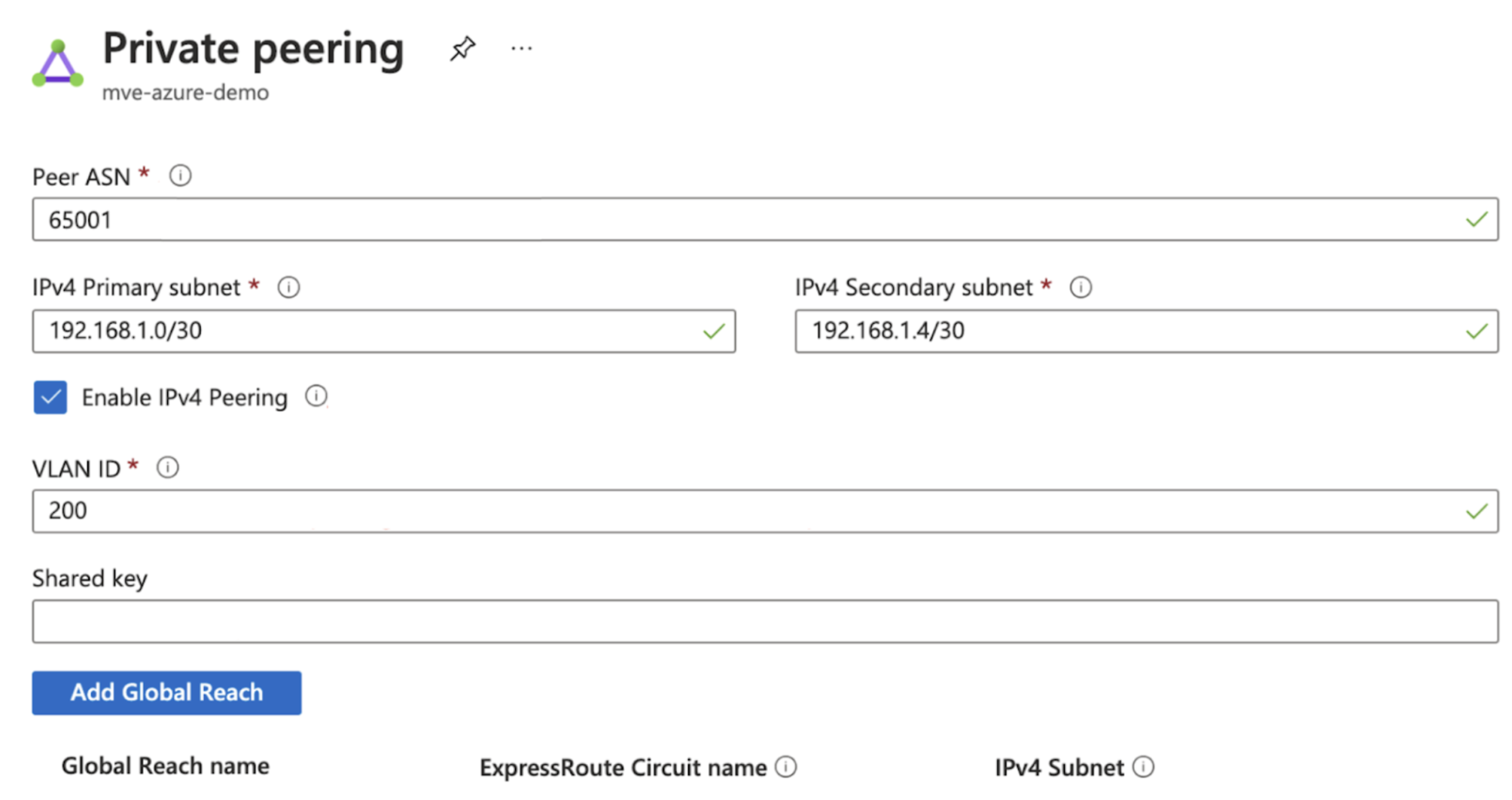
The associated API field is called “innerVlan” and relates to the C-TAG as defined in the Azure portal.
{% raw %}     "rateLimit": 1000,
     "term": 12,
     "aEnd": {
       "innerVlan": 200
     },
     "bEnd": {
       "productUid": "{{azurepuid}}",
       "innerVlan": 200{% endraw %}
2. Q-in-Q: Within the Azure portal the same inner VLAN (C-TAG) is configured, but now as Q-in-Q is enabled, the Azure VLAN is not exposed in the Megaport APIs.
In the example below, the “innerVlan” field is actually the outer VLAN or S-TAG. The naming convention is the same, which is what causes the confusion.
{% raw %}"rateLimit": 1000,
"term": 12,
"aEnd": \{
"innerVlan": 100
     },
     "bEnd": {
       "productUid": "{{azurepuid}}"{% endraw %}
The “diversityZone” field is optional, and if not requested then the diversity zone will be automatically added:
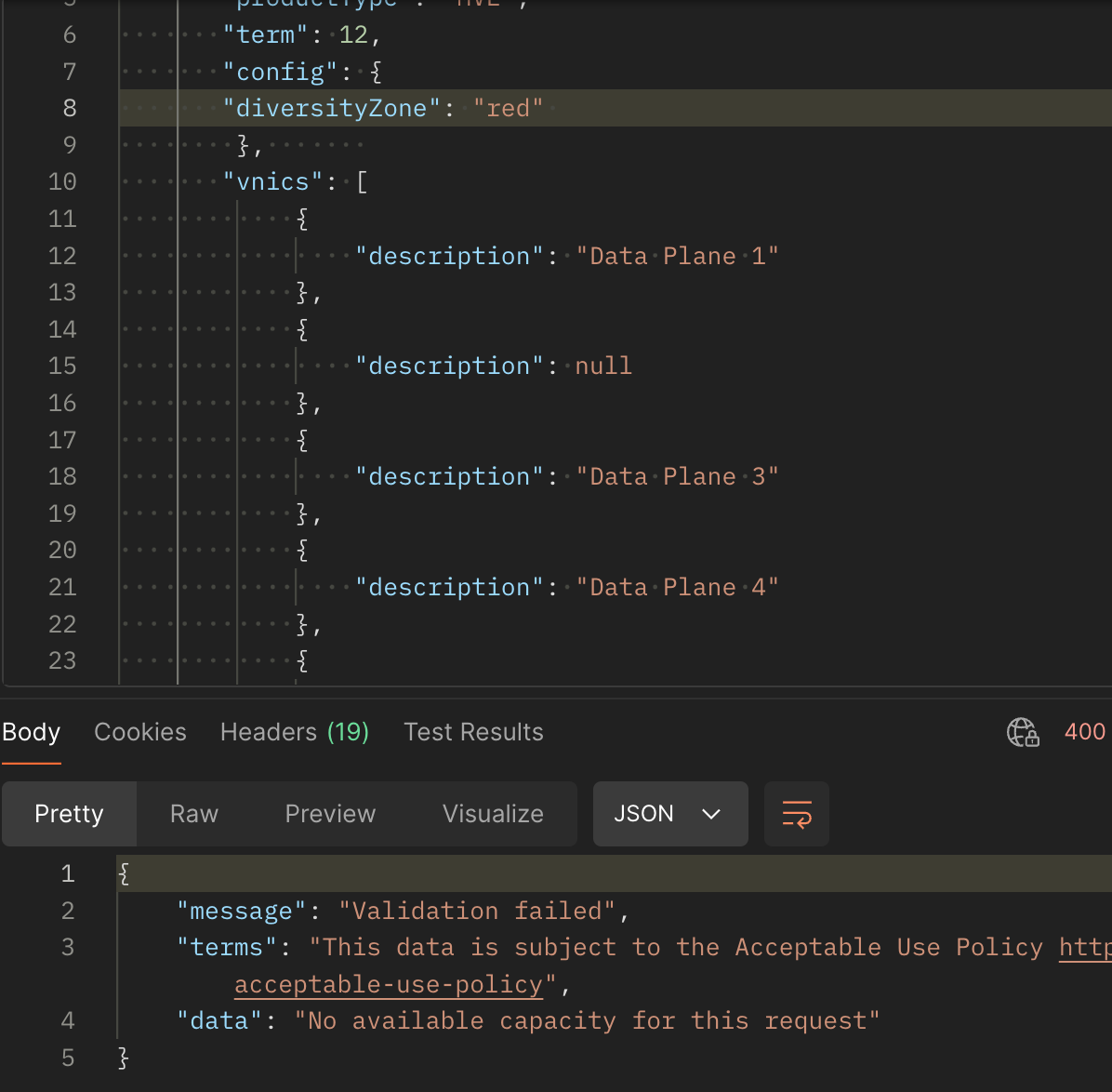
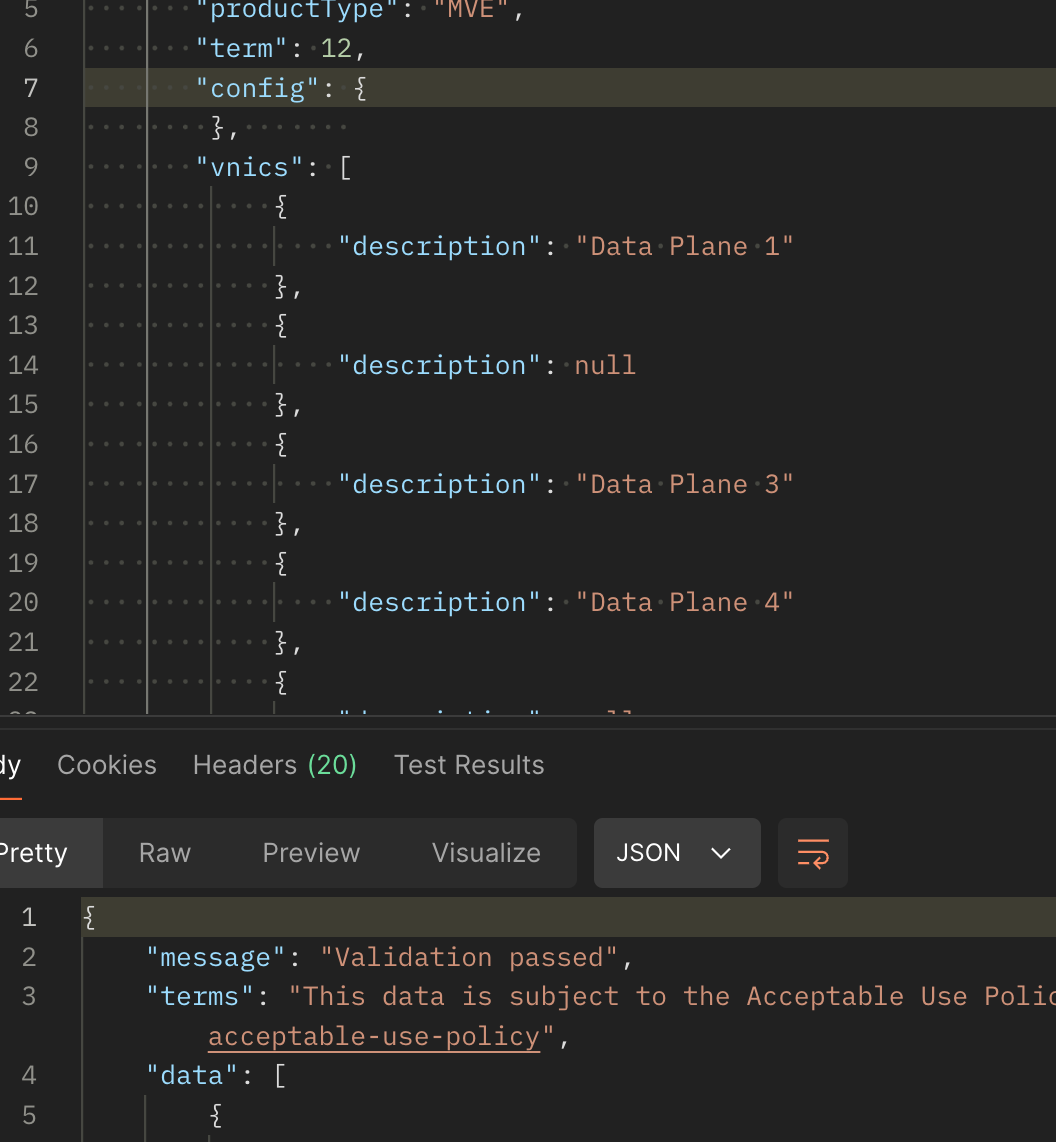
Not confirming the diversity zone required for your service, as well as the preferred deployment location, could result in an unsuccessful deployment.
To avoid this, navigate to your diversity zone field and ensure it’s set to the correct location.
Once your Megaport service has deployed into your chosen diversity zone and you then wish to deploy a VXC into a Cloud Service Provider (CSP), we recommend deploying the cloud VXC in the same diversity zone as your Megaport service. Failure to do this can result in possible single points of failure within your network.
To align your Megaport diversity zone and CSP zone, confirm the diversity zone as follows:
https://api.megaport.com/v2/dropdowns/partner/megaports?connectType={cloudProvider}&vxcPermitted={boolean}
The below example uses AWSHC (for AWS Hosted Connection), with results filtered by location.
“productUid” would be the B-nd location in the VXC order.
{
           "productUid": "dc745b48-6e84-4a84-9023-76f151c0b7d2",
           "companyUid": "605cb850-dfb4-4a05-a171-8bf17757b3a2",
           "companyName": "AWS",
           "title": "EU (Stockholm) (eu-north-1)",
           "locationId": 95,
           "speed": 10000,
           "maxVxcSpeed": 10000,
           "vxcPermitted": true,
           "diversityZone": "red",
           "rank": 700,
           "lag_id": 5,
           "lag_primary": true,
           "aggregation_id": 120069,
           "connectType": "AWSHC"
       },
       {
           "productUid": "36ec86b8-e4e1-479a-958c-15917949c761",
           "companyUid": "605cb850-dfb4-4a05-a171-8bf17757b3a2",
           "companyName": "AWS",
           "title": "EU (Stockholm) (eu-north-1)",
           "locationId": 95,
           "speed": 10000,
           "maxVxcSpeed": 10000,
           "vxcPermitted": true,
           "diversityZone": "blue",
           "rank": 701,
           "lag_id": 3,
           "lag_primary": true,
           "aggregation_id": 120072,
           "connectType": "AWSHC"
       },
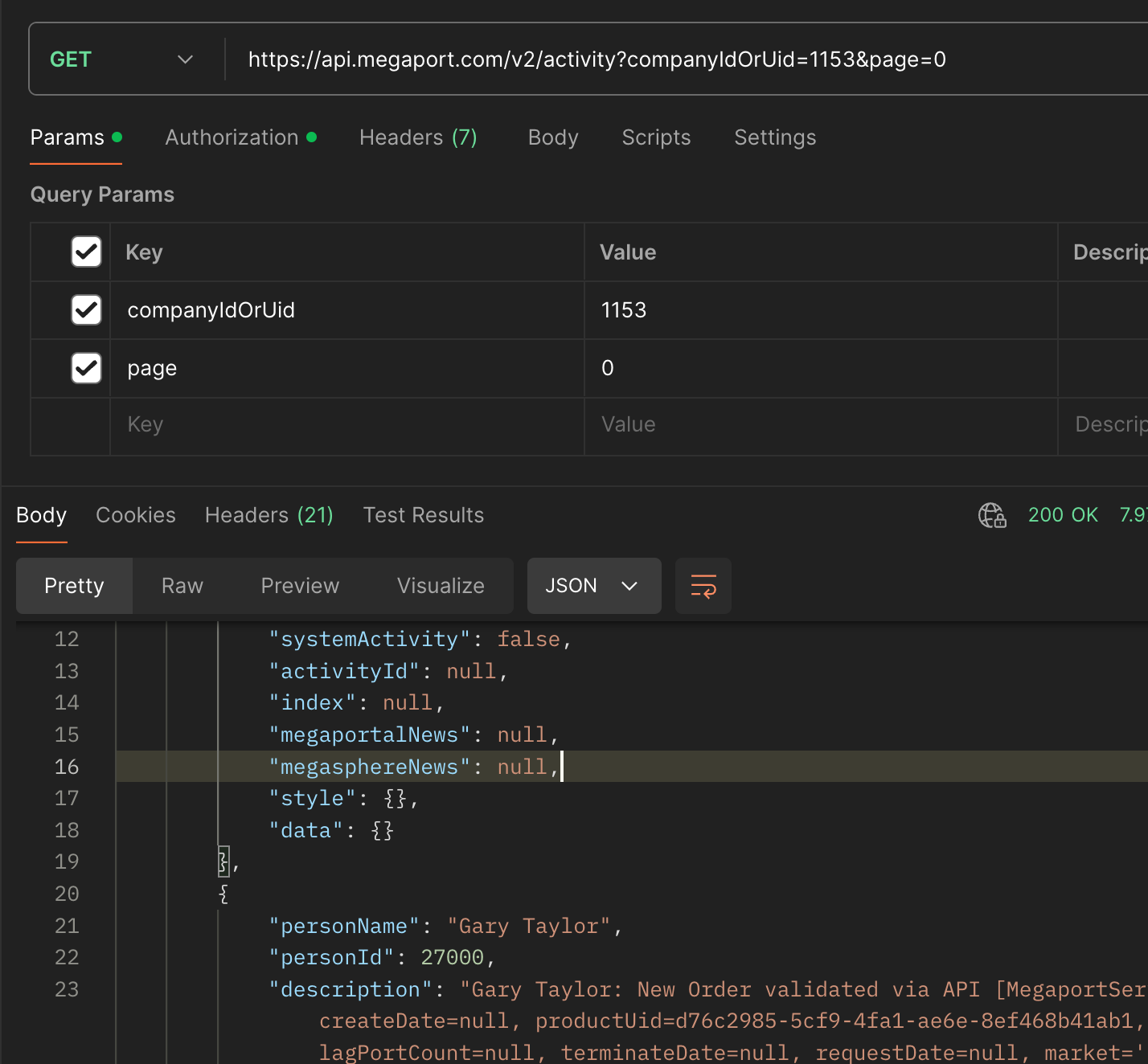
Customers often ask us how they can export user activity. This is possible via the following GET API call:
https://api.megaport.com/v2/activity?personIdOrUid={personID}&companyIdOrUid={companyID}&page=0
Megaport is deprecating v2 APIs on 30 September 2024. Our new v3 API suite offers more features and functionalities – we think you’re going to love it. An FAQ detailing the API v2 shutdown is available here if you want to learn more.
此内容由惯性聚合(RSS阅读器)自动聚合整理,仅供阅读参考。 原文来自 — 版权归原作者所有。