


原发问问题:
章老师:
自从ASP到.NET拜读老师大作受益良多,由 Visual C# 2005 大作发现了EXCEL资料连线方式,然而在ASP.NET方面如何处理EXCEL却发现了下述问题。
ASP.NET C# 的GridView 转换为 Excel ,发现 EXCEL 笔数只要超过38笔,就会显示『无法读取档案』,请问是为何?造成EXCEL档无法开启,但是用纯GridView显示资料却正常。
DataSet myDataSet = new DataSet();
............................................................
.............................................................
GridView1.DataSource = myDataSet.Tables["tb"];
GridView1.DataBind();
Response.AddHeader("content-disposition", "attachment; filename= "a.xls");
Response.ContentType = "application/vnd.ms-excel";
System.IO.StringWriter tw = new System.IO.StringWriter();
HtmlTextWriter hw = new HtmlTextWriter(tw);
GridView1.RenderControl(hw);
Response.Write(tw.ToString());
Response.End();
亲爱的amicky读者,您好
很感谢您对于章立民研究室的支持,有关于您提到的问题,回复如下:
首先,要说明的是如何连结至Excel档案。图表1所示者是网页范例的设计画面,从画面中可以清楚的看到,GridView控制项使用SqlDataSource控制项来连结至Excel档案:
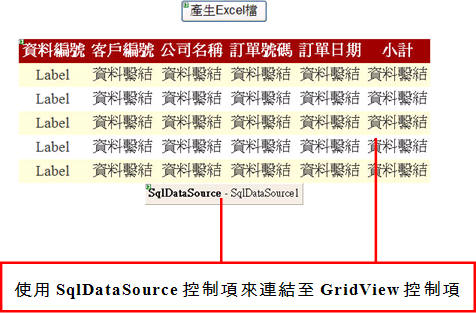
图表1
在新增GridView控制项的资料连结时,请按下「加入连接」对话方块的「变更连结」按钮,然后如图表2所示,选取「资料提供者」下拉式清单的 .NET Framework Data Provider for OLE DB项目,按下「确定」按钮回到「加入连结」对话方块:
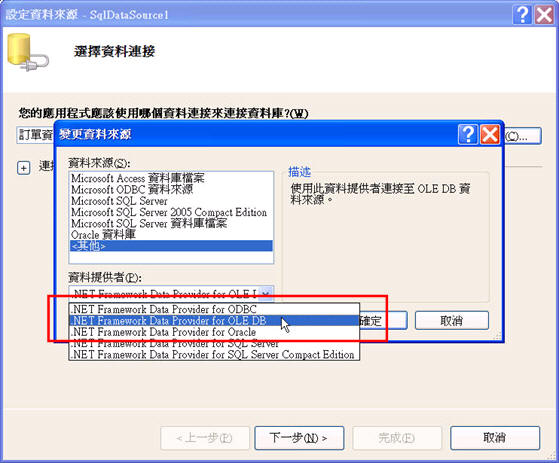
图表2
请如图表3所示,选取「OLE DB提供者」下拉式清单的Microsoft Jet 4.0 OLE DB Prodiver项目,并按下「资料连结」按钮:

图表3
请于「资料连结内容」对话方块中,选取作为资料来源的Excel档案之后,按下「确定」按钮回到「加入连接」对话方块,如图表4所示:
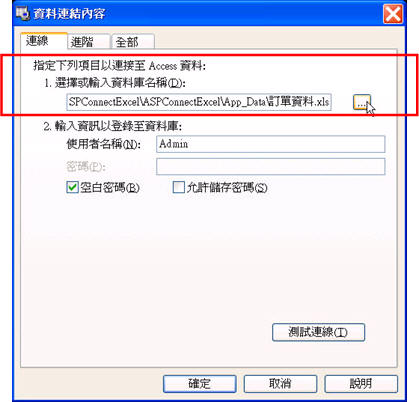
图表4
请按下「加入连接」对话方块中的「进阶」按钮,将「进阶属性」对话方块的Extended Properties属性设定为Excel 8.0,完成之后按下「确定」按钮,回到「加入连接」对话方块,如图表5所示:
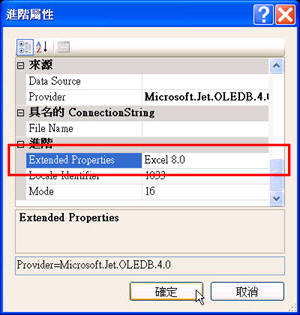
图表5
接下来,请自行依照「加入连接」对话方块的提示,继续完成新增GridView控制项之资料连结的作业。
加入资料连结之后,我们在画面上配置了一个Button控制项,以便当使用者用滑鼠按一下按钮时,会将目前GridView控制项的资料写出,产生Excel档案,请替Button控制项的Click事件处理常式撰写如下所示的程式码:
protected void Button1_Click(object sender, EventArgs e)
{
System.IO.StringWriter tw = new System.IO.StringWriter();
HtmlTextWriter hw = new HtmlTextWriter(tw);
string excelFileName = "测试Excel档案.xls";
Context.Response.ContentType = "application/x-excel";
Context.Response.AddHeader("content-disposition", "attachment;filename=" +
Server.UrlEncode(excelFileName));
this.GridView1.RenderControl(hw);
Context.Response.Write(tw.ToString());
Context.Response.End();
}
请覆写VerifyRenderingInServerForm方法,以便让使用者能够下载Excel档案,如下所示:
public override void VerifyRenderingInServerForm(Control control)
{
…
}
请替GridView控制项的RowDataBound事件处理常式撰写如下所示的程式码,以便让GridView控制项每列资料的第一个栏位能够显示该笔资料的资料编号:
protected void GridView1_RowDataBound(object sender, GridViewRowEventArgs e)
{
// 如果系结的资料列不是 GridView 控制项的页首,
// 则将资料列第一个栏位之 Label 控制项的文字设定为「资料列数加1」,
// 以便代表资料编号。
if (e.Row.RowType != DataControlRowType.Header)
{
e.Row.Cells[0].Text = (e.Row.RowIndex + 1).ToString();
}
}
网页范例的执行结果如图表6所示,请用滑鼠按一下「产生Excel」按钮,以便将目前GridView控制项的内容写入Excel档案,并开始下载,如图表7所示:
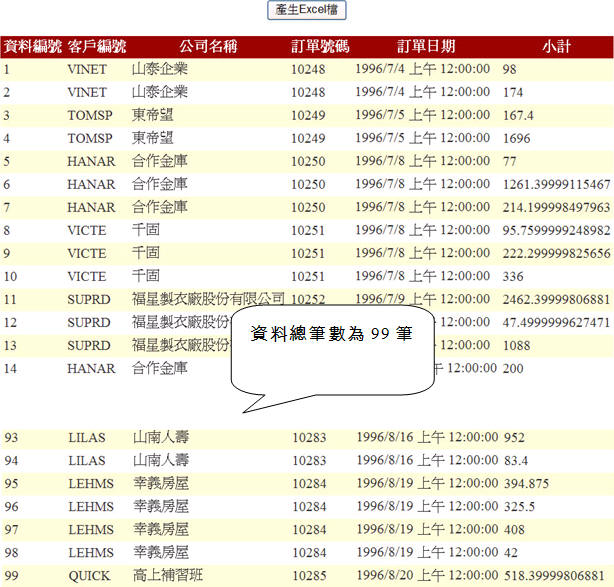
图表6
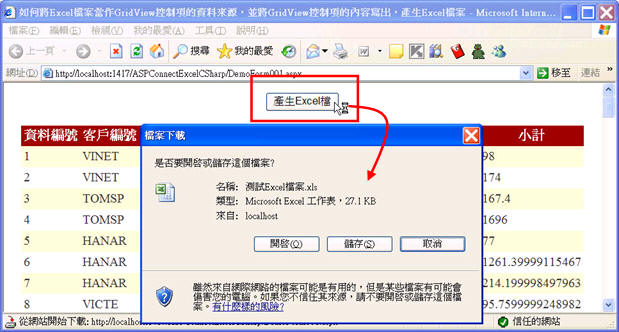
图表7
最后,测试Excel档案.xls档案的内容如图表8所示,大家会发现资料的内容正好与GirdView控制项的内容相符,而这也是我们希望的结果:
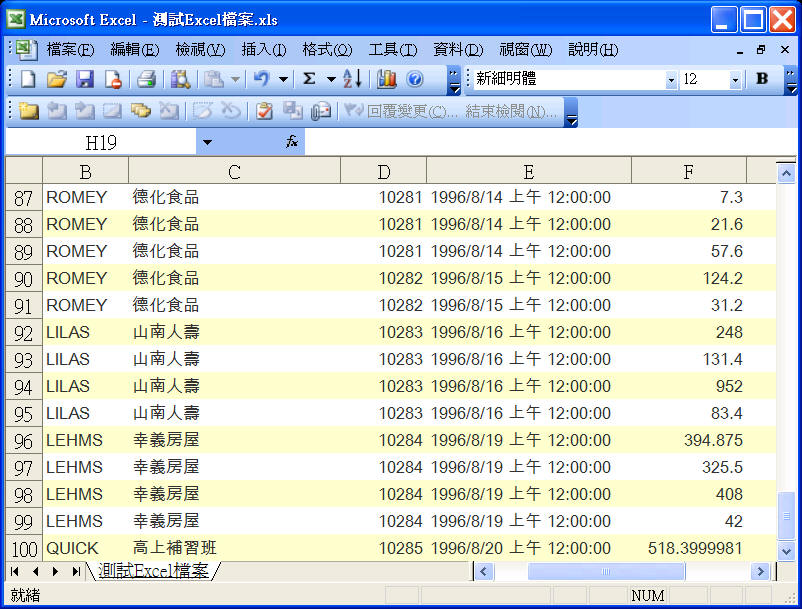
图表8
此内容由惯性聚合(RSS阅读器)自动聚合整理,仅供阅读参考。 原文来自 — 版权归原作者所有。