

惯性聚合 高效追踪和阅读你感兴趣的博客、新闻、科技资讯
阅读原文 在惯性聚合中打开

推荐订阅源

D
DataBreaches.Net
钛媒体:引领未来商业与生活新知
钛媒体:引领未来商业与生活新知
云风的 BLOG
云风的 BLOG
B
Blog
博客园 - Franky
I
InfoQ
A
About on SuperTechFans
博客园_首页
L
LangChain Blog
量子位
腾讯CDC
Microsoft Security Blog
博客园 - 【当耐特】
美团技术团队
V
V2EX
Apple Machine Learning Research
雷峰网
雷峰网
MongoDB | Blog
MongoDB | Blog
Microsoft Azure Blog
月光博客
月光博客
T
The Blog of Author Tim Ferriss
P
Proofpoint News Feed
G
Google Developers Blog
Last Week in AI
Last Week in AI

博客园 - 天神一

Windows 8的本地化应用程序清单 代码滑动panorama-即程序中设置SelectedIndex WP7开发 Sqlite数据库的使用 解决Unable open the database WP7 真机调试PhotoChooserTask和CameraCaptureTask 解决windows8不能安装ZUNE的问题 软件概要设计 AutoResetEvent详解 解决VS2008 调试启动特别慢 微软WP7本地数据库之Sqlite编程技巧(转) 桥接模式的简单分析 代码的“门面”——模式系列谈之Facade模式(转) SilverLight4:在MVVM架构下实现模式窗口 简析SilverLight的List<T>、ObservableCollection<T>和INotifyPropertyChanged的异同 MVVM架构的简单解析 在MVVM架构下,把EventArgs绑定到Command上【翻译】 XNA 4.0新书:初学者很好的书籍 SilverLight:在MVVM中实现多事件 (翻译)在MVVM模式中打开子窗体(Child Window) Windows Phone 7 完全版电子书可以免费下载了
SilverLight:使用MVVM实现View层在程序运行时自动生成控件并...
天神一 · 2010-12-08 · via 博客园 - 天神一

  在有一些项目中,UI界面上的控件有时是在程序运行时才生成的。这样的功能在MVVM中也很容易实现。并且可以通过按钮取得其值。

  本实例主要实现程序运行时,在界面上生成四个控件,两个TextBox和两个TextBlock.并且点击按钮时,弹出TextBox中的值。如下图效果
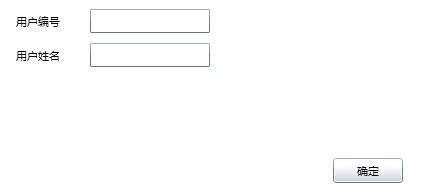
  实现方法分以下步骤

  第一步:新建一个SivlerLight应用程序,命名为AutoCreatControl

  第二步:新建一个ViewModel层,工程名为ViewModel

  整个项目结构如下图
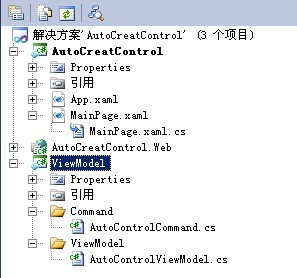
  

  通过上面的项目结构图,大家知道需要新建什么文件了

  第三步:在工程ViewModel新建一个文件夹ViewModel,并且建一个文件AutoControlViewModel.cs,在此文件中主要ViewModel层的属性和业务。首先要建一个属性,类型为StackPanel,此属性要包含两个TextBox控件和两个TextBlock控件。然后把此属性绑定到主页面即可显示在达到的效果,另外还要有一个绑定到Button的属性。详细情况请看代码

using System;
using System.Net;
using System.Windows;
using System.Windows.Controls;
using System.Windows.Documents;
using System.Windows.Ink;
using System.Windows.Input;
using System.Windows.Media;
using System.Windows.Media.Animation;
using System.Windows.Shapes;namespace ViewModel
{
    
/// <summary>
    
/// 自动创建控件的ViewModel
    
/// </summary>
    public class AutoControlViewModel
    {
        
//定义一个UI变量
        StackPanel sp;public AutoControlViewModel()
        {
            CreateControl();
        }
        
/// <summary>
        
/// UI变量属性,用于绑定到View层
        
/// </summary>
        public StackPanel Sp
        {
            
get { return sp; }
            
set { sp = value; }
        }
/// <summary>
        
/// 创建控件方法,在此方法中根据业务创建控件
        
/// </summary>
        private void CreateControl()
        {
            sp 
= new StackPanel();
            sp.Orientation 
= Orientation.Vertical;
            StackPanel sp1 
= new StackPanel();
            sp1.Orientation 
= Orientation.Horizontal;
            TextBlock tb1 
= new TextBlock();
            tb1.Text 
= "用户编号";
            tb1.Margin 
= new Thickness(20201010);
            TextBox txt1 
= new TextBox();
            txt1.Width 
= 120;
            txt1.Margin 
= new Thickness(2015010);
            sp1.Children.Add(tb1);
            sp1.Children.Add(txt1);
            sp.Children.Add(sp1);

            StackPanel sp2 

= new StackPanel();
            sp2.Orientation 
= Orientation.Horizontal;

            TextBlock tb2 

= new TextBlock();
            tb2.Text 
= "用户姓名";
            tb2.Margin 
= new Thickness(2051010);
            TextBox txt2 
= new TextBox();
            txt2.Width 
= 120;
            txt2.Margin 
= new Thickness(200010);
            sp2.Children.Add(tb2);
            sp2.Children.Add(txt2);
            sp.Children.Add(sp2);
        }
/// <summary>
        
/// 绑定到Button上的Command上
        
/// </summary>
        public ICommand OkButtonCommand
        {
            
get { return new AutoControlCommand(this); }
        }
/// <summary>
        
/// 执行Button事件方法
        
/// </summary>
        
/// <param name="obj"></param>
        public void OkButtonClick(object obj)
        {
            UIElementCollection uc 
= obj as UIElementCollection;
            
foreach (UIElement cc in uc)
            {
                
if (cc != null)
                {
                    
if (cc.GetType().Name == "ContentControl")
                    {
                        ContentControl ccontrol 
= cc as ContentControl;
                        StackPanel spck 
= ccontrol.Content as StackPanel;
                        
int count = spck.Children.Count;
                        
for (int i = 0; i < count; i++)
                        {
                            
if (sp.Children[i].GetType().Name == "StackPanel")
                            {
                                StackPanel spChild 
= sp.Children[i] as StackPanel;
                                
for (int k = 0; k < spChild.Children.Count; k++)
                                {
                                    
if (spChild.Children[k].GetType().Name == "TextBox")
                                    {
                                        TextBox txt 
= spChild.Children[k] as TextBox;
                                        MessageBox.Show(txt.Text);
                                    }
                                }
                            }
                        }
                    }
                }
            }
        }
    }
}

   第四步:在工程ViewModel中新建一个文件夹Command,然后再建一个文件AutoControlCommand.cs,在此文件中实现新口ICommand,实现在点击Button时,弹出一个对话框。代码如下

using System;
using System.Net;
using System.Windows;
using System.Windows.Controls;
using System.Windows.Documents;
using System.Windows.Ink;
using System.Windows.Input;
using System.Windows.Media;
using System.Windows.Media.Animation;
using System.Windows.Shapes;namespace ViewModel
{
    
public class AutoControlCommand:ICommand
    {
        AutoControlViewModel acvm;
        
public AutoControlCommand(AutoControlViewModel acv)
        {
            acvm 
= acv;
        }
        
public bool CanExecute(object parameter)
        {
            
return true;
        }
public event EventHandler CanExecuteChanged;public void Execute(object parameter)
        {
            
if (parameter != null)
                acvm.OkButtonClick(parameter);
        }
    }
}

  第五步:在MainPage.xaml中实现数据的绑定。其中绑定自动生成控件时,使用了ContentControl类,

   ContentControl类表示包含单项内容的控件。像Button,CheckBox和ScrollView 这样的控件直接或间接继承自该类,ContentControlContent 属性可以是任何类型的对象,例如字符串、UIElementDateTime。当 Content 设置为 UIElement 时,ContentControl 中将显示 UIElement。当 Content 设置为其他类型的对象时,ContentControl 中将显示该对象的字符串表示形式。

  通过对 ContentControl类的介绍,知道ContentControl的强大了吧,那么咱们就把ViewModel中的Sp属性绑定到ContentControl的Content即可实现自动生成控件

MainPage.xaml

<UserControl x:Class="AutoCreatControl.MainPage"
    xmlns
="http://schemas.microsoft.com/winfx/2006/xaml/presentation"
    xmlns:x
="http://schemas.microsoft.com/winfx/2006/xaml"
    xmlns:d
="http://schemas.microsoft.com/expression/blend/2008"
    xmlns:mc
="http://schemas.openxmlformats.org/markup-compatibility/2006"
    xmlns:local
="clr-namespace:ViewModel;assembly=ViewModel"
    mc:Ignorable
="d"
    d:DesignHeight
="311" d:DesignWidth="400">
    
<UserControl.Resources>
        
<local:AutoControlViewModel x:Key="autoViewModel"/>
    
</UserControl.Resources>
    
<Grid x:Name="LayoutRoot" Background="White" DataContext="{StaticResource autoViewModel}">
        
<Grid.Children>
            
<ContentControl Content="{Binding Sp}"/>
            
<Button Content="确定" Height="25" Width="70" Margin="143,87,187,198" Command="{Binding OkButtonCommand}" CommandParameter="{Binding Children,ElementName=LayoutRoot,Mode=OneWay}" />
        
</Grid.Children>
    
</Grid>
</UserControl>

  通过以上代码就可以达到在MVVM模式中实现自动运行时生成控件的效果。

  点击下载源程序