





假设你现在需要从WP7手机上获取一些系统信息,以便确认当前系统是否满足游戏或应用程序的最小硬件需求。轩辕在将给各位演示下实现这个功能有多么的简单。因为轩辕目前还没有拿到WP7手机,所以这篇文章将在模拟器上展开系统信息获取的实现。
下面是我们的示例将要获取的系统信息:
设备厂商
设备名称
设备ID
固件版本
硬件版本
总内存
应用程序当前使用内存
应用程序使用内存峰值
在下面这个示例中,轩辕将使用DispatcherTimer计时器每三秒获取一些系统信息,标将上面的列出的信息在8个textblock控件中展现出来。下面为应用程序的展现截图:
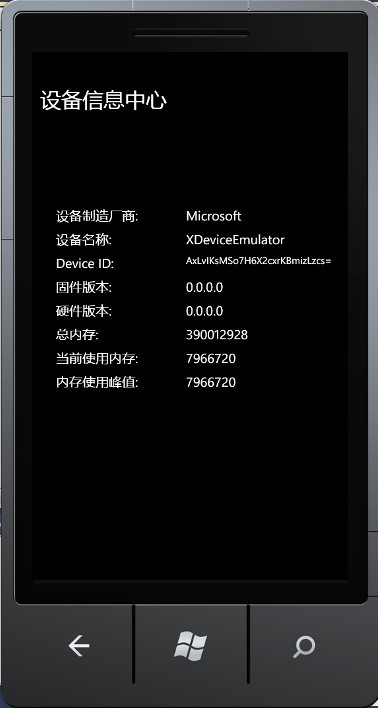
下面是XAML的代码:
<phone:PhoneApplicationPage
x:Class="WindowsPhoneApplication2.MainPage"
xmlns="http://schemas.microsoft.com/winfx/2006/xaml/presentation"
xmlns:x="http://schemas.microsoft.com/winfx/2006/xaml"
xmlns:phone="clr-namespace:Microsoft.Phone.Controls;assembly=Microsoft.Phone"
xmlns:shell="clr-namespace:Microsoft.Phone.Shell;assembly=Microsoft.Phone"
xmlns:d="http://schemas.microsoft.com/expression/blend/2008"
xmlns:mc="http://schemas.openxmlformats.org/markup-compatibility/2006"
mc:Ignorable="d" d:DesignWidth="480" d:DesignHeight="768"
FontFamily="{StaticResource PhoneFontFamilyNormal}"
FontSize="{StaticResource PhoneFontSizeNormal}"
Foreground="{StaticResource PhoneForegroundBrush}"
SupportedOrientations="Portrait" Orientation="Portrait"
shell:SystemTray.IsVisible="True"><Grid x:Name="LayoutRoot" Background="Transparent">
<StackPanel x:Name="TitlePanel" Margin="12,17,0,751"></StackPanel>
<Grid x:Name="ContentPanel" Margin="12,161,12,0">
<TextBlock Height="30" HorizontalAlignment="Left" Margin="24,40,0,0" Name="textBlock1" Text="设备制造厂商: " VerticalAlignment="Top" />
<TextBlock Height="30" HorizontalAlignment="Left" Margin="221,40,0,0" Name="textBlock2" Text="" VerticalAlignment="Top" Width="229" />
<TextBlock Height="30" HorizontalAlignment="Left" Margin="24,76,0,0" Name="textBlock3" Text="设备名称: " VerticalAlignment="Top" />
<TextBlock Height="30" HorizontalAlignment="Left" Margin="221,76,0,0" Name="textBlock4" Text="" VerticalAlignment="Top" Width="229" />
<TextBlock Height="30" HorizontalAlignment="Left" Margin="24,112,0,0" Name="textBlock5" Text="Device ID: " VerticalAlignment="Top" />
<TextBlock Height="30" HorizontalAlignment="Left" Margin="221,112,0,0" Name="textBlock6" Text="" VerticalAlignment="Top" Width="229" FontSize="15" />
<TextBlock Height="30" HorizontalAlignment="Left" Margin="24,148,0,0" Name="textBlock7" Text="固件版本: " VerticalAlignment="Top" />
<TextBlock Height="30" HorizontalAlignment="Left" Margin="221,148,0,0" Name="textBlock8" Text="" VerticalAlignment="Top" Width="229" />
<TextBlock Height="30" HorizontalAlignment="Left" Margin="24,184,0,0" Name="textBlock9" Text="硬件版本: " VerticalAlignment="Top" />
<TextBlock Height="30" HorizontalAlignment="Left" Margin="221,184,0,0" Name="textBlock10" Text="" VerticalAlignment="Top" Width="229" />
<TextBlock Height="30" HorizontalAlignment="Left" Margin="24,220,0,0" Name="textBlock11" Text="总内存: " VerticalAlignment="Top" />
<TextBlock Height="30" HorizontalAlignment="Left" Margin="221,220,0,0" Name="textBlock12" Text="" VerticalAlignment="Top" Width="229" />
<TextBlock Height="30" HorizontalAlignment="Left" Margin="24,256,0,0" Name="textBlock13" Text="当前使用内存: " VerticalAlignment="Top" />
<TextBlock Height="30" HorizontalAlignment="Left" Margin="221,256,0,0" Name="textBlock14" Text="" VerticalAlignment="Top" Width="229" />
<TextBlock Height="30" HorizontalAlignment="Left" Margin="24,292,0,0" Name="textBlock15" Text="内存使用峰值: " VerticalAlignment="Top" />
<TextBlock Height="30" HorizontalAlignment="Left" Margin="221,292,0,0" Name="textBlock16" Text="" VerticalAlignment="Top" Width="229" />
</Grid>
<TextBlock Height="60" HorizontalAlignment="Left" Margin="12,17,0,0" Name="textBlock17" Text="设备信息中心" VerticalAlignment="Top" FontSize="32" Width="402" />
</Grid>
</phone:PhoneApplicationPage>
接下来让我们写一些代码来获取系统信息。首先我们需要创建一个DispatcherTimer计时器对象。
在使用DispatcherTimer对象时你需要在项目中引用System.Windows.Threading这个命名空间。
接下来我们需要声明一个字符串变量以展现Device ID。
public static string val;
因为通过系统函数返回的Device ID是以Byte类型返回的,所有我们需要将Device ID转化为字符串类型进行呈现。
public static byte[] GetDeviceUniqueID()
{
byte[] result = null;
object uniqueId;
if (DeviceExtendedProperties.TryGetValue("DeviceUniqueId", out uniqueId))
{
result = (byte[])uniqueId;
}
val=Convert.ToBase64String(result);
return result;
}
完成上面的步骤后,我们就需要在页面的构造函数中启动计时器,以便定时获取设备系统信息了。下面是构造函数中的部分代码:
timer = new DispatcherTimer();
timer.Interval = new TimeSpan(0, 0, 3);
timer.Tick += new EventHandler(timer_Tick);
timer.Start();
GetDeviceUniqueID();
下面是计时器的定时程序:
void timer_Tick(object sender, EventArgs e)
{ try
{
textBlock2.Text = DeviceExtendedProperties.GetValue("DeviceManufacturer").ToString();
textBlock4.Text = DeviceExtendedProperties.GetValue("DeviceName").ToString();
textBlock6.Text = val;
textBlock8.Text = DeviceExtendedProperties.GetValue("DeviceFirmwareVersion").ToString();
textBlock10.Text = DeviceExtendedProperties.GetValue("DeviceHardwareVersion").ToString();
textBlock12.Text = DeviceExtendedProperties.GetValue("DeviceTotalMemory").ToString();
textBlock14.Text = DeviceExtendedProperties.GetValue("ApplicationCurrentMemoryUsage").ToString();
textBlock16.Text = DeviceExtendedProperties.GetValue("ApplicationPeakMemoryUsage").ToString();
}
catch (Exception ex)
{
//
}
}
我们可以使用DeviceExtendedProperties这个类来获取WP7设备的系统属性,关于该类的更多信息你可以参考MSDN的相关文档,地址如下:
http://msdn.microsoft.com/en-us/library/ff941122(v=VS.92).aspx
在模拟器中启动程序后,我们就可以看到文章最上面的系统信息显示了。因为我们使用的是模拟器,所有Device ID是并不是一个真实的硬件唯一标识。如果在WP7真机上运行该程序,那么Device ID、硬件版本、固件版本都会是真实值。尝试下吧.............
此内容由惯性聚合(RSS阅读器)自动聚合整理,仅供阅读参考。 原文来自 — 版权归原作者所有。