










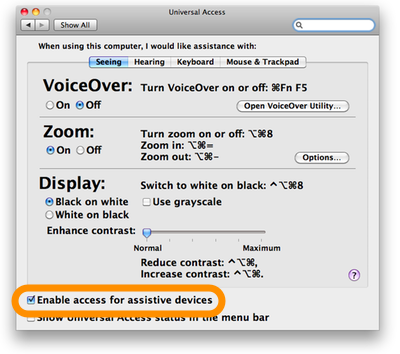
In order for the "System Events" application to use the key code or keystroke commands, you have to enable Mac OS X's accessibility frameworks. To do this, click on the "Universal Access" pane in "System Preferences". At the bottom of the pane is a checkbox setting called "Enable access for assistive devices". Click on the checkbox so the setting is enabled. Close out of System Preferences.
"System Events" will send a key code or a keystroke to the front application. So, you have to make sure that iTunes is frontmost. Without going into a long winded explanation, here's an example script that should be self-explanatory. It will select the currently playing iTunes track using the keystroke command:
tell application "iTunes"
	activate
	if player state is not stopped then
		tell application "System Events" to keystroke "l" using command down
	end if
end tell
I have emulated a key press for "Command-L", provided iTunes is not stopped, by providing the lowercase "l", the key you would press for the actual menu command. The using parameter tells the keystroke command to include a key press of the Command key. Here's the same action using the key code command:
tell application "iTunes"
	activate
	if player state is not stopped then
		tell application "System Events" to key code 37 using command down
	end if
end tell
In the example above the number 37 refers to the key "l"—lowercase. As with the keystroke command, theusing parameter tells the key code command to include a key press of the Command key.
You can include multiple helper keys by setting the using parameter to a list. The following scripts each open the iTunes Store in the iTunes browser (Command-Shift-H), first with a keystroke command and then with the key code command. Note the list following using:
tell application "System Events"
	tell application "iTunes" to activate
	keystroke "h" using {command down, shift down}
end tell
tell application "System Events"
	tell application "iTunes" to activate
	key code 4 using {command down, shift down}
end tell
The number 4 refers to the key "h". (For more info on how to construct a keystroke or key code command, check out the "System Events" dictionary.)
Here's a script using key codes and "normal" AppleScripting that searches for a string in the clipboard:
tell application "iTunes"
	activate
	set view of front window to playlist 1
end tell
tell application "System Events"
	-- bring focus to Search box - Command-Option-F
	key code 3 using {command down, option down}
	-- paste the clipboard - Command-V
	key code 9 using command down
end tell
Select all tracks in the selected playlist and make a new "untitled" playlist from them:
tell application "iTunes"
	activate
end tell
tell application "System Events"
	-- select all tracks - Command-A
	key code 0 using command down
	--new playlist from selection- Command-Shift-N
	key code 45 using {command down, shift down}
end tell
Get it?
Of course, the above can be easily scripted the "normal" way. I'm not a big fan of using this sort of GUI scripting but sometimes it will be the only way to automate some iTunes tasks.
Using the keystroke command is fairly straight forward: just use the key's character as a string. To get the key code number for a key press, I used the simple and free application Full Key Codes, written by Denis Bajram, which displays the decimal, ASCII, and hexidecimal numbers for a keypress on the keyboard.
-- select all tracks of front playlist - Command-A
tell application "System Events"
	tell application "iTunes" to activate
	key code 0 using command down
end tell

-- toggle browse mode - Command-B
tell application "System Events"
	tell application "iTunes" to activate
	key code 11 using command down
end tell

-- copy selection (or whatever) - Command-C
tell application "System Events"
	tell application "iTunes" to activate
	key code 8 using command down
end tell

-- toggle Right Sidebar - Shift-Command-G
tell application "System Events"
	tell application "iTunes" to activate
	key code 5 using {command down, shift down}
end tell

-- Get Info for selected track(s) - Command-I
tell application "System Events"
	tell application "iTunes" to activate
	key code 34 using command down
end tell

-- open View options window - Command-J
tell application "System Events"
	tell application "iTunes" to activate
	key code 38 using command down
end tell

-- select current track - Command-L
tell application "System Events"
	tell application "iTunes" to activate
	key code 37 using command down
end tell

-- Show File of selected - Shift-Command-R
tell application "System Events"
	tell application "iTunes" to activate
	key code 15 using {command down, shift down}
end tell

-- toggle Zoom of Main Browser - Control-Command-Z
tell application "System Events"
	tell application "iTunes" to activate
	key code 6 using {command down, control down}
end tell

-- Close a window with "Cancel" - Escape key
tell application "System Events"
	tell application "iTunes" to activate
	key code 53
end tell


(*
THE FOLLOWING ARE DELETE ACTIONS!
USE CAREFULLY!!!
*)
-- Delete the selected playlist from your Source list without confirming that you want to delete it - Command-Delete
tell application "System Events"
	tell application "iTunes" to activate
	key code 51 using command down
end tell

-- Delete the selected playlist and all the songs it contains from your library
-- OR
-- Delete the selected song from your library and all playlists
-- Option-Delete
tell application "System Events"
	tell application "iTunes" to activate
	key code 51 using option down
end tell

-- Select the search field - Command-Option-F
tell application "System Events"
	tell application "iTunes" to activate
	key code 3 using {command down, option down}
	-- and optionally, paste the clipboard - Command-V

	-- key code 9 using command down

end tell


-- playlist and folder

-- new playlist - Command-N
tell application "System Events"
	tell application "iTunes" to activate
	key code 45 using {command down, shift down}
end tell

-- new playlist from selection - Command-Shift-N
tell application "System Events"
	tell application "iTunes" to activate
	key code 45 using {command down, shift down}
end tell

-- new Smart Playlist - Command-Option-N
tell application "System Events"
	tell application "iTunes" to activate
	key code 45 using {command down, option down}
end tell

-- new Playlist Folder - Command-Option-Shift-N
tell application "System Events"
	tell application "iTunes" to activate
	key code 45 using {command down, option down, shift down}
end tell

-- toggle Show/Hide Main Browser window - Command-1
tell application "System Events"
	tell application "iTunes" to activate
	key code 18 using command down
end tell

-- toggle Show/Hide Equalizer window - Command-2
tell application "System Events"
	tell application "iTunes" to activate
	key code 19 using command down
end tell
此内容由惯性聚合(RSS阅读器)自动聚合整理,仅供阅读参考。 原文来自 — 版权归原作者所有。